How to Turn Automatically Move Pointer to the Default Button on or off in Windows 11

Automatically move pointer to the default button is a Windows 11 mouse setting that jumps your cursor straight to the main option in dialog boxes, such as Yes or OK. This shortcut saves you from dragging your mouse across the screen every time a confirmation prompt appears.
Turning on this feature speeds up your daily work by placing the pointer right where you need it. You can switch this setting on or off in a few quick steps through the classic Mouse Properties window. It works the same on Windows 11 Home and Pro. It applies to your user account only and takes effect straight away, so you do not need to restart.
Open Settings Bluetooth & devices Mouse Additional mouse settings In the Mouse Properties window, go to the Pointer Options tab, check the box next to Automatically move pointer to the default button under Snap To, click Apply, then OK. Your cursor now jumps to dialog defaults automatically.
How to Turn On Automatic Pointer Movement
The modern Settings app does not have its own switch for it. Settings only gives you a link to the older Mouse Properties window, and that is where the checkbox lives.
Step 1Open Mouse Settings
- Click the Start button on your taskbar .
- Open the Settings app. The Settings window opens with a list of categories on the left.
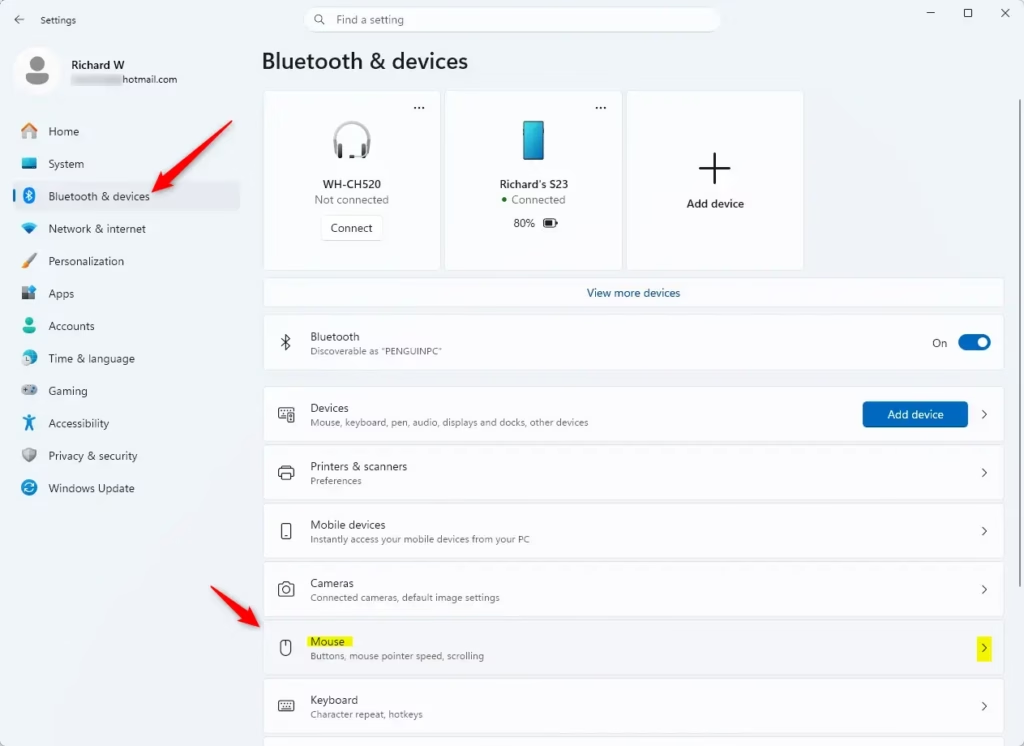
- Select Bluetooth & devices from the left sidebar.
- Click Mouse to open the mouse configuration options. You should now see settings such as primary mouse button, pointer speed and scrolling.
Step 2Access More Mouse Options
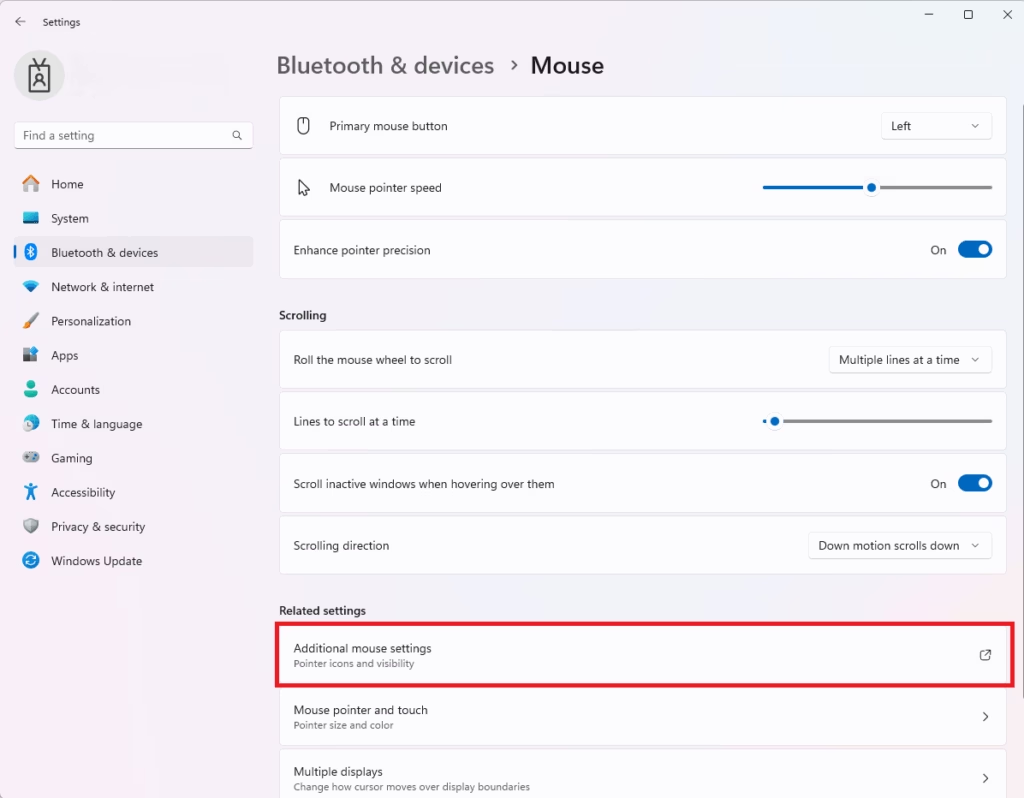
- In the main mouse settings panel, scroll down to Related settings.
- Click Additional mouse settings. A separate window titled Mouse Properties opens on top of Settings.
The Mouse Properties window preserves classic control layouts from older versions of Windows. Advanced hardware options live inside this interface, including cursor movement automation. If your mouse maker installed its own software, the window may have extra tabs. The Pointer Options tab is still there.
Step 3Find the “Snap To” Option
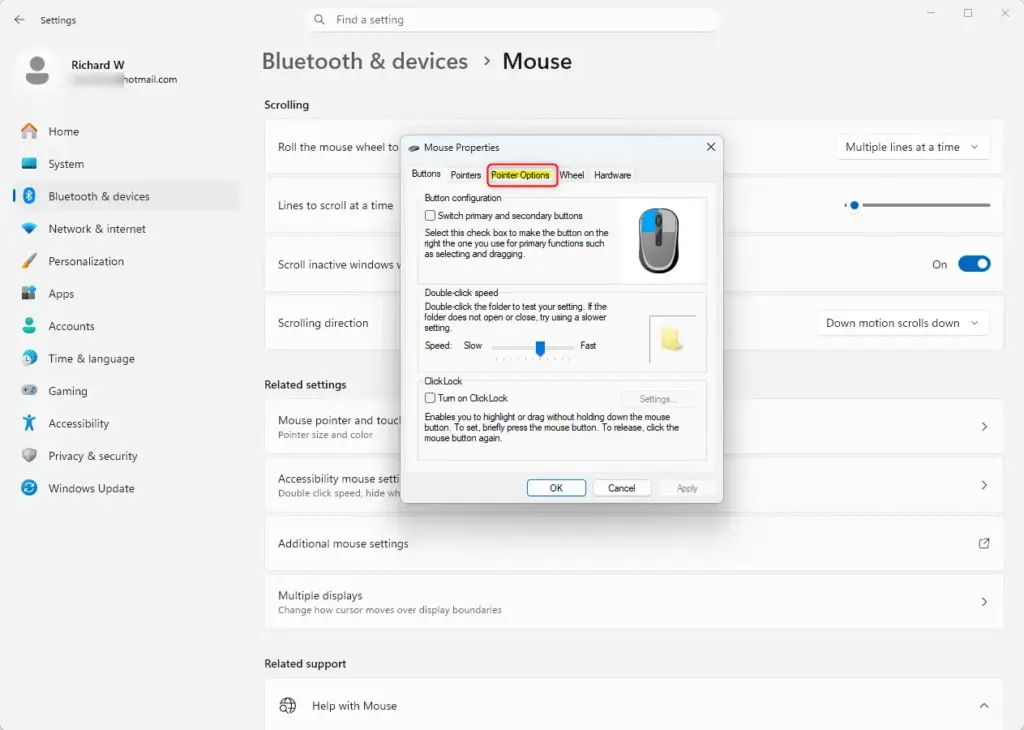
- Look at the row of tabs running across the top of the Mouse Properties window.
- Switch to the Pointer Options tab to modify cursor behavior. You should see sections for Motion, Snap To and Visibility.
Step 4Enable Automatic Pointer Movement
- Find the Snap To section near the middle of the panel.
- Select the checkbox labeled Automatically move pointer to the default button in a dialog box. A tick should appear in the box.
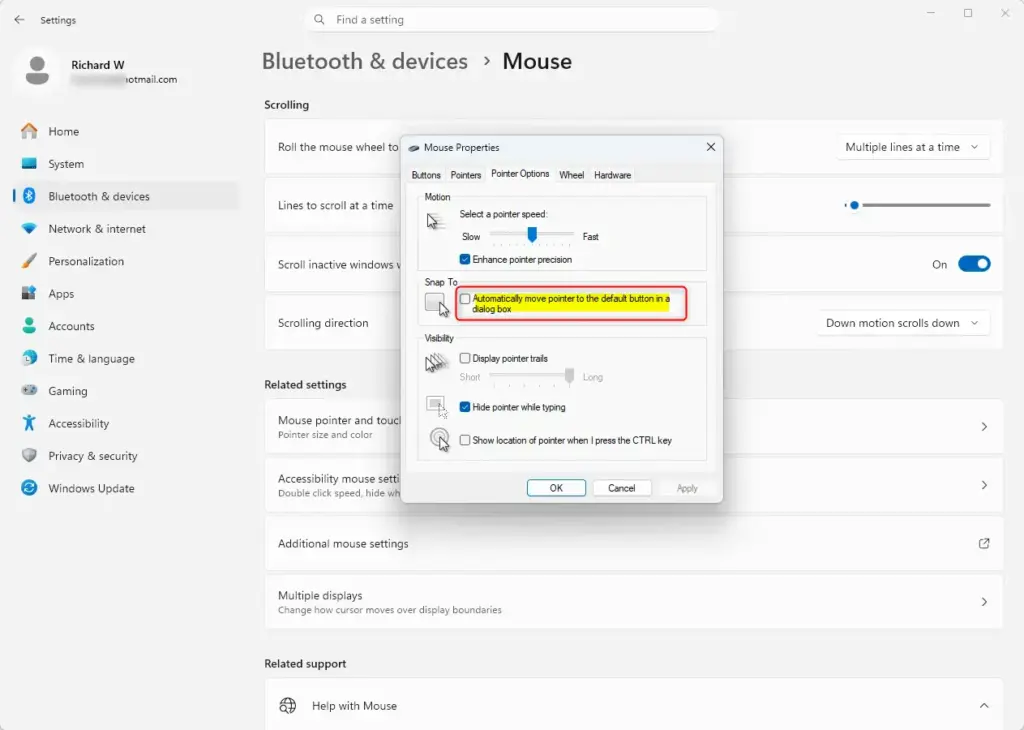
Once it is on, the pointer jumps to the default button whenever a dialog box opens, such as a save or delete confirmation. It only affects dialogs that have a default button. It does nothing in ordinary windows.
Step 5Apply Your Changes
- Click the Apply button at the bottom of the Mouse Properties window to save the change.
- Click OK to close the Mouse Properties window.
- Close the main Settings app .
To test it, open Notepad, type a few characters, and try to close it without saving. When the save prompt appears, your pointer should jump to the default button.
How to Turn Off Automatic Pointer Movement
Turning off automatic pointer movement stops your mouse from jumping to the default button in dialog boxes by itself. This is also how you undo the change if you turned it on and did not like it. The steps are the same as above, with the box cleared at the end.
- Go to Settings Bluetooth & devices Mouse Additional mouse settings
- Switch to the Pointer Options tab inside the Mouse Properties window.
- Clear the checkbox next to Automatically move pointer to the default button in a dialog box under the Snap To section.
- Click Apply, then click OK. The pointer now stays where it is when a dialog box opens.
Reference:
https://support.microsoft.com/de-DE/Windows/Hardware/input-devices/change-mouse-settings
Summary
Configuring cursor jumping in Windows 11 pop-up windows reduces physical mouse movement during navigation tasks. If you prefer to keep control of the pointer yourself, leave the box cleared. You can switch it back on at any time from the same tab.
Frequently asked questions
How do you move the pointer in wndows in real time?
Move your mouse or touchpad, and the pointer follows right away with no delay. If you cannot use a mouse, turn on Mouse keys in Settings Accessibility Mouse Then press the arrow keys on the numeric keypad to move the pointer. Press Left Alt + Left Shift + Num Lock to switch it on quickly.
Have to click button for mouse pointer to move?
No. The pointer moves as soon as you slide the mouse, and you do not need to click. Clicking only selects or opens something. If the pointer does not move at all, check that the mouse is connected or has battery power, then restart your computer. Mouse keys can also move the pointer with the keyboard.
How do you move the pointer in wndows?
Slide your mouse across the desk or move your finger on the touchpad. The pointer follows your movement on screen. Without a mouse, turn on Mouse keys in Settings Accessibility Mouse, then use the numeric keypad arrow keys to move the pointer around the screen.
Still have a question?
Answered by AI from this guide. Good questions may be added to this page — please don't include personal details.
Did this guide fix your problem?

About the Author
Richard
Tech Writer, IT Professional
Richard is a writer at Geek Rewind who turns complex IT tasks into clear, step-by-step guides. He draws on years of hands-on experience in system administration and enterprise IT operations, focusing on Windows, Linux and WordPress: the problems people actually run into, and the fixes that work. His server and WordPress guides come from systems he runs himself. Richard builds and maintains the platform behind Geek Rewind, from its Ubuntu servers and Nginx configuration to its custom WordPress plugins. Many new tutorials start with readers' questions, and he's always glad to answer them in the comments.
No comments yet — be the first to share your thoughts!