Should You Enable Enhanced Pointer Precision in Windows 11 Mouse Properties

- 2 ways to do it
- Needs administrator rights
- Includes a restart or sign-out
Enhanced pointer precision in Windows 11 is the mouse acceleration setting. To find it, open Settings Bluetooth & devices Mouse Additional mouse settings, then go to the Pointer Options tab and look for the Enhance pointer precision checkbox. With it on, cursor speed depends on how fast you move the mouse, not only on how far.
Windows 11 turns this setting on by default. A quick flick sends the cursor a long way, and a slow move sends it a short way, which suits fine work. Most office users never notice it, and it can help you reach the far corners of a 1080p or 4K monitor with a small sweep of the mouse.
PC gamers usually turn it off. When cursor speed changes with hand speed, muscle memory is harder to build, and accurate aiming in shooter games depends on that muscle memory. This post explains what the setting does, who should keep it, and how to turn it off.
No, for most people who care about accuracy, you should turn off Enhance pointer precision. Open Settings Bluetooth & devices Mouse Additional mouse settings, select the Pointer Options tab, and clear the Enhance pointer precision checkbox. Keep it on only if you have a cramped desk or a small laptop trackpad, where acceleration saves room.
What Is Enhance Pointer Precision?
Enhance pointer precision is a built-in Windows 11 mouse acceleration feature. It changes your cursor speed based on how fast you move your hand. This helps you cover a large screen with a small mouse pad, but it makes cursor movement less predictable.
Without acceleration, Windows uses a fixed rule: the same hand movement always moves the cursor the same distance. Enhance pointer precision changes that rule. Windows now looks at how fast you move your hand, as well as how far.
- Slow movementsIf you move your mouse slowly, Windows decreases your cursor speed. This gives you high precision when you need to click tiny buttons, select a single word in a document, or edit a photo.
- Fast movementsIf you move your mouse quickly, Windows increases your cursor speed. This lets you move the cursor from one corner of a large monitor to the other without running out of desk space or lifting the mouse.
The idea sounds helpful, but it changes how your hand relates to the screen. The same two-inch movement can produce different cursor distances depending on how fast you make it. That makes consistent muscle memory very hard to build while the setting is on.
Should You Enable Enhance Pointer Precision?
For most people who care about accuracy, leave it off. The exception is a cramped desk or a small laptop trackpad, where acceleration saves you from running out of room. With it disabled, your cursor speed stays consistent. That helps with everyday tasks, web browsing, graphic design, and PC gaming.
Here is why most people prefer it disabled:
- Muscle MemoryWhen you turn off this feature, your mouse movements stay predictable. If you move your hand two inches, the cursor always travels the exact same distance. Your brain learns this pattern quickly, so you can move the mouse without looking directly at the cursor.
- GamingIn first-person shooters and strategy games, mouse acceleration works against you. When you flick your wrist to aim at an enemy, the acceleration kicks in and throws off your aim. Gamers almost always turn this setting off. Some games have their own raw input option that bypasses it, but you can’t count on that in every title.
- Design and EditingGraphic designers, video editors, and digital artists rely on precise hand-eye coordination. Acceleration makes it hard to draw smooth lines or place anchor points accurately, because the cursor speeds up unexpectedly.
There are a few situations where some users like it:
- Laptop TrackpadsOn a small trackpad, acceleration lets you drag your finger a short distance to cross a large screen. The trackpad has its own settings under Settings Bluetooth & devices Touchpad, separate from the mouse settings below.
- Office WorkWith a very basic office mouse on a tiny mouse pad, acceleration helps you move around large web pages without constantly lifting the mouse.
The choice is quick to test. Switch it off, use the PC for a day or two, and switch it back on if you miss it. Your muscle memory needs a little time to adjust, so don’t judge it after five minutes.
How to Turn Off Enhance Pointer Precision in 🪟 Windows 11
If you want your mouse to feel more predictable and accurate, you can turn this feature off in the built-in Windows settings. There are two ways to reach the same checkbox: the Settings app and the classic Control Panel. Both lead to the same Mouse Properties window.
The change applies to your user account only. It works the same on Windows 11 Home and Pro, and no restart is needed.
Method 1Using the 🪟 Windows 11 Settings App
The Settings app is the quickest route. Press Win+I, go to Bluetooth & devices, click Mouse, and open Additional mouse settings. This opens the classic Mouse Properties window, where the checkbox lives.
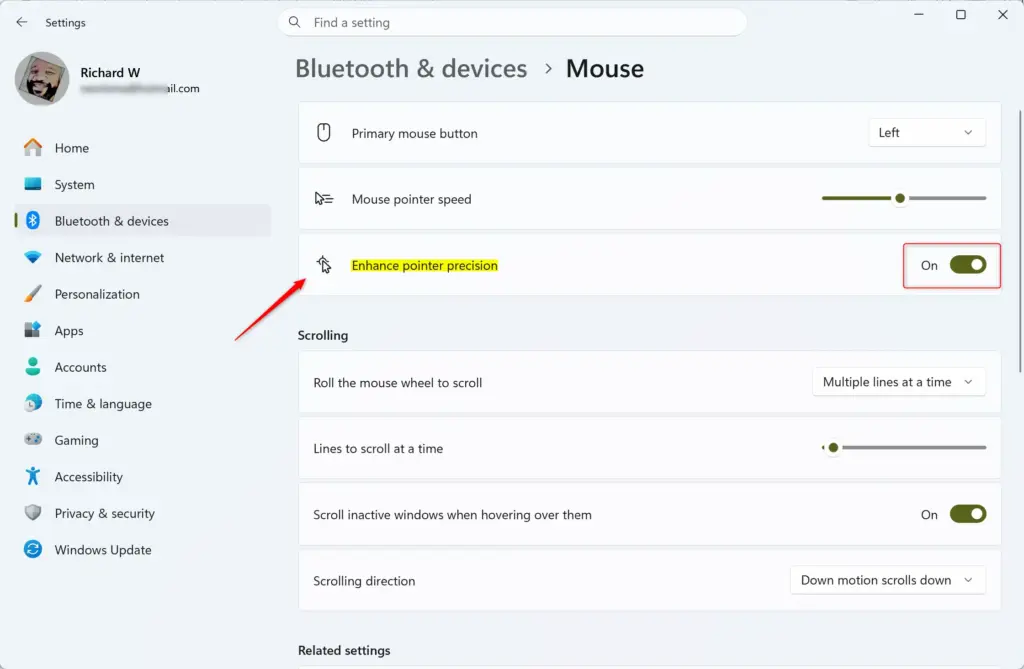
Some recent Windows 11 builds also show an Enhance pointer precision toggle directly on the Mouse page. If yours has one, it does the same thing as the checkbox below.

- Click the Start button on your taskbar and select Settings (the gear icon). Alternatively, press Win+I on your keyboard. The Settings window opens.

- In the Settings window, click Bluetooth & devices in the left-hand menu.
- Scroll down on the right side and click Mouse. You should now see the mouse options, such as the primary button and pointer speed.
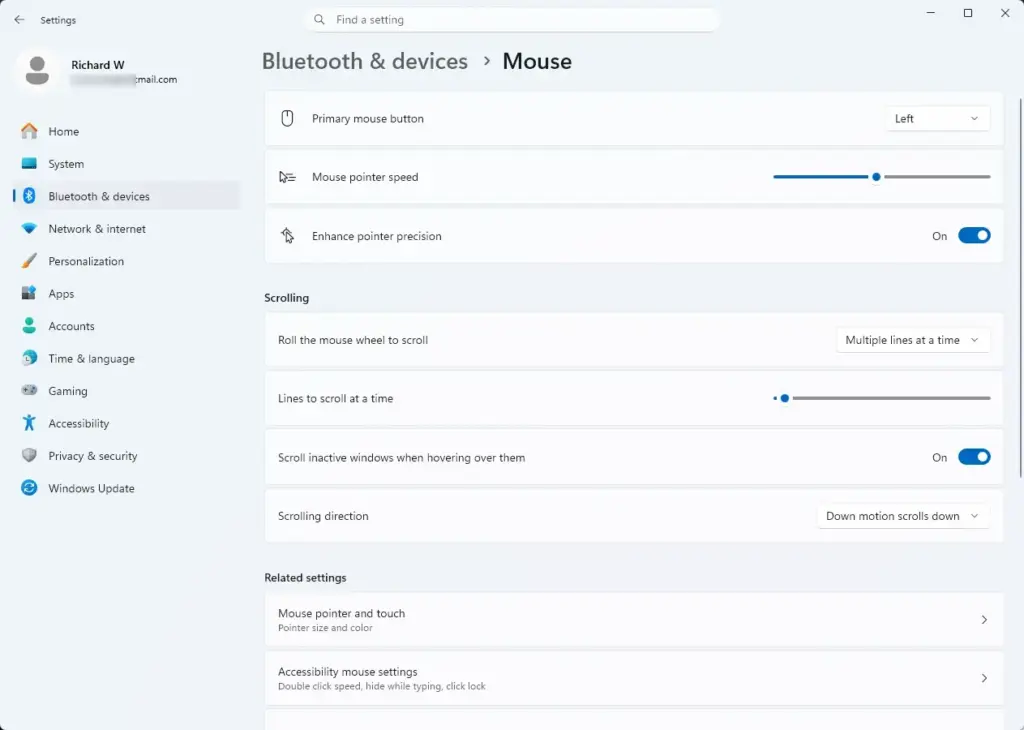
- Click Additional mouse settings. A classic window titled Mouse Properties opens. On some builds the link sits under a Related settings heading near the bottom of the page.
- At the top of the Mouse Properties window, click the Pointer Options tab.
- Look for the section labeled Motion. It holds the pointer speed slider and the Enhance pointer precision checkbox.
- Uncheck the box next to Enhance pointer precision.
- Click the Apply button at the bottom of the window, then click OK to save your changes. The change takes effect straight away. Move the mouse and you should notice the cursor speed is now steady.
That’s it. Enhanced pointer precision is now off for your account, and the cursor moves the same distance for the same hand movement. You do not need to restart.
To undo the change, repeat the steps and tick the box again. If the cursor feels too fast or too slow after you turn acceleration off, adjust the pointer speed slider in the same Motion section. The middle setting is a good place to start.
Method 2Using the Classic Control Panel
The Control Panel leads to the same Mouse Properties window. This route helps if the Settings app is slow to open, the Additional mouse settings link is missing, or you prefer the traditional menus. It works on both Windows 11 Home and Pro.
If you already know the shortcut, press Win+R, type main.cpl, and press Enter. That opens Mouse Properties at once, and you can continue from step 4.
- Click the Start button, type Control Panel into the search bar, and press Enter. The Control Panel window opens.
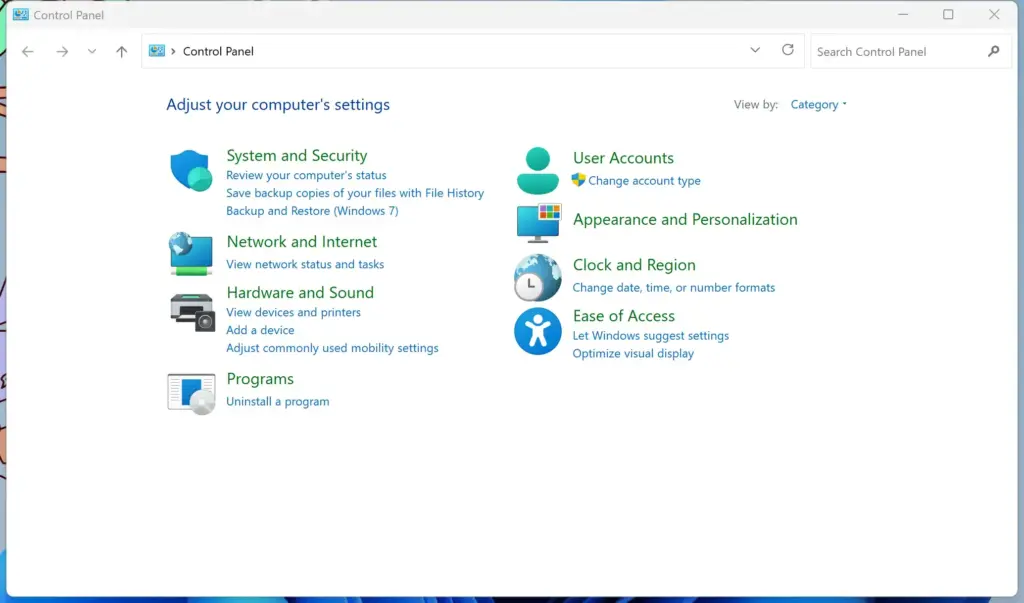
- In the top right corner of the Control Panel window, set the View by option to Large icons or Small icons. The category view hides the Mouse icon, so this step matters.
- Click Mouse. The Mouse Properties window opens.
- Click the Pointer Options tab at the top.
- Under the Motion section, uncheck the box next to Enhance pointer precision.
- Click Apply, then click OK. The change applies immediately.
That’s it. You have turned off enhanced pointer precision through the Control Panel, and your cursor speed is now consistent. To go back, open the same window and tick the box again.
Advanced Troubleshooting: When Windows Keeps Turning It Back On
If Windows keeps turning enhance pointer precision back on, something is overriding your saved mouse preference. The usual causes are user profile syncing, background software, and system updates. Work through these checks in order:
- Check your cloud sync settings. If your account syncs settings between devices, another PC may be pushing its own mouse preference to this one.
- Update your mouse driver software. Install the latest driver or utility from the mouse maker’s website.
- Check third-party gaming or mouse software. Open its settings and make sure it is not resetting your custom cursor settings every time your computer restarts.
- Turn the setting off again in Mouse Properties and restart the PC. If it stays off after the restart, one of the items above was the cause.
You should now know whether sync, a driver, or other software was undoing your choice. If the setting still reverts, the next step is to check the underlying values in the registry. Windows stores your mouse acceleration choice there, and you can set the values by hand to enforce your choice.
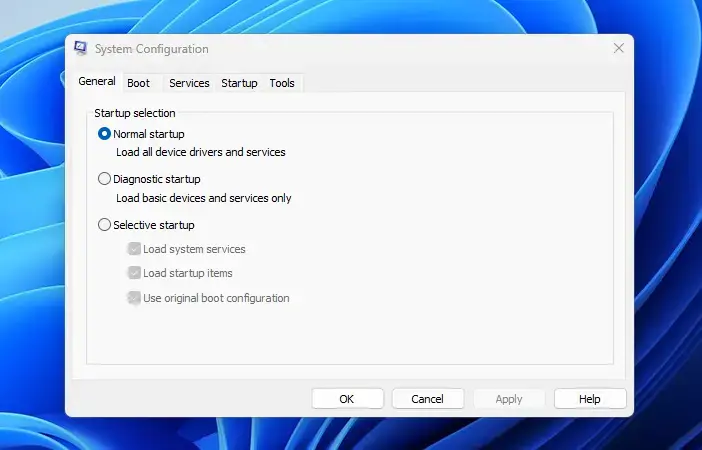
This method needs a user account that is allowed to change settings. The values below sit under 🗝️HKEY_CURRENT_USER, so the edit affects only the account you are signed in with. A managed or restricted account may block the change, and Registry Editor will then show an error when you try to save a value.
To check and change these values using the Windows Registry Editor:
- Press Win+R on your keyboard to open the Run dialog box.

- Type regedit into the box and press Enter. Click Yes if a security prompt asks for permission to make changes to your device. Registry Editor opens.
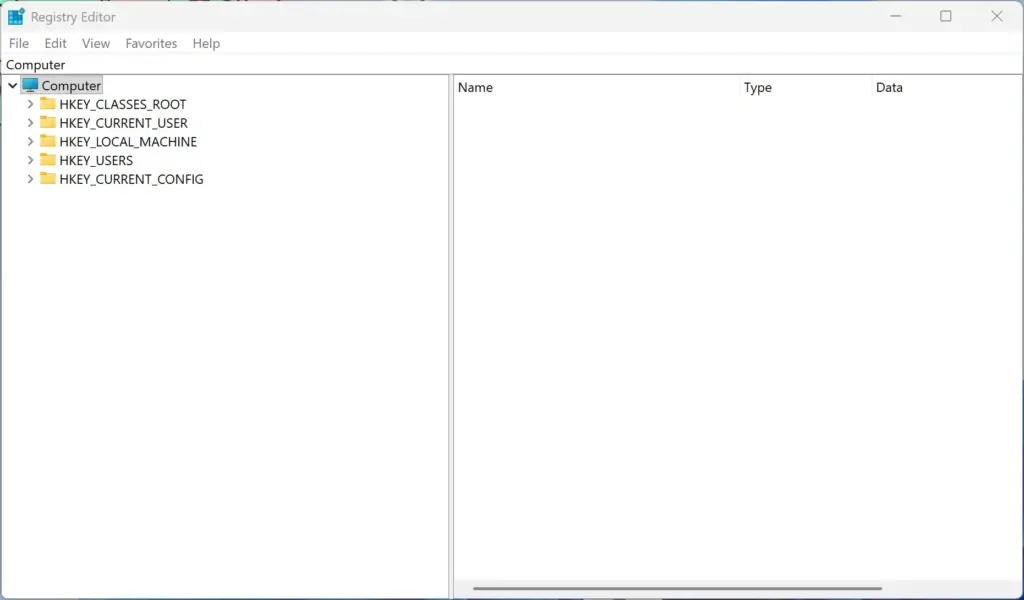
- In the left-hand panel, navigate to the following path: 🗝️HKEY_CURRENT_USER\
Control Panel\ Mouse - Look at the list of values on the right side of the screen and find the value named MouseSpeed.
- Double-click MouseSpeed, change its value data to 0 (zero), then click OK. This completely disables mouse acceleration.
- Next, find the values named MouseThreshold1 and MouseThreshold2. Double-click each one and change its value data to 0 as well.
- Close Registry Editor and restart your computer to apply the changes. After the restart, open Mouse Properties and confirm that Enhance pointer precision is unchecked.
That’s it. The three mouse values now match an acceleration-free setup, and the choice should survive restarts. To undo this, import the backup you exported, or tick Enhance pointer precision again in Mouse Properties.
On a professional or enterprise edition of Windows 11 connected to a workplace network, your system administrator might use Group Policy settings to control your mouse behavior. If your workplace enforces specific desktop settings, local changes to your mouse properties might revert when you sign back in to your network account. In that case, ask your IT department. Changing the registry yourself will not hold.
Summary
Enhance pointer precision is a Windows 11 mouse acceleration setting that speeds up your cursor when you move your hand quickly across your desk. It is on by default. Most people who want accuracy should turn it off, because it works against muscle memory, makes cursor movement unpredictable, and hurts accuracy during gaming or precise computer work. Keep it on only if you have very limited desk space or you are working on a small trackpad.
Have a question about this guide?
Answered by AI from this guide. Good questions may be added to this page — please don't include personal details.
Did this guide fix your problem?

About the Author
Richard
Tech Writer, IT Professional
Richard is a writer at Geek Rewind who turns complex IT tasks into clear, step-by-step guides. He draws on years of hands-on experience in system administration and enterprise IT operations, focusing on Windows, Linux and WordPress: the problems people actually run into, and the fixes that work. His server and WordPress guides come from systems he runs himself. Richard builds and maintains the platform behind Geek Rewind, from its Ubuntu servers and Nginx configuration to its custom WordPress plugins. Many new tutorials start with readers' questions, and he's always glad to answer them in the comments.
No comments yet — be the first to share your thoughts!