How to Change Touchpad Cursor Speed In Windows 11


Touchpad cursor speed controls how fast your pointer moves across the screen when you slide your finger across your laptop trackpad. Windows 11 includes a dedicated speed slider inside the main Settings app that lets you speed up or slow down pointer movement in just a few clicks.
Faster speeds help you move quickly across large 4K displays, while slower speeds give you extra control for detailed tasks like photo editing or drawing. Open the Bluetooth & devices page in Settings to adjust the slider until the pointer feels right for your workflow.
The change applies as soon as you move the slider. You don’t need to restart, sign out, or click a Save button. The steps below are for the current Windows 11 Settings app . Home and Pro editions use the same page, so there is no edition difference here.
- Press the Win+I to open Settings . You should see the Settings window with a list of categories on the left.
- Click Bluetooth & devices in the left pane. The page lists your connected devices, such as your phone, printers, and mouse.
- Scroll down the page and click Touchpad. The touchpad page opens with the touchpad toggle at the top.
- Check that the Touchpad toggle is set to On. If it is off, the other touchpad options are greyed out and you can’t change them.
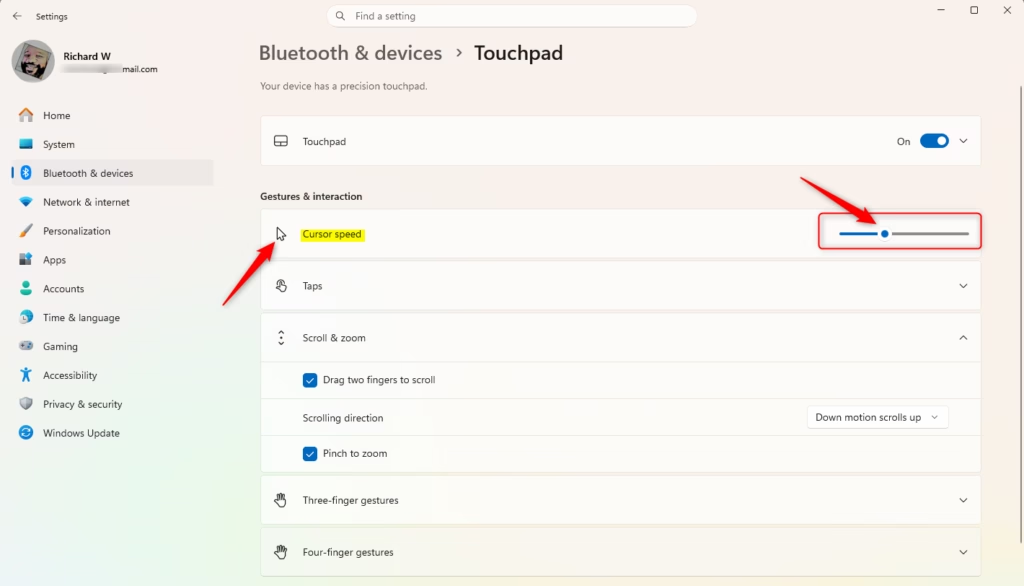
- Find the Cursor speed slider. It runs from 1 (slowest) to 10 (fastest).
- Drag the Cursor speed slider to the right to make the pointer faster, or to the left to make it slower. You can also click the slider and use the left and right arrow keys to move it one step at a time.
- Move your finger across the touchpad to test the new speed. The pointer should respond straight away.
Make small changes first. Move the slider one or two notches, test it, and adjust again. A setting that feels fine on a 14-inch laptop screen may feel slow once you connect an external monitor.
To undo your change, return to the same page and move the slider back to where it was. If you didn’t note the old value, the default setting is 5, in the middle of the range.
If you don’t see a Touchpad page at all, Windows isn’t detecting a touchpad. This is normal on a desktop PC. On a laptop, it usually means the touchpad driver is missing or outdated. Check Windows Update , or the laptop maker’s support site, for a touchpad driver. Also note that this slider only changes the touchpad. A USB or Bluetooth mouse has its own pointer speed setting, found under Bluetooth & devices > Mouse.
Change Touchpad Cursor Speed in Settings
You can quickly change touchpad cursor speed in Windows 11 by using the main Settings app. Press Win+I to open Settings, select Bluetooth & devices, and click Touchpad. From there, use the Cursor speed slider to make your pointer move faster or slower until it feels right for you.- Open Settings (press Win+I).
- Click on Bluetooth & devices on the left side. Then click on Touchpad on the right side.
- Find the Cursor speed slider. Move it left to make the cursor slower or right to make it faster. Choose the speed you want.
- When you hover your pointer over the slider, you will see the current speed (it goes from 1 to 10). The default speed is 5.
- You can close Settings when you are done.
Option Two
Change Touchpad Cursor Speed in Registry Editor
- Admin required: Open Registry Editor by typing
regedit.exein your search bar. - In the left pane, navigate to this location:
You can change touchpad cursor speed in Windows 11 by editing the system registry if the standard menu does not work for you. Open Registry Editor by typing regedit.exe in your taskbar search bar and go to the correct folder path to adjust the value data for pointer sensitivity.
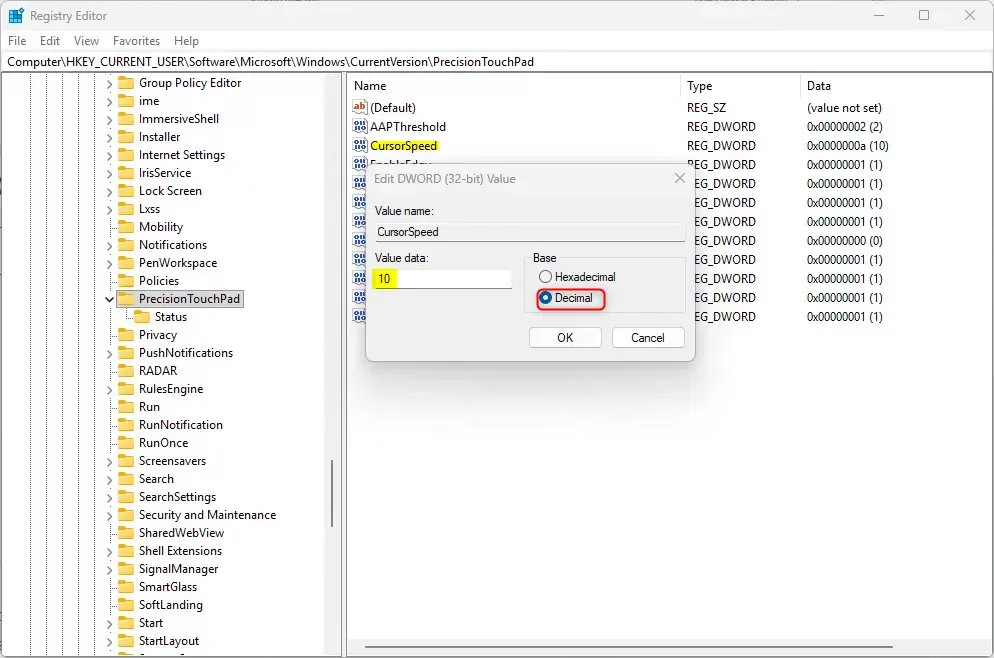
- In the right pane, find CursorSpeed and double-click it to open it.
- Click on Decimal. Type a number between 2 (slower) and 20 (faster) for your cursor speed. Click OK.
- The default cursor speed is 10. (Note: The Settings option in Option One divides this number by 2.)
- Close Registry Editor.
Summary
Advanced users can modify the Windows registry directly to adjust the pointer speed beyond the standard limits.
Was this guide helpful?

About the Author
Richard
Tech Writer, IT Professional
Richard is a writer at Geek Rewind who turns complex IT tasks into clear, step-by-step guides. He draws on years of hands-on experience in system administration and enterprise IT operations, focusing on Windows, Linux and WordPress: the problems people actually run into, and the fixes that work. His server and WordPress guides come from systems he runs himself. Richard builds and maintains the platform behind Geek Rewind, from its Ubuntu servers and Nginx configuration to its custom WordPress plugins. Many new tutorials start with readers' questions, and he's always glad to answer them in the comments.


No comments yet — be the first to share your thoughts!