How to Enable or Disable Pen Press and Hold for Right-Clicking in Windows 11

- 15 steps
- Needs administrator rights
- Includes a restart or sign-out
Pen press and hold for right-clicking in Windows 11 lets you press and hold your pen tip against the screen to open a right-click menu. It does the same job as a right-click with a mouse. Microsoft added a setting to turn this shortcut on or off in Windows 11 build 26120.3671 (Beta 24H2), build 26200.5518 (Dev), and build 27842.1000 (Canary).
Turn it off if your pen rests on the display and triggers context menus by accident. Turn it on if you want a quick way to open context menus without a mouse or a pen barrel button.
The setting is not in older or stable builds yet. If you don’t see it, check your build number in Settings System About and compare it with the builds above.
Option One
Enable or Disable Pen Press and Hold for Right-clicking in Settings
You change this option in the Settings app. The setting is per user, so it applies to your account on this PC. Home and Pro editions behave the same way here.
- Press Win+I on your keyboard to open Settings.
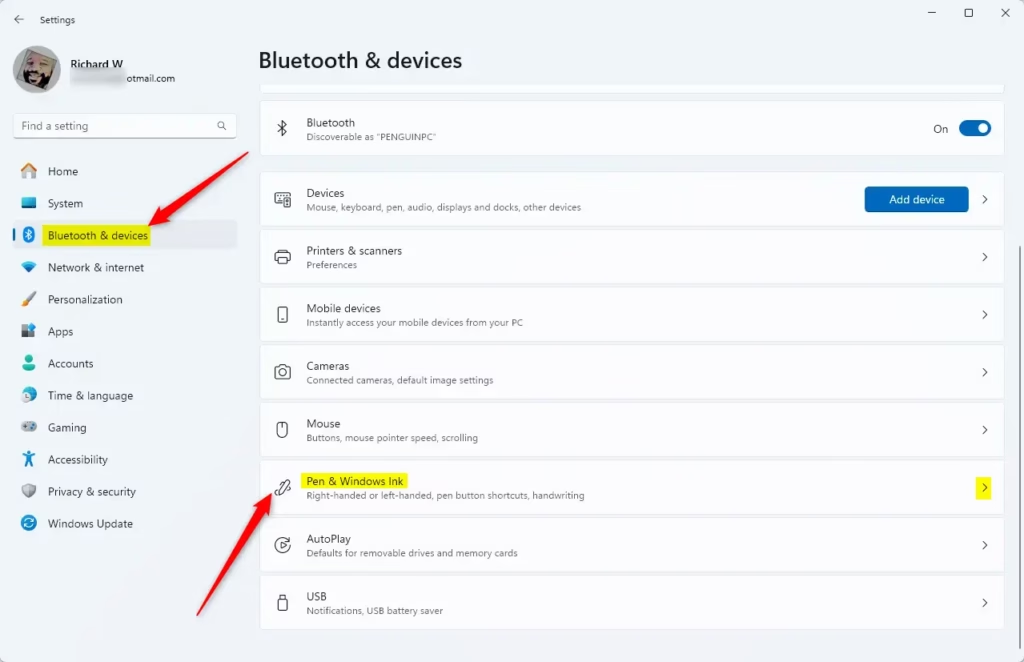
- On the left side, click Bluetooth & devices. You should see a list of device categories on the right.
- Click Pen & Windows Ink. The pen settings page opens.
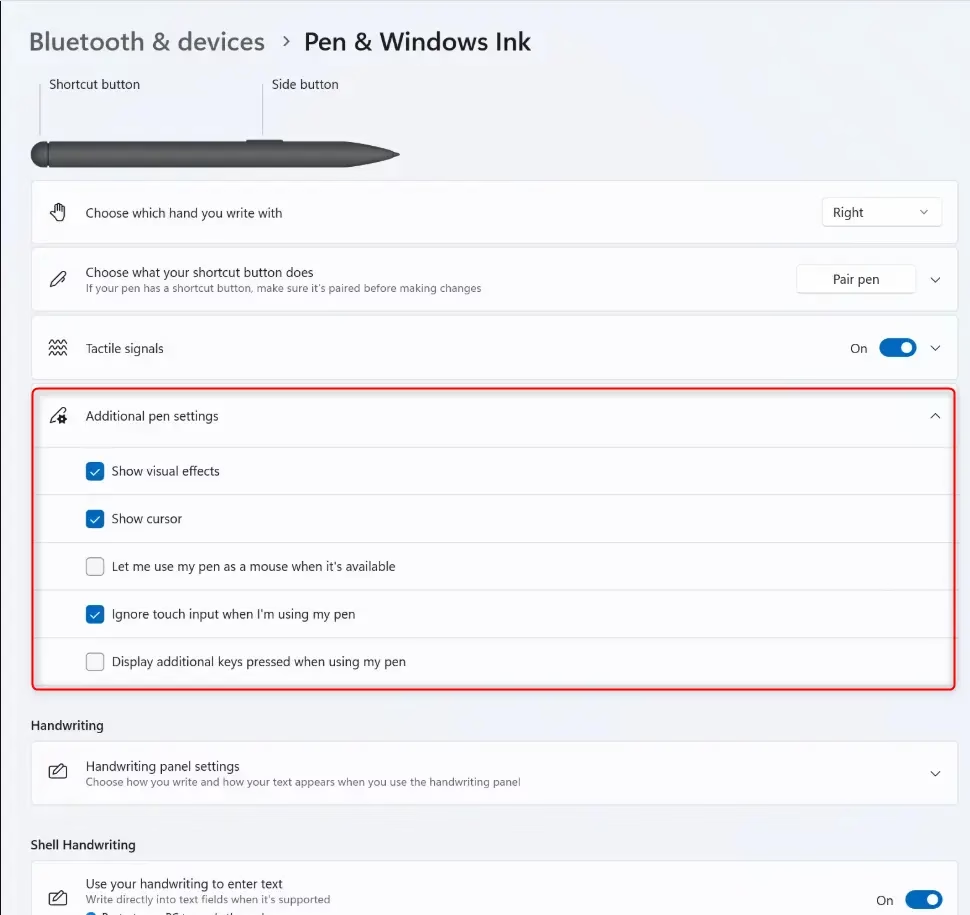
- Click Additional pen settings to expand it. The extra pen options appear below it.
- Find Enable press and hold to perform a right-click equivalent. Check the box to enable the feature, or uncheck it to disable it.
If you can’t find this option, your build is probably older than the ones listed at the top. The change takes effect right away, and you don’t need to restart. To undo it, come back to the same page and set the box the other way.
- Close Settings.
To test the result, press and hold your pen tip on the desktop or on a file. With the box checked, a context menu should appear. With it unchecked, nothing should open.
Option Two
Enable or Disable Pen Press and Hold for Right-clicking in Control Panel
Turning on pen press and hold windows 11 options is also possible using the classic Control Panel. Open Control Panel, click the Pen and Touch icon, open the Pen Options tab, and check or uncheck the box for right-clicking.- Open Control Panel in icons view. Click the Pen and Touch icon.
- Do the following:
- Click the Pen Options tab.
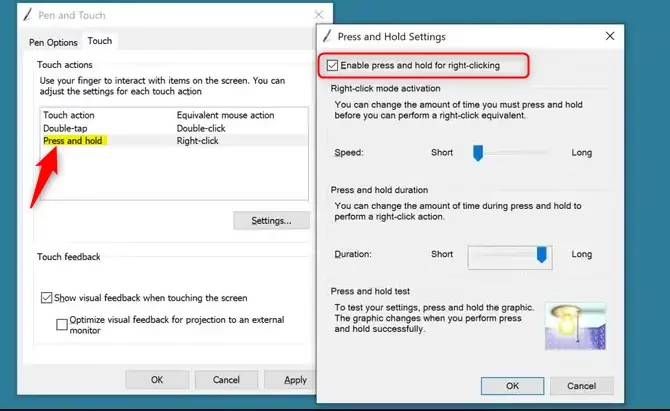
- Select Press and hold.
- Click Settings.
- Check (to enable) or uncheck Enable press and hold for right-clicking. Choose what you want. Click OK.
- [Admin Required] Click OK.
- You can now close Control Panel.
Option Three
Enable or Disable Pen Press and Hold for Right-clicking Using Registry
- [Admin Required] Open Windows Terminal as an administrator and run one of the commands below.
This is the default setting.
reg add "HKCU\Software\Microsoft\Wisp\Pen\SysEventParameters" /v HoldMode /t REG_DWORD /d 1 /fDisable Pen Press and Hold for Right-clicking
reg add "HKCU\Software\Microsoft\Wisp\Pen\SysEventParameters" /v HoldMode /t REG_DWORD /d 3 /fSummary
Controlling pen press and hold windows 11 settings helps you use your stylus just like a mouse right-click. You can choose the method that works best for you, whether that is using the main Settings app, the Control Panel, or the Registry Editor.
Frequently asked questions
How do I disable right click in 🪟 Windows 11?
Open Settings with Win+I, go to Bluetooth & devices, then Pen & Windows Ink. Expand Additional pen settings and uncheck Enable press and hold to perform a right-click equivalent. This stops pen right-clicks on your screen.
Why won't my Microsoft pen work?
First check that your pen has power and is charged. Go to Settings Bluetooth & devices Pen & Windows Ink and look for connection issues. Restart your device. If it still won't work, reinstall pen drivers from your device manufacturer's website.
How do I right click on a Surface pen?
Press and hold your Surface pen tip against the screen for a right-click. If this doesn't work, open Settings Bluetooth & devices Pen & Windows Ink, expand Additional pen settings, and check that Enable press and hold to perform a right-click equivalent is turned on.
How do I disable Windows Ink in 🪟 Windows 11?
Open Settings with Win+I, go to Bluetooth & devices, then Pen & Windows Ink. Toggle off any features you want to disable, such as Enable press and hold for right-clicking or handwriting recognition. You can disable individual features without removing Windows Ink entirely.
Still have a question?
Answered by AI from this guide. Good questions may be added to this page — please don't include personal details.
Did this guide fix your problem?

About the Author
Richard
Tech Writer, IT Professional
Richard is a writer at Geek Rewind who turns complex IT tasks into clear, step-by-step guides. He draws on years of hands-on experience in system administration and enterprise IT operations, focusing on Windows, Linux and WordPress: the problems people actually run into, and the fixes that work. His server and WordPress guides come from systems he runs himself. Richard builds and maintains the platform behind Geek Rewind, from its Ubuntu servers and Nginx configuration to its custom WordPress plugins. Many new tutorials start with readers' questions, and he's always glad to answer them in the comments.
No comments yet — be the first to share your thoughts!