How to Enable or Disable Display Additional Keys Pressed When Using Pen in Windows 11

Windows 11 can show onscreen feedback when you press keyboard shortcuts while using a stylus. The pen settings usually appear only when Windows detects a pen. If yours connects over Bluetooth , pair it first in Settings Bluetooth & devices. If you don’t see the pen options afterwards, check that the pen is paired and powered on.
Open Settings , go to Bluetooth & devices Pen & Windows Ink Additional pen settings, then check Display additional keys pressed when using my pen. The modifier keys Shift, Ctrl, Alt and Win now appear under your cursor when held down.
Why would you want this?
With this option on, the modifier keys appear underneath the cursor while you hold them down. These are Shift, Ctrl, Alt and Win. You get instant visual confirmation that Windows has registered the key. That is useful with a pen, because the keyboard is often out of sight or on a second device.
To check that it works, do the following:
- Hold down one of the modifier keys, for example Shift.
- Look under the cursor. The key you are holding should be shown there.
- Release the key. The indicator should disappear.
What happens when you enable this?
This setting shows your active shortcuts as you press them. It makes complex keystrokes easier to keep track of during detailed drawing or writing sessions. It also helps if you tend to leave a modifier held down by accident, because you can see it right away.
To undo it, return to the same setting and switch it back to its previous state. You can switch it on and off as often as you like.
Option 1Use Settings
You can turn pen display keys Windows 11 settings on or off through the main Windows Settings app. Open the Settings menu, go to the Bluetooth and devices section, and open the pen display keys Windows 11 options under your pen settings to change this feature.- Open Settings by pressing Win+I on your keyboard.
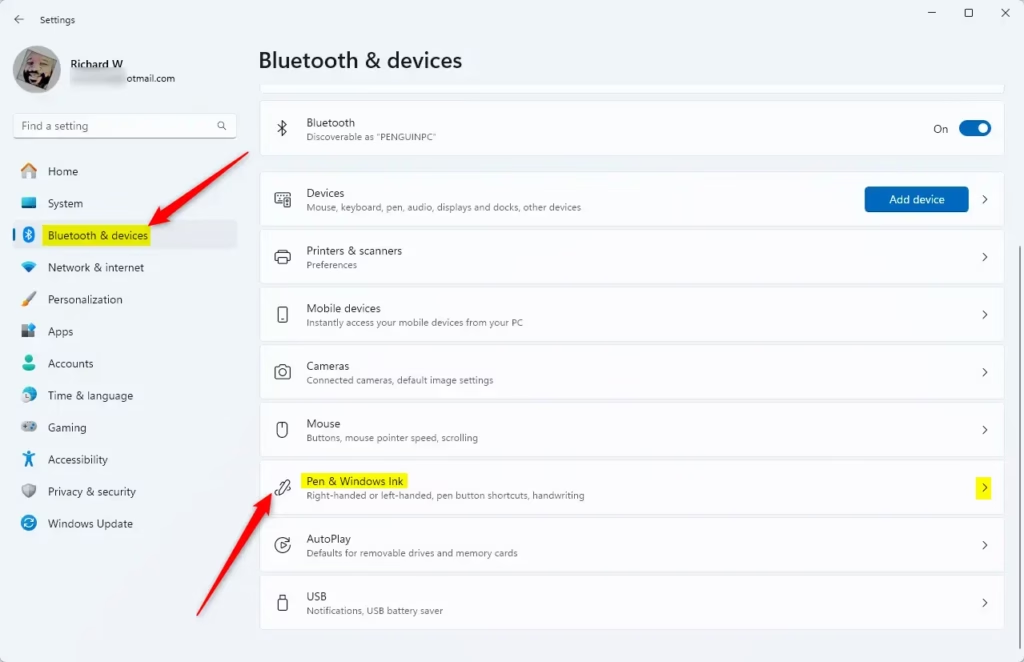
- Click or tap Bluetooth & devices on the left side. Then click or tap Pen & Windows Ink on the right side. Open Pen & Windows Ink settings
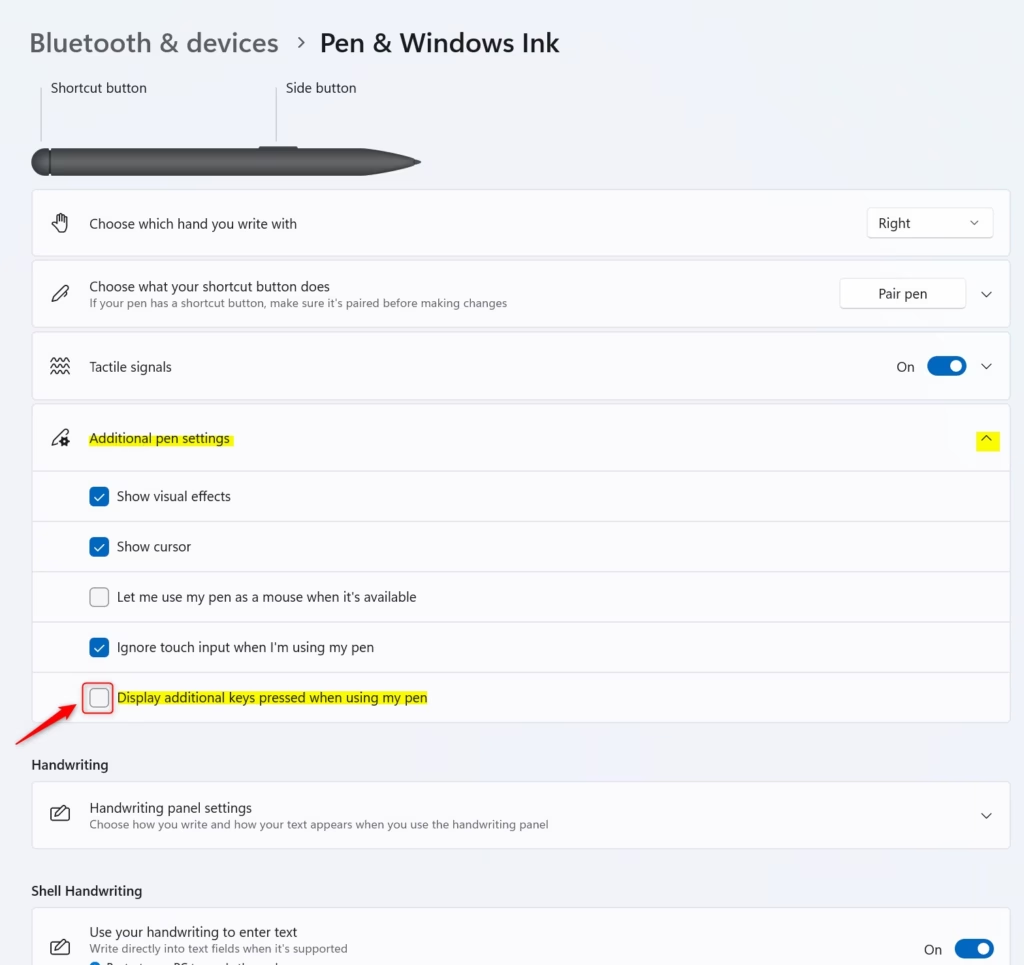
- Click or tap Additional pen settings to expand it.
- Check the box to enable or uncheck the box to disable Display additional keys pressed when using my pen. By default, this is unchecked (disabled).
- You can now close Settings.
Option 2Use Registry
Enable Display Additional Keys Pressed when using Pen
reg add "HKEY_CURRENT_USER\Software\Microsoft\Windows NT\CurrentVersion\Windows\Pen" /v PenKeySuppress /t REG_DWORD /d 1 /f
Disable Display Additional Keys Pressed when using Pen
This restores the factory default configuration.
reg add "HKEY_CURRENT_USER\Software\Microsoft\Windows NT\CurrentVersion\Windows\Pen" /v PenKeySuppress /t REG_DWORD /d 0 /f
Summary
Controlling pen feedback takes seconds through the Settings app or the Windows Registry. Modifier keys remain hidden by default. Toggling this behavior on ensures every keystroke registers visibly beneath the cursor.
Frequently asked questions
How do I enable or disable sticky keys in 🪟 Windows 11?
Open Settings, select Accessibility, then Keyboard. Turn the Sticky Keys switch on or off. You can also press the Shift key five times to toggle it, though that shortcut shows a prompt first. Turning Sticky Keys off restores normal modifier key behavior, so Shift, Ctrl, Alt and Win work as usual.
How do I disable the touch keyboard and handwriting panel on my Windows computer?
Open Settings, then go to Bluetooth & devices and select Touch. Turn off Touch keyboard to stop it from opening when you tap a text box. The handwriting panel belongs to the same feature, so it stops appearing too. To hide the taskbar icon, right-click the taskbar and choose Taskbar settings.
How do I turn off auto sticky keys?
Auto sticky keys is the feature that turns on Sticky Keys when you press Shift five times. To turn it off, open Settings, go to Accessibility, then Keyboard. Clear the box labeled Use Sticky Keys when I press the Shift key five times. Sticky Keys stays available, so you can still switch it on manually.
How to disable sticky keys popup 🪟 windows 11?
Open Settings, select Accessibility, then Keyboard. Under Sticky Keys, clear the checkbox labeled Use Sticky Keys when I press the Shift key five times. The popup stops appearing when you press Shift five times. Sticky Keys stays available, so you can still turn it on yourself from the same page.
Still have a question?
Answered by AI from this guide. Good questions may be added to this page — please don't include personal details.
Did this guide fix your problem?

About the Author
Richard
Tech Writer, IT Professional
Richard is a writer at Geek Rewind who turns complex IT tasks into clear, step-by-step guides. He draws on years of hands-on experience in system administration and enterprise IT operations, focusing on Windows, Linux and WordPress: the problems people actually run into, and the fixes that work. His server and WordPress guides come from systems he runs himself. Richard builds and maintains the platform behind Geek Rewind, from its Ubuntu servers and Nginx configuration to its custom WordPress plugins. Many new tutorials start with readers' questions, and he's always glad to answer them in the comments.
No comments yet — be the first to share your thoughts!