How to Enable Adaptive Touch Mode on Surface in Windows 11

Adaptive Touch is a built-in feature on Microsoft Surface devices running Windows 11. It lets you adjust the click firmness and vibration feedback of your haptic touchpad. It applies to Surface laptops and tablets with a Precision Haptic Touchpad, and it changes how physical clicks feel under your fingers.
You turn it on in the pre-installed Surface app. Once it is on, dragging items and moving around the screen should feel smoother, especially if standard clicks and touches give you trouble.
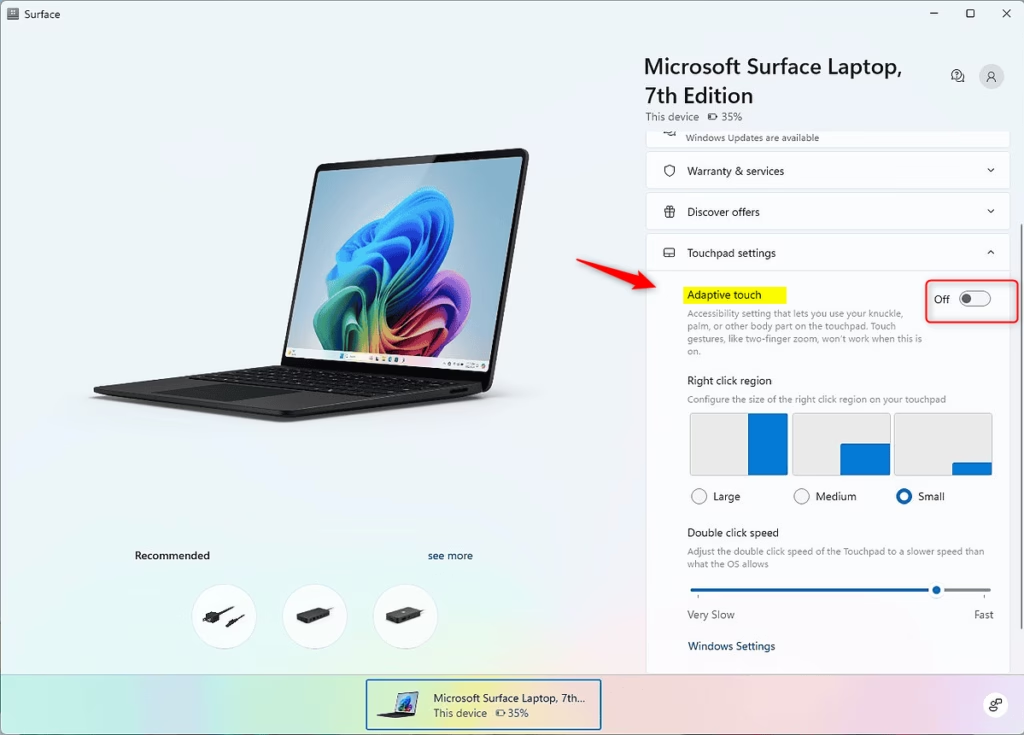
Open the Surface app, click Touchpad settings, then turn Adaptive Touch on and confirm. Touch gestures will not work while this mode is active. The setting takes effect immediately without restarting.
What is Adaptive Touch?
Adaptive Touch is a built-in accessibility setting for Surface laptops and tablets that use a Precision Haptic Touchpad. A haptic touchpad is a solid-state trackpad. It does not physically move when you press it. It simulates the click with vibrations instead.
Because the setting depends on that hardware, you will only see it on models that have this kind of touchpad. If the option is missing on your device, check whether your Surface has a Precision Haptic Touchpad.
Why Use Adaptive Touch?
When Adaptive Touch is enabled, the touchpad becomes more flexible and responds better to different kinds of hand contact. It allows different parts of the hand to interact directly with the touchpad while still giving you tactile feedback.
If you rely on multi-finger gestures, such as swiping between desktops, switch Adaptive Touch off again.
How to Enable or Disable Adaptive Touch
- Open the Surface app. If you can't find it, search for Surface in the Start menu. The app comes pre-installed on Surface devices, and you can get it from the Microsoft Store if it has been removed.
- Click or tap Touchpad settings. The touchpad options for your device should now appear.
- Turn Adaptive Touch on or off. The default setting is off.
- If you turned on Adaptive Touch, click or tap Turn on to confirm.
- Close the Surface app if you like. You don't need to keep it open for the setting to stay in effect.
To undo the change, open the same page in the Surface app and switch Adaptive Touch back off. Your normal touch gestures will work again.
Learn More
The Adaptive Touch settings on Surface make the device easier to use if you have trouble with standard touches. The feature changes how your Surface responds to your fingers, so you can control it with less frustration. It works alongside other built-in accessibility tools on compatible Surface laptops and tablets, and gives you better control over your device every day.
How we're making Copilot+ PCs from Surface more accessible | Microsoft Surface Explore the accessibility features built into Surface Laptops and Surface Pro 2-in-1 PCs. Discover how hardware engineering embodies inclusivity from initial design to final creation.
Summary
It allows different parts of the hand to interact directly with the touchpad while offering tactile feedback. Keep in mind the trade-off: touch gestures are off while it is active. If gestures matter more to you than the added flexibility, leave it off.
Have a question about this guide?
Answered by AI from this guide. Good questions may be added to this page — please don't include personal details.
Did this guide fix your problem?

About the Author
Richard
Tech Writer, IT Professional
Richard is a writer at Geek Rewind who turns complex IT tasks into clear, step-by-step guides. He draws on years of hands-on experience in system administration and enterprise IT operations, focusing on Windows, Linux and WordPress: the problems people actually run into, and the fixes that work. His server and WordPress guides come from systems he runs himself. Richard builds and maintains the platform behind Geek Rewind, from its Ubuntu servers and Nginx configuration to its custom WordPress plugins. Many new tutorials start with readers' questions, and he's always glad to answer them in the comments.
No comments yet — be the first to share your thoughts!