Easy Touch Screen Gestures for Windows 11

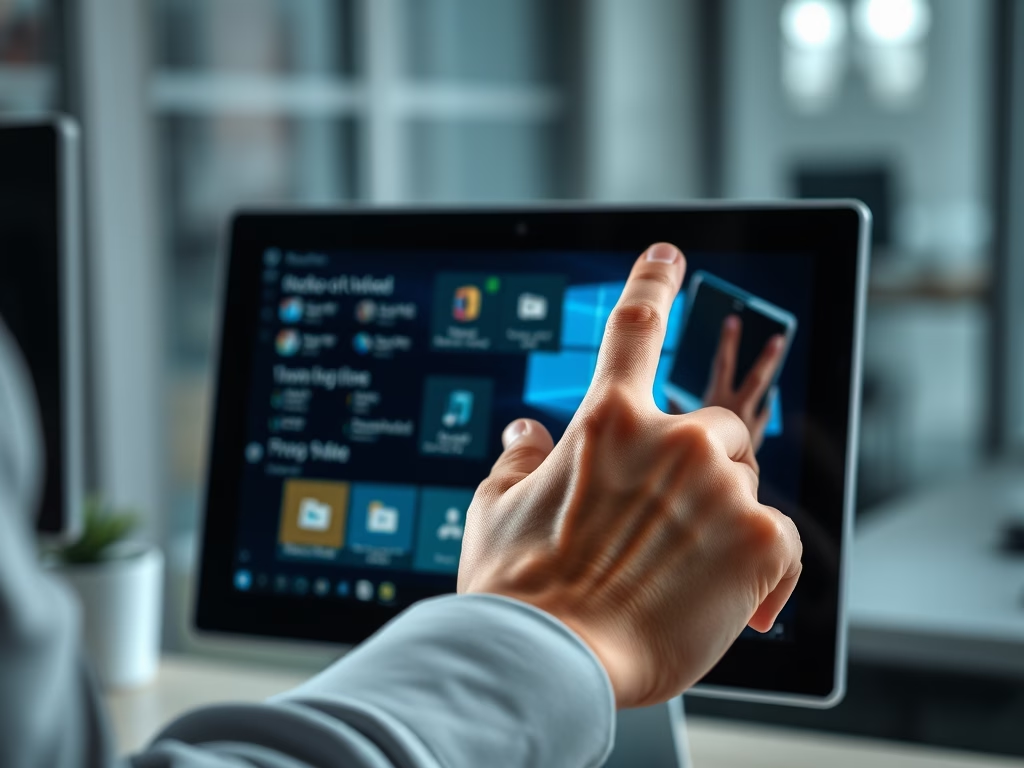
Touch gestures let you move around Windows 11 with your fingers alone. They save time on a tablet, a 2-in-1 or a touchscreen laptop, especially when the keyboard is folded back or out of reach and a mouse would only slow you down.
Windows 11 touch gestures are finger movements like taps, swipes, and pinches that let you control your computer on a touchscreen. Enable them in Settings Bluetooth & devices Touch by turning on the Three- and four-finger touch gestures switch. Then use three fingers to switch apps or show your desktop, two fingers to scroll or zoom, or one finger to tap and right-click.
Why use touch gestures?
A gesture is a tap, swipe or pinch that does a job straight away. Tap to select, press and hold to open a right-click menu , drag two fingers to scroll, and pinch to zoom. On a regular touchscreen laptop or all-in-one, these give you much the same feel as a tablet.
What happens when you use them?
With three or four fingers on the screen you can switch between open apps, bring up Task View, or minimize everything to show the desktop. They also change how you work with the display. Once they are muscle memory, you will reach for the mouse far less often.
Some of these moves only work once the setting in the next section is turned on. The edge swipes, such as swiping in from the side for widgets or notifications, work separately from it.
How to Turn On Touch Gestures
You turn on the three- and four-finger gestures in the Settings app. They are controlled by a single switch on the Touch page. The steps below take you there.
- Select the Start button, then open Settings. The Settings window opens with a list of categories on the left.
- Go to Settings Bluetooth & devices Touch You should see the touch options for your screen.
- Find Three- and four-finger touch gestures and set the switch to On. The switch should now show as on.
- Try a swipe with three fingers on the screen to check that it responds. If you see a gesture options area under the switch, you can use it to choose what each gesture does.
The change takes effect immediately, so you do not need to restart. The setting is the same in Windows 11 Home and Pro. If you do not see the Touch page at all, the PC probably has no touchscreen, or Windows has not detected it. Check Device Manager for the touch screen device if you expect one.
To undo the change, return to the same page and set the switch to Off.
Disabling this setting resolves unexpected behavior during app use.
Common Touch Gestures to Try
Windows 11 touch gestures let you control your computer quickly using simple finger movements on your screen instead of a mouse or keyboard. You can tap to open apps, pinch to zoom, and swipe with multiple fingers to switch between open windows or show your desktop in seconds.- Open a file or app: Tap the screen once with one finger.
- Scroll: Place two fingers on the screen and slide them.
- Zoom: Put two fingers on the screen and pinch them together or spread them apart.
- Right-click: Press and hold your finger on an item until a menu appears.
- See open windows: Swipe up with three fingers.
- Show your desktop: Swipe down with three fingers.
- Switch apps: Swipe left or right with three fingers.
- Notification center: Swipe in from the right edge with one finger.
- Widgets: Swipe in from the left edge with one finger.
- Switch desktops: Swipe left or right with four fingers.
- Start menu: Swipe up from the middle of the taskbar. Swipe down to close it.
- Quick Settings: Swipe up from the bottom right of the taskbar. Swipe down to close it.
Where to Learn More
For more details on how to use your touch screen, check out the official Microsoft guide here: Touch Gestures for Windows - Microsoft Support
Summary
- Touch gestures help you move around Windows 11 faster.
- You can enable or disable these features in your Settings menu.
- Multi-finger gestures make switching between apps and menus feel smooth and natural.
- Keep your Windows updated to ensure you have the latest gesture features.
Have a question about this guide?
Answered by AI from this guide. Good questions may be added to this page — please don't include personal details.
Did this guide fix your problem?

About the Author
Richard
Tech Writer, IT Professional
Richard is a writer at Geek Rewind who turns complex IT tasks into clear, step-by-step guides. He draws on years of hands-on experience in system administration and enterprise IT operations, focusing on Windows, Linux and WordPress: the problems people actually run into, and the fixes that work. His server and WordPress guides come from systems he runs himself. Richard builds and maintains the platform behind Geek Rewind, from its Ubuntu servers and Nginx configuration to its custom WordPress plugins. Many new tutorials start with readers' questions, and he's always glad to answer them in the comments.
No comments yet — be the first to share your thoughts!