How to Enable Tablet-Optimized Taskbar in Windows 11


The tablet-optimized taskbar in Windows 11 is a display setting that makes your taskbar icons and spacing larger when you use a touchscreen. This feature helps you tap buttons more easily with your finger or a stylus instead of a mouse.
Windows 11 automatically switches to this larger layout when it senses you disconnect or fold back your keyboard on a convertible laptop. When you reconnect the keyboard, the system switches back to the standard, smaller taskbar view.
Go to Settings Personalization Taskbar Taskbar behaviors and check “Optimize taskbar for touch interactions when this device is used as a tablet.” This setting automatically expands the taskbar when you detach or fold your keyboard to improve touch usability.
Enable via Windows Settings
You can turn on the tablet-optimized taskbar directly through the Windows Settings app to make touch navigation easier. This feature automatically hides the taskbar when you use your device as a tablet and shows it again when you swipe up from the bottom of the screen. To get started, open your settings menu and go to the personalization section to locate the taskbar behaviors.
- Open the Windows Settings app. Press the Win+I on your keyboard.
- Click on Personalization in the left menu.
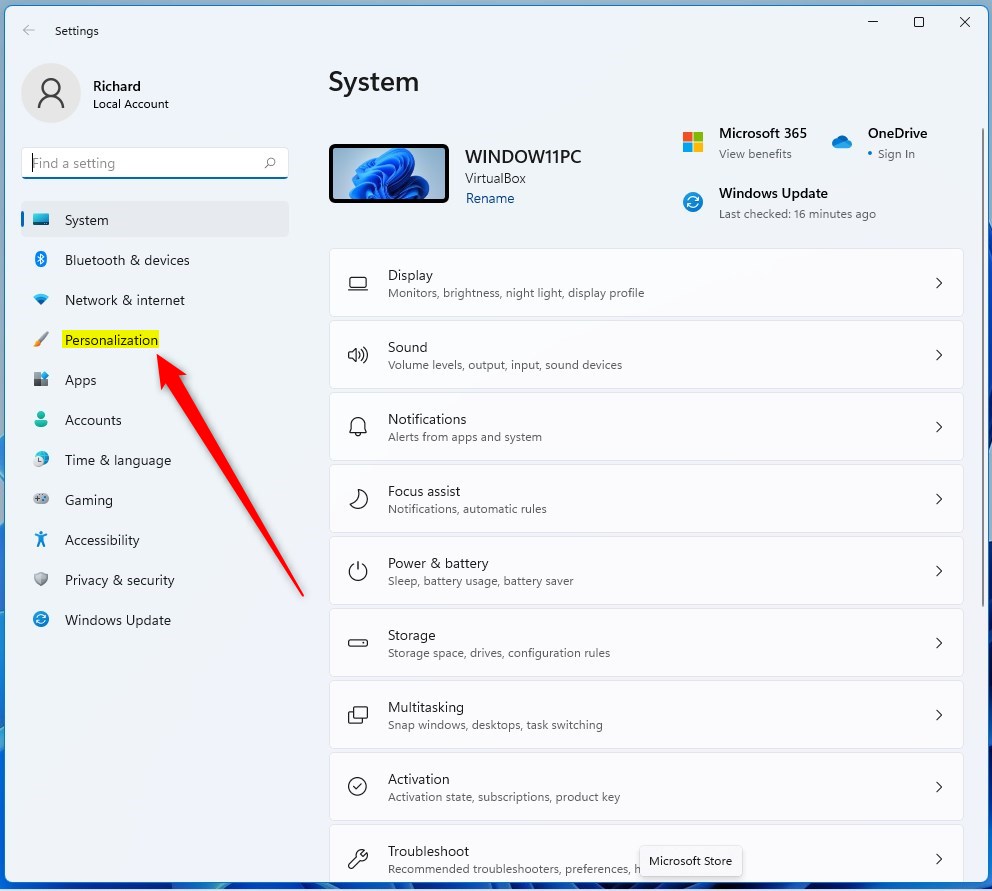
windows 11 personalization tile setting - Click on the Taskbar tile on the right side.
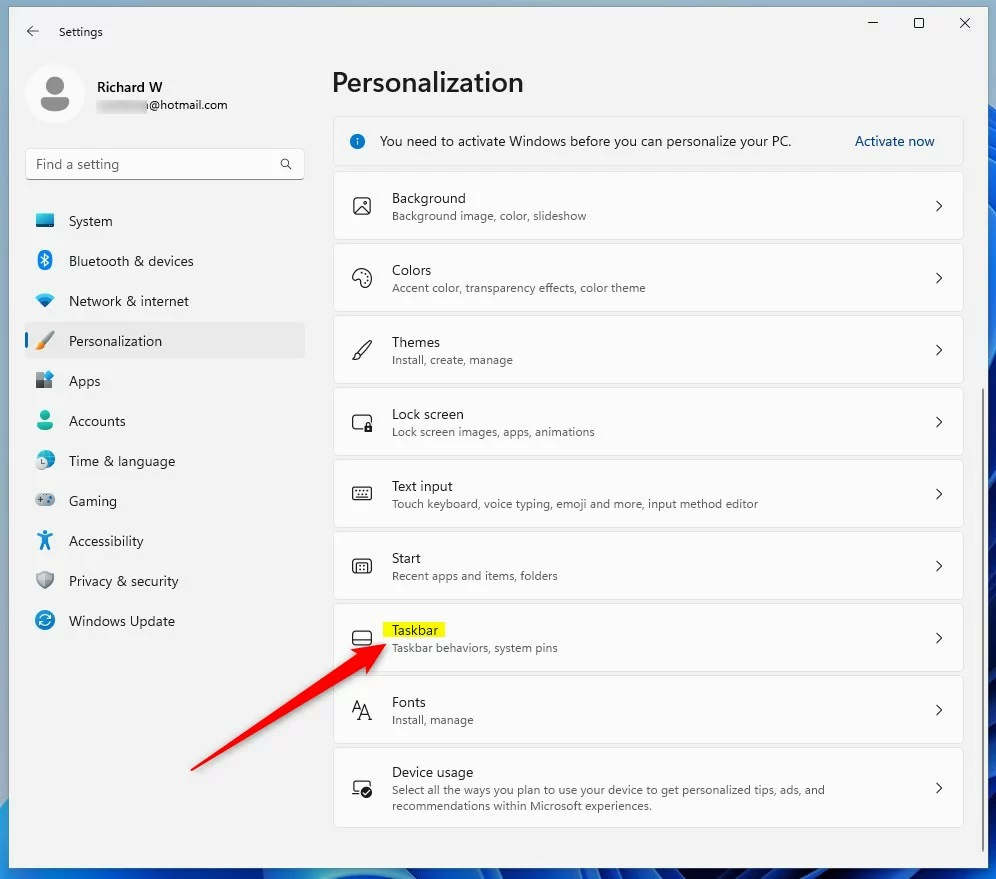
windows 11 personalization taskbar tile - Click Taskbar behaviors to show more options.
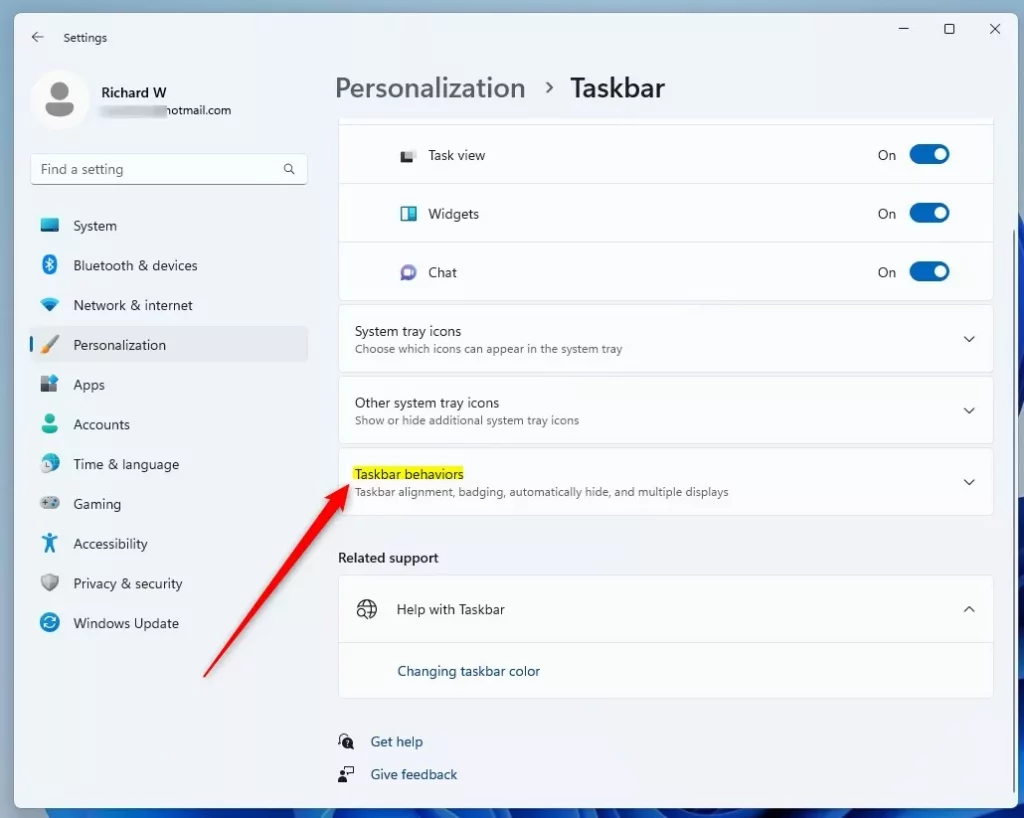
windows taskbar behaviors tile - Find the box that says “Optimize taskbar for touch interactions when this device is used as a tablet.” Check the box to turn it on.
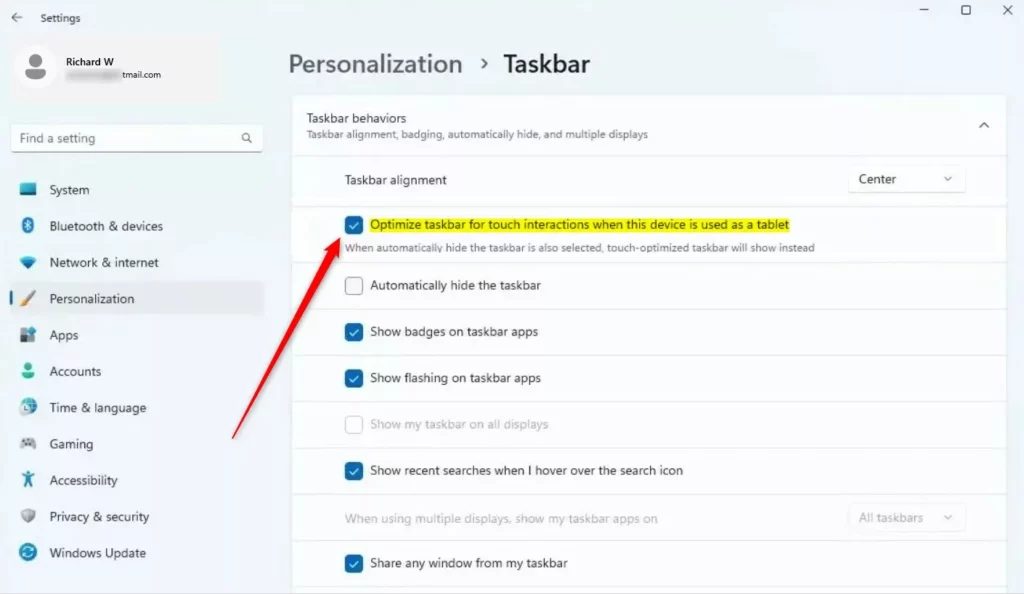
optimize taskbar for touch interactions when this device is used as a tablet updated
Understanding Automatic Mode Switching
Windows 11 automatically switches to the tablet-optimized taskbar by sensing how you’re using your device, like when you fold a convertible laptop’s keyboard back.
Enable via Registry Editor
You can enable the tablet-optimized taskbar using Registry Editor (a tool for advanced system settings) if the option is missing from your regular menu. This method requires administrator access and involves creating a specific DWORD value in the Windows registry keys. Be careful while making these changes, as mistakes in the registry can cause system issues.
- Open the Windows Registry by searching for “regedit” in the Start menu .
- Go to this path:
HKEY_CURRENT_USER\Software\Microsoft\Windows\CurrentVersion\Explorer\Advanced
windows registry advanced key - Right-click in the empty space on the right side. Select New, then DWORD (32-bit) Value.
- Name this new item
ExpandableTaskbar. - Double-click
ExpandableTaskbar. Change the “Value data” to1to turn it on, or0to turn it off.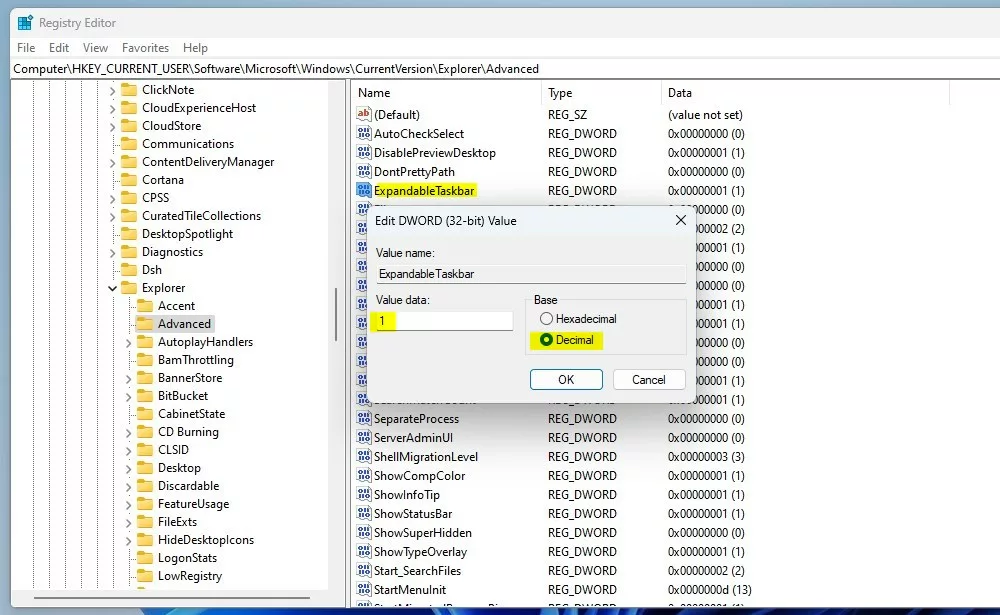
windows registry ExpandableTaskbar value data
Summary
The tablet-optimized taskbar is a helpful tool for touch users. It improves the Windows 11 touch experience by adding spacing to icons. You can control this behavior through the Settings app or the Registry Editor. For more technical details, visit the official Microsoft Learn documentation.
Was this guide helpful?

About the Author
Richard
Tech Writer, IT Professional
Richard is a writer at Geek Rewind who turns complex IT tasks into clear, step-by-step guides. He draws on years of hands-on experience in system administration and enterprise IT operations, focusing on Windows, Linux and WordPress: the problems people actually run into, and the fixes that work. His server and WordPress guides come from systems he runs himself. Richard builds and maintains the platform behind Geek Rewind, from its Ubuntu servers and Nginx configuration to its custom WordPress plugins. Many new tutorials start with readers' questions, and he's always glad to answer them in the comments.




No comments yet — be the first to share your thoughts!