How to Change Smart Charging Mode on Surface


Smart charging on a Microsoft Surface limits your battery charge to 80 percent. This keeps the battery from wearing out too fast when the device stays plugged in for long periods. It is a built-in power feature that starts on its own when the Surface senses heat or long hours on the charger. That protects the battery and helps stop it from swelling.
If you need a full charge for travel, you can turn the limit off in the Surface app. Open the app, go to the battery section, and change the charging mode so the laptop charges all the way to 100 percent again. The steps below walk through it, and you can switch back whenever you like.
Open the Surface app, click Battery & charging, and select Charge to 100% to override smart charging mode. Choose how long to keep full charging active from the drop-down menu. No restart required, and you can switch back to Adaptive mode anytime.
What Does Smart Charging Do?
Smart charging mode protects your battery’s lifespan. It stops the battery from charging past 80 percent when you leave the device plugged in for a long time. Heat and long hours at a high charge level are what wear a battery down, so holding it at 80 percent slows that wear.
The limit is not absolute. If the battery drops below 20 percent, the restriction lifts automatically, so you always have enough power to work with.
- When you need a full 100 percent charge, you can turn smart charging off in the Surface app.
- Once your usage patterns return to normal, normal smart charging turns back on automatically.
Why Would You Pause Smart Charging?
Pausing lets the battery charge to 100 percent, so you get the longest possible run time while you are away. Typical situations are:
- While traveling on a long flight
- During long meetings
- At a coffee shop or restaurant
- Any time you think you’ll need your full battery and no outlet will be nearby
Reaching full capacity requires a temporary pause. After that, your usage patterns decide when the automatic restrictions resume, a process that can take up to 3 days. You can check the power status in the Surface app at any time.
Don't set it too early, though. If you do, the operating system may reactivate the limit before you go.
More Battery Help:
Smart charging works best alongside good physical habits and the official support resources. Microsoft publishes documentation and troubleshooting steps on its website. They are worth a look if you need extra help with your power settings or have battery problems.
Caring for your Surface battery | Microsoft Support Review tips on caring for your Surface battery. Find out how to keep your Surface battery healthy and working longer.
If the power supply is unresponsive or the Surface shuts down unexpectedly, follow the manufacturer's diagnostic procedures. Following Microsoft's guidelines resolves most common power delivery failures.
When Battery Smart Charging is on and your Surface device is running Windows 11, a battery icon with a heart appears in the notification area. You can use it to tell at a glance that the feature is active.
Here's How to Change Smart Charging Mode:
Follow these steps to change the mode. If you can't find the battery options, update the Surface app, because older versions may not include this setting.
- Open the Surface app. If it isn't installed, you can get it from the Microsoft Store.
- Click or tap Battery & charging to expand it. (see screenshot below) You should now see the battery charging options.
- Select one of these options:
- Adaptive (default)
- Limit to 80%
- Charge to 100%
- If you picked Charge to 100%, choose 1 day or 1 week from the drop-down menu. This tells your Surface how long to keep charging fully.
To undo the change, repeat the steps and select Adaptive again. No restart is needed.
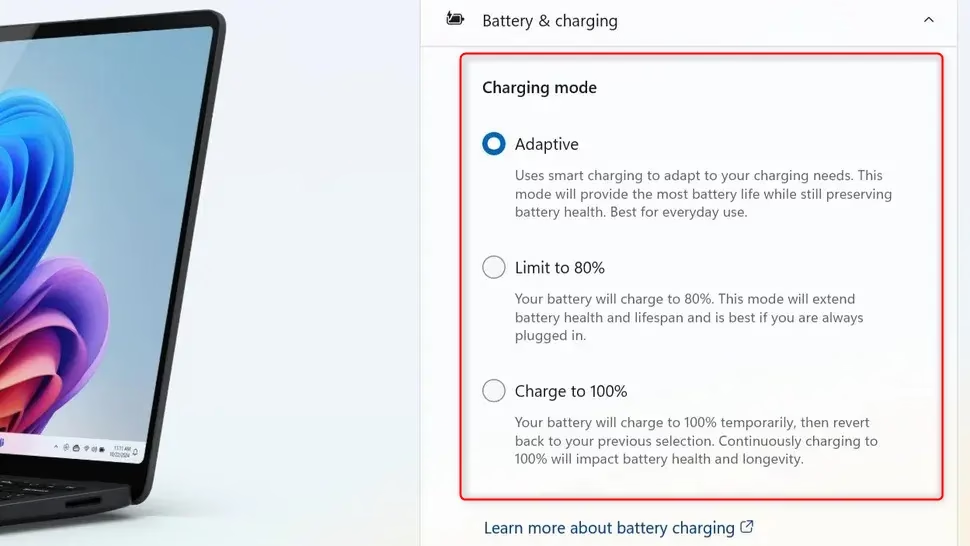
You can switch between adaptive charging, the 80 percent limit and a full 100 percent charge whenever you want. Open the Surface app, expand Battery & charging, and pick the mode that fits your travel plans or daily routine.
Summary
Smart Charging protects the battery's long-term health by capping its charge during long periods on power. You can manage it at any time from the Surface app.
Have a question about this guide?
Answered by AI from this guide. Good questions may be added to this page — please don't include personal details.
Did this guide fix your problem?

About the Author
Richard
Tech Writer, IT Professional
Richard is a writer at Geek Rewind who turns complex IT tasks into clear, step-by-step guides. He draws on years of hands-on experience in system administration and enterprise IT operations, focusing on Windows, Linux and WordPress: the problems people actually run into, and the fixes that work. His server and WordPress guides come from systems he runs himself. Richard builds and maintains the platform behind Geek Rewind, from its Ubuntu servers and Nginx configuration to its custom WordPress plugins. Many new tutorials start with readers' questions, and he's always glad to answer them in the comments.
No comments yet — be the first to share your thoughts!