How to Find Your Lost Windows 11 Device


Find My Device is a built-in Windows 11 tool that shows your lost laptop or desktop on a map, using your Microsoft account. You have to turn it on before the PC goes missing. The setting is under Settings Privacy & security Find my device. Once it is on, the system saves the PC’s last known location.
To find the PC later, sign in to your Microsoft account from another device. From there you can see where the computer last reported in and lock it to protect your files. If you never switched the feature on, there is nothing to look up, so do this check today.
Go to Settings Privacy & security Find my device on Windows 11 and turn the toggle On. Your PC’s location is then saved when it’s powered on and connected to the internet. To locate it later, sign in to your Microsoft account from another device to see where it last reported in.
Step 1Make Sure You Use a Microsoft Account
Find My Device only works with a Microsoft account. A local, offline account never sends location data to Microsoft’s servers, so a lost or stolen PC signed in with one cannot be tracked remotely. Check which kind of account you use before anything else.
- Open Settings . Click Start, then Settings.
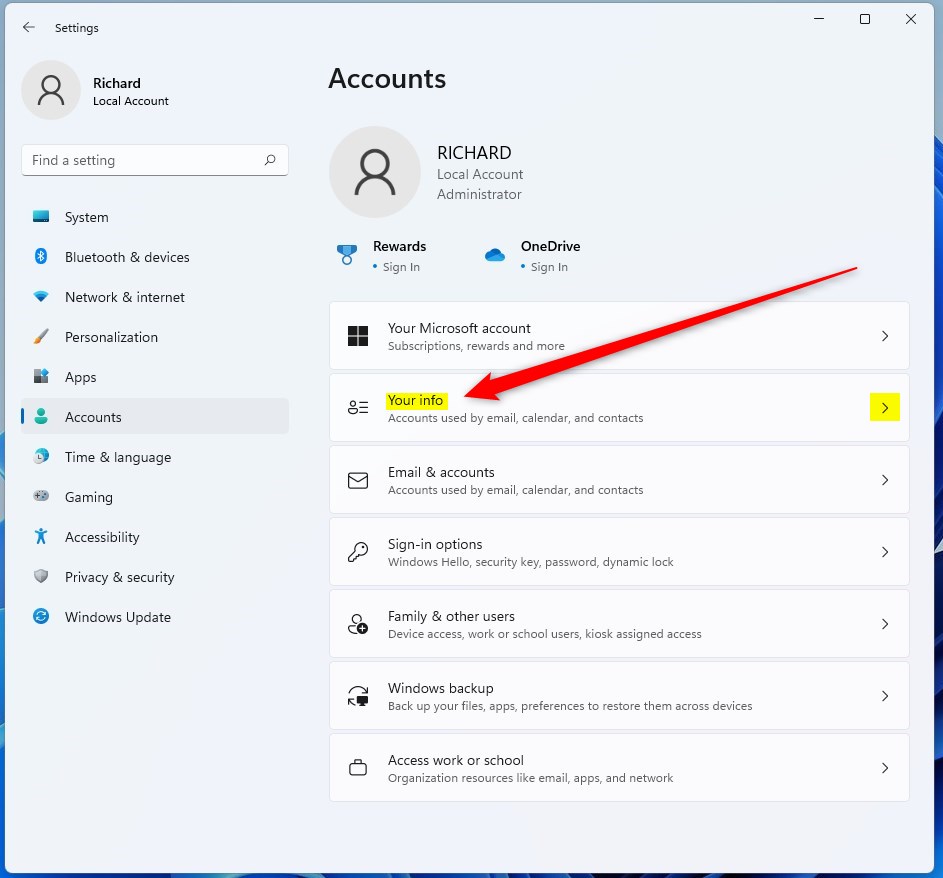
- Go to your account details. Select Accounts, then click Your info. Your name and account details appear at the top of the page.
- Read what the page shows. If you see your Microsoft account email address, you are set and can move on. If you see a link that says Sign in with a Microsoft account instead (older builds word it as Switch to a Microsoft account), you are on a local account.
- Switch accounts if needed. Click that link and follow the prompts. You will need to enter your Microsoft account email and password. If you don’t have an account, you can create one during this process.
After you switch, check Your info again. It should now show your email address. The switch normally does not require a restart, and your files and settings stay put.
It also syncs your preferences between devices and gives you easy access to cloud storage such as OneDrive.
Step 2Turn On “Find my device”
Windows does not track your PC’s location by default, for privacy reasons. You have to switch the feature on yourself. The path differs slightly between Windows 11 and Windows 10, so use the one that matches your system.
- Open the Find my device settings.
- On Windows 11, go to Start Settings Privacy & security Find my device.
- On Windows 10, go to Start Settings Update & Security Find my device.
- Turn the toggle to On. If it already reads On, you don't need to do anything else here.
- Check that the toggle stayed on. If it is greyed out or switches itself back off, you are probably not signed in as an administrator or not using a Microsoft account. See the next section.
To undo this later, return to the same page and set the toggle to Off. No restart is needed either way.
A dead or offline machine cannot report anything. In that case you will only see the last location it sent before it dropped off.
The location setting for this feature is system-wide and does not depend on the per-app location choices you make for individual apps. Location services also need to be available on the device. If your location is blocked, look at Privacy & security Location as well.
Step 3Be an Administrator
Changing privacy settings and turning on Find My Device needs an administrator account. Standard user accounts can't change system-level location services, which is the most common reason the toggle is greyed out. Here is how to check what you have.
- Sign in on the PC you want to track. Use the account you normally use on that device.
- Open your account page. Go to Start Settings Accounts Your info.
- Look under your account name. It says either Administrator or Standard user.
Tip: If you are a standard user, ask your IT department or whoever manages the device to turn tracking on, or to give your account administrator rights.
Personal Microsoft accounts support this feature, but school and work accounts usually do not. Devices that don't run Windows need their own tools. For an iPhone, use Apple's Find My iPhone. For an Android device, use Google's Find My Device. Game consoles have their own options too.
Find Your Missing Windows Device
Realizing a laptop is missing is stressful, but a little preparation pays off. You don't do the recovery on the lost PC. You do it from a second device, such as a smartphone, tablet, or another computer, so keep one within reach.
Step 4Go to the Microsoft Devices Website
Your lost PC's location is on the Microsoft devices website. It connects to your Microsoft account and lists every device registered to it, with an interactive map for the ones that support location.
- Open a web browser on your phone, tablet, or another computer.
- Go to the Microsoft devices page. Type this address into the address bar and press Enter:
https://account.microsoft.com/devices - Sign in with your Microsoft account. Use the same email and password you use on the Windows device you are trying to find. This matters because the device is registered to that account. A different account will not show it.
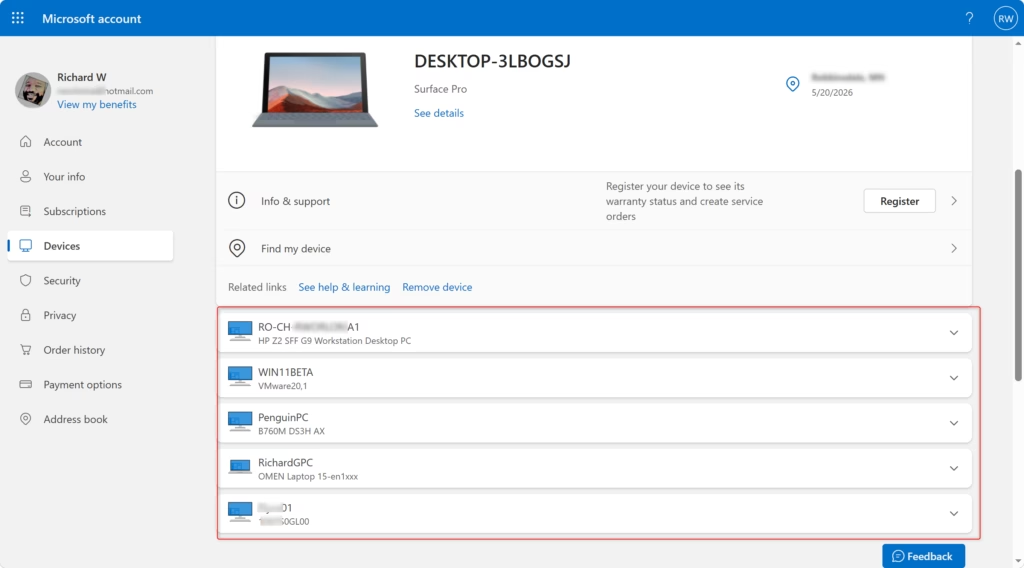
- Check the device list. After you sign in, you should see the devices tied to your account.
Tip: If you have forgotten your password, use the password recovery link on the sign-in screen. You will need the phone number or backup email address linked to the account to get back in.
Step 5Find Your Device on the Map
Once you are signed in, pick the missing computer from your device list. The page then shows its current or last known position on a map.
- Choose the device you want to find. From the list, select the one that is missing. It may be named something like "My Laptop" or "Desktop PC." If you have several devices, check the name carefully.
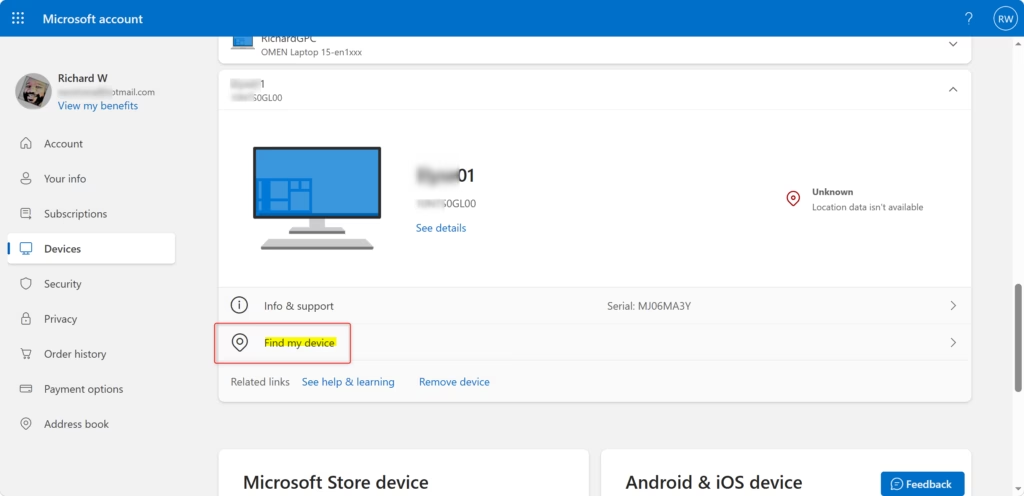
- Select the Find my device tab. This is the section that shows a map and the last known location of that computer. It only has data if the feature was turned on beforehand.
- Click Find. This starts the lookup for the device you selected.
- Wait for the map. The site tries to locate the device and then shows its current or last known location. This can take a few minutes, so give it time before you try again.
If the PC is online, the map shows where it is now. If it is off or has no connection, you will see the last place it reported from. Write down that location and check how old the information is before you act on it.
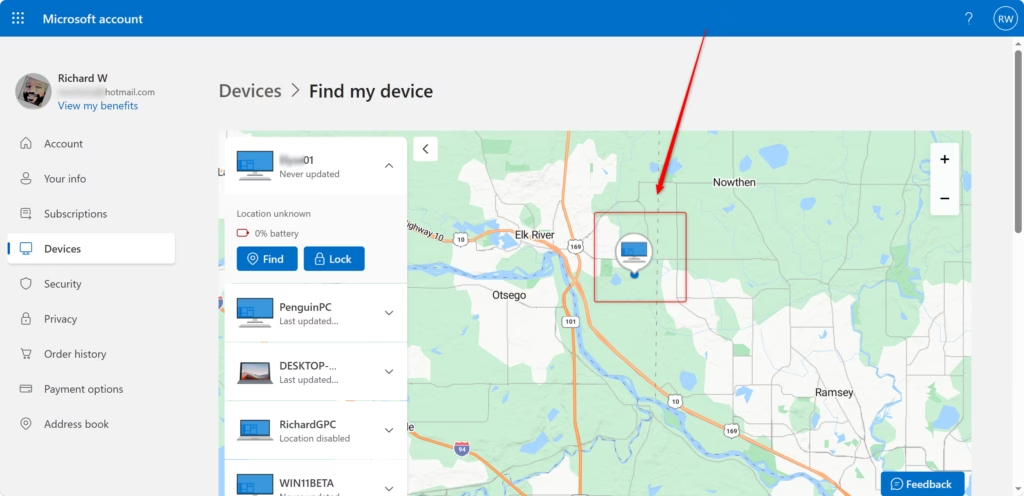
The coordinates you see reflect the last time the PC successfully connected and reported in. A machine that is powered down or offline keeps showing its old location until it connects again. If it turns up on a network later, the map should update.
Tip: On a shared workstation, confirm your administrator status first at Start Settings Accounts Your info before you start troubleshooting. A standard account can't turn tracking on.
Reference:
https://support.microsoft.com/en-us/accounts-billing/security/find-and-lock-a-windows-device
Summary
To sum up: sign in with a Microsoft account, turn on Find my device in settings while you still have the PC, and use the web portal from another device if it ever goes missing.
Have a question about this guide?
Answered by AI from this guide. Good questions may be added to this page — please don't include personal details.
Did this guide fix your problem?

About the Author
Richard
Tech Writer, IT Professional
Richard is a writer at Geek Rewind who turns complex IT tasks into clear, step-by-step guides. He draws on years of hands-on experience in system administration and enterprise IT operations, focusing on Windows, Linux and WordPress: the problems people actually run into, and the fixes that work. His server and WordPress guides come from systems he runs himself. Richard builds and maintains the platform behind Geek Rewind, from its Ubuntu servers and Nginx configuration to its custom WordPress plugins. Many new tutorials start with readers' questions, and he's always glad to answer them in the comments.
No comments yet — be the first to share your thoughts!