What to Do When Windows 11 Find My Device Fails to Locate Your Lost Laptop

- 11 steps
- Needs administrator rights
Find My Device in Windows 11 can’t locate your lost laptop in three common cases. The laptop is shut down, it has no internet connection, or location services are turned off. The tool works through your Microsoft account. It needs a Wi-Fi or Ethernet link to send the laptop’s position to Microsoft’s servers. Most laptops have no GPS chip, so the position usually comes from nearby Wi-Fi networks and the IP address. That means it can be off by a few blocks.
Three conditions must be true at the moment you search. The battery must hold a charge. The hardware must be powered on and online. The main location toggle in the privacy settings must be on. If any one of them fails, the Find My Device map shows no location at all, or only an old one.
When Windows 11 Find My Device fails to locate your lost laptop, it usually means the computer is turned off, the battery is dead, or it lacks an internet connection. To fix this, verify your settings under Privacy & security in the Settings app before misplacing your computer.
Checking basic settings before your device goes missing
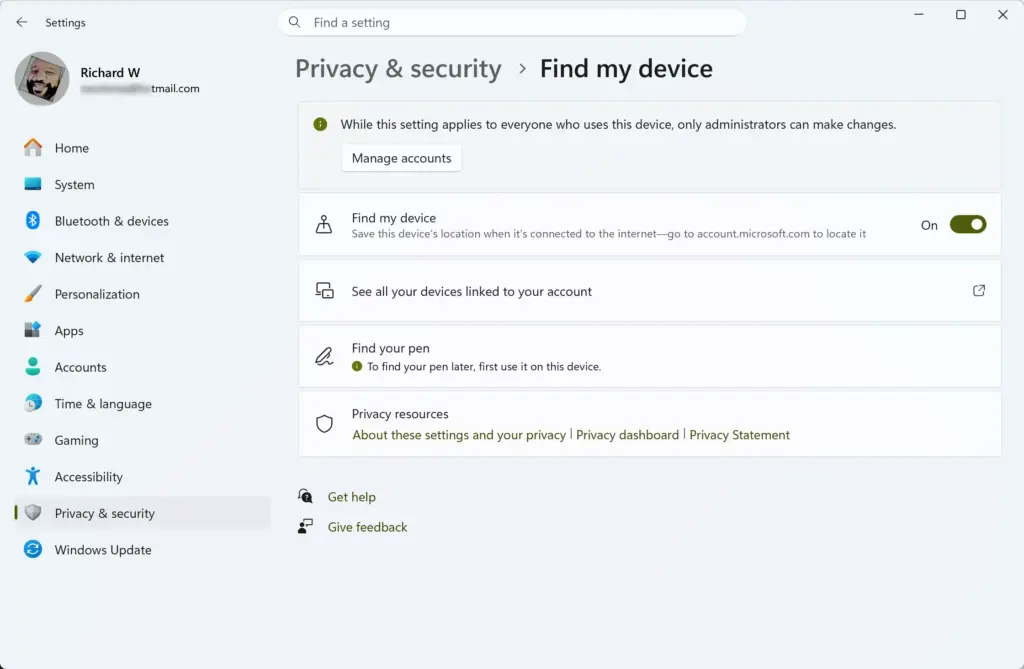
Check these settings before a laptop goes missing. Once it is gone, you can’t turn them on. You must also be signed in to Windows with a Microsoft account. A local offline account can’t send location updates to the web dashboard.
Follow these steps to confirm tracking is fully enabled:
- Click the Start button on the taskbar, then click the Settings gear icon. The Settings window opens.

- In the left-side menu, click Privacy & security. The privacy options appear on the right.
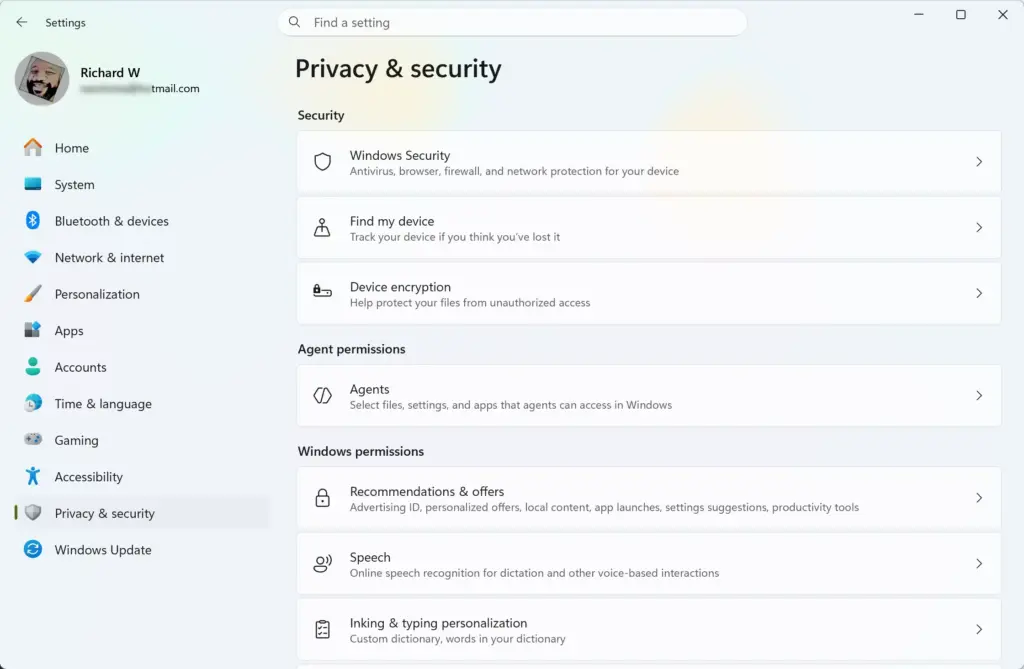
- Scroll down and click Find my device.
- Set the main Find my device toggle to On. The toggle should now read On.
- Go back to Privacy & security and click Location.
- Turn the main Location services toggle to On. Then check the app list below it and make sure apps are allowed to access your location.
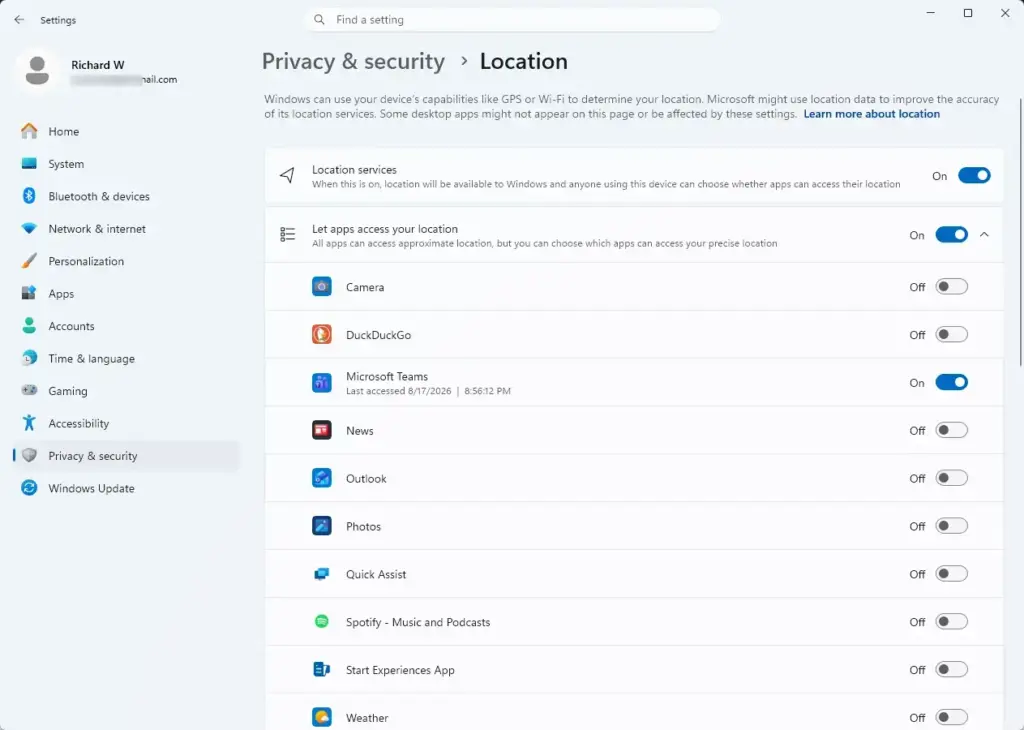
If a toggle is greyed out or won’t switch, you are probably not signed in with an administrator account. Note: Administrative privileges are required to change system privacy and location settings. Also check that you are using a Microsoft account. If the Find my device page says the feature isn’t available, that is often the reason. Find My Device on the laptop is under your control only. To undo any of this, turn the same toggles back off.
Troubleshooting “Location Unknown” and “Never Updated” errors
“Location Unknown” and “Never Updated” errors usually mean the laptop is turned off, asleep, or offline. A computer in any of those states can’t send its current position to your Microsoft account. It has to connect to a network again before the system can report where it is.
When a Windows 11 laptop sleeps or shuts down, it stops reporting its location. The Find My Device website then shows the last known status. If the system lost power suddenly, that status may show a battery at zero percent. You can’t force the laptop to report in, but these steps give you the best chance of catching it when it does:
- Wait and retry: If the laptop was recently shut down, whoever has it might turn it back on later. Keep checking the portal periodically. Refresh the page each time, because the map doesn’t always update by itself.
- Check network connection: If someone opens your laptop lid and connects to an open Wi-Fi network, the device can update its location on the Microsoft dashboard right away. This is why it’s worth checking again after a few hours and the next day.
- Review account sign-in: Make sure you are signed in on the web with the exact Microsoft account linked to the user profile on the missing laptop. If you have several accounts, it is easy to look at the wrong one and see no device at all.
Using alternative tracking methods when Windows fails
When Windows can’t locate the laptop, other accounts you were signed in to on it may help. Many browsers and email services record the last IP address and network connection your device used. Check the security or activity page of your Google, Microsoft, or Outlook account. It lists recent sign-in locations and active device sessions.
Think about the apps and services you used while signed in on the laptop:
- Web BrowsersIf you were signed in to Google Chrome, Microsoft Edge, or Mozilla Firefox on the laptop, open the same browser on another device. Look in your account settings for the list of active devices and recent sign-in locations.
- Cloud Storage and EmailIf the person who has your laptop opens an email client or syncs files, the service provider may log the IP address and the general area of the connection. Look for the laptop’s name in the list of recent activity.
- Third-Party Security SoftwareIf you installed antivirus software or a tracking tool before losing the laptop, sign in to that provider’s website and use its tracking features.
Keep in mind that an IP address only points to a general area or an internet provider. Treat it as a lead for the police, not as an exact address.
What to do when your laptop cannot be found (Protecting your data)
If you can’t find the laptop, protect your data first. Sign in to your Microsoft account dashboard on another device and send a remote lock command right away. A locked device signs out the user, locks the screen, and keeps strangers away from your documents and photos until you get the hardware back.
Follow these steps to lock the machine remotely:
- Open a web browser on your phone or another computer and go to the official Microsoft account device page.
- Sign in with your Microsoft account credentials. Your list of linked devices appears.
- Find the missing laptop in the list and click the Find or Lock button next to it.
- Select the option to lock the device remotely. This signs you out, locks the screen, and prevents anyone from using your desktop.
- If the system asks for a lock screen message, enter one. Include a phone number or alternate email address where an honest finder can reach you.
The laptop must be online to receive the lock, so the command may not take effect until it next connects. Locking keeps your data safe while you decide on your next steps. Note: Administrative privileges or access to the primary account owner profile are required to lock a device remotely through the web portal.
Changing your passwords immediately
Change your passwords right away. A thief who gets past the lock screen, or who uses the autofill in your browser, could reach your personal accounts. Work from a phone or a trusted computer. Start with your email, online banking, and social media accounts, so nobody can open your private profiles.
Change these first:
- Change your Microsoft account passwordThis stops anyone from syncing new data or reaching your cloud storage backups.
- Change your email passwordsSecure your main inbox and any recovery email addresses. Otherwise a bad actor can use them to reset your other online accounts.
- Update banking and shopping passwordsIf you save credit card numbers in your browser, sign in to your financial institutions immediately, watch for unusual activity, and update your credentials.
- Log out of remote sessionsMost major websites have a security setting such as “Sign out of all devices.” Use it on your essential accounts.
If you use a password manager, change its master password too, and turn on two-step verification wherever it is offered.
Filing a police report and contacting authorities
File a police report to create an official record that the computer was lost or stolen. You will likely need it for insurance claims or bank disputes. Call your local police department’s non-emergency line. Give them the laptop’s serial number, brand, and last known tracking details so officers can log the incident.
Whether you go to the station or file online, bring as much documentation as you can:
- The make, model, and exact serial number of your laptop. These are often found on the original product box or purchase receipt.
- Screenshots of the failed tracking attempts, or of the last known location in your Microsoft account.
- Your contact information and proof of ownership.
Do not try to confront the person who has your laptop, even if a tracking app gives you a specific street address. Tracking tools can be off by several blocks, or point to an innocent person’s home because of how a router is positioned. Let law enforcement handle the recovery.
Summary
Here is the short version of what to do when your Windows 11 laptop goes missing and Find My Device fails. First, check whether the laptop is simply offline, and try the account and browser tools described above. If it stays offline, protect your information by locking the device remotely and changing your account passwords. Finally, report the loss to local law enforcement so you have official documentation.
Have a question about this guide?
Answered by AI from this guide. Good questions may be added to this page — please don't include personal details.
Did this guide fix your problem?

About the Author
Richard
Tech Writer, IT Professional
Richard is a writer at Geek Rewind who turns complex IT tasks into clear, step-by-step guides. He draws on years of hands-on experience in system administration and enterprise IT operations, focusing on Windows, Linux and WordPress: the problems people actually run into, and the fixes that work. His server and WordPress guides come from systems he runs himself. Richard builds and maintains the platform behind Geek Rewind, from its Ubuntu servers and Nginx configuration to its custom WordPress plugins. Many new tutorials start with readers' questions, and he's always glad to answer them in the comments.
No comments yet — be the first to share your thoughts!