How to Enable Automatic Device Locking in Windows 11 Settings

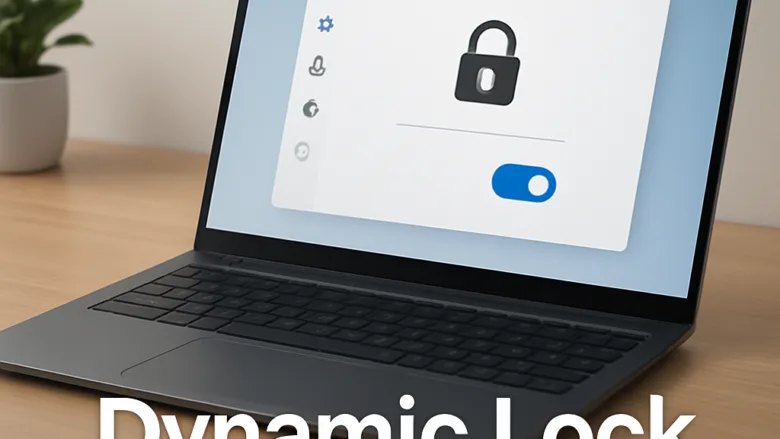
Dynamic Lock is a Windows 11 security setting that locks your PC automatically when you walk away. It does this by watching the Bluetooth signal of a paired smartphone. Windows locks the screen roughly 30 seconds after your phone moves out of Bluetooth range. That protects your files and apps if you forget to press the Win plus L.
Windows 11 uses Bluetooth signal strength as a rough measure of how far away your phone is. When you carry the phone out of range, Windows locks the computer. It does not unlock the PC when you come back, so you still sign in with your PIN, password or Windows Hello. Dynamic Lock is available on both Windows 11 Home and Pro.
Open Settings, select Accounts, click Sign-in options, scroll to Additional settings, expand Dynamic lock, and tick the checkbox next to Allow Windows to automatically lock your device when you’re away. The PC locks roughly 30 seconds after your paired phone moves out of Bluetooth range.
Checking Your Bluetooth Connection Requirements
- Press Win+I to open Settings.
- Select Bluetooth & devices from the left-hand navigation menu. The Bluetooth section appears at the top of the page.
- Check that the Bluetooth toggle switch is set to On.
If there is no Bluetooth toggle at all, Windows does not see a Bluetooth adapter. Check that the USB adapter is seated properly, or look in Device Manager for a driver problem. Also make sure Airplane mode is off, because it switches Bluetooth off as well.
Pairing Your Smartphone to 🪟 Windows 11
Pairing your phone lets Windows track its proximity. Windows can only watch for a device it has already paired with. Do this once, and Windows will remember the phone afterwards.
- Press Win+I to open Settings.
- Select Bluetooth & devices from the sidebar.
- Click the Add device button at the top of the window. The Add a device window opens.
- Choose Bluetooth from the list in the Add a device window. Windows starts searching for nearby devices.
- On your smartphone, turn on Bluetooth and open its Bluetooth settings page. Leave that page open so the phone stays discoverable.
- Select your phone’s name from the list of available devices on your computer screen.
- Confirm that the PIN matches on both your computer and your smartphone. Click Connect on the PC, then accept the pairing prompt on your phone.
- Click Done to finish pairing. Your phone should now appear under your devices in Bluetooth & devices.
If your phone does not show up in the list, keep it on its Bluetooth settings page and move it closer to the PC. If the pairing fails, remove the phone from the Bluetooth list on both devices and start again.
How to Enable Automatic Device Locking in 🪟 Windows 11 Settings
Once your phone is paired, you turn on automatic locking from the sign-in options in Settings. This is where Windows is told to lock the PC when your phone goes out of range.
- Press the Windows key and the I key together to open Settings.
- Select Accounts from the left-hand menu panel.
- Click Sign-in options on the right side of the screen.
- Scroll down until you find the Additional settings section.
- Click Dynamic lock to expand its options.
- Tick the checkbox next to Allow Windows to automatically lock your device when you’re away. Some builds word this slightly differently, for example “detect when you’re away”, but it is the only checkbox in this section.
If the checkbox is greyed out or Windows says no paired device was found, the phone is not paired yet. Go back and finish the pairing steps. To turn the feature off later, return to this page and clear the checkbox. No restart is needed either way.
To test it, keep your phone in your pocket and walk out of the room, ideally with a wall in between. Your PC should lock within about a minute. Range varies with walls, interference and the phone itself, so the lock may not happen at an exact distance. If you leave the phone on your desk, the PC will not lock, because it thinks you are still nearby.
Alternative Locking Methods Using Windows Dynamic Lock Shortcuts
Dynamic Lock waits for the phone’s signal to drop, so there is a delay of about 30 seconds. If you want the PC locked right away, press the Win and the L key before you leave. This locks the computer instantly and does not change your Dynamic Lock settings, so the automatic lock still works the next time you walk away.
Advanced Security Configurations for Enhanced Privacy
- Press Win+I to open Settings.
- Select Accounts from the sidebar.
- Click Sign-in options.
- Locate the setting titled If you’ve been away, when should Windows require you to sign in again?
- Select When PC wakes up from the dropdown menu. On some builds the option reads When PC wakes up from sleep.
This setting may be missing on some PCs, depending on your hardware’s sleep support and how it is managed. If your PC is managed by an organization, an administrator may control it. To undo the change, choose Never from the same dropdown, although that is not recommended on a shared or portable computer.
What to do next
Your computer should now lock automatically whenever you walk away with your paired smartphone. Keep Bluetooth switched on in your phone, since turning it off makes Windows treat you as away. To make signing back in faster, set up Windows Hello biometric options and check your lock screen notification settings.
Frequently asked questions
How to lock laptop?
Press Win+L to lock your laptop right away. Windows returns to the sign-in screen, and you need your PIN, password or Windows Hello to get back in. You can also select the Start button, choose your user picture, and pick Lock. Any open apps keep running while the screen is locked.
Can you lock your hot bad in Windows from working?
Windows has no built-in switch that turns off only the keyboard. Locking the screen with Win+L blocks typing into your apps until you sign in again. To disable specific keys, Microsoft PowerToys Keyboard Manager can remap them to do nothing.
Can you lock your hot bad in wondows from working?
Windows has no built-in switch that turns off only the keyboard. Locking the screen with Win+L blocks typing into your apps until you sign in again. To disable specific keys, Microsoft PowerToys Keyboard Manager can remap them to do nothing.
Can your laptop be locked wnphen you connect it to your phone?
Yes. Dynamic Lock locks your laptop when your paired phone moves out of Bluetooth range, usually about 30 seconds later. Pair the phone first in Bluetooth & devices, then turn on Dynamic lock in Settings Accounts Sign-in options. Windows will not unlock the laptop when you return.
Where to check the setting for automatic window machine lock?
Open Settings Accounts Sign-in options, then scroll to Dynamic lock. Tick the box labelled "Allow Windows to automatically lock your device when you're away." Your phone must already be paired over Bluetooth for this option to work.
Still have a question?
Answered by AI from this guide. Good questions may be added to this page — please don't include personal details.
Did this guide fix your problem?

About the Author
Richard
Tech Writer, IT Professional
Richard is a writer at Geek Rewind who turns complex IT tasks into clear, step-by-step guides. He draws on years of hands-on experience in system administration and enterprise IT operations, focusing on Windows, Linux and WordPress: the problems people actually run into, and the fixes that work. His server and WordPress guides come from systems he runs himself. Richard builds and maintains the platform behind Geek Rewind, from its Ubuntu servers and Nginx configuration to its custom WordPress plugins. Many new tutorials start with readers' questions, and he's always glad to answer them in the comments.
No comments yet — be the first to share your thoughts!