Windows Hello and Passkeys: Setup, Sign-In and Fixes

Windows Hello is the sign-in system built into Windows 11. It lets you unlock your PC with a PIN, your face or your fingerprint instead of a typed password. Passkeys are a separate password-free login method that Windows, Microsoft accounts and websites can use together with Windows Hello or a security key. The two features share settings and often cause the same confusion, so this page groups every related guide by task. Read the setup section first if you are new to Windows Hello. Go straight to the fixes section if sign-in already fails after a PIN change or an update.
Set up Windows Hello and choose a sign-in method
Use these guides to turn on Windows Hello, create a PIN, and decide between a PIN and a traditional password. Set the PIN length and face or fingerprint options here before you rely on them day to day.
 What Is Windows Hello and How Does It Work in Windows 11 Windows Hello lets you sign in to Windows 11 with your face, fingerprint or PIN instead of a password. Here is how it works and how to check what your PC…
 Should You Use Windows 11 Pin Sign-in or a Traditional Password Is a Windows 11 PIN safer than a traditional password? Compare how both protect your PC, why your PIN stays local, and which to use.
 How to Set Up Windows Hello Sign-in in Windows 11 Windows Hello setup in Windows 11: sign in with your face or fingerprint from Settings > Accounts > Sign-in options. Fixes for greyed-out options too.
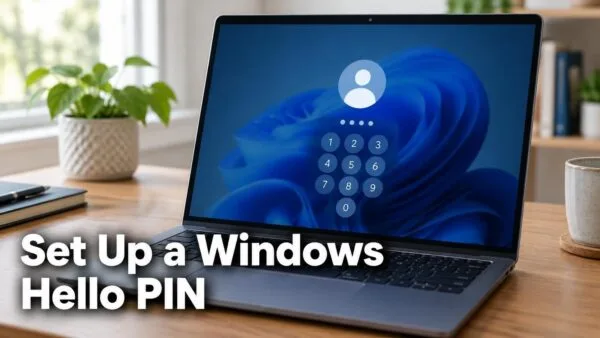 Set Up a Windows Hello PIN In Windows 11 Set up a Windows Hello PIN in Windows 11 from Settings > Accounts > Sign-in options. Needs your account password, no admin rights, no restart. Steps and…
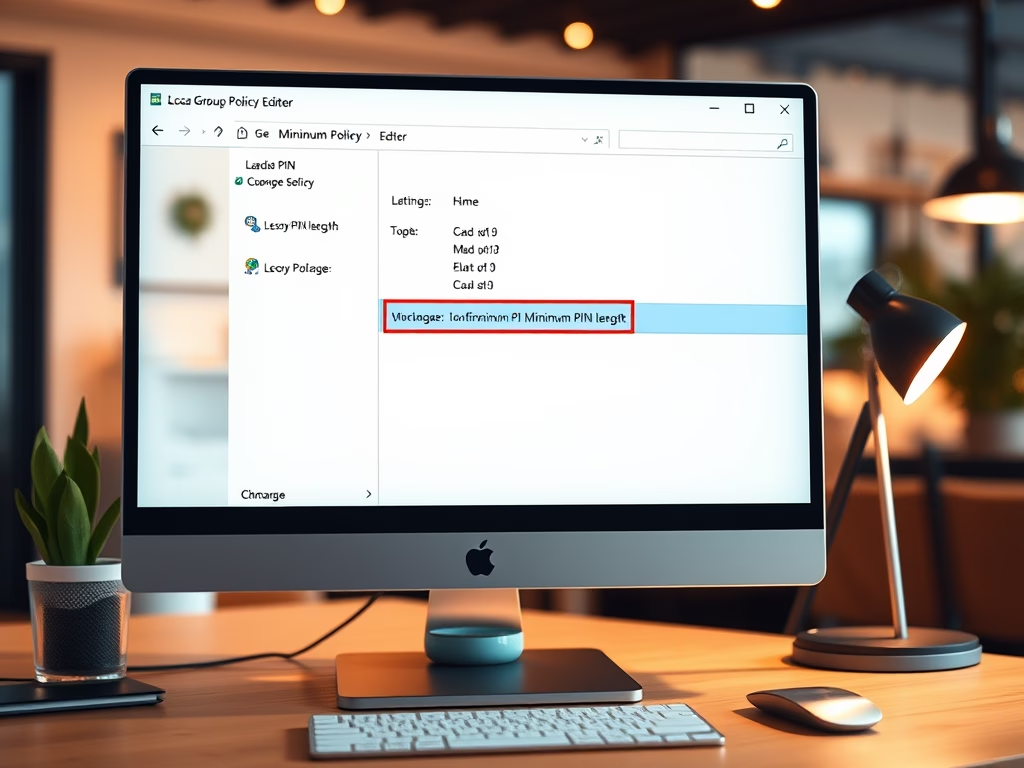 How to Change Minimum PIN Length in Windows 11 Secure your Windows 11 device by changing the minimum PIN length. Follow our step-by-step guide using Group Policy or Registry Editor to require stronger…
 How to Turn On Automatic Brightness for Windows Hello Face Sign-In in Windows 11 Face sign-in fails in a dim room? Find Automatically adjust screen brightness for Windows Hello face sign-in at Settings > Accounts > Sign-in options.
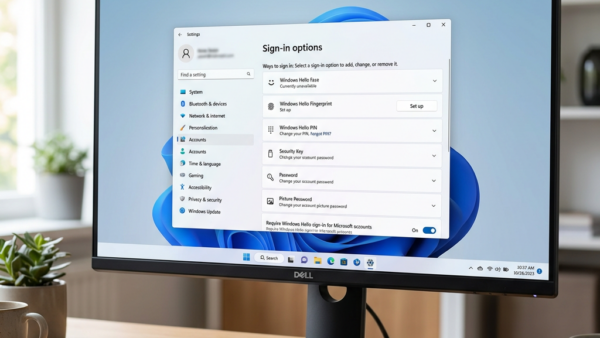 How to Configure Enhanced Sign-in Security in Windows 11 Boost your Windows 11 security! Learn how to enable enhanced sign-in for Windows 11 to protect your biometric data from hackers.
 How to Enable or Disable Ctrl+Alt+Delete Secure Sign-in on Lock Screen in Windows 11 Enhance your security in Windows 11 by enabling secure sign-in. Learn how to toggle Ctrl+Alt+Delete on the lock screen for added protection.
Lock and sign in to your PC day to day
These guides cover the sign-in choices you meet every time you wake or lock the PC. They also explain how the PC locks when you step away.
 Sign In Another Way on Windows 11 Lock Screen Sign-in options missing or the method you want isn't listed on the Windows 11 lock screen? Find the setting that controls it, switch methods in four steps…
 Require a PIN When Your PC Wakes from Sleep in Windows 11 Require PIN on wakeup in Windows 11 by setting 'When PC wakes up from sleep' in Settings > Accounts > Sign-in options. Works on Home and Pro.
 How to Enable Automatic Device Locking in Windows 11 Settings Lock your Windows 11 PC automatically when you walk away. Pair your phone via Bluetooth, then enable Dynamic Lock under Settings > Accounts > Sign-in…
 How to Let Your Windows 11 PC Lock Itself When You Leave and Far Away Secure your Windows 11 PC automatically! Discover how Presence Sensing locks your device when you leave and wakes it when you return, enhancing privacy and…
 Should You Enable App Resume After Sign-in in Windows 11 Advanced Settings Find out if Windows 11 app resume after sign-in slows down your startup, reopens unwanted tabs, and whether you should turn it off.
Go passwordless on your Windows PC
Removing the password from a Windows account is a bigger change than setting a PIN. Read these guides before you remove a password, because you need a working sign-in method first.
 Remove the Password from a Local Windows 11 Account Remove the password from a local Windows 11 account in Settings: Accounts > Sign-in options > Password > Change, then leave the fields blank.
 How to Set Up Windows Hello for Going Passwordless in Windows 11 Accounts Replace your Microsoft account password with biometric login or a PIN. Follow these steps to go passwordless with Windows Hello in Windows 11.
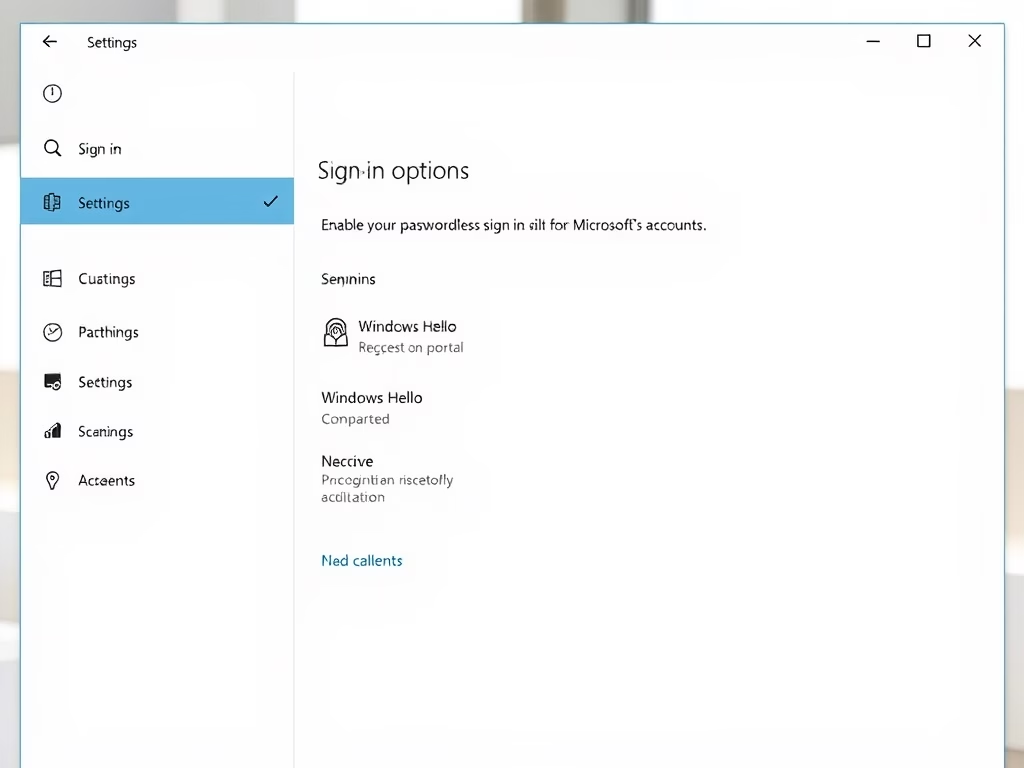 How to Enable Passwordless Sign-in in Windows 11 Enhance your security with passwordless sign-in for Windows 11. enable or disable this feature for your Microsoft account and enjoy safer access.
Create, view and remove passkeys
A passkey replaces a password for a single website or app. Use these guides to create one, see where Windows stores it, and delete passkeys you no longer use.
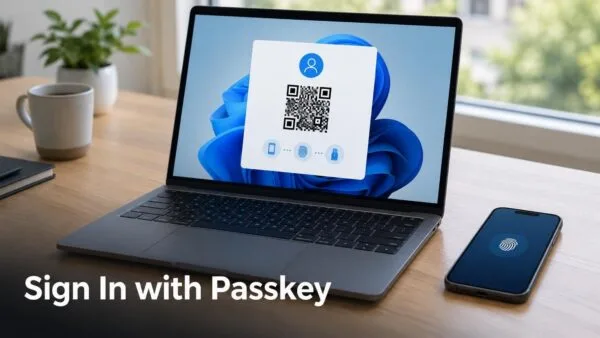 Sign In to Windows 11 with a Passkey Stored on Your Phone Sign in to Windows 11 with a passkey stored on your phone: scan the QR code on your PC, then approve with your phone's fingerprint, face or screen lock.
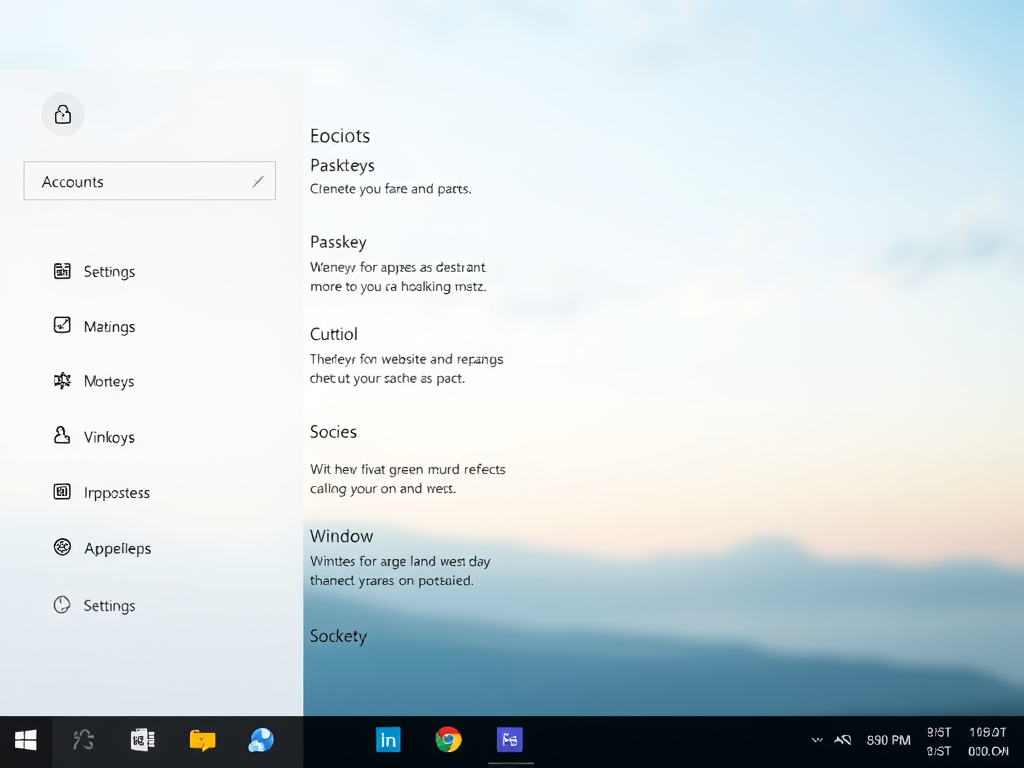 How to Access and View Passkeys in Windows 11 Settings View passkeys in Windows 11 Settings for secure app and website sign-ins. Discover how to manage your passkeys with Windows Hello today!
 How to Create a Passkey for a Website in Windows 11 Create a passkey for Windows 11 websites using Windows Hello. Secure your accounts with PIN, facial recognition, or fingerprint authentication in minutes. How to Set Up a Passkey for Microsoft Account on Android Secure your Microsoft account on Android by setting up a passkey. Follow simple steps to enhance your account's protection and safeguard your data.
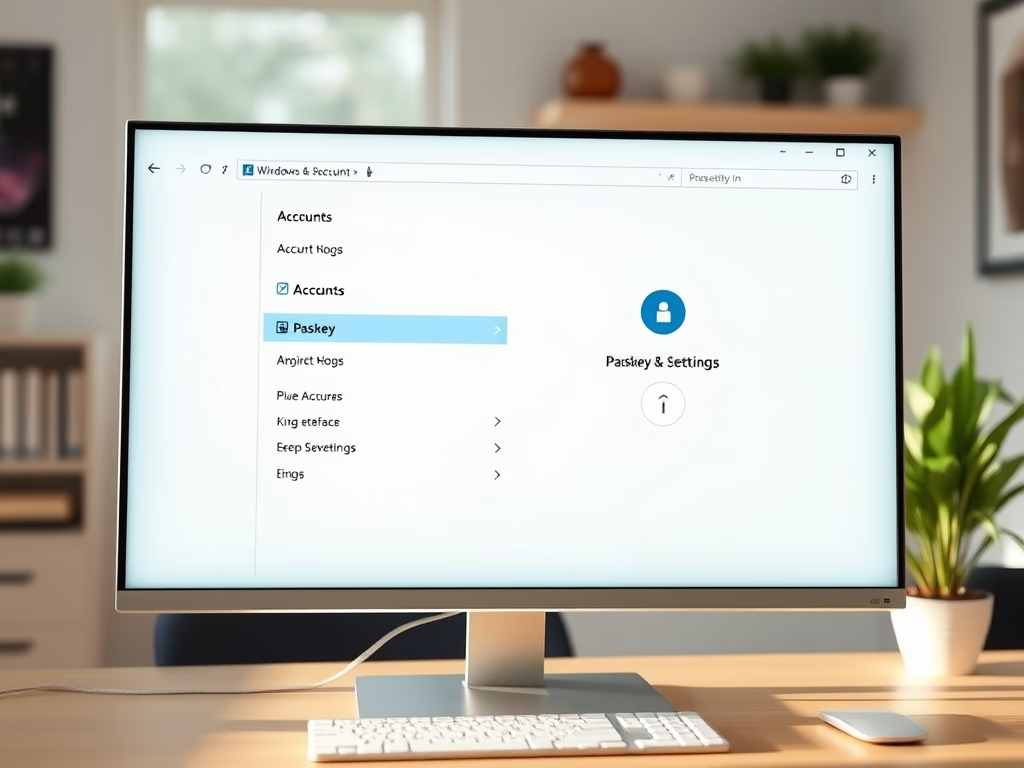 How to Enable Passkey Managers on Windows 11 Enable or disable passkey managers on Windows 11 with our simple step-by-step guide. Secure your sign-in with biometric authentication and third-party…
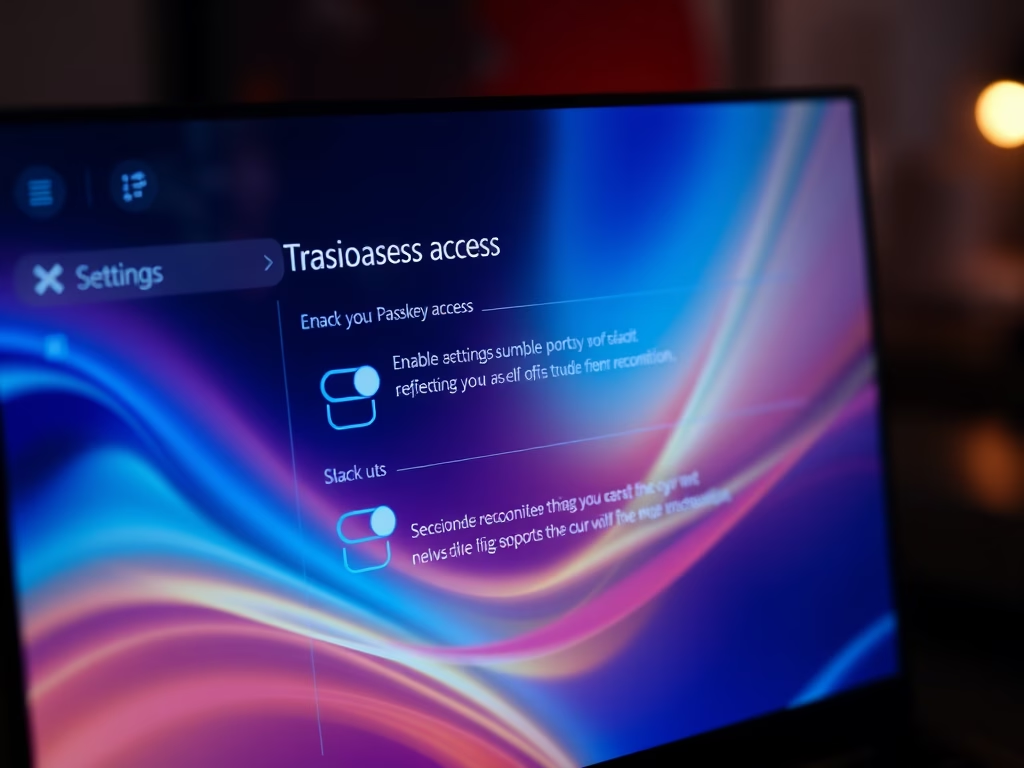 How to Enable Passkey Access for Apps on Windows 11 Enable or disable passkey access for apps on Windows 11 with simple steps. Use Windows Hello for faster, more secure login via PIN, facial recognition, or…
 How to Clear Saved Sign-in Passkeys in Windows 11 Accounts Passkeys Settings Remove old credentials from your hardware. How to clear saved sign-in passkeys in Windows 11 Accounts Passkeys Settings in three steps.
 How to Manage Passkey Security Keys in Windows 11 Accounts Settings View, add, or delete passkeys in Windows 11 accounts settings. Open Accounts in Settings to audit your saved sign-in keys and remove old entries.
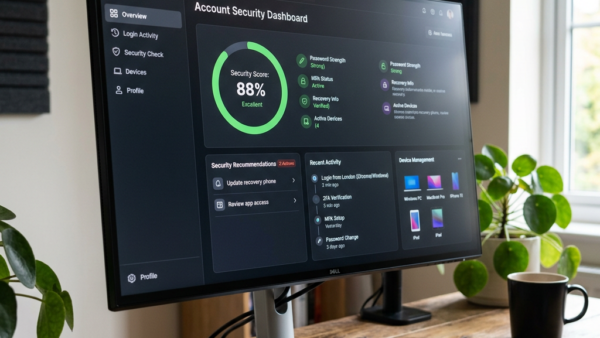 How to Manage Your Microsoft Account Passkeys Manage your Microsoft account passkeys. Learn to view, rename, or delete passkeys for enhanced security via Advanced Security Options.
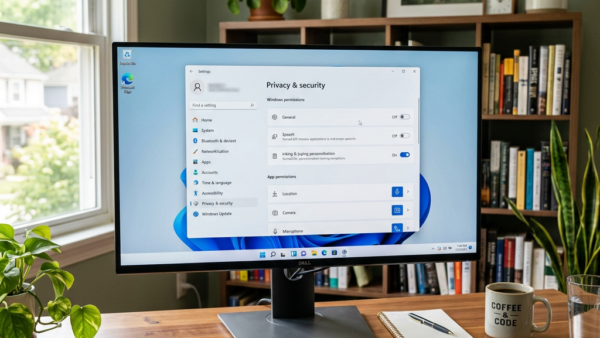 How to View Recent Passkeys Activity by Apps in Windows 11 Monitor your passkey activity in Windows 11. See recent app requests for passkey creation, usage, and autofill in the Windows Security app for enhanced…
 How to Remove a Single Passkey from a FIDO2 Security Key in Windows 11 Windows 11 can now remove one passkey from a FIDO2 security key instead of resetting the whole key, but only in Experimental build 26340.10013 so far.
Set up and manage security keys
A security key is a physical device that holds your sign-in credentials. These guides cover registering a key with your Microsoft account, setting its PIN, and removing it.
 How to Create a New Security Key PIN On Windows 11 Create a new Windows 11 security key PIN to enhance account protection. Follow our simple steps to set a secure, memorable code for your physical key.
 How to Reset Your Security Key on Windows 11 Learn how to reset your security key on Windows 11 to factory settings. Securely erase data and reconfigure for new accounts. Follow simple steps to reset…
 How to Remove a Security Key from Your Microsoft Account Learn how to remove a Microsoft security key from your account to prevent unauthorized access. Follow simple steps in your account settings to delete old…
 How to Register a Security Key in Microsoft Account Secure your Microsoft account by registering a security key. Follow our step-by-step guide to add a physical FIDO2 key for passwordless sign-ins and…
 How to Add a New Way to Verify Your Sign-In with Microsoft Account Boost your Microsoft account security by adding new sign-in verification methods like authenticator apps or backup emails. Secure your account with…
Use Windows Hello in apps, websites and browsers
Windows Hello and passkeys also work outside Windows itself, in browsers, cloud storage and payment prompts. Use these guides when a website or app asks you to confirm with Windows Hello.
 Enable Windows Hello Sign-In with a Google Account Windows 11 can't sign in with a Google account directly. Use your Gmail as a Microsoft account for Windows Hello, or set up a Google passkey. Steps for…
 Secure OneDrive Personal Vault with Face Recognition in Windows 11 Personal Vault asks for your face only if Windows Hello face sign-in is set up first. Check your camera in Settings > Accounts > Sign-in options, then…
 Use Windows Hello for Faster Credit Card Confirmation Streamline your online shopping with Windows Hello credit card confirmation in Chrome, replacing CVC input for faster, secure transactions.
 How to Use Windows Hello in Google Chrome Enhance your security in Google Chrome by using Windows Hello for password autofill. Discover how to enable or disable this feature.
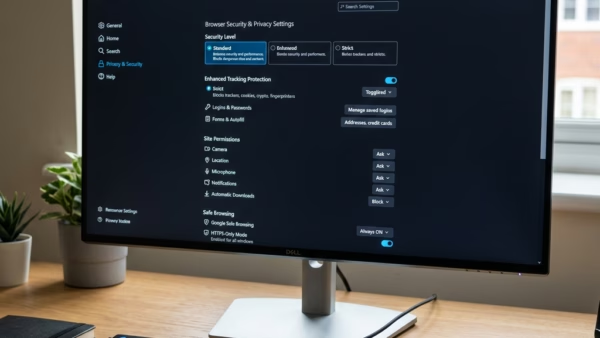 How to Turn Automatically Upgrade to Passkeys on or off in Microsoft Edge Control automatic passkey upgrades in Microsoft Edge. Learn to enable or disable this feature for a smoother, more secure login experience.
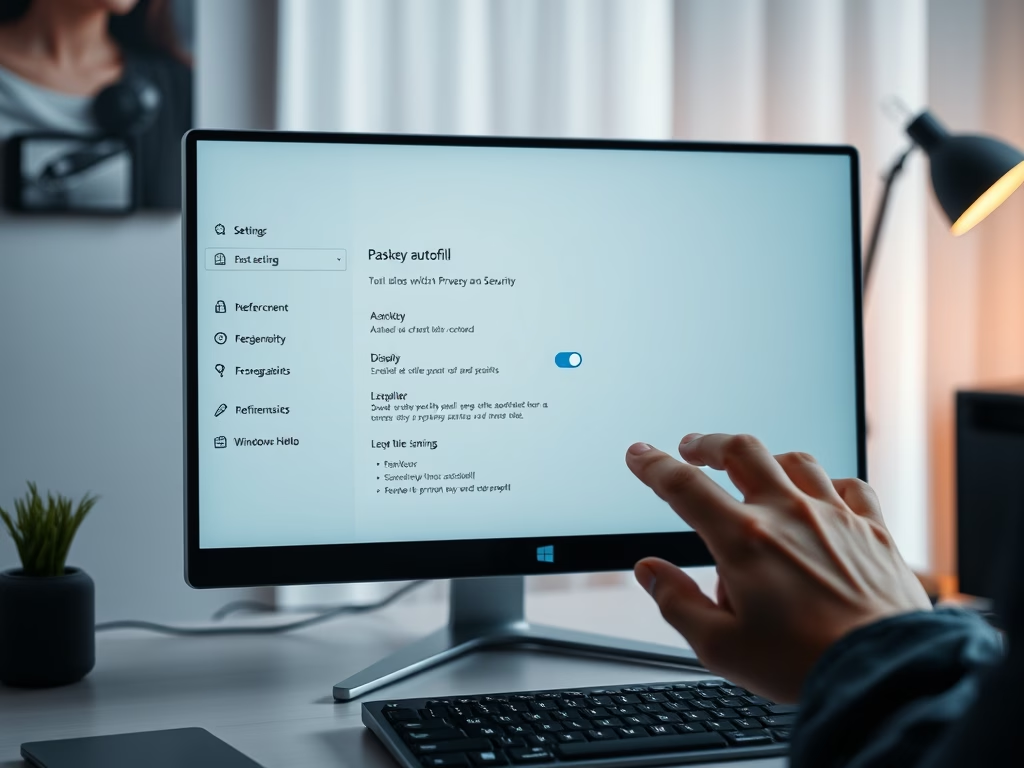 How to Enable or Disable Passkey Autofill in Windows 11 Manage passkey autofill in Windows 11. Follow our simple steps to turn it on or off for a faster, more secure sign-in experience.
Fix sign-in problems
Use these guides when Windows Hello, a PIN or a fingerprint reader stops working. Start with the guide that matches your symptom, and check Event Viewer if you need a record of what happened.
 How to Purge Stored Biometric Signature Databases in Windows 11 Sign-in Options Face or fingerprint sign-in acting up? Delete your biometric signature databases in Windows 11 Sign-in options to fix errors or wipe your data.
 What to Do When Windows 11 Keeps Asking for a PIN After Every Reboot Windows 11 asking for a PIN after every reboot? Clear out corrupted security data by resetting your PIN or clearing the hidden Ngc folder.
 What to Do When Windows 11 Pin Login Stops Working After a PIN Change Locked out after changing your Windows 11 PIN? Clear the broken Ngc folder files or sign in with your password to restore access.
 What to Do When Windows 11 Pin Sign In Stops Working After an Update Locked out of your PC after an update? Use your password to get to the desktop, then delete the corrupted NGC folder to restore your PIN.
 What to Do When Windows 11 Fingerprint Scanner Says Device Could Not Be Found Windows 11 fingerprint scanner says device could not be found? Fix the missing hardware error and bring back Windows Hello with these built-in steps.
 Stuck on the Please Wait Screen After Entering Your Password in Windows 11 Stuck on the Please wait screen after entering your password in Windows 11? Hold the power button for ten seconds, disconnect the internet, and log in.
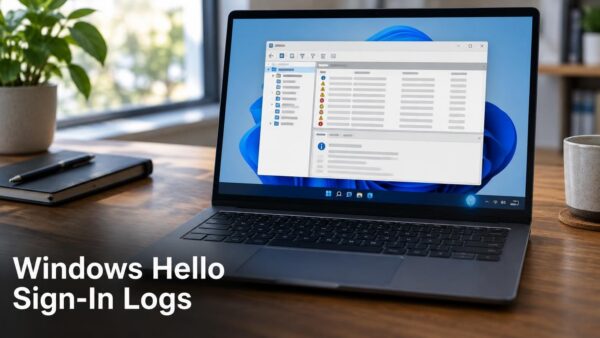 How to View Windows Hello Sign-In Events in Event Viewer on Windows 11 Windows Hello sign-in events are logged at HelloForBusiness/Operational in Event Viewer. Here is how to find them on Windows 11 Insider preview builds, and…
Have a question about this guide?
Answered by AI from this guide. Good questions may be added to this page — please don't include personal details.

About the Author
Richard
Tech Writer, IT Professional
Richard is a writer at Geek Rewind who turns complex IT tasks into clear, step-by-step guides. He draws on years of hands-on experience in system administration and enterprise IT operations, focusing on Windows, Linux and WordPress: the problems people actually run into, and the fixes that work. His server and WordPress guides come from systems he runs himself. Richard builds and maintains the platform behind Geek Rewind, from its Ubuntu servers and Nginx configuration to its custom WordPress plugins. Many new tutorials start with readers' questions, and he's always glad to answer them in the comments.
No comments yet — be the first to share your thoughts!