How to Create a New Security Key PIN On Windows 11

A security key PIN is the secret code you type when you use a physical security key to sign in to your Windows 11 PC or your Microsoft account. The key proves you own the hardware, and the PIN proves it is really you holding it. You need the PIN each time the key asks for it.
You can set a new PIN in under 2 minutes through the Settings app. Open Settings, go to Accounts, and select Sign-in options to manage your security key. The steps are the same on Windows 11 Home and Pro. You will need the key itself, and it must support PINs (FIDO2 keys do).
If you only want to change a PIN you still remember, Windows asks for the current one first. If you have forgotten it, the PIN cannot be recovered. You have to reset the key, which wipes everything stored on it. That is covered below.
Open Settings , go to Accounts Sign-in options, click Security key, then Manage. Connect your physical security key when prompted, select Add new PIN (or Change if one exists), type your new PIN twice, and click OK. The PIN is active immediately.
Open Windows Settings
- Press Win+I on your keyboard. Or click Start and select Settings.
- Check that the Settings window opens, with a list of categories down the left side.
It works from any screen, so it is faster than going through the Start menu .

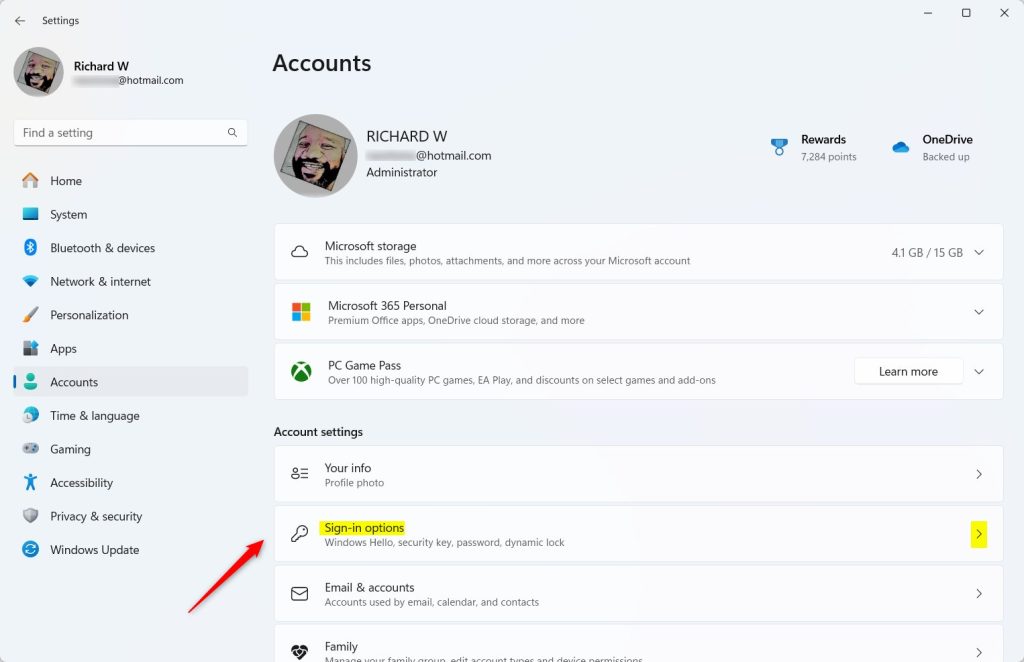
Go to Accounts and Sign-in Options
- Click Accounts in the left sidebar.
- Find Sign-in options on the right side of the screen and click it. You should now see the list of ways to sign in, such as Face, Fingerprint, PIN and Security key.
The exact list depends on your hardware. A PC without a camera or fingerprint reader will not show Face or Fingerprint. Security key should be there on any current Windows 11 build.
Find Your Security Key Settings
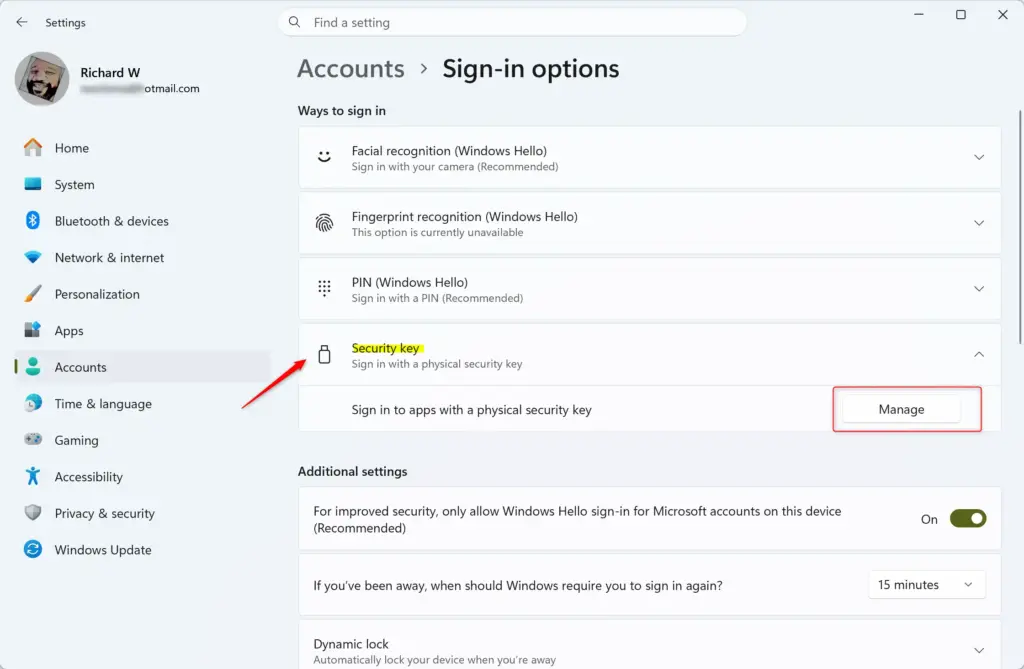
- Scroll down until you find Security key.
- Click Security key to expand it. A short description and a Manage button should appear.
Manage Your Security Key
- Click Manage under the Security key section. This opens the interface for setting up or changing the security key’s PIN.
Windows will then ask you to insert or touch your key. If you have not connected it yet, do that next.
Connect Your Security Key
Connect the key before you go further. For a USB key, plug it into an open port. For an NFC key, tap it against a compatible reader. Then follow any prompts that appear on screen so your computer can recognize the device before you set up your new PIN.
Many keys have a small button or a gold contact that you must touch when Windows asks. If nothing happens, unplug the key, plug it back in, and try a different USB port. Don't pull the key out until the whole process is finished.
Keep the physical security key handy before beginning the process of creating a new PIN. A physical security key is required to complete the PIN setup. Without it, Windows has nothing to attach the new PIN to.
If the PIN option is greyed out or missing, the key may not support PINs, or it may be a very old model. Check the manufacturer's documentation to confirm it supports FIDO2.
Add a New Security Key PIN
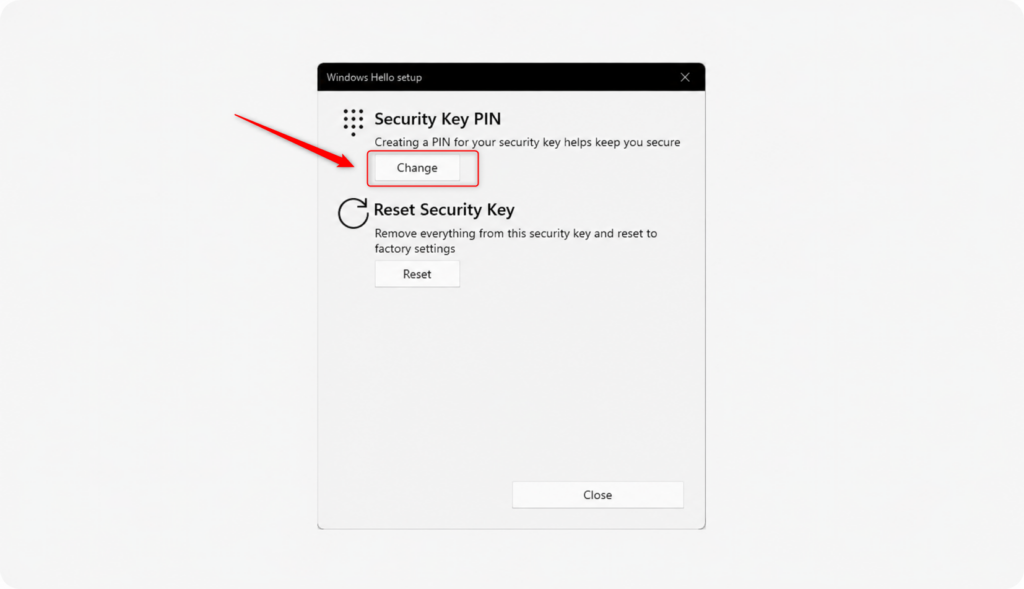
- Select the option to add a new PIN. If the key already has a PIN, the button reads Change and you will be asked for the current PIN first.
- Type a new PIN that is easy for you to remember but hard for others to guess. Most keys require at least 4 characters, and some allow letters and symbols as well as numbers.
- Type the same PIN again in the confirmation box. Both entries must match.
Avoid obvious choices like 1234 or your birth year. Also avoid reusing the PIN of another device. Too many wrong PIN attempts can lock the key.
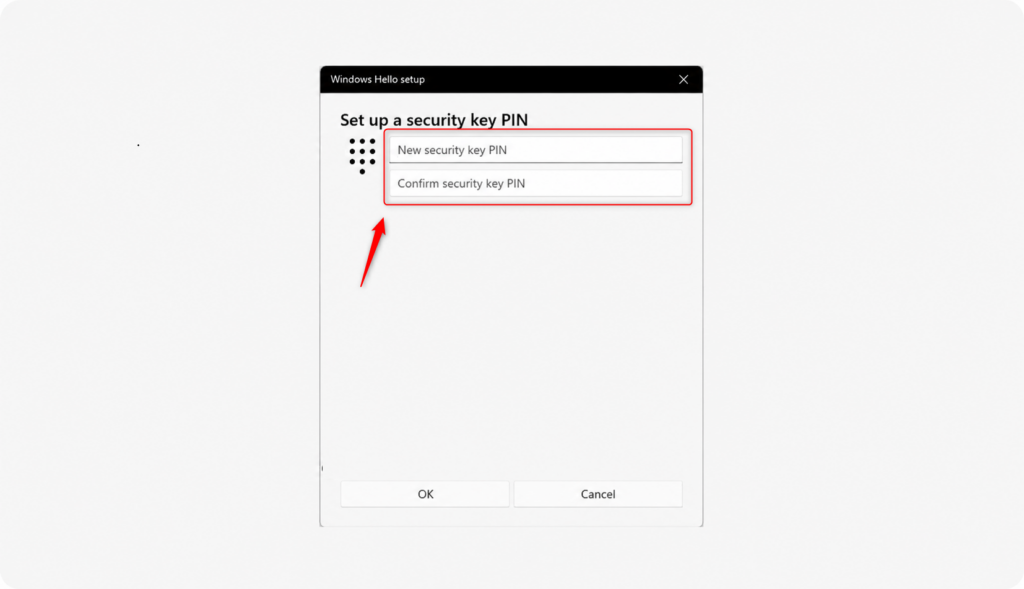
- Click OK after entering the PIN twice.
If Windows says the PINs don't match, re-enter both. If it says the PIN is too short or too simple, choose a longer one.
Confirmation
The security key updates with the new PIN, displaying a confirmation message. This confirms the new PIN is active and ready to use the next time you sign in with the security key.
No restart is needed. To test it, sign out or lock the PC, then sign in with the key and enter the new PIN when asked.
Be careful with it. A reset erases all sign-in credentials stored on the key, so you will have to register the key again with every account that uses it. A reset is the only way back in with a forgotten PIN, though. It also has no undo.
Reference:
Summary
To create a new security key PIN, open Settings, go to Accounts, select Sign-in options, and choose Security key. Click Manage, then connect the security key. Follow the prompts to add a new PIN, entering it twice for confirmation. The new PIN becomes active once finished.
Have a question about this guide?
Answered by AI from this guide. Good questions may be added to this page — please don't include personal details.
Did this guide fix your problem?

About the Author
Richard
Tech Writer, IT Professional
Richard is a writer at Geek Rewind who turns complex IT tasks into clear, step-by-step guides. He draws on years of hands-on experience in system administration and enterprise IT operations, focusing on Windows, Linux and WordPress: the problems people actually run into, and the fixes that work. His server and WordPress guides come from systems he runs himself. Richard builds and maintains the platform behind Geek Rewind, from its Ubuntu servers and Nginx configuration to its custom WordPress plugins. Many new tutorials start with readers' questions, and he's always glad to answer them in the comments.
No comments yet — be the first to share your thoughts!