How to Change Your Password in Windows 11

Update your Windows 11 password or recover a forgotten one in just a few minutes. Which method you use depends on one thing: whether you still know the current password.
Open Settings Accounts Sign-in options, find Password under “Ways to sign in,” click Change, enter your current password, then type your new password twice and click Finish. Your password updates immediately.
Changing Your Password (If You Remember It)
If you know your current password, you can change it from your account settings. This works the same on Windows 11 Home and Pro, and you don’t need to restart afterward.
- Open Settings . Click the Start menu (the Windows icon on the taskbar ) and select Settings, or press
Windows key + Ion your keyboard. The Settings window opens. - Click Accounts in the left menu.
- Click Sign-in options on the right side. You’ll see a list of ways to sign in, such as facial recognition, fingerprint, PIN, and password.
- Under “Ways to sign in,” find the Password entry and click it to expand it. Then click Change.
- Enter your current password when asked. On a Microsoft account, Windows may ask you to verify your identity first, for example with a code sent to your email or phone.
- Type your new password twice. On a local account you will also see a field for a password hint. Make the hint something only you would understand, because anyone at the sign-in screen can read it.
- Click Next if the button appears, then click Finish or Submit. Your password is now updated.
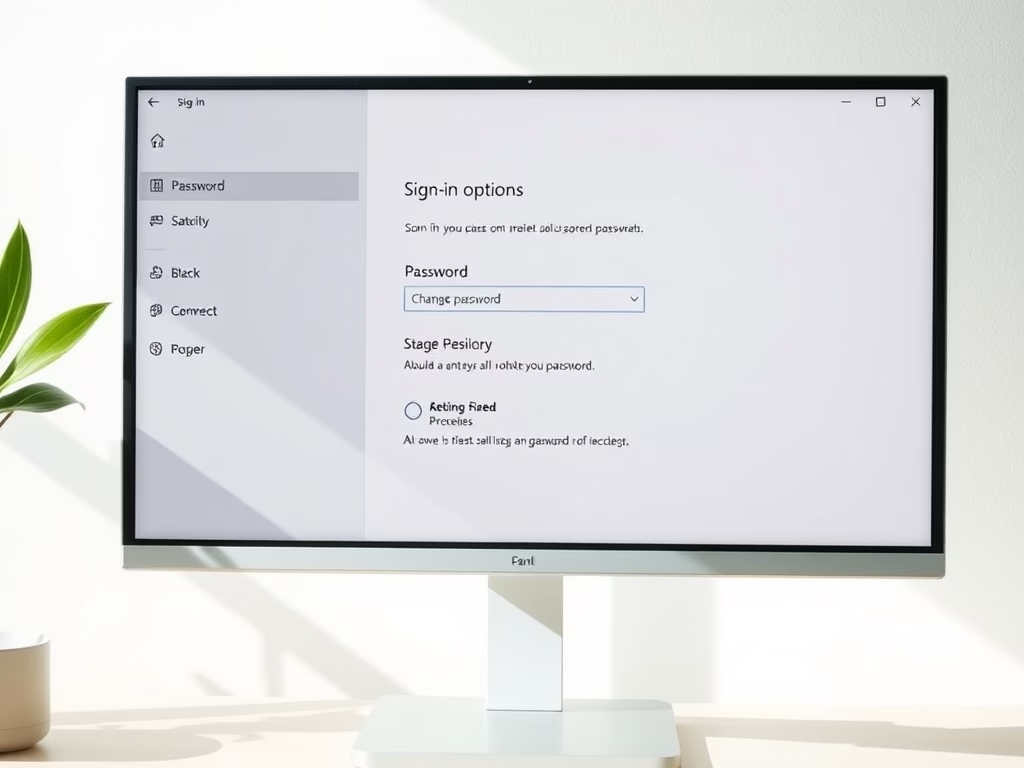
Here is what the Sign-in options screen looks like:

If you’ve forgotten it, skip to the recovery sections below.
If you use a Microsoft account, the new password applies to everything tied to that account, including Outlook, OneDrive, and any other PC where you sign in with it. Those devices may ask for the new password the next time they connect to the internet. If you sign in with a PIN or fingerprint, those keep working, but they don’t replace the password, so remember the new one.
If the Password option is missing, you may be signing in to a work or school account managed by your organization. In that case, your IT department controls the password policy and you’ll need to change it through them.
Resetting Your Password (If You Forgot It)
Recovery steps depend on whether the machine uses a Microsoft account or a local account. To check, go to Settings Accounts Your info once you can sign in. If you can't sign in, look at the sign-in screen. A Microsoft account shows an email address under your name, and a local account shows only a username. Microsoft account resets involve an online verification process.
If You Use a Microsoft Account
If you forgot the password for a Microsoft account, you can reset it online. You can do this from any device with a browser, such as your phone or another PC, so the locked computer doesn't need to be online yet.
- Go to the Microsoft Account Password Reset page.
- Enter the email address, phone number, or Skype name tied to the account.
- Follow the instructions to verify your identity. Microsoft usually sends a security code to the recovery email or phone number on file. Then create a new password.
- Return to the locked PC. Make sure it is connected to the internet, either by Wi-Fi from the sign-in screen or by Ethernet.
- Use your new password to sign in to Windows 11.
If you are not sure you still have access to the recovery email or phone, sort that out first. Without one of them, Microsoft's recovery form takes longer and asks for more details about the account.
If the PC still shows your old password, connect it to the internet and try again. Windows may have cached the old password until it syncs with the account.
If You Use a Local Account
A local account can be recovered with the security questions you set up earlier. This only works if you created those questions, which Windows required when the local account was set up.
- On the login screen, enter any password you think might work.
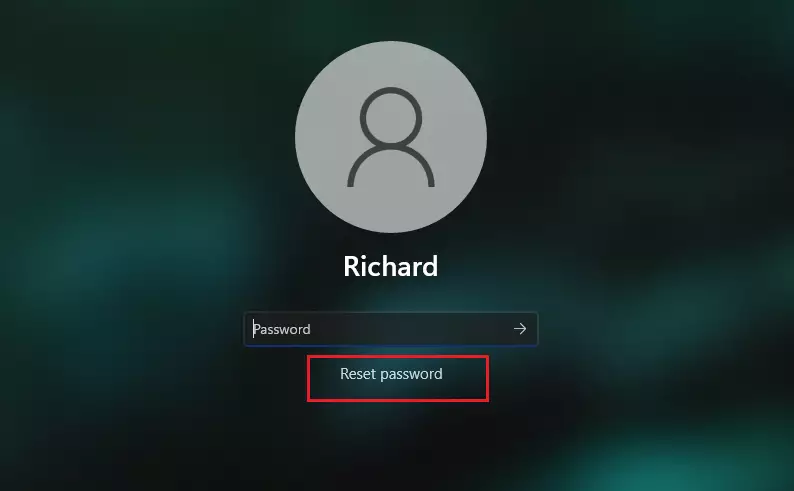
- If it's wrong, click the Reset password link that appears below the password box. If you don't see the link, the account has no security questions, and you'll need the factory reset described at the end of this guide.
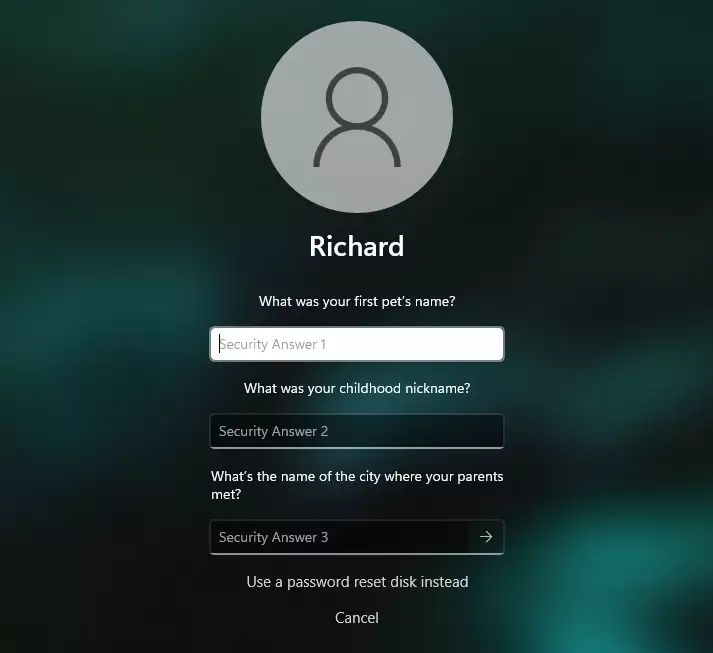
- Answer the security questions you set up when creating your account. Answers are not case sensitive in most cases, but spelling must match.
- Enter a new password and confirm it.
- Sign in with your new password.
Example of the Reset password link on the login screen:
Answer the security questions established during initial setup:
Once you're back in, consider changing the password again from Settings Accounts Sign-in options so you can pick one you'll remember. You can also write it down and store it somewhere safe, or use a password manager.
What If You Can't Reset Your Password?
When security questions fail and online recovery yields no results, wiping the machine is the final option. Use it only when you have no other way in.
You can't back up files from the sign-in screen, so anything you haven't saved elsewhere will be lost.
How to Reset Your PC
A factory reset wipes the entire system clean when all other recovery methods fail. Plug a laptop into power before you start, since the reset can take a while and shouldn't be interrupted.
- On the login screen, click the Power button in the bottom-right corner. A small menu appears.
- Hold down the
Shiftkey on your keyboard, then click Restart. Keep the key held until the PC restarts. - When the blue screen appears, click Troubleshoot.
- Select Reset this PC.
- Choose Remove Everything to erase all data and reset Windows.
- Follow the on-screen instructions to complete the reset. You may be asked how to reinstall Windows (from the cloud or from the local copy) and whether to clean the drive fully. The PC restarts several times, and you'll go through the first-time setup when it finishes.
If the drive is encrypted with BitLocker or device encryption, Windows may ask for a recovery key during this process. For a Microsoft account, you can usually find that key by signing in to your Microsoft account online from another device. After the reset, set up a new password and, if you use a local account, add security questions so you can recover it next time.
Summary
Windows Settings handles known password updates. Microsoft account passwords require online recovery, while local account passwords rely on security questions.- Change your password anytime from Windows Settings if you know your current password.
- If you forget your password, reset it using security questions (local account) or Microsoft's online tools (Microsoft account).
- Always keep your security questions and account info updated to avoid problems.
- If everything else fails, reset your PC—but remember this deletes everything!
- Keeping your password safe and up-to-date helps protect your computer and personal data.
Was this guide helpful?

About the Author
Richard
Tech Writer, IT Professional
Richard is a writer at Geek Rewind who turns complex IT tasks into clear, step-by-step guides. He draws on years of hands-on experience in system administration and enterprise IT operations, focusing on Windows, Linux and WordPress: the problems people actually run into, and the fixes that work. His server and WordPress guides come from systems he runs himself. Richard builds and maintains the platform behind Geek Rewind, from its Ubuntu servers and Nginx configuration to its custom WordPress plugins. Many new tutorials start with readers' questions, and he's always glad to answer them in the comments.



No comments yet — be the first to share your thoughts!