Sign In to Windows 11 with a Passkey Stored on Your Phone

- 17 steps
- Needs administrator rights
A passkey stored on your phone lets you sign in to your Microsoft account, and to many websites, on a Windows 11 PC without typing a password. The quickest way starts on the sign-in page. Choose the passkey option, then pick iPhone, iPad, or Android device. Scan the QR code on the PC screen with your phone, and approve the sign-in with your fingerprint, face, or screen lock.
A passkey is a sign-in credential that replaces your password. It has two halves: a private half that stays on your phone and a public half that the website keeps. Your phone’s biometrics (your fingerprint or face) or screen lock gives access to the private half, so there is nothing to type or steal.
This guide covers the Windows 11 side of the process and what to check on your phone first. It also explains what to do when the QR code or the phone prompt does not appear.
To sign in to Windows 11 with a passkey stored on your phone, turn on Bluetooth on your PC and phone, then open Microsoft Edge and go to account.microsoft.com. Enter your account email and choose the passkey option, pick iPhone, iPad, or Android device, and scan the QR code on the PC screen with your phone. Approve with your fingerprint, face, or screen lock.
What You Need Before You Start
- A passkey on your phone. Your account needs a passkey already saved on your phone, in the phone’s built-in password manager (iCloud Keychain on iPhone, Google Password Manager on Android) or in a password manager app that supports passkeys.
- Bluetooth on both devices. Windows 11 uses Bluetooth to confirm the phone is physically near the PC. Your sign-in data does not travel over Bluetooth.
- An internet connection on both devices. The phone and PC exchange the sign-in request through the internet.
- A current version of Windows 11 and Microsoft Edge. Windows 11 added passkey support in version 23H2 (the release from the second half of 2023), so later versions include it too. If you are on 22H2 or earlier, run Windows Update first.
None of the steps below need administrator privileges. A standard user account works.
Can You Unlock Windows Itself with a Phone Passkey?
Many readers mix these up, so this section comes before the steps. The phone passkey flow in this article signs you in to your Microsoft account and to websites and apps that you open on a Windows 11 PC. It does not replace the sign-in screen you see when you start or lock the computer.
For that screen, Windows 11 uses Windows Hello (a PIN, face recognition, or a fingerprint stored on the PC), a password, or a security key. If you want to set those up, read how to set up Windows Hello sign-in in Windows 11 or how to set up Windows 11 fingerprint sign-in.
If your PC belongs to a work or school and signs in through an organization account, your administrator controls which sign-in methods the lock screen accepts. A phone passkey may not work on a work or school PC. Check with your IT team before you try it.
How to Sign In to Windows 11 with a Passkey Stored on Your Phone
These steps sign you in with a passkey stored on your phone, using a Microsoft account as the example. The same QR code flow appears on other sites that support passkeys, though the wording on the web page differs.
- Turn on Bluetooth on your PC. Open Settings Bluetooth & devices and switch the Bluetooth toggle to On. The toggle turns blue, and your Bluetooth devices appear below it. If the Bluetooth toggle is missing, your PC may have no Bluetooth adapter. Check Device Manager for a Bluetooth section.
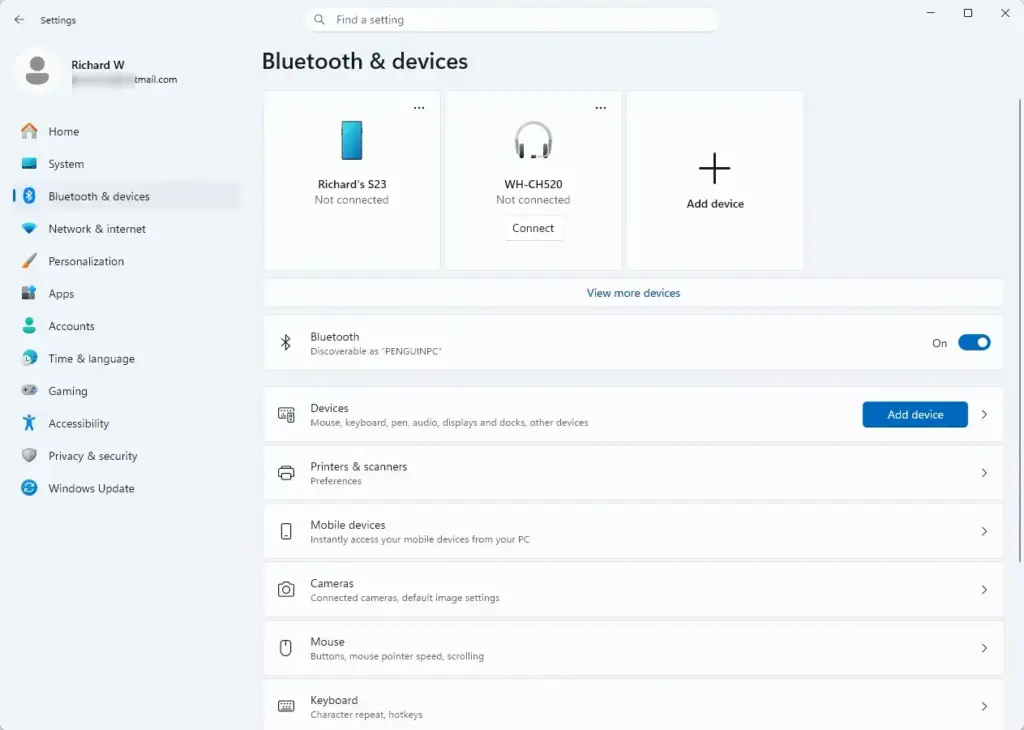
Windows Settings menu highlighting the Bluetooth and devices option for printers - Turn on Bluetooth on your phone. Open the phone’s settings or quick settings panel and switch Bluetooth on. You do not need to pair the phone with the PC. Make sure the phone also has Wi-Fi or mobile data.
- Keep the phone unlocked and close to the PC. Within a metre or two is enough. The phone must be near enough for Bluetooth to detect the PC.
- Open Microsoft Edge on your PC. Go to account.microsoft.com, or open the site or sign-in page you want to use. The sign-in page loads and asks for your email address.
- Enter your account email address. Type the address for the account that holds the passkey, then select Next. If the account has a passkey, the page may offer it straight away. If it asks for a password, continue to the next step.
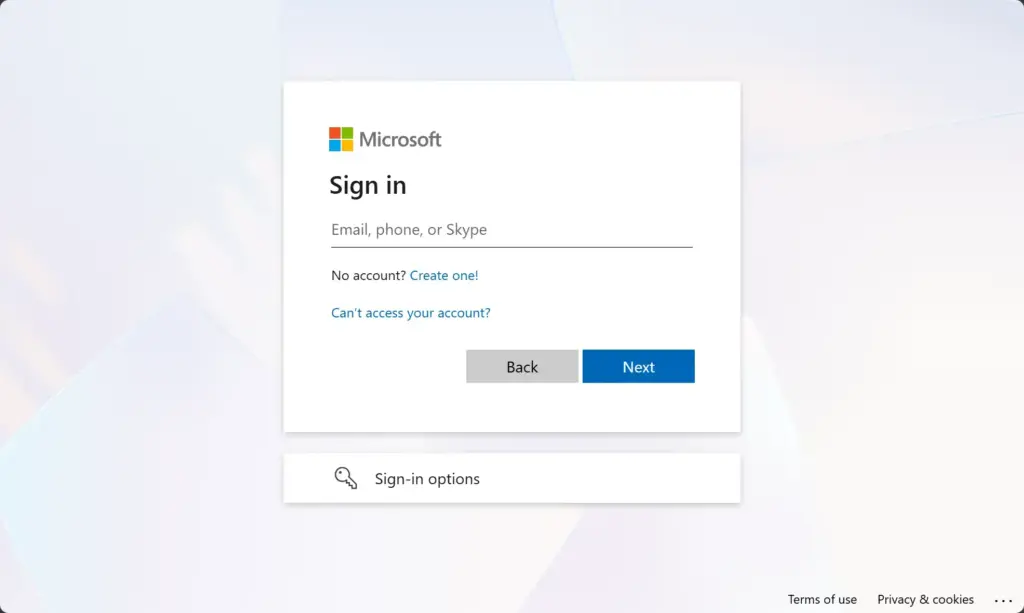
Microsoft account login page for signing in with email and password. - Select the passkey option. On Microsoft sign-in pages, look under Sign-in options for a choice such as a passkey, Windows Hello, or a security key. The exact wording changes as Microsoft updates the page. A Windows Security window opens.
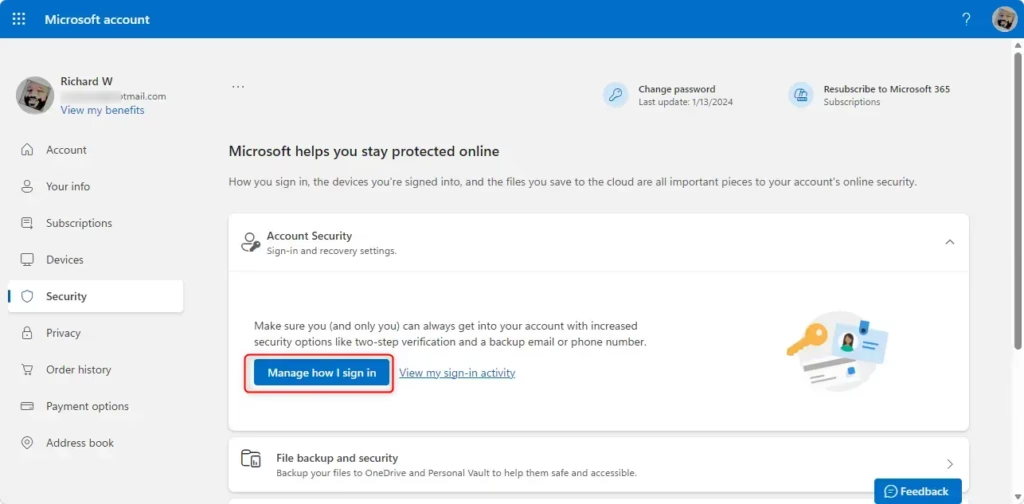
Microsoft account security page with 'Manage how you sign in' highlighted. - Select iPhone, iPad, or Android device. The Windows Security window lists where it can find your passkey. If the window offers Windows Hello or external security key first, ignore it for now. Select Next if the window asks you to.
- Wait for the QR code. The window now shows a black-and-white square code and a line telling you to scan it with the device that holds your passkey. If the code does not appear, see the fixes below.
- Scan the QR code with your phone camera. Open the built-in Camera app and point it at the PC screen. A notification or link appears on the phone, usually labelled with the words “Sign in with a passkey” or similar. On Android, Google Lens or the Camera app both work.
- Tap the notification on your phone. The phone connects to the PC through Bluetooth and the internet. It then shows a list of passkeys it holds for the site.
- Select the correct account on your phone. Choose the passkey that matches your email address. If you have several accounts for the same site, check the address before you continue.
- Approve the sign-in on your phone. Use Face ID, your fingerprint, or your screen lock PIN. This proves it is you holding the phone.
- Check your PC screen. The Windows Security window closes, and the page signs you in without asking for a password. If the site shows a “Stay signed in?” prompt, choose Yes only on a PC you own.
That’s it. Windows signs you in once your phone approves the request. The passkey itself stays on your phone and does not copy to the PC.
What Happens During Phone Passkey Sign-in
Knowing what each device does helps you spot where a failure happens. The PC creates a sign-in request and stores it inside the QR code. Your phone reads the code and contacts the same service through the internet.
The phone then checks over Bluetooth that it is physically near the PC. This blocks attackers who send you a QR code from a remote location. Finally, the phone signs the request with the private half of the passkey after you confirm with your fingerprint, face, or PIN.
Windows 11 never sees your fingerprint or face. It only receives the signed result, which is why this method resists phishing (fake sites that harvest passwords).
Fix: Phone Passkey Sign-in Is Not Working
The option for iPhone, iPad, or Android device is missing
The Windows Security window only offers this choice when Bluetooth is available. Open Settings Bluetooth & devices and confirm Bluetooth is On. Then close the window and start the sign-in again.
If you are on Windows 11 version 22H2 or older, check Settings Windows Update and install pending updates. Older builds do not show the full passkey window.
The QR code never appears
Wait about 10 seconds first, as the code can take a moment to generate. If nothing shows, close the window, restart Microsoft Edge, and try again. A VPN (a service that routes your internet traffic through another server) or a strict firewall (security software that blocks network traffic) can also block the connection. Turn the VPN off for the test.
Your phone does not react to the QR code
Check that the phone has an internet connection and that its Bluetooth is on. Make sure the phone is unlocked and near the PC. If the camera shows the code but no prompt, update the phone’s operating system, since older versions lack passkey support.
Your phone says it has no passkey for this account
The passkey may be saved in a different place. For example, you may have created it on a work phone, in another password manager, or on a different Google or Apple account. Open the password manager on the phone and search for the site name to confirm the passkey is there.
If it is not, create a new one. On the phone, sign in to your account, open the account’s security settings, and add a passkey as a new way to sign in. The exact menu names depend on the site.
Sign-in stops after you approve on the phone
This usually means Bluetooth lost the connection or the phone moved out of range. Move the phone next to the PC, repeat the steps from the QR code, and keep the phone screen on.
Passkeys Saved on the PC Versus on Your Phone
Windows 11 can also store passkeys on the PC itself and protect them with Windows Hello. These show up in Settings Accounts Passkeys in version 23H2 and later, where you can view and delete them.
Passkeys that live on your phone do not appear in that list. To manage a phone passkey, open the password manager on the phone. If you would rather sign in with a passkey saved on the PC (not your phone) and skip the QR code step, follow how to save a passkey with Windows Hello in Windows 11.
The phone method suits shared or public PCs, because nothing stays on the computer afterwards. The local method is faster on a PC you use every day.
How to Remove a Phone Passkey
Removing a passkey is the way to reverse this setup. Removing a passkey takes two actions: delete it from your Microsoft account, then delete it from your phone. Deleting only one leaves the other behind.
- Sign in to your account on the website. For a Microsoft account, go to account.microsoft.com and sign in with another method, such as your password and a verification code.
- Open the account’s security settings. Find the list of sign-in methods or passkeys. The page layout changes over time, so look for a security or sign-in section.
- Remove the passkey. Select the passkey you no longer want and confirm. The site stops offering it at sign-in.
- Delete the passkey on your phone. Open the phone’s password manager, find the entry for the site, and delete it.
Related Sign-in Settings Worth Knowing
If you want the account to stop asking for a password everywhere, the passwordless sign-in setting for Microsoft accounts in Windows 11 covers that option. If you have not linked a Microsoft account to this PC yet, start with how to sign in to a Microsoft account in Windows 11.
For a full overview of the choices on the lock screen, read how to set up Windows 11 sign-in options.
What to do next
Next time you sign in to your Microsoft account on a PC, the passkey option should appear, and your phone should approve the sign-in in a few seconds. If you use your own PC daily, set up a Windows Hello PIN or fingerprint for the lock screen so you only need the phone for other devices. A feature update or a new Microsoft Edge profile does not remove the passkey on your phone, but you must repeat the QR code sign-in on each new PC.
Have a question about this guide?
Answered by AI from this guide. Good questions may be added to this page — please don't include personal details.
Did this guide fix your problem?

About the Author
Richard
Tech Writer, IT Professional
Richard is a writer at Geek Rewind who turns complex IT tasks into clear, step-by-step guides. He draws on years of hands-on experience in system administration and enterprise IT operations, focusing on Windows, Linux and WordPress: the problems people actually run into, and the fixes that work. His server and WordPress guides come from systems he runs himself. Richard builds and maintains the platform behind Geek Rewind, from its Ubuntu servers and Nginx configuration to its custom WordPress plugins. Many new tutorials start with readers' questions, and he's always glad to answer them in the comments.
No comments yet — be the first to share your thoughts!