How to Sign In and out of Phone Link on Windows 11

Phone Link is a built-in Windows 11 app that connects your phone to your computer so you can view text messages, make phone calls, and open mobile apps right on your desktop. Setting up the connection takes two matching apps—Phone Link on your PC and Link to Windows on your phone—plus the exact same Microsoft account signed in on both devices.
Signing out of Phone Link disconnects your devices immediately and stops your phone data from showing up on your PC. You can easily sign out from the app settings on your computer or remove the device link from your online Microsoft account page whenever you want to stop sharing data.
Sign in to Phone Link by opening the app, clicking Continue, and authenticating with your Microsoft account. To sign out, open Settings , select Devices, and click the Sign out link. This manages your phone-to-PC connection.
Sign in to the Phone Link app
To sign in Phone Link Windows 11, open the app on your computer, click Continue, and log in with your Microsoft account to connect your phone. You need your phone nearby to finish the setup process and link your device.
- Open the Phone Link app on your Windows 11 PC.
- Click the “Continue” button. This assumes you are logged in to your Windows PC with your Microsoft account.
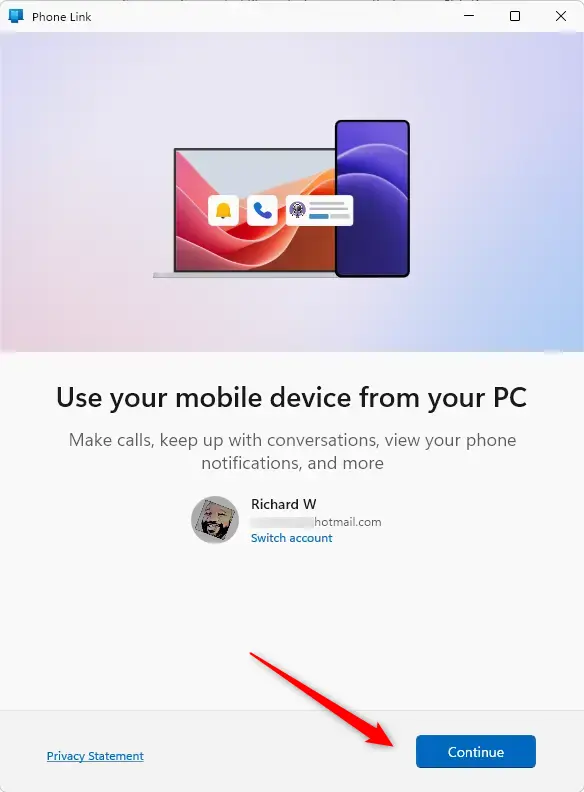
- Choose your mobile device (Android or iPhone) and log on to your Microsoft account to authenticate.
Pick the operating system of the phone. Afterward, sign in with the same Microsoft account on both devices to verify identity.
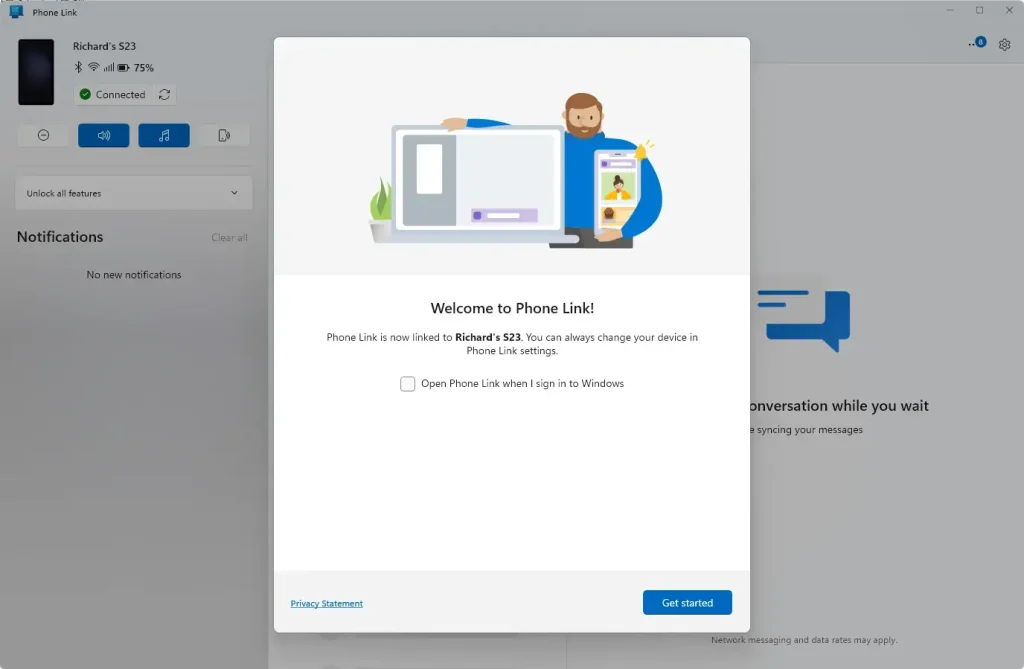
What happens next? Successful authentication completes the sign-in process for the Phone Link utility.
Sign out of the Phone Link app
To sign out of Phone Link Windows 11, open the app, click the Settings gear icon, go to Devices, and click the Sign out link under your name. This ends your active session and unlinks your phone from your computer.
- Click the Settings (gear) icon at the top right corner.
- Select Devices.
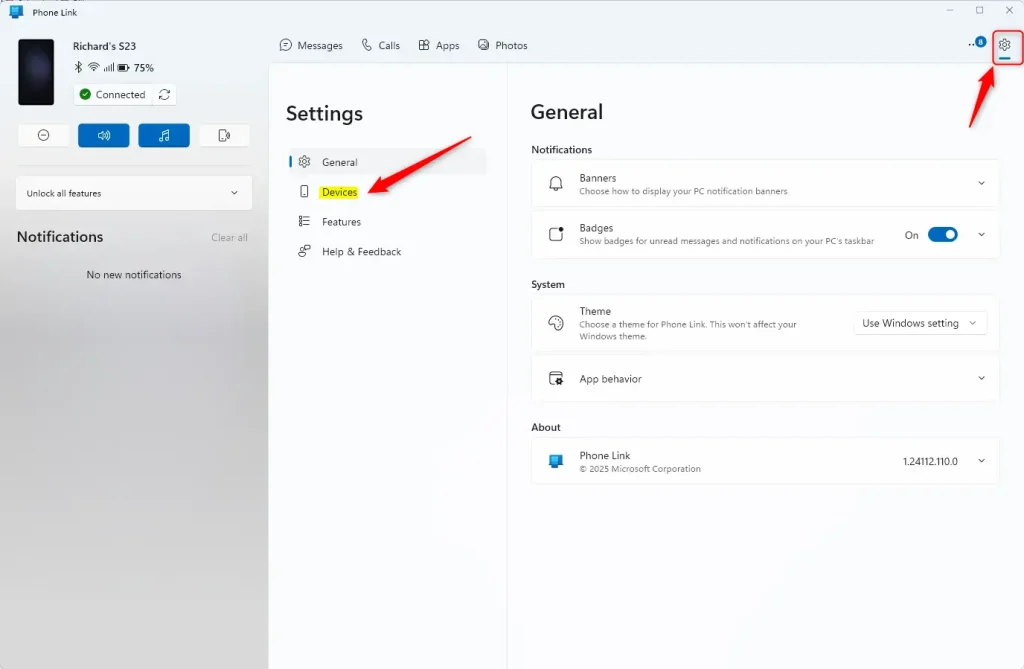
- Click on the "Sign out" link under your name to sign out of the app.
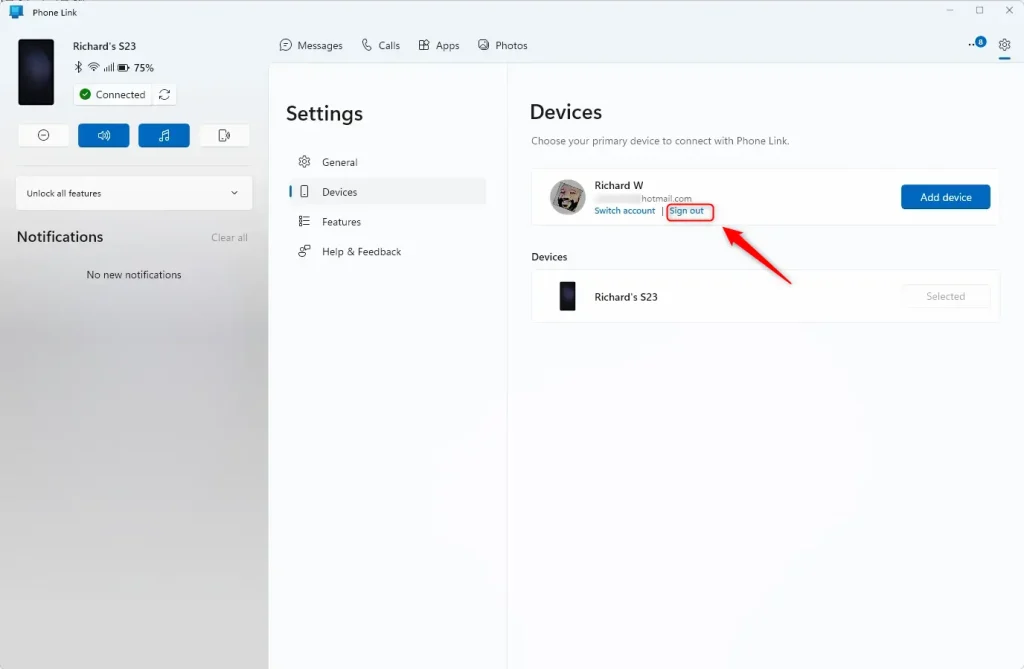
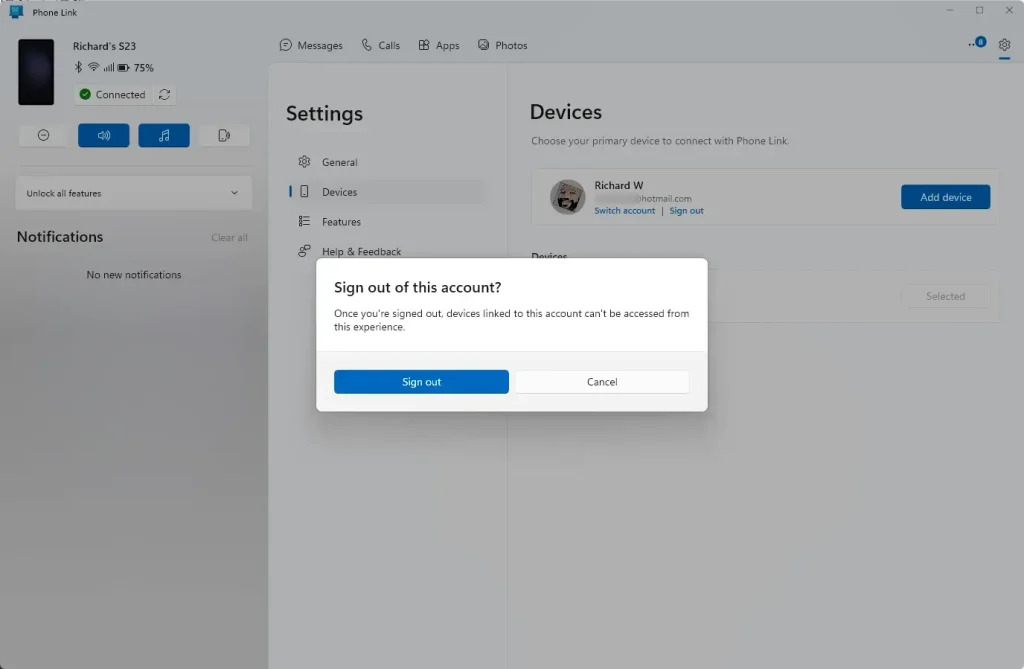
What happens next? The session ends and unlinks the mobile device from the application.
Summary
Managing Phone Link on Windows 11 lets you connect your mobile device to your computer to view texts, calls, and apps directly on your desktop. You can easily sign in or sign out at any time through the app settings using your Microsoft account.
- The Phone Link app lets you access your phone's apps and data from your Windows PC.
- You need a Microsoft account and the Link to Windows app on your phone to connect.
- To sign in, open Phone Link, click Continue, and authenticate with your Microsoft account.
- To sign out, go to Settings, select Devices, and click the Sign out link.
- Signing in and out helps you stay secure and manage your device connection.
Was this guide helpful?

About the Author
Richard
Tech Writer, IT Professional
Richard is a writer at Geek Rewind who turns complex IT tasks into clear, step-by-step guides. He draws on years of hands-on experience in system administration and enterprise IT operations, focusing on Windows, Linux and WordPress: the problems people actually run into, and the fixes that work. His server and WordPress guides come from systems he runs himself. Richard builds and maintains the platform behind Geek Rewind, from its Ubuntu servers and Nginx configuration to its custom WordPress plugins. Many new tutorials start with readers' questions, and he's always glad to answer them in the comments.
No comments yet — be the first to share your thoughts!