How to Start Phone Link Automatically When You Sign In

Phone Link (an app that syncs your text messages, photos, and calls directly to your PC) can open on its own the moment you reach the desktop. You get there by changing startup and background settings in Windows 11 (Windows 10 reached end of support on October 14, 2025).
Background permission changes or startup shifts often break this, so you end up opening the app by hand every time you sign in. Windows updates and “clean-up” tools can also switch the startup entry off. The methods below cover the PC side first, then the phone side, so your phone stays connected without extra clicks. Work through them in order and test after each one by signing out and back in.
Open Phone Link, click the Settings gear in the top-right corner, choose General, and switch on “Open Phone Link when I sign in to my PC.” The app then launches automatically at each sign-in, with no restart needed. If the option is missing, enable Phone Link in Task Manager ’s Startup apps list instead.
Configure Startup Apps in Task Manager
First, a linked phone. That means an Android phone with the Link to Windows app, or an iPhone, which works with limited features. Second, you must be signed in with a Microsoft account. The startup and background options in this guide only appear after Phone Link is installed and set up. If you cannot find them, finish the setup and pairing first, then come back.
The simplest method is Phone Link’s own startup setting. Try it first:
- Open Phone Link from the Start menu .
You should see the main Phone Link window with your phone connected. - Click the Settings gear icon in the top-right corner of the window.
- Click General.
- Find the option Open Phone Link when I sign in to my PC and set it to On. The exact wording can differ slightly between app versions.
You do not need to restart. The setting takes effect the next time you sign in. To undo it, set the option back to Off.
Task Manager (a tool for monitoring system performance and managing background processes) controls which apps run automatically when Windows starts. It is a good second method. It also lets you check whether something has switched the startup entry off. Find Phone Link in the startup list and turn it on. Windows then launches it every time you sign in.
- Press Ctrl+Shift+Esc together to open Task Manager .
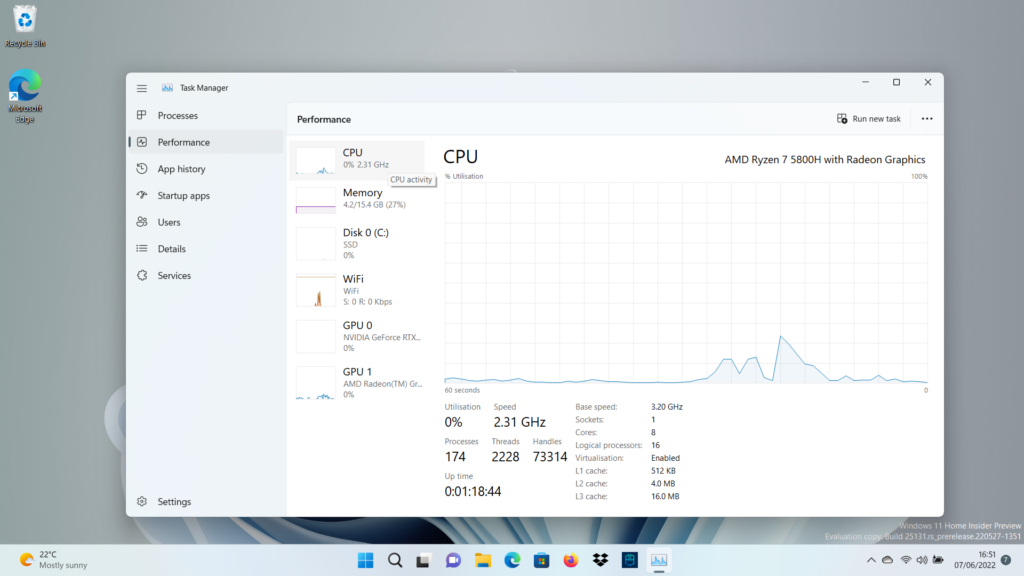
Windows 11 Task Manager dashboard showing startup applications list.
You should see the Task Manager window. If it opens in a compact view, click More details first. - Click the Startup apps icon in the left-hand menu. The icon looks like a gauge or a speedometer.
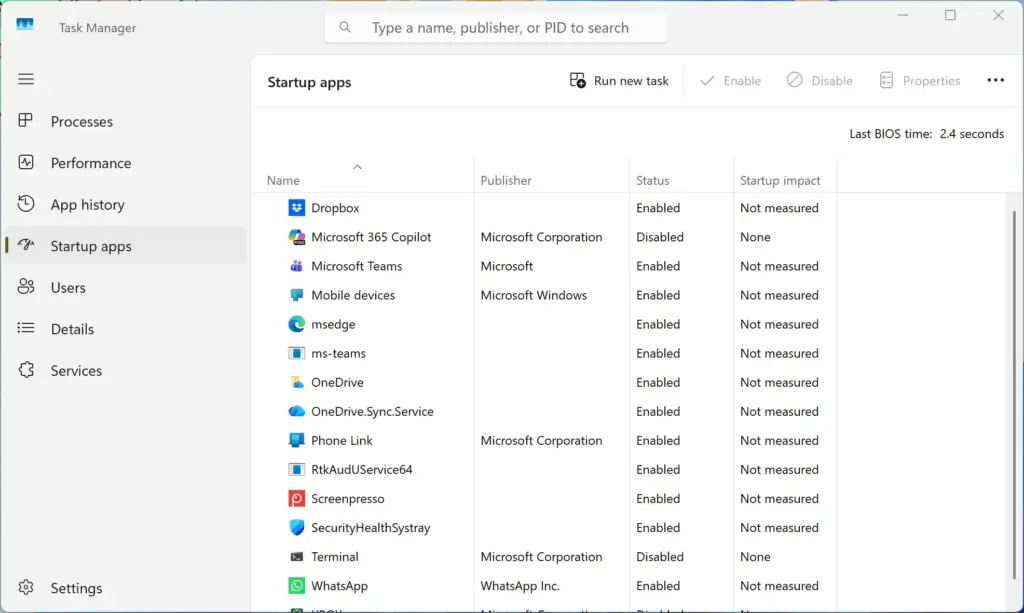
Task Manager › Startup
You should now see a list of apps with a Status column showing Enabled or Disabled. On Windows 10 there is no side menu. Click the Startup tab along the top instead. - Scroll down the list until you find Phone Link. On older Windows 10 builds it may still appear as Your Phone.
- Click Phone Link to select it.
- Click the Enable button. In Windows 11 it sits in the toolbar at the top of the window. In Windows 10 it is at the bottom right. If the button says Disable, the app is already set to run at startup and you can leave it alone.
The Status column should now read Enabled.
You do not need to restart for the setting to save. It takes effect the next time you sign in. To undo it, select Phone Link again and click Disable. If Phone Link is missing from the list, it may not have been opened and signed in on this PC yet, or your phone may not be linked. Open it once, finish the setup, then check the list again.
Adjust Background App Permissions in Windows Settings
Windows uses background app permissions to decide whether an app can run when you are not actively using its window. If Phone Link is not allowed to run in the background, it may not launch or keep its connection after sign-in. Setting the right permission gives it the access it needs to start and stay connected.
- Press Win+I to open Settings.

Windows 11 Start menu with Settings gear icon highlighted. - Click System in the left sidebar.
- Click System components.
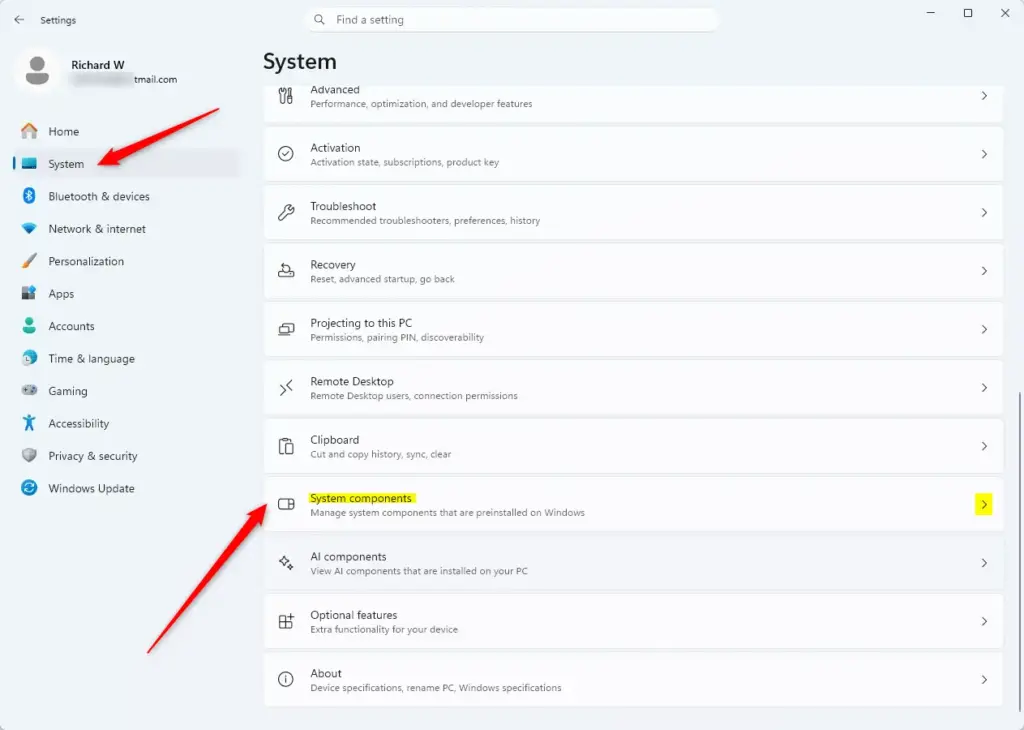
Windows 11 System Components settings page showing app list.
This page lists the apps that ship with Windows. On some Windows 11 builds, Phone Link appears under Apps Installed apps instead. Look there if you cannot find it here. - Scroll down to find Phone Link in your application list.
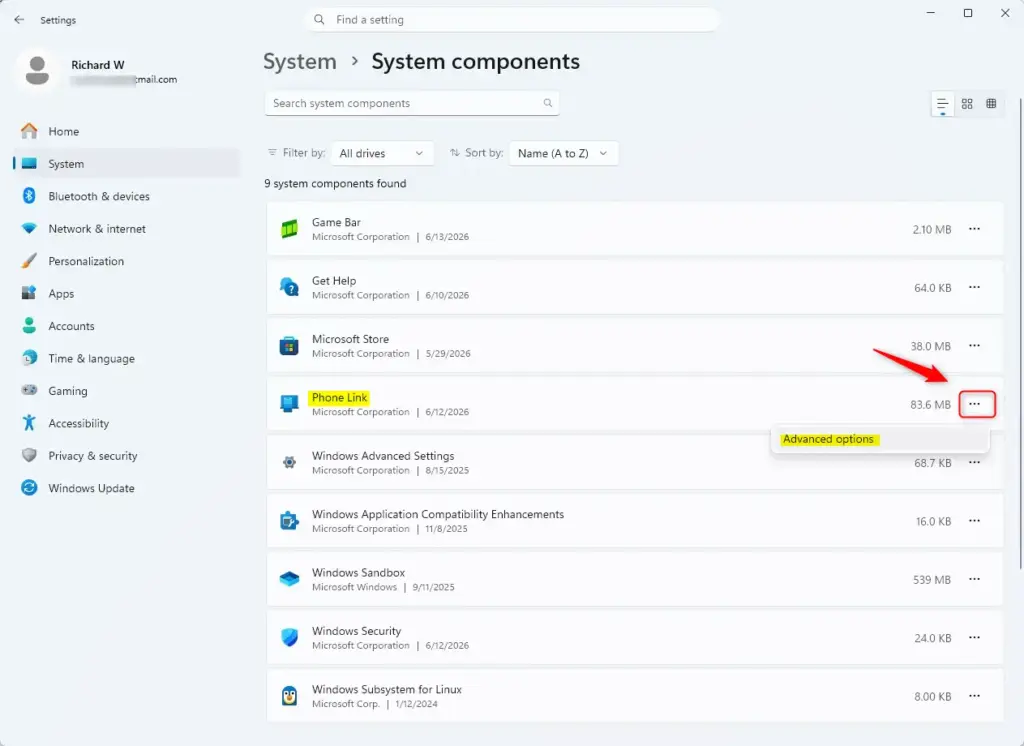
Phone Link app listed within Windows system components settings. - Click the three dots menu button next to Phone Link and select Advanced options.
The Phone Link settings page opens. - Find the section titled Background apps permissions.
- Click the drop-down menu and select either Always or Optimized. Some builds label the second choice Power optimized. Choosing Never will prevent the app from launching automatically.
The change applies straight away, and no restart is needed. Use Always if Phone Link keeps dropping off. Optimized saves battery on laptops but lets Windows pause the app when it sees fit. If the drop-down is missing, check that Windows is fully updated and that Phone Link is installed and set up. You can set it back to the previous option at any time.
Check Windows Startup Settings in the Settings App
Windows also lets you manage startup apps from the main Settings app , alongside Task Manager . This is a second switch for the same job. It is worth checking because the two lists can show a different state if something changed the setting.
- Press Win+I to open Settings.
- Click Apps in the left sidebar.
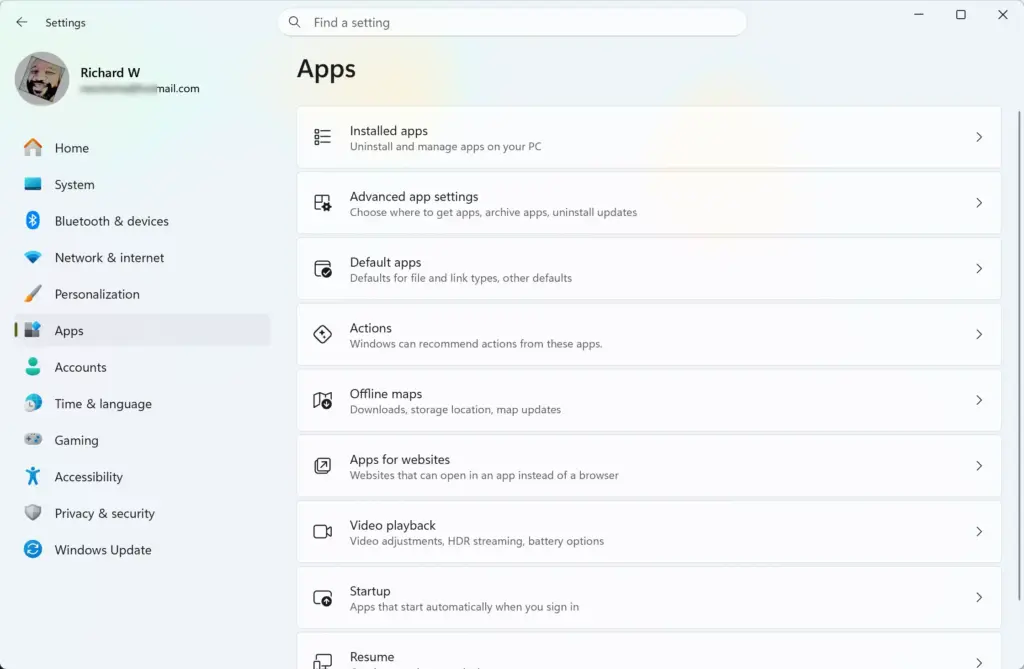
Settings › Apps - Click Startup to view the applications that launch alongside Windows.
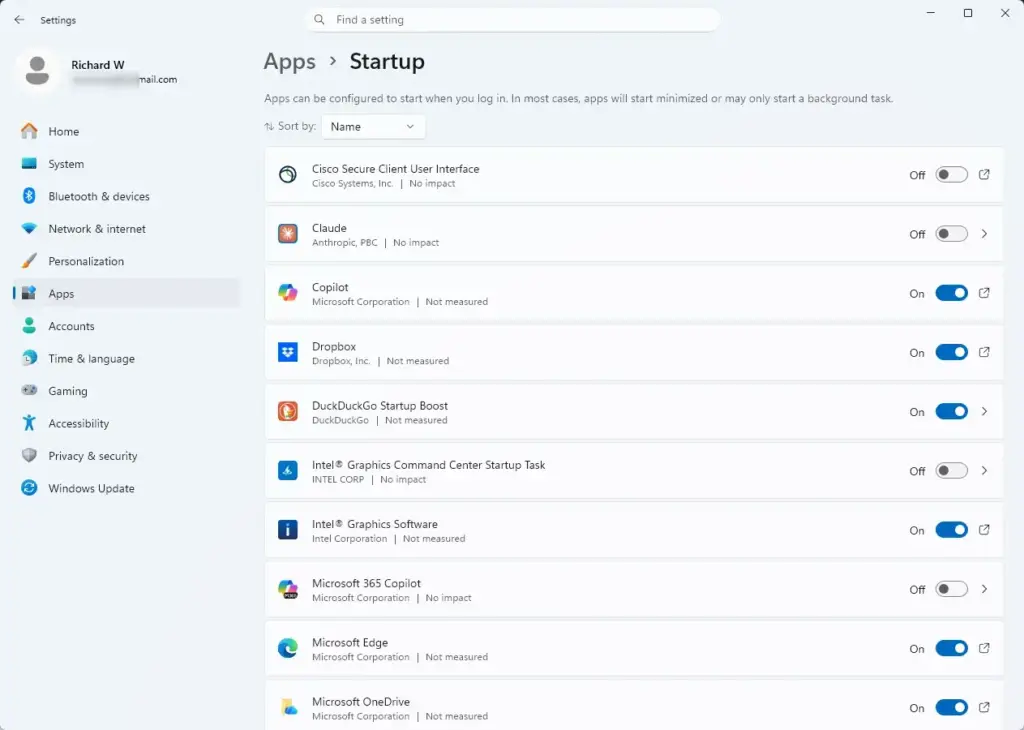
Settings › Apps › Startup
You should see a list of apps, each with an On/Off toggle. You can sort the list by name, status, or startup impact. - Find Phone Link in the list of applications.
- Set the switch next to Phone Link to On.
No restart is needed. If the toggle is greyed out, your PC may be managed by an organisation that controls startup apps through policy. Ask your IT administrator in that case. To undo the change, set the switch back to Off.
Verify Link to Windows Service Status on Your Mobile Device
Phone Link cannot connect properly at sign-in if the companion app on your phone is restricted in the background. Android battery features often put Link to Windows to sleep, so the PC starts the app but finds nothing to talk to. These steps apply to Android. Menu names vary a little between makers such as Samsung, Google, and Xiaomi.
- Open the Settings app on your smartphone.
- Go to the Apps or Application Manager menu.
- Find and tap Link to Windows.
You should see its App info page. - Tap Battery or Battery usage.
- Select Unrestricted or Optimized so the mobile service stays active in the background.
Unrestricted is the more reliable choice if the connection keeps dropping. Optimized uses less battery but may let the phone pause the app. Change it back to the earlier setting if you notice a battery drain.
Manage Notification Settings for Seamless Reconnection
Sometimes Phone Link opens briefly at sign-in and then closes or disconnects. In that case, the permissions and feature settings shared between your PC and phone may be out of sync. Checking your device preferences makes sure both sides are allowed to talk to each other, so the app stays open after you sign in.
- Press Windows Key + I to open Settings.
- Click Bluetooth & devices.
- Click Mobile devices.
This page is only in Windows 11. On Windows 10, open Phone Link itself and check its settings gear. - Click your connected smartphone to open its device management page.
- Set the switch to On for features such as Get notifications from your phone and Show mobile device photos in File Explorer.
If your phone is not listed, it is not linked to this PC yet. Pair it again in Phone Link before trying these settings. You can switch any of these options off again later without affecting the link itself.
If This Didn't Work
Then pair the devices again from scratch. A fresh pairing is the most reliable way to clear stubborn cache files or broken sign-in tokens that keep blocking the app. After pairing, check Phone Link's own Open Phone Link when I sign in to my PC setting and repeat the Task Manager method above to make sure Phone Link is still enabled at startup.
Phone Link often disconnects after startup when battery saver features on your phone put the companion app to sleep. Make sure your phone lets Link to Windows run unrestricted in the background. Also check that your PC and phone have a stable internet connection and, if you use Bluetooth features, an active Bluetooth connection.
Frequently asked questions
Why won't the Phone Link open in Windows?
Phone Link may not open if background permissions are disabled, the app crashed, or your phone disconnected. Check that Phone Link has permission to run in the background by opening Settings Apps Installed apps, selecting the three dots next to Phone Link Advanced options, and setting Background apps permissions to Always or Power optimized.
How to enable Phone Link on Windows?
Open Phone Link from your Start menu or Microsoft Store. Sign in with your Microsoft account, then follow the on-screen prompts to pair your phone. Your phone will receive a notification to approve the connection. Once approved, Phone Link syncs your messages, photos, and calls to your PC.
Why can't I see my phone when I connect it to my computer?
Your phone may not be visible if Bluetooth is off, your devices aren't signed into the same Microsoft account, or the connection timed out. Turn on Bluetooth on both devices, ensure you're using the same Microsoft account, and restart Phone Link. Then try pairing again.
What does Phone Link do on Windows?
Phone Link syncs your Android phone's text messages, photos, calls, and notifications directly to your Windows PC. You can read and reply to texts, view recent photos, make calls, and access notifications without picking up your phone, keeping everything connected in one place.
Still have a question?
Answered by AI from this guide. Good questions may be added to this page — please don't include personal details.
Did this guide fix your problem?

About the Author
Richard
Tech Writer, IT Professional
Richard is a writer at Geek Rewind who turns complex IT tasks into clear, step-by-step guides. He draws on years of hands-on experience in system administration and enterprise IT operations, focusing on Windows, Linux and WordPress: the problems people actually run into, and the fixes that work. His server and WordPress guides come from systems he runs himself. Richard builds and maintains the platform behind Geek Rewind, from its Ubuntu servers and Nginx configuration to its custom WordPress plugins. Many new tutorials start with readers' questions, and he's always glad to answer them in the comments.
No comments yet — be the first to share your thoughts!