Change Your Payment Method for a Microsoft Account in Windows 11

- 31 steps
- Needs administrator rights
Your Microsoft account payment method is the card or PayPal account Microsoft charges for Microsoft Store purchases, Microsoft 365, Xbox Game Pass and OneDrive storage plans. You change it on the Microsoft account website at account.microsoft.com, not on a Settings page in Windows 11.
Sign in, open Payment & billing, then choose Payment options. Add the new card or PayPal account, and point your subscriptions at it. The whole job takes about five minutes and does not need administrator rights.
Changing the payment method does not always update every subscription. Some plans keep billing the old card until you check them one by one, so this guide also shows you how.
To change the payment method for a Microsoft account, sign in at account.microsoft.com, select Payment & billing, then open Payment options. Select Add a new way to pay and save the new card or PayPal account. Then check each subscription, such as Microsoft 365 or Xbox Game Pass, because it may not switch over automatically.
Before you start
Check these four points first. They explain most of the cases where the options are missing or the change is rejected.
- Use the right account. Sign in with the Microsoft account that owns the subscription or made the purchases. If you use more than one, check the email address shown at the top right of the page. A card added to the wrong account does nothing for the subscription you want to fix.
- Have the new payment details ready. For a card, that is the card number, expiry date, security code (CVV, the 3 or 4 digits on the card) and the billing address registered with your bank. For PayPal, you need your PayPal login.
- Know your account type. This guide covers personal Microsoft accounts. A work or school account is billed through your organization’s admin, and you cannot change its payment method here. A child account in a Microsoft family group (a set of linked Microsoft accounts managed by one adult) is usually billed through the family organizer’s payment methods, so the organizer has to make the change.
- Expect a security check. Microsoft may ask you to confirm your identity with a code sent to your email, phone or authenticator app (a phone app that generates sign-in codes) before it shows payment details. This is normal.
The payment types you see depend on the country or region set on your account. Cards are available almost everywhere. PayPal, bank direct debit and mobile phone billing appear only in some regions. If an option you expect is missing, the region is the first thing to check (see the troubleshooting section below).
Change your payment method on the Microsoft account website
Do this in any browser on your Windows 11 PC. Microsoft Edge works well because it is probably already signed in with your account. Page layouts change now and then. If a label differs from the one below, look for the closest match under Payment & billing.
Add a new payment method
- Open a browser and go to account.microsoft.com. The Microsoft account home page or a sign-in prompt appears.
- Select Sign in and enter the email address, phone number or Skype name of your Microsoft account. Enter your password or approve the sign-in request. If you see a verification prompt, enter the code you receive.
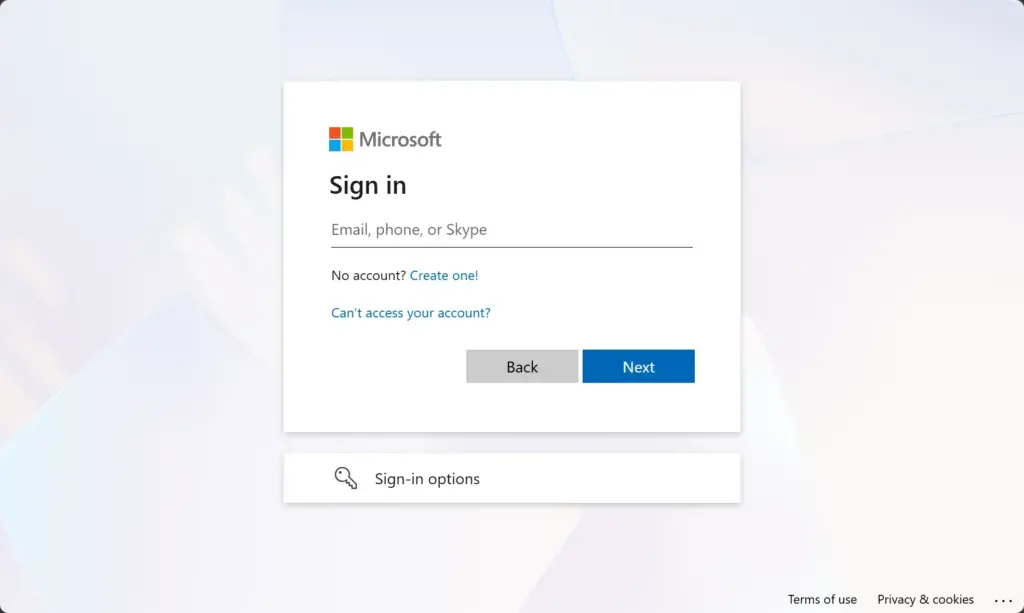
Microsoft account login page for signing in with email and password. - Select Payment & billing in the top menu. A drop-down menu or a new page with billing options opens.
- Select Payment options. You should see a list of the cards and other methods already saved on the account, each with its last four digits or email address.
- Select Add a new way to pay. A window opens asking what type of payment method you want to add.
- Choose the type, for example Credit or debit card or PayPal, if both are offered for your region.
- Enter the card details: name on the card, card number, expiry date and security code. Enter the billing address exactly as your bank holds it. A mismatch in the street number or postcode is the most common reason a card is declined.
- Select Save. For PayPal, sign in to PayPal in the window that opens and approve the link to your Microsoft account.
- If your bank asks for extra verification, complete it. This is often called 3-D Secure (an extra bank check, usually a code sent to your phone or an approval in your banking app). After it succeeds, the new method appears in the Payment options list.
If the card is rejected, you see an error message instead of the new entry in the list. Re-check the number and the billing address first. If the details are correct, contact your bank. Banks sometimes block the first charge from a new merchant, or the card may not support online payments.
Replace or edit an existing card
Use this when the card number is the same but something else changed, such as a new expiry date after a renewal or a new billing address. It keeps the card linked to your subscriptions without extra steps.
- Go to Payment & billing Payment options as described above.
- Find the card you want to update and select Edit or Edit info, depending on how your page is labelled. The card details open in editable fields.
- Update the expiry date, billing address or other details that changed.
- Enter the security code again if the page asks for it.
- Select Save. You should return to the Payment options list with the updated details shown.
If your bank issued you a card with a completely new number, add it as a new payment method instead. You cannot normally change the card number on an existing entry.
Remove the old payment method
- Open Payment & billing Payment options.
- Select Remove under the payment method you no longer want.
- Confirm by selecting Remove again in the prompt. The entry disappears from the list.
If you see a message that the payment method is in use, or the Remove button is missing or greyed out, an active subscription still bills to that method. Change the subscription first (next section), then come back and remove it.
Change the payment method for a single subscription
Adding a card to your account does not always switch each subscription to it. Check every subscription that bills you regularly, such as Microsoft 365, Xbox Game Pass or a OneDrive storage plan.
- Sign in at account.microsoft.com and select Services & subscriptions in the top menu. Your active subscriptions appear with their renewal dates.
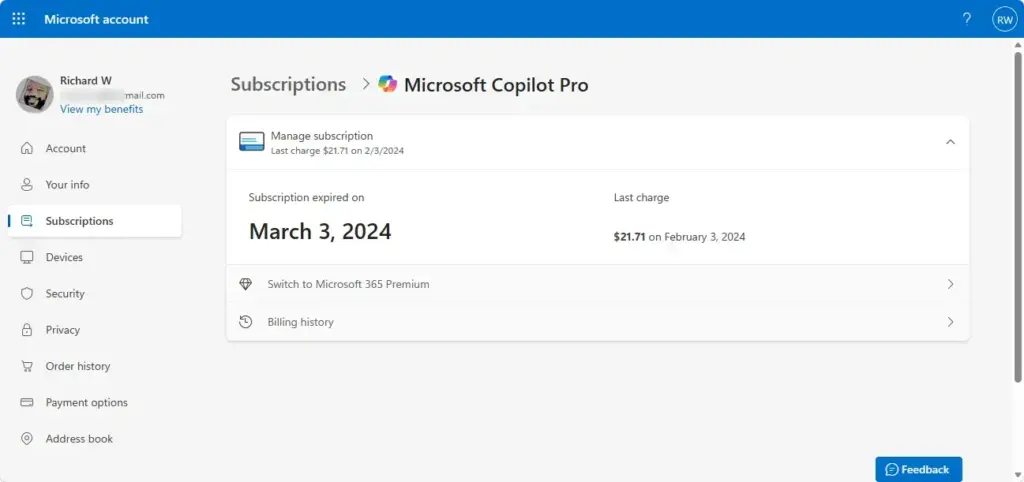
- Find the subscription you want to change and select Manage. The subscription’s own page opens.
- Look for the payment section on that page. Depending on the subscription, the link is labelled something like Change how you pay or Payment options. Select it.
- Choose the new payment method from the list of saved methods, or add a new one if it is not listed.
- Confirm the change by selecting Save or Confirm. The subscription page now shows the new method’s last four digits next to the next billing date.
- Repeat for each remaining subscription.
Changing the payment method does not charge you immediately and does not change your renewal date. The new method is used at the next billing date. If a subscription has an unpaid balance after a failed payment, the page may show a notice with a button such as Pay now. Use it after you update the method to clear the balance and avoid losing access.
Not every subscription is managed here. Subscriptions bought through Apple, Google Play, a mobile carrier or a retailer’s prepaid card are billed by that company, and you have to change the method with them.
Choose a different payment method for Microsoft Store purchases
The Microsoft Store app on Windows 11 charges purchases to a payment method saved on your Microsoft account. You do not manage the saved list inside the app itself. The app either sends you to the same website page or lets you pick a method at checkout.
- Open the Microsoft Store app from the Start menu.
- Check that your account picture or initials appear at the top. If you see Sign in instead, select it and sign in with the account you updated.
- Start a purchase for an app, game or movie. At the checkout window, look for the payment method shown.
- Select the payment method (or the Change link if one appears) and pick the card you added earlier. If the new method is not listed, close the checkout, wait a minute and reopen the Store. Then confirm that the Store is signed in with the same account you changed on the website.
Menu names in the Microsoft Store app change between Windows 11 versions and Store updates. If you cannot find a payment option in the app, use the website steps above. They are the reliable route.
If the options are missing, greyed out or fail
These are the situations that most often stop the change. Each one has a specific cause.
- Payment & billing is missing from the menu. You may be signed in with a work or school account instead of a personal Microsoft account. Select your profile picture, sign out, and sign in with the personal account.
- Remove is greyed out or gives an error. An active subscription or a pending charge still uses that method. Switch the subscription to another method first, and clear any unpaid balance.
- The type you want is not offered. Available payment types depend on the account’s country or region. Check the region on your account. Changing it can affect your subscriptions and balance, so confirm what happens to them with Microsoft before you do it. This guide does not cover how to change your region. Ask Microsoft before you do, because a region change can affect your subscriptions and balance.
- The card is declined. Check that the billing address matches your bank’s records exactly, that the card is enabled for online purchases, and that you completed any 3-D Secure prompt. Try again after contacting your bank if the details are right.
- The page does not load or buttons do nothing. Open the page in a private browsing window, such as an InPrivate window in Edge. This rules out extensions and cached sign-in data. If it works there, clear the cache and cookies (saved page files and site data) for account.microsoft.com or disable your extensions one by one.
- You are a child account member. You may not see payment options at all. Ask the family organizer to add or change the method on their account.
- The change is saved, but a subscription still fails. Open that subscription’s page under Services & subscriptions and confirm the new method is selected there. Some subscriptions keep the old method until you change them individually.
Undo the change
You can reverse a payment method change at any point, as long as you still have the old card or account.
- Go to Payment & billing Payment options.
- If you only edited a card, select Edit or Edit info and restore the old details.
- If you removed the old method, select Add a new way to pay and enter its details again. Removal is permanent. The method disappears from the list for good.
- Open Services & subscriptions, select Manage on each affected subscription, and choose the old method again from the payment section.
No restart or sign-out of Windows 11 is needed for any of these changes. They are stored on your Microsoft account and apply the next time a charge is made.
What to do next
Open Services & subscriptions in a few days and confirm each subscription shows the new payment method next to its renewal date. After the first charge, check Payment & billing Order history to see that it went through on the right card. If a charge fails, your bank usually has the reason. Your bank’s decline code (a short reason code on the rejected payment) or its fraud team can tell you whether it blocked the payment.
Frequently asked questions
How do I change my card details on subscriptions?
Add the new card on account.microsoft.com under Payment & billing, then Payment options. Next, open Services & subscriptions and check each plan, because some keep billing the old card until you switch them one at a time. Changing the card in one place does not always change every subscription.
What is Microsoft charging me $9.99 for?
A $9.99 charge is usually a monthly subscription or a Microsoft Store purchase. Sign in at account.microsoft.com, open Payment & billing, and select Order history. Each charge lists the product name and date, so you can see which plan it belongs to.
How do I change the Microsoft account on a 🪟 Windows 11 PC?
Open Settings, select Accounts, then Your info. Select Sign out, which removes your files and apps from this PC unless they are backed up, then sign in with the other Microsoft account. Back up your files first, because this step cannot be undone.
How do I change my Payment details for Microsoft 365?
Sign in at account.microsoft.com and open Services & subscriptions. Select Manage next to Microsoft 365, then choose the option to change the payment method and select your new card or PayPal account. Check the billing page afterward to confirm the change.
Still have a question?
Answered by AI from this guide. Good questions may be added to this page — please don't include personal details.
Did this guide fix your problem?

About the Author
Richard
Tech Writer, IT Professional
Richard is a writer at Geek Rewind who turns complex IT tasks into clear, step-by-step guides. He draws on years of hands-on experience in system administration and enterprise IT operations, focusing on Windows, Linux and WordPress: the problems people actually run into, and the fixes that work. His server and WordPress guides come from systems he runs himself. Richard builds and maintains the platform behind Geek Rewind, from its Ubuntu servers and Nginx configuration to its custom WordPress plugins. Many new tutorials start with readers' questions, and he's always glad to answer them in the comments.
No comments yet — be the first to share your thoughts!