
An InPrivate window in Microsoft Edge is a private browsing window that deletes your browsing history, cookies and site data once you close all InPrivate windows. To open one, press Ctrl+Shift+N while Edge is open, or select Settings and more (the three-dot menu) > New InPrivate window.
This works the same way on every current build of Windows 11. None of the steps below need administrator rights.
The sections below cover the main method and five faster ways to open the window. They also explain how to make a shortcut that always opens InPrivate, and what to check when the option is missing.
To open an InPrivate window in Microsoft Edge on Windows 11, press Ctrl+Shift+N while Edge is open. You can also select Settings and more (the three-dot menu at the top right) and then New InPrivate window. The window deletes your browsing history, cookies and site data when you close all InPrivate windows.
What an InPrivate window does and does not do
Knowing the limits first saves you from relying on it for the wrong job. InPrivate stops Edge from keeping a local record of your session on this PC. It does not make you anonymous online.
What InPrivate does
While you browse in an InPrivate window, Edge does not save your browsing history, the cookies (small files that sites use to remember you), or the form data you type. When you close the last InPrivate window, Edge discards all of it. The next person who opens Edge on the same PC will not see those pages in History or in the address bar suggestions.
What InPrivate does not do
Websites you visit can still see your visit and your IP address (a number that identifies your internet connection). Your internet provider, your employer or school network, and any monitoring software on the PC can still see your traffic. InPrivate does not act as a VPN (a service that hides your traffic and location).
Favorites you add stay saved as well. Edge removes the download history entry, but not the file itself.
Open an InPrivate window from the Edge menu
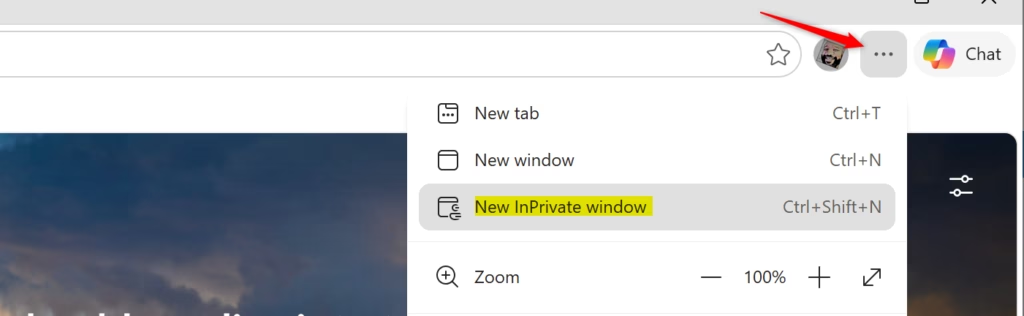
This method works on any version of Edge and shows you where the option lives. Follow these steps to open a new InPrivate window in Edge on Windows 11. The menu path is Settings and more > New InPrivate window.
- Open Microsoft Edge. Select its icon on the taskbar or search for Edge in the Start menu.
- Select Settings and more. This is the three-dot button at the top right of the Edge window. A menu opens below it.

micrsoft edge browser more option and settings - Select New InPrivate window. It is the third item in the list, below New tab and New window. A second Edge window opens on top of the first.
Microsoft Edge InPrivate browsing window for private browsing. - Check for the InPrivate badge. It sits at the top right of the window, and the page says You're browsing InPrivate. If you see these, you are in the right window.
- Type a web address or search term in the address bar. Press Enter to load the page. Edge saves nothing about this session locally.
- Close the window when you finish. Select the X at the top right. Edge deletes the session data once the last InPrivate window is closed.
If the menu has no New InPrivate window entry, go to the troubleshooting section further down.
Faster ways to open an InPrivate window
The menu route takes three clicks. These shortcuts take one or two, and most of them work even when Edge is closed.
Use the keyboard shortcut
Press Ctrl + Shift + N with any Edge window in focus. The InPrivate window opens at once. This is the fastest method, and it is the one most people settle on.
The shortcut only works while Edge is the active window. If another app has focus, nothing happens, or that app may react to the keys instead.
Use the taskbar icon
Windows 11 shows Edge's jump list (a menu of quick actions) when you right-click its taskbar icon. This works whether or not Edge is already open. Edge must be pinned to the taskbar, or running, for the icon to be there.
- Right-click the Microsoft Edge icon on the taskbar. A small menu appears above it.
- Select New InPrivate window. A new InPrivate window opens.
Use the Start menu
The same jump list appears in the Start menu. This is useful when Edge is not pinned to the taskbar.
- Select Start, then type Edge. Microsoft Edge appears at the top of the results.
- Select New InPrivate window in the panel on the right of the results. The InPrivate window opens.
If you do not see that option in the panel, right-click the Microsoft Edge result instead. The option appears in the menu that opens when you right-click.
Open a single link in InPrivate
This is handy when you want one page to leave no trace, such as a link in an email or a chat.
- Right-click the link on a web page in Edge. A context menu opens.
- Select Open link in InPrivate window. The link loads in a new InPrivate window and your current tab stays where it was.
Links in other apps do not offer this choice. For those, copy the link and paste it into an InPrivate window.
Use the Run dialog
The Run dialog starts Edge with a command-line switch (an extra word that changes how a program starts). This opens an InPrivate window even if Edge is not running.
- Press Windows + R. The Run dialog opens.

Run dialog - Type
msedge -inprivatein the Open box. - Press Enter. Edge starts with an InPrivate window.
Create a desktop shortcut that always opens InPrivate
A shortcut with the -inprivate switch added opens Edge in InPrivate every time you double-click it. Your normal Edge shortcuts stay unchanged. The steps below work on a copy of the shortcut, so you can delete it later to undo the change.
- Open Start and select All. The full app list appears.
- Drag Microsoft Edge onto the desktop. Windows creates a shortcut there.
- Right-click the new shortcut and select Properties. The Properties window opens.
- Select the Shortcut tab. Find the Target box.
- Click at the very end of the text in the Target box. Press End to move the cursor to the end of the text.
- Type a space, then
-inprivate. Leave the text already in the Target box as it is. The switch goes at the end, after the closing quotation mark. - Select Apply, then OK. The window closes.
- Right-click the shortcut, select Rename, and type a name such as Edge InPrivate. This tells it apart from your normal Edge icon.
- Double-click the shortcut to test it. Edge opens straight into an InPrivate window.
If the shortcut opens nothing, you probably changed the text in the Target box. Delete the shortcut and repeat the steps, adding only the space and -inprivate at the end.
To undo this, right-click the shortcut and select Delete. Edge itself is not affected.
Allow an extension to run in InPrivate
Edge turns off all extensions in InPrivate windows by default, because an extension can see what you do on a page. This surprises people who rely on a password manager or an ad blocker. You can allow specific extensions one at a time.
- Open Edge and select Extensions in the toolbar. It looks like a puzzle piece. If you do not see it, select Settings and more Extensions.
- Select Manage extensions. The extensions page opens in a tab.
- Select Details under the extension you want. Its settings page opens.
- Turn on Allow in InPrivate. The extension now loads in InPrivate windows.
Only allow extensions you trust. An allowed extension can still record your activity, and InPrivate does not stop that. To reverse the change, turn the same setting off.
Close an InPrivate window and delete the session data
Edge keeps one shared session across all open InPrivate windows. Closing one window does not clear your data while another InPrivate window is still open. Edge deletes the data only after the last one closes.
- Select X at the top right of each InPrivate window. Do this for every InPrivate window.
- Check the taskbar for any remaining Edge windows. Look at the Edge icon preview to make sure no InPrivate window is hiding behind others.
Close the window itself to be sure.
Change tracking prevention for InPrivate
Tracking prevention is Edge's feature for blocking trackers (scripts that follow you between sites). On some PCs, Edge uses stricter tracking prevention in InPrivate windows than in normal windows, and you can control this from the InPrivate window itself.
- Open a new InPrivate window using any method above. The You're browsing InPrivate page appears.
- Find the option Always use "Strict" tracking prevention when browsing InPrivate on that page.
- Turn the toggle on or off. The change applies to all later InPrivate windows.
Strict mode blocks more trackers, but it can break parts of some sites, such as embedded videos or login forms. If a page misbehaves, turn the toggle off and reload it. If you do not see this toggle on your build, Edge may have moved it; check the tracking prevention settings under Settings Privacy, search, and services.
Fix a missing or greyed-out InPrivate option
Most PCs show New InPrivate window at once. If yours does not, one of the causes below is the most likely.
Your organization has turned it off
Work and school PCs can have InPrivate switched off by policy (a rule an administrator sets for every managed PC). In that case the menu entry is missing, and Ctrl + Shift + N does nothing.
To check, type edge://policy in the Edge address bar and press Enter. The page lists every policy applied to your browser. If you see policies listed there, ask whoever runs your work or school computers whether InPrivate browsing is allowed on your account. Do not try to bypass the restriction on a managed PC.
A child account with web filtering
InPrivate can be unavailable on a child account that is managed through Microsoft Family Safety, especially with web filtering on. The parent or guardian controls this from their own Family Safety settings. The rules vary by setup, so check with the person who manages the account.
The shortcut or the menu does not respond
If the menu entry exists but nothing opens, close every Edge window and try again. Then try the Run dialog method, which starts a new copy of Edge from scratch. If that also fails, update Edge from Settings and more > Help and feedback > About Microsoft Edge, then restart the browser.
What to do next
If a shortcut you made behaves badly, delete it and your normal Edge icons work as before. For a wider look at what else Edge can do to protect your browsing, read our post Microsoft Edge Security Features Explained: Protecting Your Online Activity. If you need to clear history on your normal profile, open Settings and more History and use the clear option there.
Have a question about this guide?
Answered by AI from this guide. Good questions may be added to this page — please don't include personal details.
Did this guide fix your problem?

About the Author
Richard
Tech Writer, IT Professional
Richard is a writer at Geek Rewind who turns complex IT tasks into clear, step-by-step guides. He draws on years of hands-on experience in system administration and enterprise IT operations, focusing on Windows, Linux and WordPress: the problems people actually run into, and the fixes that work. His server and WordPress guides come from systems he runs himself. Richard builds and maintains the platform behind Geek Rewind, from its Ubuntu servers and Nginx configuration to its custom WordPress plugins. Many new tutorials start with readers' questions, and he's always glad to answer them in the comments.
No comments yet — be the first to share your thoughts!