
Microsoft Edge can store your usernames and passwords so you do not have to type them every time you sign in. If you share a PC, or you simply have old logins you no longer use, it is worth cleaning that list out. Anyone who opens your Edge profile could otherwise sign into those accounts.
You manage the list from the Edge settings menu. Each saved login can be removed in a few clicks. A short list also limits what someone can get at if your computer is lost or stolen.
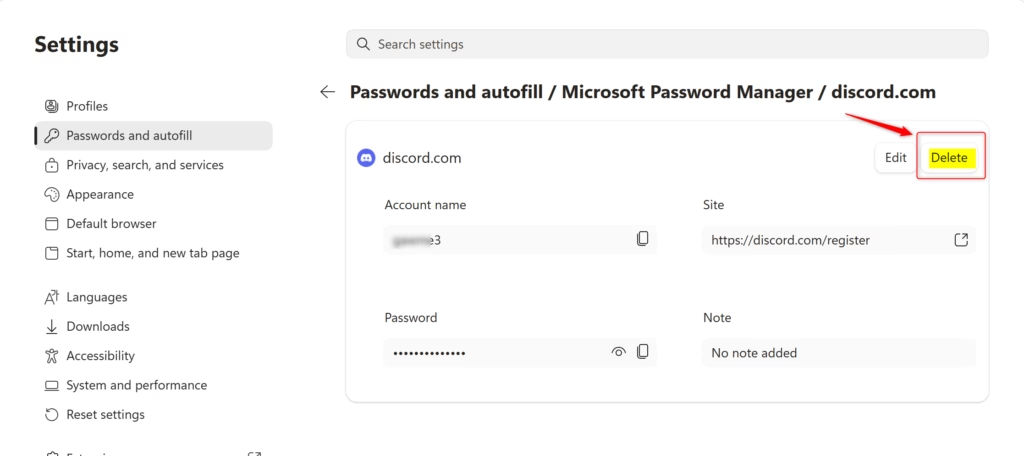
Open Microsoft Edge, click the three-dot menu icon, go to Settings Passwords and autofill > Microsoft Password Manager, select the website, enter your Windows credentials, click Del twice to confirm, and the saved password is permanently removed from Edge.
Why Delete Saved Passwords?
Once an old login is gone, nobody else using your computer can get signed into that account automatically, and nobody can read the saved details.
When you sign in to a website, Edge asks whether you want to save your username and password. If you say yes, the browser fills in those details for you on your next visit.
You can delete saved passwords one website at a time. Removing an entry stops Edge from filling in the login for that site. The other saved logins are not touched.
Some things to know before you start:
- Deleting a saved password only removes it from Edge. It does not change your password on the website, and your account keeps working.
- If you sync passwords with your Microsoft account, the deletion should carry over to your other devices signed in to Edge with that account.
- Deleted logins are not kept in a recycle bin. If you want one back, you have to sign in to the site again and choose to save it when Edge asks.
What Happens When You Delete?
Edge will no longer fill in your username and password for that site. The next time you visit the page, you will have to type your login details yourself.
References:
View or edit your passwords in Microsoft Password Manager - Microsoft Support Learn how to view or edit passwords saved in Microsoft Edge using the Microsoft password manager.
View and delete browser history in Microsoft Edge - Microsoft Support Learn how to view and delete your browser history and other history in Microsoft Edge.
Browsing history and saved passwords are kept separately. Clearing your history does not remove saved logins unless you choose to include passwords when you clear browsing data.
Here's How:
To delete a saved password, open the Edge settings, go to your stored logins, pick the website you want to remove, and confirm the deletion. Here are the steps.
- Open Microsoft Edge.
- Click or tap the Settings and more (Alt+F) three-dot menu icon in the top right corner, then click or tap Settings. Settings opens in a new tab.
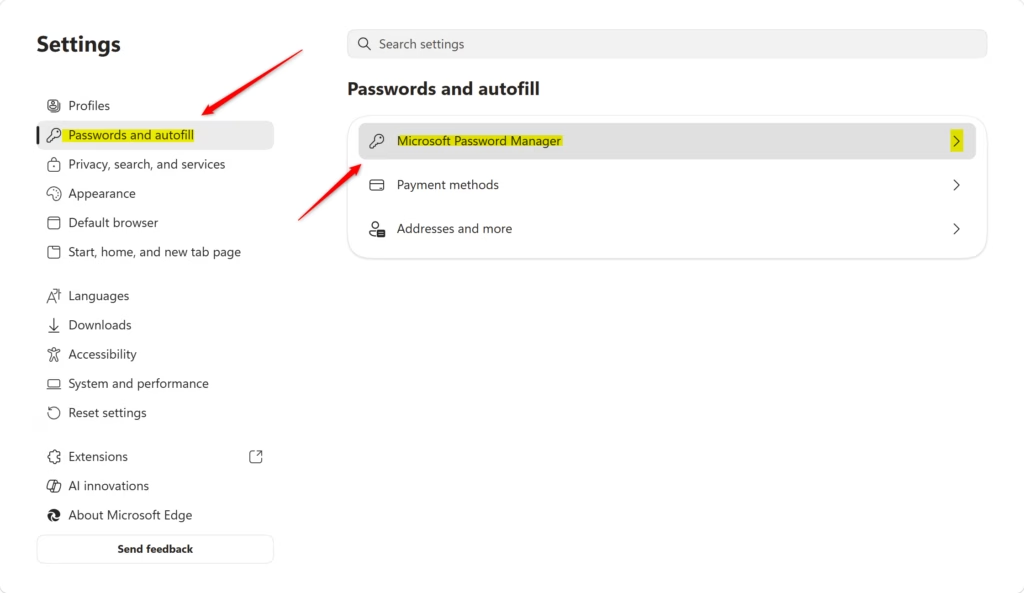
- Click or tap Passwords and autofill in the left pane, then click or tap Microsoft Password Manager in the right pane. Older Edge versions may label this differently, for example under Profiles Passwords You should now see a list of your saved logins.
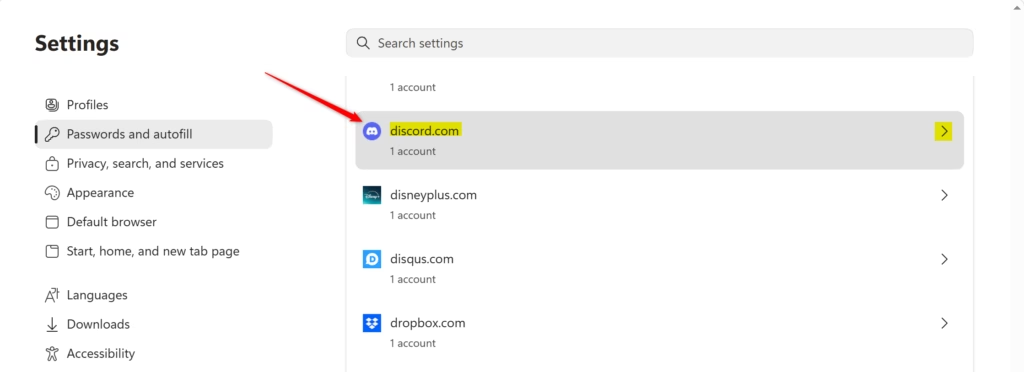
- Under Passwords, click or tap the website whose saved password you want to delete.
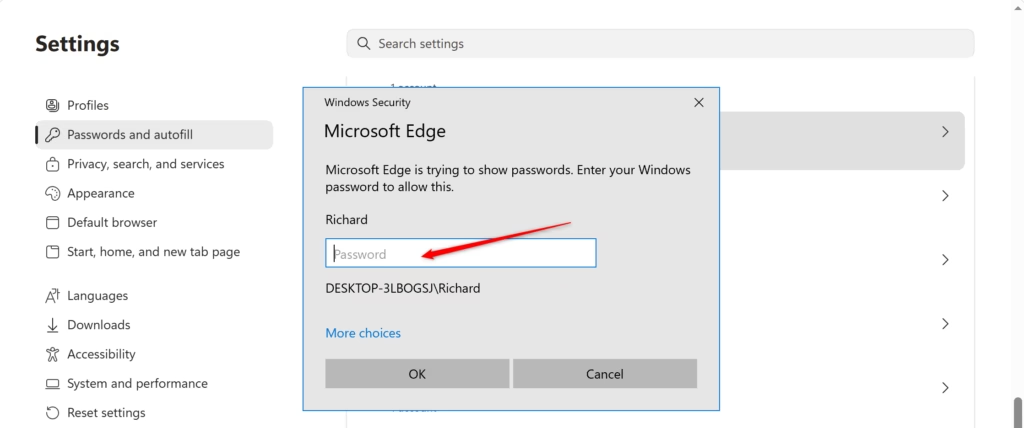
- [Requires admin privileges] Enter your Windows account credentials to confirm it is you and to allow the passwords to be shown. Depending on how your PC is set up, Windows may ask for your PIN, fingerprint or face recognition instead of a typed password. If you cannot get past this prompt, you may need to sign in with an account that has the required rights.
- Click or tap Delete. Edge asks you to confirm.
- Click or tap Delete again to confirm. The entry should disappear from the list.
- Repeat steps 4 to 7 for any other sites you want to remove.
- When you are finished, close the Settings tab or close Microsoft Edge. You do not need to restart anything.
If Edge keeps offering to save passwords you do not want stored, turn off the Offer to save passwords option on the same Password Manager page.

Summary
Deleting saved passwords in Microsoft Edge keeps your accounts safer by clearing out old or unneeded logins. Go to Settings, then Passwords and autofill, and use Microsoft Password Manager to find the entry and delete it. Do this for each site you no longer want Edge to remember.
Have a question about this guide?
Answered by AI from this guide. Good questions may be added to this page — please don't include personal details.
Did this guide fix your problem?

About the Author
Richard
Tech Writer, IT Professional
Richard is a writer at Geek Rewind who turns complex IT tasks into clear, step-by-step guides. He draws on years of hands-on experience in system administration and enterprise IT operations, focusing on Windows, Linux and WordPress: the problems people actually run into, and the fixes that work. His server and WordPress guides come from systems he runs himself. Richard builds and maintains the platform behind Geek Rewind, from its Ubuntu servers and Nginx configuration to its custom WordPress plugins. Many new tutorials start with readers' questions, and he's always glad to answer them in the comments.
No comments yet — be the first to share your thoughts!