View and Delete Saved Windows Credentials in Credential Manager

- 23 steps
- Needs administrator rights
- Includes a restart or sign-out
Credential Manager is the Windows 11 tool that stores the user names and passwords for network shares, mapped drives, Remote Desktop connections and some apps. You open it from Start by typing its name. From there you can see every saved entry and delete the ones you no longer want.
Windows keeps these entries in the vault (an encrypted store tied to your user account). Credential Manager has two tabs, Web Credentials and Windows Credentials. This post shows how to view and delete these entries and how to back them up first. It also covers what to do when the list is blank or the page will not load.
To view or delete a saved Windows credential, open Credential Manager from Start, then choose the Windows Credentials or Web Credentials tab. Expand an entry and select Remove, then Yes to confirm. Deleting is permanent, so back up the vault first if you may need the entry again. Viewing or removing your own entries needs no administrator rights.
What Credential Manager Stores
Credential Manager holds sign-in details that Windows or an app reuses so you are not asked every time. The most common examples are a password for a shared folder on another PC or a NAS (a network storage device). Others are a Remote Desktop login and sign-in data for Microsoft apps such as Outlook and OneDrive.
The two tabs hold different things:
- Web Credentials lists passwords saved by Microsoft browsers and apps that use the Windows web vault (the same encrypted store, used for web sign-ins). This is the only tab with a Show link for reading a password.
- Windows Credentials lists network logins, Remote Desktop entries, sign-ins that use a digital certificate (a small file that proves who you are), and generic entries that apps create for themselves.
Credentials belong to the account you are signed in with. If another person uses the PC under a different account, you will not see their entries, and they will not see yours. To check which accounts exist, read how to view all user accounts in Windows 11.
View and Delete Saved Windows Credentials in Credential Manager
The steps below take you from opening Credential Manager to confirming the removal:
- Open Credential Manager. Select Start, type Credential Manager, and press Enter. The Control Panel window opens with two tabs at the top.
- Select the tab you need. Choose Windows Credentials for network, Remote Desktop and app entries, or Web Credentials for browser-style passwords.
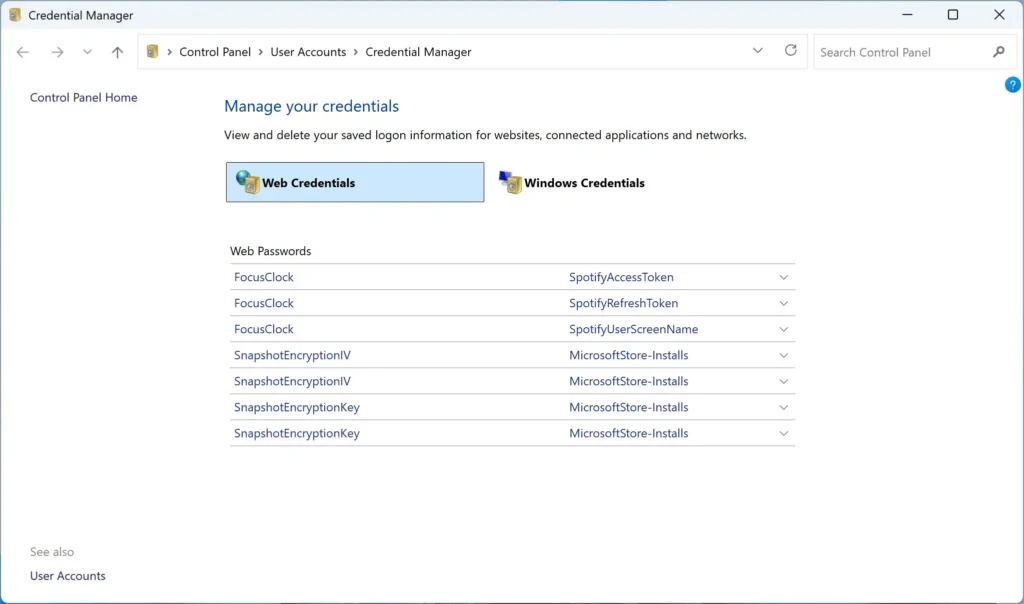
Control Panel - Expand an entry. Click the small arrow at the right end of the entry. The entry opens to show its details.
- Read the details. On Windows Credentials you see the Internet or network address, the User name, a hidden Password and a Persistence value. The address tells you what the entry is for.
- Select Show to read a web password. This link appears only on Web Credentials entries. Windows asks you to confirm with your account password, PIN or Windows Hello. After you do, the password replaces the dots.
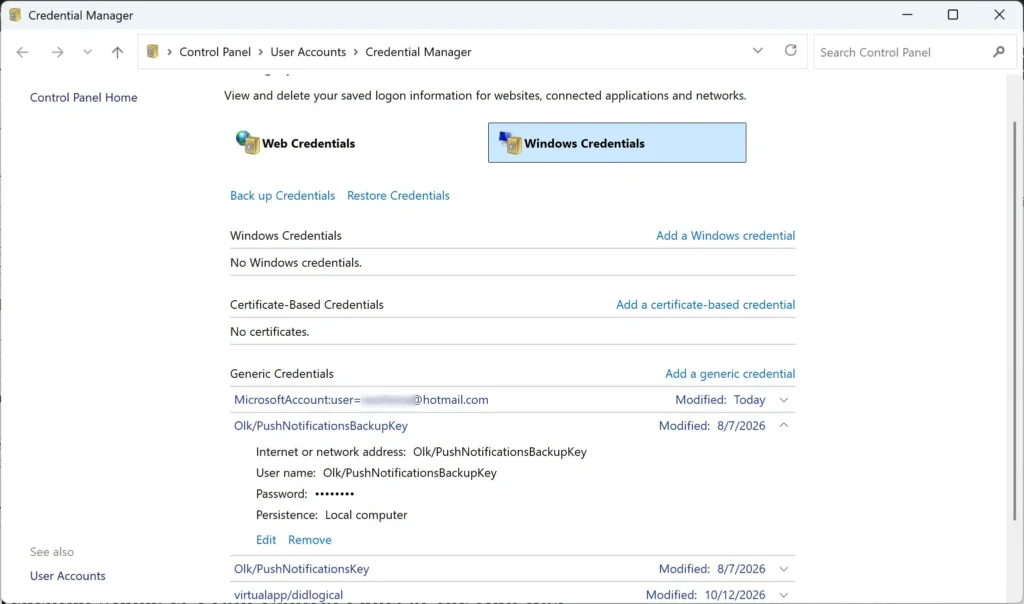
Control Panel - Select Remove. The link sits under the entry details. A confirmation box asks whether you want to delete the credential.
- Select Yes. The entry disappears from the list at once. You do not need to restart the PC.
- Repeat for other entries. Expand and remove each unwanted entry the same way, then close the window.
If you pick Remove on the wrong entry, select No in the confirmation box and nothing changes. After you select Yes, the entry is gone until you restore a backup or sign in again and let the app or Windows save a new one.
Windows Credentials entries show Edit and Remove, but no Show link. Windows does not display the stored password for those entries. Edit lets you replace the password, which helps when a network password changed and Windows keeps sending the old one.
Open Credential Manager From Control Panel or the Run Box
Start search is the quickest route, but two others work if search fails or you work from a keyboard.
To use Control Panel, open it and set View by to Category. Then go to Control Panel User Accounts Credential Manager. If View by is set to Large icons or Small icons, Credential Manager appears directly in the list.
To use the Run box, press Win+R, type control /name Microsoft.CredentialManager, and press Enter. Both routes open the same window.
What the Entries Mean and Which to Leave Alone
Entry names are not always friendly. Most follow a pattern, and the pattern tells you where the entry came from.
- A name such as
TERMSRV/COMPUTER-NAMEis a saved Remote Desktop login for that PC. Deleting it means Remote Desktop asks for the password next time. - An IP address such as
192.0.2.10or a device name is usually a network share or a mapped drive. Deleting it makes Windows ask for credentials on the next connection. - Entries that start with
MicrosoftAccount:relate to a Microsoft account signed in on the PC. Removing one can force a sign-in prompt in apps that use that account. - Entries that mention Microsoft Office belong to Office apps. Removing them signs you out of those apps, and they ask you to sign in again.
If you do not recognize an entry, search for its exact name before you remove it. Leave entries alone when you cannot tell what they do. A removed entry for a sign-in service can cause repeated prompts until the app saves a new one.
To see what a saved entry was used for, check sign-in history. Viewing login history in Windows 11 with Event Viewer, which uses Event Viewer (the Windows log of sign-ins and system events), shows when accounts signed in to this PC.
Remove a saved network login that Windows keeps using
Windows reuses a saved login for a share until you remove it or the connection ends. If you removed the entry but the share still opens without asking, the old connection is still active. Sign out of Windows and sign back in, or disconnect the mapped drive in File Explorer, then connect again. Windows now asks for credentials.
Delete a Credential With cmdkey in Command Prompt
The cmdkey command lists and deletes saved credentials without opening Control Panel. It is useful when you manage several PCs or prefer typing commands to clicking through windows. It works on the account you are signed in with and does not need administrator rights for that account.
- Open Command Prompt. Select Start, type cmd, and press Enter.
- List the saved credentials. Type
cmdkey /listand press Enter. Each entry appears with a line that starts with Target:. - Copy the target name. Note the text after Target: exactly as shown, including any prefix.
- Delete the entry. Type
cmdkey /delete:followed by the target name, and press Enter. For example,cmdkey /delete:192.0.2.10. - Confirm the result. Command Prompt prints a message that the credential was deleted. Run
cmdkey /listagain to check that the entry is gone.
If the target name contains a colon or other punctuation, copy it character for character. If Command Prompt says the credential was not found, the target name does not match, so compare it with the cmdkey /list output.
Back Up Credentials Before You Delete Them
Credential Manager can save your Windows credentials to a file protected by a password. Do this before a bulk clean-up so you can undo it. The backup file has the extension .crd.
- Open Credential Manager. Select the Windows Credentials tab.
- Select Back up Credentials. The link sits near the top of the Windows Credentials list. The Stored User Names and Passwords wizard opens.
- Select Browse. Choose a folder and a file name, then select Save and Next.
- Press Ctrl+Alt+Del. Windows switches to a secure screen to protect the password prompt. Follow the on-screen prompt.
- Enter a password for the file. Type it twice, then select Next and Finish.
Store the file somewhere safe, such as an encrypted drive. Anyone with the file and its password can recover your saved logins.
To undo a deletion, select Restore Credentials in the same place, browse to the .crd file, and enter the password you chose. The entries come back in the list. You can also add one entry again by hand with Add a Windows credential, which asks for the network address, user name and password.
Credential Manager Is Empty, Blank or Shows an Error
An empty list is normal on a PC that has never saved a network or Remote Desktop login. It is also normal on a fresh Windows 11 install. If you expect entries and see none, check which account you are signed in with, because entries belong to one account.
A blank page or an error message points to the Credential Manager service (the background process that runs the vault). Windows needs it running, and it normally starts on demand. Starting or changing a service needs administrator rights.
- Open Services. Press Win+R, type
services.msc, and press Enter. Approve the User Account Control prompt if it appears (administrator). - Find Credential Manager. Scroll the list, which is sorted by name, until you see Credential Manager.
- Check its status. If the Status column is blank, the service is not running.
- Start the service. Right-click Credential Manager and select Start. If Start is greyed out, the service is already running or you are not signed in as an administrator.
- Reopen Credential Manager. Close the old window first. The list should now load.
If the service will not start or the error comes back, restart the PC and try again. On a work or school PC, an administrator can restrict parts of the sign-in system, so you may need to ask your IT team. This post does not cover those settings.
Credential Manager is part of every edition of Windows 11, including Home and Pro. You do not need a particular edition to use it.
What Credential Manager Does Not Hold
Some saved sign-ins live elsewhere, and deleting them in Credential Manager will not help.
- Microsoft Edge passwords. Edge stores its own saved passwords in the browser. Follow how to delete saved passwords in Microsoft Edge to remove them.
- Passkeys. These are sign-ins that replace passwords and use your device to prove who you are. Windows 11 lists them under Settings, not in Credential Manager. See how to access and view passkeys in Windows 11 Settings, and how to clear saved sign-in passkeys to remove them.
- Other user profiles. Credentials stay with the account that saved them. To see which profiles exist on the PC, read how to view user profiles on this computer in Windows 11.
What to Do Next
If you suspect someone used your account, check your Microsoft account too. How to view Microsoft account sign-in activity shows recent sign-ins and where they came from.
Have a question about this guide?
Answered by AI from this guide. Good questions may be added to this page — please don't include personal details.
Did this guide fix your problem?

About the Author
Richard
Tech Writer, IT Professional
Richard is a writer at Geek Rewind who turns complex IT tasks into clear, step-by-step guides. He draws on years of hands-on experience in system administration and enterprise IT operations, focusing on Windows, Linux and WordPress: the problems people actually run into, and the fixes that work. His server and WordPress guides come from systems he runs himself. Richard builds and maintains the platform behind Geek Rewind, from its Ubuntu servers and Nginx configuration to its custom WordPress plugins. Many new tutorials start with readers' questions, and he's always glad to answer them in the comments.
No comments yet — be the first to share your thoughts!