How to Enable or Disable Passkey Managers on Windows 11

Windows 11 can hand passkey storage to a third-party app instead of keeping everything in the operating system. This guide shows where that switch is, what you need before it appears, and how to turn it back.
Open Settings Accounts Passkey settings Advanced options and toggle the switch to enable or disable passkey manager storage. The change applies immediately without requiring a restart, provided a compatible third-party manager like 1Password or Bitwarden is installed and signed in.
What Are Passkeys?
A passkey is a digital key for an online account. It lets you sign in to a website or app without typing a password. Windows Hello is the built-in sign-in system for face recognition, fingerprint and PIN. It is what stores and unlocks these credentials on the PC.
By default, Windows saves passkeys locally through Windows Hello. You approve each sign-in with your biometrics or your PIN. The passkey stays tied to that device.
Windows 11 also works with third-party passkey managers. If you already keep your credentials in a manager such as 1Password or Bitwarden, Windows can pass passkey requests to it. That way your passkeys live in one place and are not split between the manager and Windows.
Why Enable a Passkey Manager?
Out of the box, Windows saves passkeys on its own, and there is no switch to turn that off. The setting only appears once a third-party passkey manager is installed and working with Windows. Examples are 1Password and Bitwarden. After that, you decide whether new passkeys are also saved to your Windows device.
First, make sure the passkey manager is installed, signed in and up to date. Second, run Windows Update , because this feature only exists in recent Windows 11 builds.
How to Enable or Disable Passkeys Manager on Windows
On a current Windows 11 build with a compatible manager in place, you can turn "save passkeys to Windows" on or off. The steps below walk through it. The setting lives in the Settings app, so it works the same way whether you have Windows 11 Home or Pro.
Step 1: Open Settings
Step 1Open the Settings App
- Open the Windows Settings app. Click Start and select Settings. Or press Windows key + I to open the Settings app directly.
The Settings window opens with a list of categories on the left.
Step 2Go to Accounts
- Click Accounts in the left navigation pane.
The right side of the window now shows your account settings.
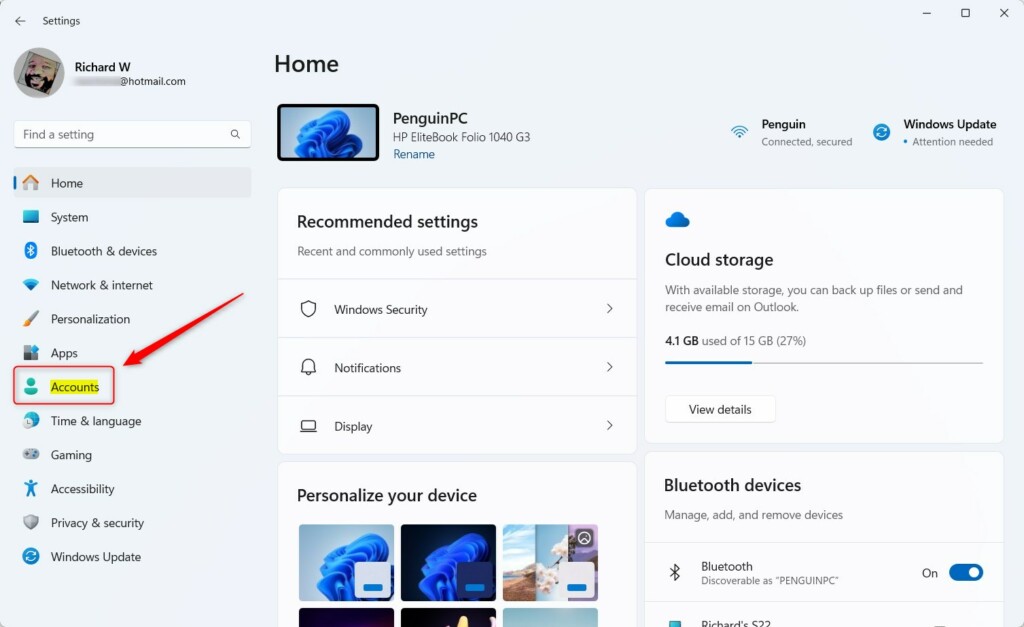
The screenshot above shows the Accounts page with the sign-in and account tiles listed.
Step 3Select Passkey Settings
- Select the Passkey settings tile on the right side of the window. On some builds the tile may be labelled simply Passkeys. Either way, it expands to show the passkey options.
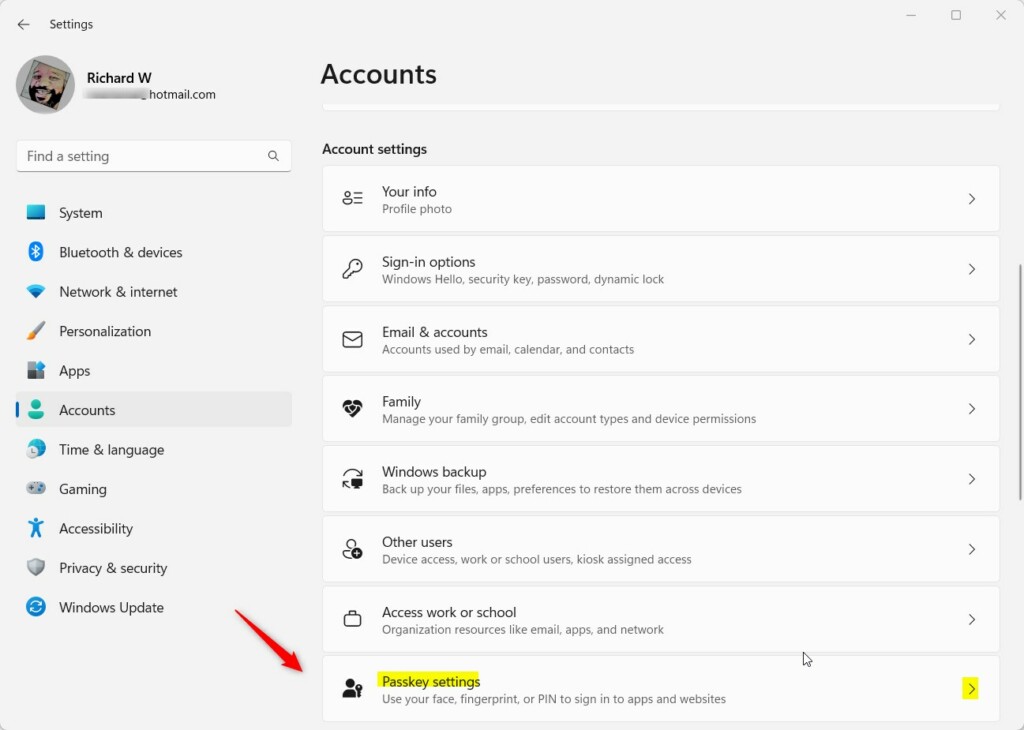
You should now see the passkey page for your account. If a passkey manager is installed, it may be listed here.
Step 4Open Advanced Options
- Select the Advanced options tile. This opens the additional passkey management controls.
The full path is Settings Accounts Passkey settings Advanced options If the tile is missing, go back to the checks earlier in this guide: manager installed and signed in, and Windows fully updated.
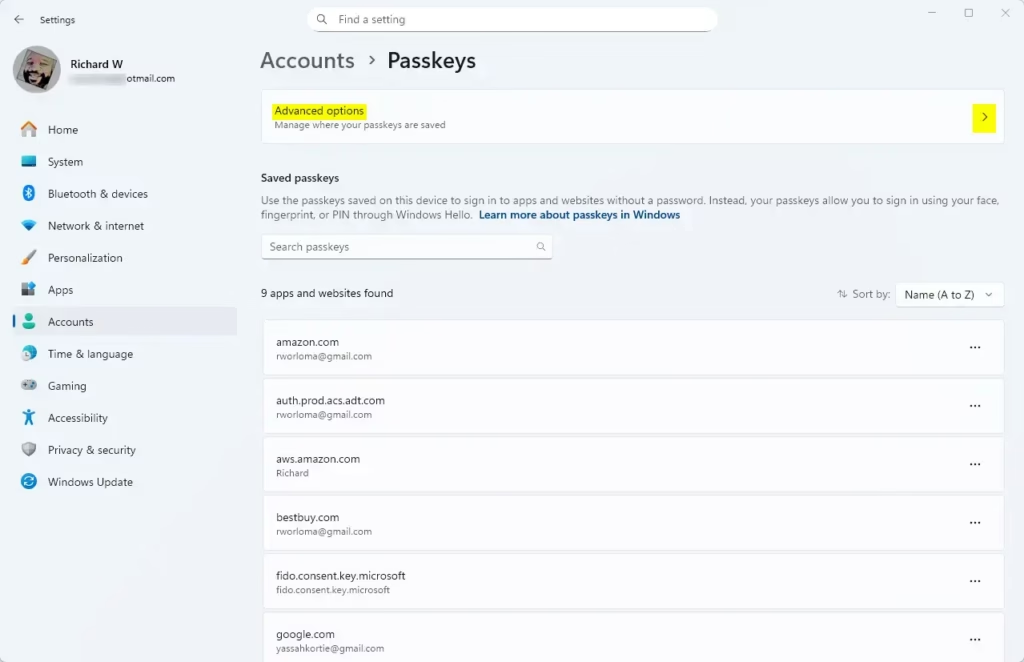
The screenshot above shows what the Advanced options page looks like.
Step 5Toggle Passkey Manager On or Off
- Turn the switch on or off to choose whether passkeys are saved to your Windows device. Turn it off if you want your third-party manager to hold them instead. Turn it on if you want Windows to keep saving them too.
To undo the change, open the same page and flip the switch back.
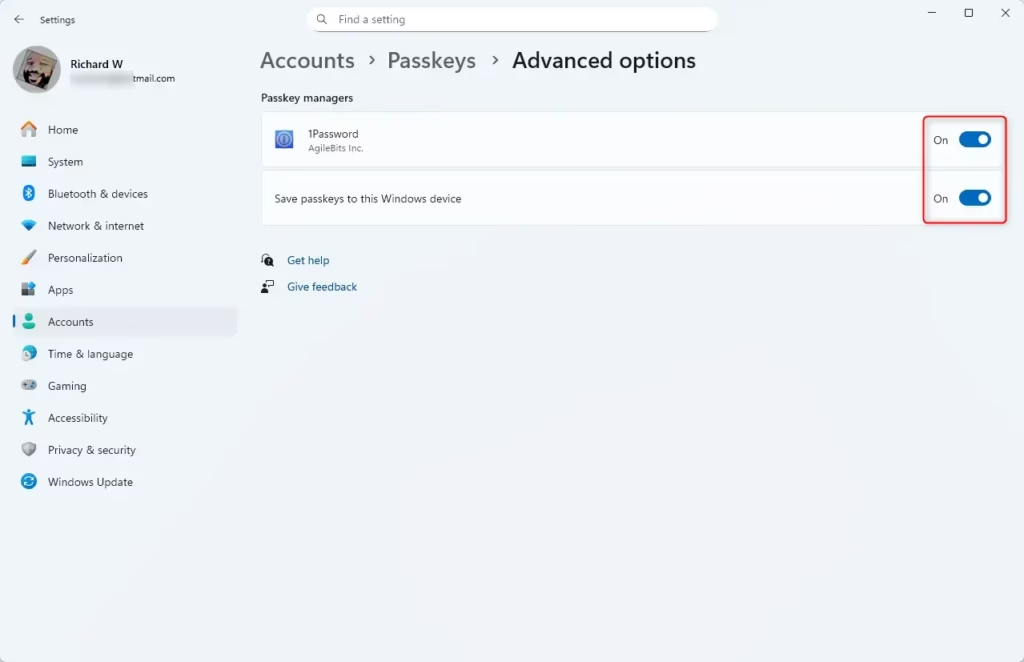
The screenshot above shows the switch in its new position.
Windows will now route passkey requests through your installed manager. The next time a website offers to create a passkey, you should see your manager as an option in the prompt. Passkeys already stored in Windows Hello are not deleted by flipping this switch. If a sign-in prompt behaves oddly afterwards, sign out of Windows and back in, or restart the PC.
Summary
Passkeys replace passwords with biometrics or a PIN, which is quicker and harder to phish. Because Windows 11 can hand credentials to a third-party manager, you can keep using the security app you already trust.
- Passkeys are a secure alternative to traditional passwords. They use biometrics or PINs for authentication.
- Windows 11 works with third-party passkey managers, so your credentials can live in one app across devices.
- You can enable or disable saving passkeys to your Windows device in the Settings app. The option appears once a compatible manager is installed.
- Following the steps above makes it easy to manage passkeys the way you prefer, and you can reverse the change at any time.
- Keep Windows and your passkey manager up to date. Newer builds are what make this setting available.
Was this guide helpful?

About the Author
Richard
Tech Writer, IT Professional
Richard is a writer at Geek Rewind who turns complex IT tasks into clear, step-by-step guides. He draws on years of hands-on experience in system administration and enterprise IT operations, focusing on Windows, Linux and WordPress: the problems people actually run into, and the fixes that work. His server and WordPress guides come from systems he runs himself. Richard builds and maintains the platform behind Geek Rewind, from its Ubuntu servers and Nginx configuration to its custom WordPress plugins. Many new tutorials start with readers' questions, and he's always glad to answer them in the comments.




No comments yet — be the first to share your thoughts!