Should you use Windows 11 Credential Guard for personal use
Before you start
🔢 23 steps
🛡 Needs administrator rights
🔄 Includes a restart or sign-out
Windows 11 Credential Guard is a built-in security feature that protects your saved passwords and sign-in secrets from advanced malware by isolating them in a protected area of memory. Normal Windows sign-in keeps these secrets in regular system memory, where malicious programs can scan for them and steal them during an attack.
Advertisement
Credential Guard uses virtualization-based security (VBS), a technology that creates a secure, isolated environment inside your PC, to keep your credentials away from the main operating system. Even an attacker with full administrator control of the computer cannot read them directly.
Should you use it on a personal PC? It depends on your edition. Microsoft builds Credential Guard for Windows 11 Enterprise and Education. If you run Home or Pro, the feature is not officially part of your edition. In that case, the steps below mainly help you check what your PC is already doing. They also show how to turn on the related core isolation protection, and how to back out if something breaks.
⚡ Quick Answer
No, you should not use Windows 11 Credential Guard for personal use. This advanced security feature is built for office computers and large companies to stop clever hackers. Home users typically do not need it, and it requires specific editions of Windows 11 like Enterprise or Pro.
Advertisement
How Credential Guard Works Behind the Scenes
Credential Guard splits the main Windows login security process into two parts. One part runs in normal Windows. The other runs inside a secure virtual memory space that regular programs cannot see into.
When an app or website needs to check your login details, the normal part asks the protected part to do the work. The actual password keys never leave the secure area. Malware that reads system memory while the PC is running finds nothing useful, because the secrets are not stored where normal programs can look.
Advertisement
System Requirements for Credential Guard
Credential Guard needs several things to be in place before it can run:
Hardware virtualization: a processor that supports Intel VT-x or AMD-V. Almost all recent PCs have this. It must also be enabled in the BIOS or UEFI firmware settings, and on some PCs it is switched off by default.
TPM 2.0: the Trusted Platform Module is a security chip. Windows 11 already requires it for installation, so most Windows 11 PCs pass this check.
Secure Boot: this must be turned on in your firmware settings.
The right edition: Credential Guard is built into Windows 11 Enterprise and Education. Home and Pro are not on that list.
If any one of these is missing, Credential Guard will not run, even if you try to turn it on.
Default Enablement of Credential Guard
Microsoft turns Credential Guard on by default on new business and office computers, so corporate networks are protected from day one. In current Windows 11 versions, this default applies to Enterprise and Education PCs that meet the hardware requirements.
On most home computers it stays off. Home PCs run a wide mix of software, including older games and custom programs, and heavy security features can conflict with some of it. Microsoft also wants to avoid performance drops on home systems. Home users also do not face the same targeted network attacks as a company does. If you want this kind of protection on a personal PC, you have to turn it on manually.
Advertisement
How to Check If Credential Guard Is Already Enabled
Before you change anything, check whether Credential Guard is already running on your PC. There are three ways to do it, and none of them changes any settings.
Checking with System Information
The quickest check is the built-in System Information tool. You do not need to install anything, and it works on every edition, Home included.
Click the Start button on your taskbar 🖥️.
Type System Information and press Enter. The System Information window opens.
Look at the main list on the right side.
Scroll down near the bottom of the list. Look for an item called Virtualization-based security and check if it says Running.
Look right below that for an item called Credential Guard configured or Credential Guard running to see its status.
If virtualization-based security is not running, Credential Guard is not running either.
Advertisement
Checking with PowerShell
PowerShell
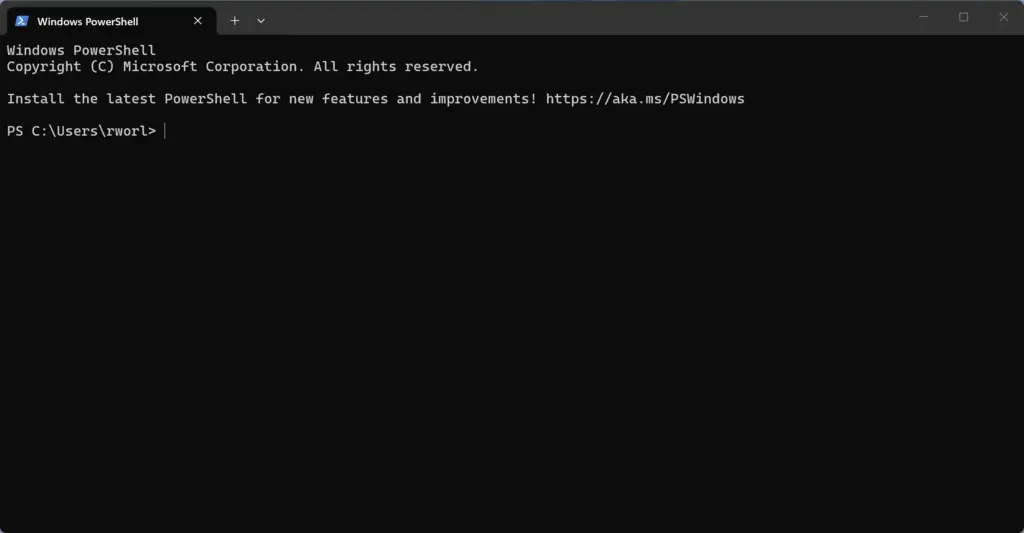
You can also check from Windows PowerShell. This method needs administrator rights, so open the console as an administrator.
Right-click the Start button and select Terminal or PowerShell. Note: This step requires administrator privileges.
Type the command Get-CimInstance -ClassName Win32_DeviceGuard -Namespace root\Microsoft\Windows\DeviceGuard and press Enter.
Look at the results on the screen. If you see numbers showing that security services are running, the feature is active. If the lists are empty or show only a zero, it is not running.
Checking with Task Manager
Task Manager
The third check is Task Manager. When Credential Guard is active, a helper process named LsaIso.exe runs in the background. It is the isolated part of the login security process described earlier.
Press Ctrl+Shift+Esc on your keyboard to open Task Manager 📊.
Click the Details tab on the left side menu.
Scroll down the list of running processes and look for a file named LsaIso.exe.
If you see this process running, the isolated security environment is active on your computer. If it is not in the list, Credential Guard is off.
Advertisement
How to Enable Credential Guard on 🪟 Windows 11
If your computer meets the requirements and you want this extra protection, you can turn it on. For home users, the easiest way is through the Windows Security settings or the Windows features list. Both need an administrator account, and both need a restart afterwards.
Enabling via Windows Security Settings
This method uses the core isolation settings in the Windows Security app. The switch you will use is Memory integrity. It is a closely related protection that uses the same virtualization-based security. It is not the same thing as Credential Guard itself, but it is the option Windows gives you on Home and Pro PCs.
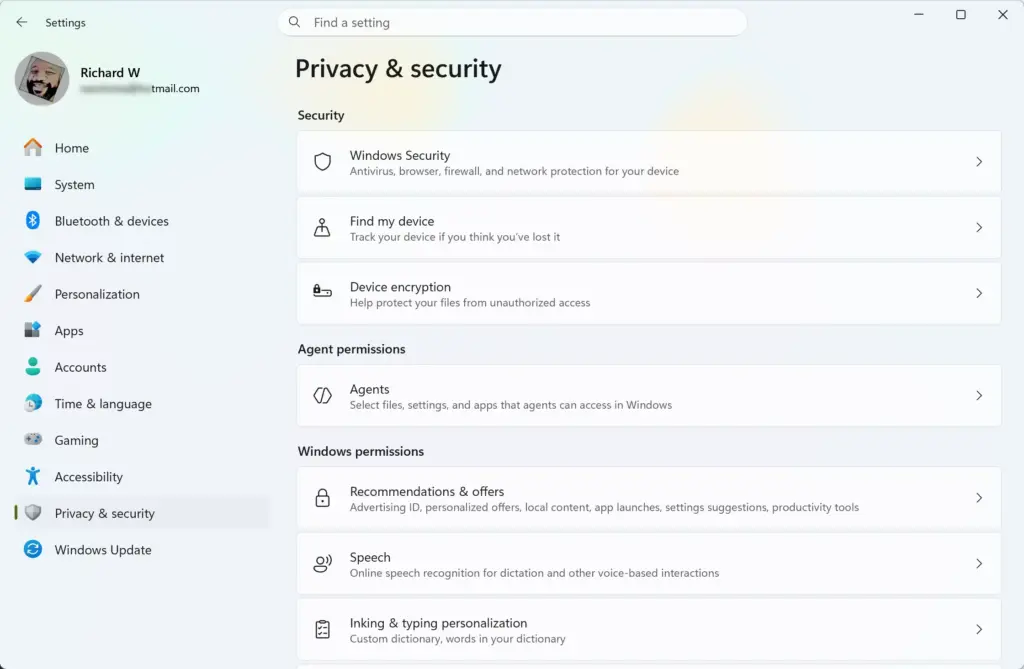
Click the Start button and open the Settings app.
Click Privacy & security on the left menu.Settings › Privacy & security
Click Windows Security.
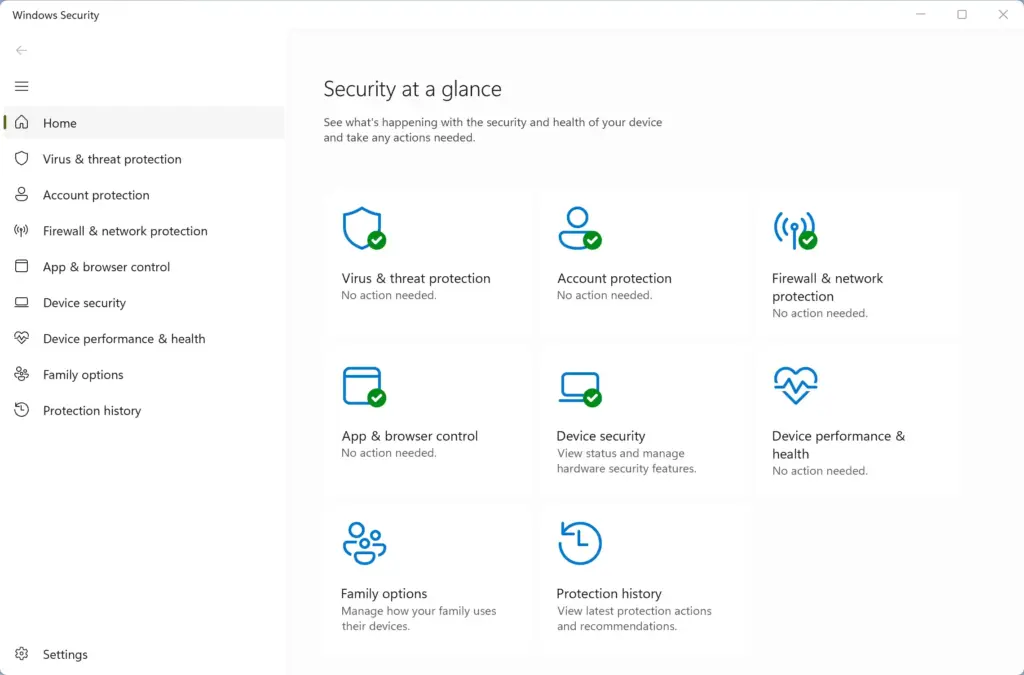
Click the button for Open Windows Security. The Windows Security dashboard opens.
Click Device security on the left side.
Click Core isolation details. This is the core isolation details page.
Look for Memory integrity and turn the switch to On. You may need to restart your 🔄 computer to finish this step. Note: This step requires administrator privileges.
If the switch will not turn on, Windows usually lists the drivers or settings that block it. Memory integrity is commonly blocked by an old, incompatible driver. Update or remove that driver, then try again. To undo the change, return to the same page, turn the switch off and restart.
Advertisement
Enabling via Windows Features
The second method uses the classic Windows features list. It also needs administrator rights.
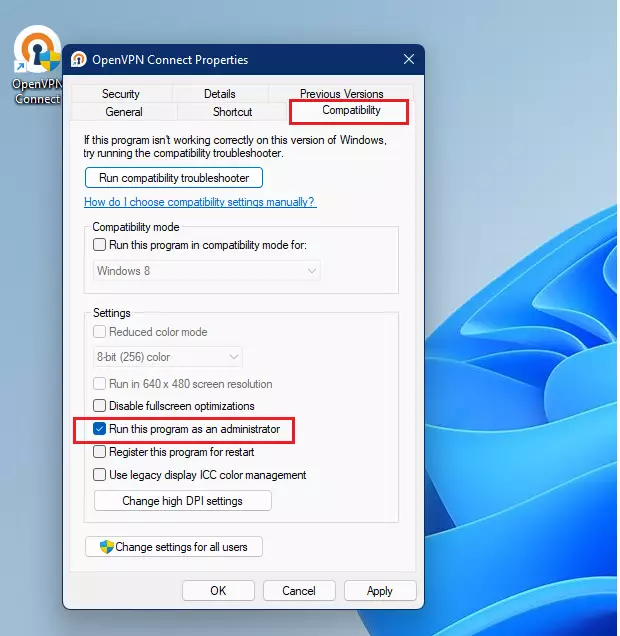
Click the Start button, type Turn Windows features on or off, and press Enter. The features window opens. windows 11 compatibility run as administratorwindows 11 compatibility run as administrator Note: This step requires administrator privileges.
Scroll down the list and find the box for Isolated User Mode or Isolated Security options if available. If you do not see them, your edition or hardware does not offer them, and you cannot enable the feature from this window.Windows Security
Check the box and click OK.
Restart your 🔄 computer when prompted.
After the restart, run one of the three checks above to confirm the protection is active. To undo this, clear the same box, click OK and restart again.
How to Disable Credential Guard
Credential Guard protects your passwords, but it can cause problems. If your favorite games or older programs stop working properly after you turn it on, you can turn it off safely. Open the Registry Editor and go to 🗝️HKEY_LOCAL_MACHINE\SOFTWARE\Policies\Microsoft\Windows\DeviceGuard, then change the keys that enable the feature.
Advertisement
Before you edit anything, export the key as a backup. In Registry Editor, right-click the key and choose Export. If something goes wrong, double-click the saved file to restore it. Restart the PC after you make your changes, because Credential Guard only switches off at startup. Then run one of the checks above to confirm LsaIso.exe is no longer running.
Disabling via Windows Security Settings
You can turn off Credential Guard by opening the Windows Security settings app and switching off memory integrity under core isolation details. This requires administrator privileges and a computer restart to fully apply the changes and remove the virtualization-based security protection from your system.
Open the Settings app from your Start menu.Settings
Go to Privacy & security and click Windows Security.
Open the Windows Security dashboard and click Device security.
Click on Core isolation details.
Turn the switch for Memory integrity to Off. Note: This step requires administrator privileges.
Restart your computer to apply the changes.
Pros and Cons for Personal Use
Before deciding whether to use this feature, you should weigh the good and the bad points for a home computer user.
The Benefits:
Maximum protection against advanced password-stealing malware.
Peace of mind knowing your login credentials are locked inside a secure hardware-backed box.
The same security level used by major banks and government offices.
The Drawbacks:
Can slow down older computers because it uses system memory and processor power for virtualization.
Might cause compatibility issues with certain third-party security software, older games, or custom developer tools.
Requires a restart and careful setup, which can be confusing for beginners.
Unique Angle: Credential Guard vs. Standard Windows Security for Home Users
Standard Windows security and built-in features like Windows Hello face recognition are more than enough for most home users, making Credential Guard unnecessary for everyday personal use. While standard protection stops casual hackers and common viruses, Credential Guard is designed to stop specialized corporate network attacks that target enterprise domain credentials.
Credential Guard is designed to stop a very specific and advanced threat: attackers who have already infected your computer and are actively trying to dig through your active system memory to steal session tickets. For an average home user who browses the web, watches videos, and plays games, the chance of facing this specific type of targeted attack is very low. Standard Windows security features paired with safe browsing habits and strong passwords provide plenty of safety without turning on enterprise-level tools.
Unique Angle: Performance Impact on Personal Gaming and Media PCs
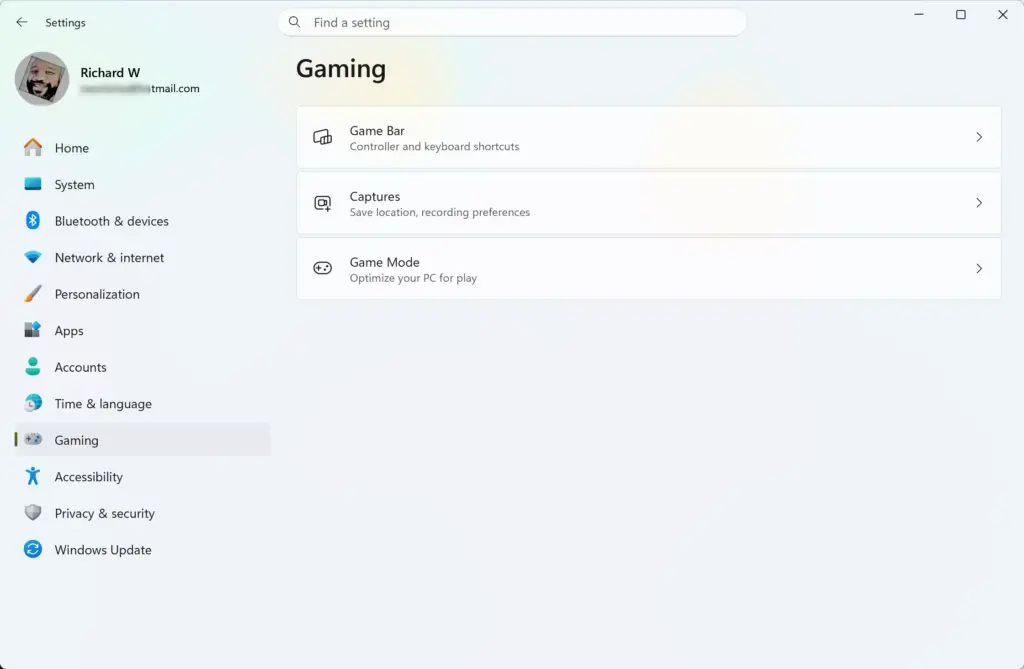
Settings › Gaming
Windows 11 Credential Guard has a small performance impact on personal gaming and media computers because running virtualization-based security in the background takes a small slice of your processor power and memory. While modern high-end home computers handle virtualization-based security easily, older hardware running heavy video games or 4K video editing software might notice slowdowns.
Because the Windows 11 Credential Guard security feature runs virtualization-based security in the background, Credential Guard takes a small slice of your computer's processor power and memory, typically consuming about 1 gigabyte of RAM. On a modern, high-end personal computer, you might never notice this tiny difference. However, if your personal computer is a few years old, turning on Windows 11 Credential Guard can cause noticeable stuttering in games or slower loading times in heavy apps.
Summary
Windows 11 Credential Guard provides advanced, enterprise-grade memory protection designed to block sophisticated password theft, but it is generally unnecessary for everyday home users. Standard Windows security features, strong passwords, and a reliable password manager are more than enough to keep personal computers safe without risking performance drops on your home PC.
📬 Get new Windows tips in your inbox
One email when we publish something worth your time. No spam, unsubscribe anytime.
Have a question about this guide?
Answered by AI from this guide. Good questions may be added to this page — please don't include personal details.
Richard is a writer at Geek Rewind who turns complex IT tasks into clear, step-by-step guides. He draws on years of hands-on experience in system administration and enterprise IT operations, focusing on Windows, Linux and WordPress: the problems people actually run into, and the fixes that work.
His server and WordPress guides come from systems he runs himself. Richard builds and maintains the platform behind Geek Rewind, from its Ubuntu servers and Nginx configuration to its custom WordPress plugins.
Many new tutorials start with readers' questions, and he's always glad to answer them in the comments.
One email when we publish a guide worth your time — new Windows features, the fixes that actually
work, and a heads-up when Microsoft breaks something. Unsubscribe in one click.
📬 Get new Windows tips in your inbox
One email when we publish something worth your time. No spam, unsubscribe anytime.




No comments yet — be the first to share your thoughts!