What Windows 11 Virtualization Based Security Does to Gaming Performance

- 17 steps
- Needs administrator rights
- Includes a restart or sign-out
Virtualization Based Security (VBS) is a Windows 11 feature that uses the processor’s virtualization hardware to build a secure, isolated region in memory. Windows keeps sensitive things there, such as system files and login details, so malware has a much harder time reaching them. Microsoft turns VBS on by default on many new PCs, so you may be running it without ever having chosen to.
That protection has a cost for gaming. VBS makes the processor split its work between the normal Windows environment and the isolated one. Depending on your hardware, this can reduce frame rates anywhere from about 5% to 30% in the worst cases.
This guide shows how to check whether VBS is running on your PC, how to turn it off, and what to try if it keeps running. Test your games before and after the change, so you know whether it made a real difference on your system.
Virtualization Based Security (VBS) reduces gaming performance by splitting your processor’s work between normal Windows and an isolated security environment, typically costing 5 to 10 percent of frame rate and up to 30 percent on some hardware. To check it, open System Information and read the Virtualization-based security value. To turn it off, disable Memory integrity under Windows Security, Device security, Core isolation, then restart.
How VBS Impacts Your Gaming Performance
VBS affects gaming because it uses system resources for security checks in the background while you play. The result can be lower frame rates, stuttering and longer loading times in demanding games. Most systems lose roughly 5 to 10 percent, though some hardware takes a heavier hit.
Gamers usually notice the extra load in a few ways:
- Lower Frame RatesYour games render fewer images per second, so fast-moving action looks less smooth.
- Game StutteringYou may see sudden pauses or hiccups when you turn quickly or enter a new area in the game world.
- Longer Loading TimesLevels and saved games can take a few extra seconds to load because the processor is busy with background tasks.
Independent tests put the loss at around 5 to 10 percent while the feature is active. On a high-end PC you will probably still get playable speeds, but you are giving up performance you paid for. On an older or mid-range PC, the same loss can turn a smooth game into a choppy one. The impact also varies from game to game. Games that lean heavily on the processor tend to show it most.
Before you change anything, note your current frame rate in one or two games you play often. Use the same scene or built-in benchmark each time. That gives you a fair comparison afterwards.
How to Check If Virtualization Based Security Is Running
The built-in System Information tool shows whether VBS is running, and the check takes only a few seconds. Follow these steps:
- Click the Start button on your taskbar .
- Type System Information into the search box and press Enter. The System Information window opens.
- Make sure System Summary is selected in the left pane. The right pane now shows a long list of details about your computer.
- Scroll down the right pane until you find the item named Virtualization-based security. It sits well down the list, so keep scrolling.
- Read the value next to it. If it says Running, VBS is active and may be affecting your game speeds. If it says Not enabled, your system is already running without it and you can skip the rest of the steps below.
If the item is missing entirely, or the value shows that virtualization is not supported, your hardware or firmware can’t run VBS and there is nothing to turn off.
How to Turn Off Virtualization Based Security
The usual way to turn VBS off is to disable Memory integrity in the Windows Security app. You find it under the core isolation settings. The change needs a restart before it takes effect and your frame rates come back.
Memory integrity is one of the protections that VBS provides. It blocks malicious or badly written drivers from running in the most trusted part of Windows. Turning it off lowers that protection, so only do it if you accept the trade-off. You can turn it back on at any time with the same steps.
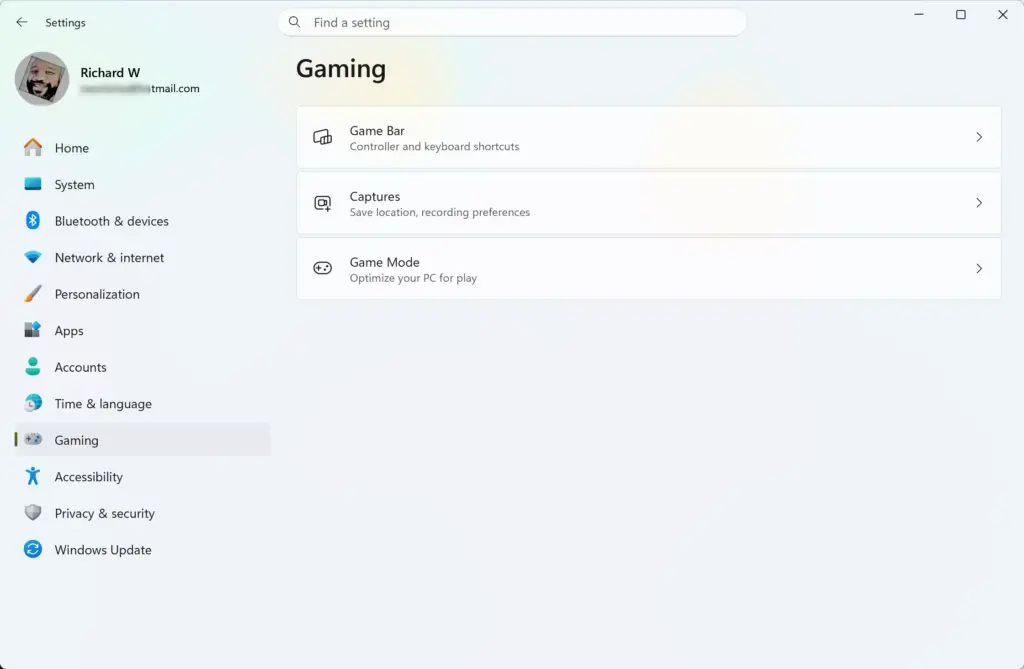
- Click the Start button and open the Settings app (the gear icon).

Settings - Click Privacy & security in the left-hand menu.
- Click Windows Security near the top of the list.
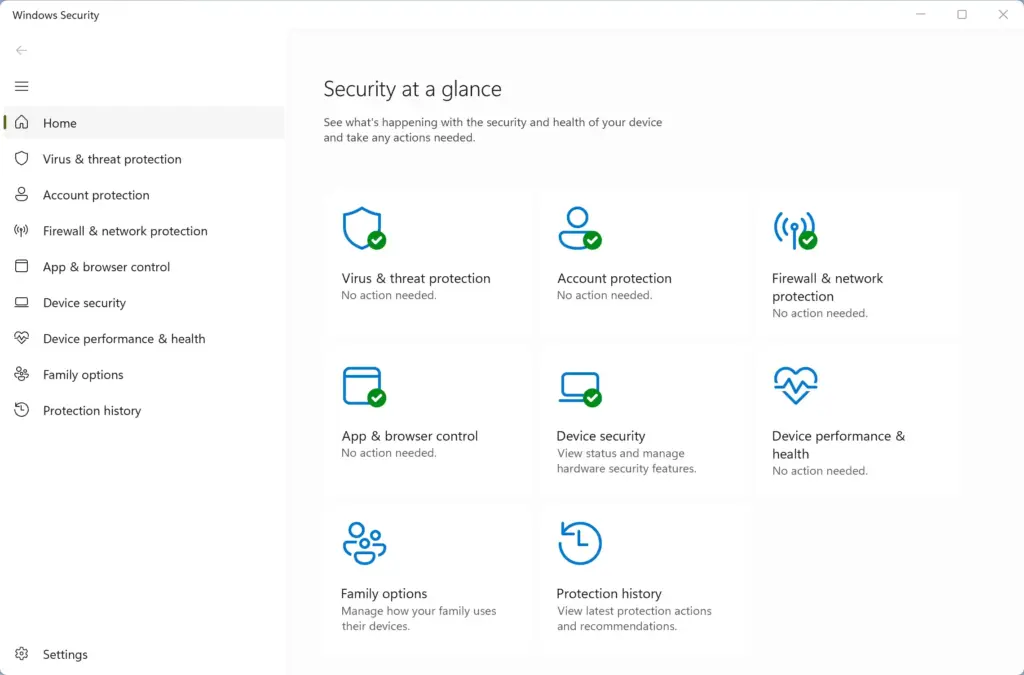
Windows Security - Click the Open Windows Security button. A new window appears.
- Click Device security on the left side of the window.
- Find the Core isolation section and click the Core isolation details link. The Core isolation page opens with the Memory integrity switch.
- Click the Memory integrity switch to turn it Off. This step requires administrator privileges, so approve the prompt if Windows asks. If the switch is greyed out, a work or school policy is probably managing it, and only an administrator can change it.
- Close the windows and restart your computer so the change applies completely.
After the restart, open System Information again and check Virtualization-based security. If it now says Not enabled, VBS is off. Launch the same game and scene you tested earlier and compare your frame rates and overall smoothness.
If it still says Running, VBS is being kept on by something else, such as another policy or setting on the PC. In that case, try the BIOS method further down. To undo the change, go back to the same page, turn Memory integrity on and restart.
Unique Angle: The Hidden Conflict Between Anti-Cheat Software and VBS
Anti-cheat software and VBS can conflict because both try to work deep inside the operating system at the same time. That double layer of low-level security makes your processor work harder. The clash can show up as unexpected game crashes, freezing screens, severe lag spikes and lower frame rates in online multiplayer games.
If your favorite online game crashes to the desktop for no clear reason, turn off Memory integrity using the steps above and play again. If the crashes stop, the conflict was the cause. Also make sure the game and its anti-cheat software are fully updated, because a patch may fix the problem without any change to your security settings. If the crashes continue with Memory integrity off, the cause is something else.
Unique Angle: Hardware-Level Virtualization Settings in Your BIOS
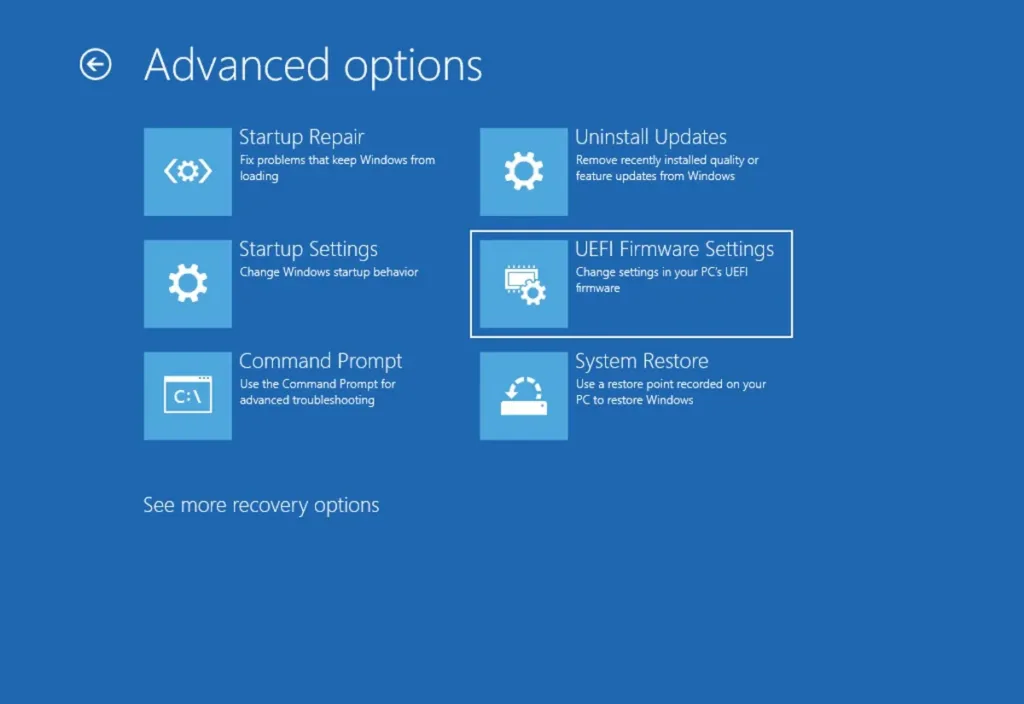
Many motherboards keep virtualization enabled at the hardware level. To stop it completely, you have to restart, enter the BIOS menu and turn the setting off by hand. Treat this as a last resort.
- Restart your computer.
- As it starts, press the key shown on the screen to enter the BIOS setup menu. Common keys are Delete, F2 and F12. It varies by manufacturer, so watch the startup screen or check your motherboard manual.
- Look through the menus for a setting named Intel Virtualization Technology (Intel processors) or AMD-V or SVM Mode (AMD processors). The menu it lives in, often an advanced or CPU settings page, differs between boards.
- Set it to Disabled, then save your changes and exit. The PC restarts into Windows.
That also stops you from running virtual machines and some programming tools, such as emulators and Windows Subsystem for Linux, so only use this method if you don't need them. To undo it, go back into the BIOS and set the option to Enabled.
Summary
VBS protects your PC from malware, but it often slows games down and can cause stuttering. Turning off Memory integrity in Windows Security and, if needed, checking the virtualization settings in your BIOS can win back lost frames. If you saw performance drops, the change can make your games run noticeably faster. Compare your before and after numbers, and keep the protection on if you see no real gain.
Have a question about this guide?
Answered by AI from this guide. Good questions may be added to this page — please don't include personal details.
Did this guide fix your problem?

About the Author
Richard
Tech Writer, IT Professional
Richard is a writer at Geek Rewind who turns complex IT tasks into clear, step-by-step guides. He draws on years of hands-on experience in system administration and enterprise IT operations, focusing on Windows, Linux and WordPress: the problems people actually run into, and the fixes that work. His server and WordPress guides come from systems he runs himself. Richard builds and maintains the platform behind Geek Rewind, from its Ubuntu servers and Nginx configuration to its custom WordPress plugins. Many new tutorials start with readers' questions, and he's always glad to answer them in the comments.
No comments yet — be the first to share your thoughts!