How to Open the Performance Monitor in Windows 11

- 18 steps
- Needs administrator rights
Performance Monitor is a built-in Windows 11 tool that tracks how hard your PC is working by showing live data on your processor, memory, and disk usage. You can launch this diagnostic utility in under five seconds to spot what slows down your computer and view real-time performance charts.
Press the Win, type perfmon, and press Enter to open the app instantly. From there, you can watch live system events as they happen or set up custom alerts to check your PC health later.
The tool is included in every edition of Windows 11, Home and Pro alike, and none of the methods below need a restart. Some actions inside Performance Monitor, such as creating data collector sets, need administrator rights. If you are signed in with a standard account, Windows will ask for an administrator password.
Press Win, type perfmon, and press Enter to open Performance Monitor. The app displays a live graph of your processor activity. For administrator access, right-click the result and choose Run as administrator instead.
Option One
Open Performance Monitor from Windows Search
This is the quickest method for most people, and the one I use daily.
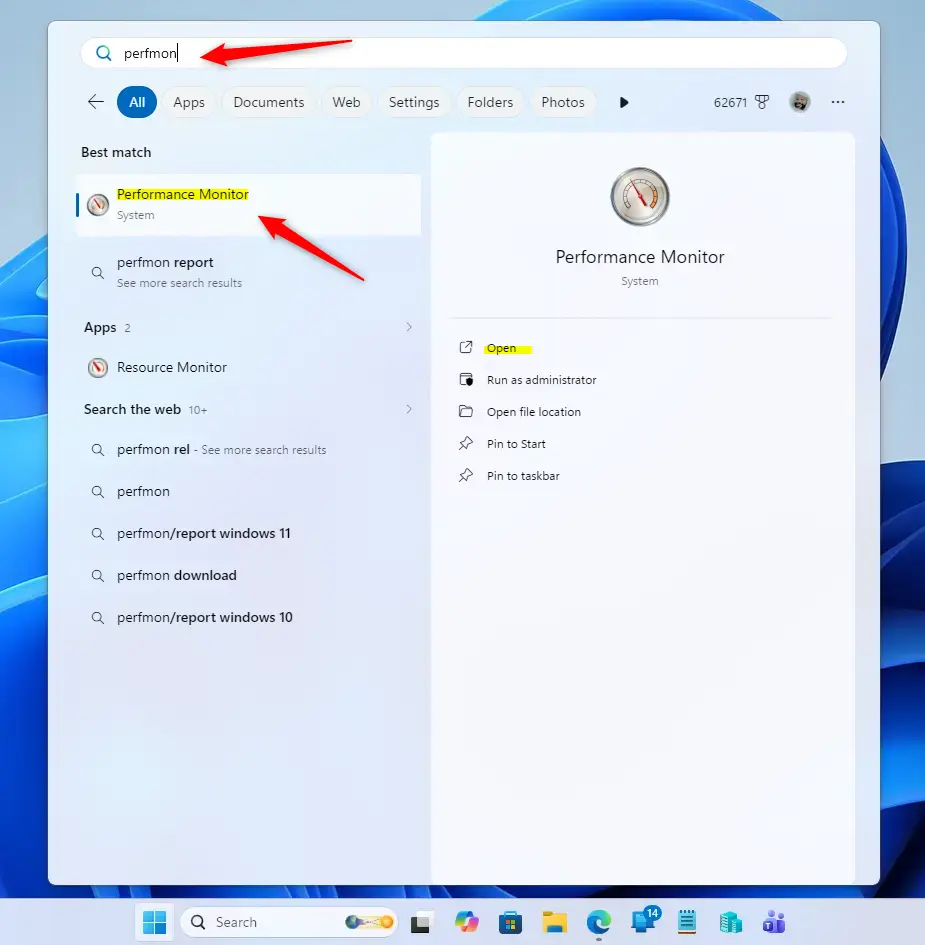
- Press Win+S to open Windows Search, or open the Start menu. A search box appears.
- Type perfmon into the search box. Performance Monitor should appear as the top result.
- Click Open, or press Enter. The Performance Monitor window opens, with a live graph of processor activity in the middle of the window.
If you want to run it as administrator, right-click the result and choose Run as administrator instead.
Option Two
Open Performance Monitor from Task Manager
This method is handy when your PC is slow and the Start menu is not responding well. Task Manager usually still opens.
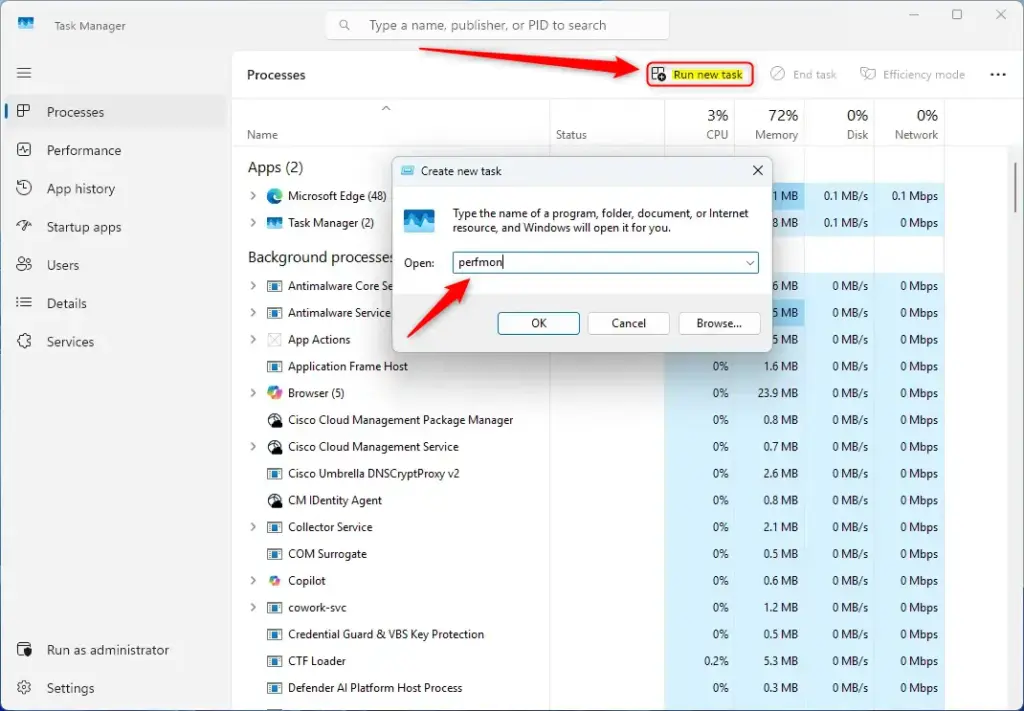
- Press Ctrl+Shift+Esc to open Task Manager.
- Click Run new task on the command bar at the top. A Create new task box appears.
- Type perfmon in the Open field, then click OK. Performance Monitor opens.
If you need administrator rights, tick Create this task with administrative privileges in the same box before you click OK.
Option Three
Open Performance Monitor from Windows Tools
Windows Tools is a folder that collects the administrative utilities in one place, so you don’t need to remember any command.
- Open Windows Tools. The quickest way is to click Start, select All apps, and choose Windows Tools from the list. You can also search for Windows Tools. A File Explorer-style window opens, listing the tools.
- Double-click Performance Monitor. The tool opens.
The entries are sorted alphabetically, so Performance Monitor sits near the middle of the list.
Option Four
Open Performance Monitor from Run
If you like keyboard shortcuts, this is the fastest route.
- Press Win+R to open the Run dialog.
- Type perfmon in the Open box.
- Click OK, or press Enter. Performance Monitor opens.
If you press Ctrl+Shift+Enter instead of Enter, Windows will try to start it with administrator rights.
Option Five
Open Performance Monitor from System Configuration (msconfig)
This is a roundabout way to get there, but it works. It is useful if you already have msconfig open while troubleshooting startup problems.
- Open System Configuration. Press Win+R, type msconfig, and press Enter. The System Configuration window opens.
- Click the Tools tab. You will see a list of Windows utilities.
- Select Performance Monitor in the list.
- Click the Launch button. Performance Monitor opens in its own window.
- Click OK to close msconfig.
Option Six
Open Performance Monitor from Command Line
This works the same in PowerShell and in Command Prompt, so use whichever you prefer.
- Open Terminal. Right-click the Start button and select Terminal. Then pick either Windows PowerShell or Command Prompt from the tab dropdown, or just use the profile that opens by default.
- Type perfmon into Terminal, and press Enter. The Performance Monitor window opens, and the prompt returns to you.
For administrator rights, open Terminal as administrator first (right-click Start and select Terminal (Admin)), then run the same command.
That’s it. Once the window is open, Performance Monitor under Monitoring Tools in the left pane shows the live chart. Use the green + button on the toolbar to add more counters, such as memory or disk.
Summary
This tutorial covers six simple ways to open the Performance Monitor tool in Windows 11, ranging from using Windows Search and the Run dialog to Task Manager, Windows Tools, System Configuration, and the command line.
Have a question about this guide?
Answered by AI from this guide. Good questions may be added to this page — please don't include personal details.
Did this guide fix your problem?

About the Author
Richard
Tech Writer, IT Professional
Richard is a writer at Geek Rewind who turns complex IT tasks into clear, step-by-step guides. He draws on years of hands-on experience in system administration and enterprise IT operations, focusing on Windows, Linux and WordPress: the problems people actually run into, and the fixes that work. His server and WordPress guides come from systems he runs himself. Richard builds and maintains the platform behind Geek Rewind, from its Ubuntu servers and Nginx configuration to its custom WordPress plugins. Many new tutorials start with readers' questions, and he's always glad to answer them in the comments.
No comments yet — be the first to share your thoughts!