Should You Enable Access Work or School Accounts on a Personal Windows 11 PC

Access Work or School Accounts on Windows 11 is a built-in feature that links a work or school account to your PC so you can reach an organization’s apps and resources for remote work or classes. When you sign in with a work or school email on a personal Windows 11 PC, a pop-up often asks whether you want to let your organization manage your device.
That choice matters. The Access Work or School Accounts setting can hand control policies, such as password rules and remote wipe tools, to your IT department. If you click yes, your employer or school may be able to lock or erase your computer. If you say no, you might lose some single sign-on convenience in shared apps like Microsoft Teams or Outlook, though you can usually still use them. Once you know how this works, you can protect your personal photos and private files and still stay connected to your job or studies.
No. Enabling Access Work or School Accounts on a personal Windows 11 PC hands your organization’s IT department control over security policies, software installation, and remote wipe capabilities on your device. Instead, choose “This App Only” during setup to use your work account in specific apps like Teams or Outlook without giving up device management to your employer or school.
Understanding Personal Accounts Versus Work and School Accounts
Before you change any settings, get clear on the two kinds of account involved. They run on two separate Microsoft systems, and they give very different people control over your PC.
What is a Personal Microsoft Account?
A personal Microsoft account is a profile you own completely. Its email address usually ends in outlook.com or hotmail.com, though it can also be a custom domain you registered yourself. You use it to sign in to Windows 11, buy apps and games from the Microsoft Store, store files in OneDrive, and sync browser settings. No employer or system administrator has control over the device because of this account.
What is a Work or School Account?
A work or school account is an organizational login managed through cloud systems like Microsoft Entra ID. Your employer or school sets the rules, security settings and policies for it. If you connect one to your personal Windows 11 PC, they may get specific management powers over that computer. How much they get depends on the choice you make during setup, which the next section covers.
What Happens When You Add a Work or School Account in 🪟 Windows 11
When you add a work or school account in Windows 11, a setup screen decides how deeply your organization connects to your PC. You usually see two choices:
- Allow your organization to manage the whole device.
- Keep the connection limited to the app you are signing in to, such as Microsoft Teams.
The exact wording differs between apps and Windows builds, so read the prompt before you click. If the screen offers a checkbox or a small link that limits the sign-in to one app, that is the limited option. Look for it before you accept the default.
Selecting "Yes" (Allowing Organization Management)
That gives administrators the power to enforce strict security rules. They can require a complex PIN, turn on automatic screen locking, and demand full-device encryption on your personal computer.
Once the PC is connected through the Windows Settings menu, IT administrators can also push company software to it, install security certificates, and remotely wipe corporate data if your laptop is lost or stolen. On a personal device running Windows 11 version 23H2, a remote wipe is generally meant to delete only work files and managed apps. Your personal photos, documents and games are meant to stay untouched. Even so, many home users are uncomfortable giving up control of their settings. Note that how a wipe behaves depends on what your IT team configures, which is a risk covered later in this article.
Selecting "No, This App Only"
If you select no, or choose the "this app only" option, Windows 11 only learns that you want to use your work or school login for specific apps like Word, Excel or Teams. You do not hand over control of the whole computer. In this mode your organization cannot enforce security rules, install remote management tools, or wipe your personal computer.
Not connecting your account to the device is the safest choice for privacy-focused users who want a clear wall between a personal PC and an employer. You can still read work email, join video meetings and edit cloud documents through a web browser. Keeping the account disconnected keeps the computer strictly your own. Be aware that some organizations use conditional access rules that insist on a managed device for certain apps. If you hit a block like that, ask your IT team what they require before you give in.
What Can Your Organization Actually See on Your Personal PC?
If you let IT manage your personal PC, your organization can see your computer hardware details, operating system version, serial number and a list of installed apps. IT departments cannot see your personal browsing history, private emails, personal photos, or files stored outside of company folders.
If you answer "Yes" and let your device be managed, your IT department can also see whether the device is encrypted and whether your antivirus is running. These checks tell them if the PC meets the company's security rules.
Your employer or school cannot see your personal web browsing history, personal emails, private photos, personal chat messages or what you type. They cannot turn on your webcam from afar or listen to your microphone. What the organization sees stays limited to the security and hardware details needed to keep work data safe. If you want the exact list for your own setup, ask your IT team, because the policies are theirs to set.
How to Manage or Remove Work or School Accounts in 🪟 Windows 11
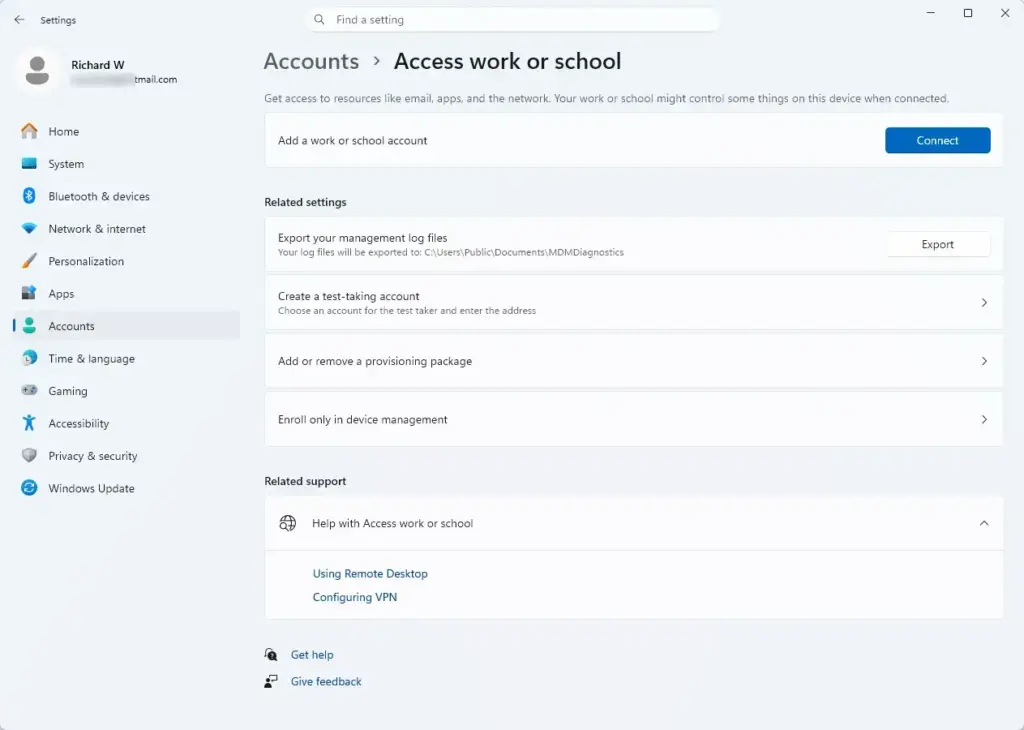
You manage or remove work and school accounts in the main Settings app. From the accounts page you can disconnect a linked workplace profile, check what is connected, or remove an organization you no longer need on your laptop.
- Click the Start button and open the Settings app (the gear icon).

Settings - Click Accounts in the left-hand menu. The Accounts page opens on the right.
- Scroll down and click Access work or school. You should see a list of every work or school account connected to this PC.
- Find the work or school account you want to manage in the list.
- Click the account to expand its options. Buttons for that account appear below it.
- To change management settings or completely disconnect the account, click the Disconnect or Manage button. If you only want to review what the organization controls, look at the account info first.
- Follow the on-screen steps to confirm the removal of the account and its management profile from your personal computer. Windows may warn that you will lose access to work apps and files. Once it finishes, the account should no longer appear in the list.
If Disconnect is missing or greyed out, the PC is probably joined directly to the organization's Entra ID or locked by a policy. In that case you usually cannot remove the account yourself, and you need to ask your IT team. Also, sign out of work apps first and save your files, since removing the account can sign you out of them. To undo a removal, add the account again from the same page and sign in.
Unique Angles: The Hidden Risks and Smart Alternatives
Most guides repeat Microsoft's basic definitions. What everyday users need are the practical results of mixing personal hardware with work IT rules, so the next sections cover those.
The Hidden Risk of Personal Data Loss During Offboarding
The hidden risk of personal data loss comes up during offboarding. Managed devices let IT departments send a remote wipe command, and while standard rules try to erase only work data, a mistake by IT staff can sometimes trigger a full system reset that wipes your entire personal computer. This is most likely when you leave a job or finish a course and the account is cleaned up in a hurry. Back up your personal files to a drive or personal OneDrive before you connect your PC to an organization, and again before you leave it.
The Browser Profile Solution: A Safer Alternative
A safer alternative is to use separate browser profiles in Microsoft Edge or Google Chrome. Sign in to your work or school account only inside that separate profile. Your work email, cloud files and web apps stay contained in the browser, away from your Windows settings and your personal files. To undo it, delete the browser profile and the account is gone from your PC, with no management profile to remove.
Summary
Deciding whether to enable work or school account access on a personal Windows 11 PC comes down to balancing convenience against privacy and control. Personal accounts belong entirely to you. Work accounts can give IT admins control over security rules and device wiping, unless you choose the safer app-only or browser profile options.
- Personal Microsoft accounts belong entirely to you, while work or school accounts are controlled by your organization.
- Allowing full organization management gives IT admins control over security rules, device encryption and software installation.
- Selecting "No, this app only" keeps your personal computer private while still letting you use work and school applications.
- Employers cannot see your personal files or browsing history, but managed devices can theoretically be wiped remotely by IT staff.
- You can easily disconnect or remove work accounts anytime through the Windows Settings app under Accounts and Access work or school, unless your IT team has locked the account to the device.
Frequently asked questions
What happens when I sign into Teams on my personal computer and say no to the pop up for it signing me into other school work properties?
Teams still works. You sign in to Teams with your school or work account, but Windows does not connect that account to the PC. Other work apps, such as Outlook, may ask you to sign in separately. Your organization gets no control over the computer, and your personal files stay private.
What is access work or school on the computer?
Access work or school is a Windows 11 setting, found under Settings Accounts Access work or school. It links a work or school account to your PC so you can use your organization's apps and network resources. Linking an account can also give your organization control over the device.
Is it safe to connect to "access work or school" and will the otherside access my PC?
It is generally safe, but know what you agree to. Connecting lets your organization set device rules, such as password requirements, and can lock or wipe the whole PC remotely. Connecting does not give them access to read your personal files.
Will using Microsoft education with my work mean it will always log into work information or can I keep home computer separate?
Using a work or school account does not automatically tie your whole PC to your job or school. Windows keeps your personal Microsoft account separate unless you add the work account under Access work or school. To keep your home PC separate, sign in with a personal account and do not add the work account to Windows.
What happens when you add a school account to your PC?
Adding a school account under Access work or school connects that account to your PC. Windows then applies your school's rules, which may include password requirements, encryption, and remote lock or wipe. Removing the account later usually removes these rules, but confirm this with your school first.
Should u put ur school account in for school / work on laptop?
Use your school account for school apps and files, but avoid adding it to a personal laptop unless you must. Adding it hands part of the device to school management. If you do add it, use the Access work or school setting and check what your school can control first.
Still have a question?
Answered by AI from this guide. Good questions may be added to this page — please don't include personal details.
Did this guide fix your problem?

About the Author
Richard
Tech Writer, IT Professional
Richard is a writer at Geek Rewind who turns complex IT tasks into clear, step-by-step guides. He draws on years of hands-on experience in system administration and enterprise IT operations, focusing on Windows, Linux and WordPress: the problems people actually run into, and the fixes that work. His server and WordPress guides come from systems he runs himself. Richard builds and maintains the platform behind Geek Rewind, from its Ubuntu servers and Nginx configuration to its custom WordPress plugins. Many new tutorials start with readers' questions, and he's always glad to answer them in the comments.
No comments yet — be the first to share your thoughts!