How to Turn On Automatic Screen Brightness for Windows Hello Face Recognition in Windows 11

Windows Hello automatic screen brightness lets facial recognition temporarily brighten your screen when you sign in from a dark or dimly lit room. The quickest way to turn it on is in Settings Accounts Sign-in options, under Facial recognition (Windows Hello), by switching on Automatically adjust screen brightness during face recognition.
This feature is only in Windows Insider preview builds so far. It is available in the Experimental channel of the Windows Insider Program (a free program that gives early test versions of Windows). It may change before it reaches everyone. If your PC runs a regular release of Windows 11, the setting will not appear yet.
To turn on automatic screen brightness for Windows Hello face recognition in Windows 11, open Settings Accounts Sign-in options, expand Facial recognition (Windows Hello), and switch on Automatically adjust screen brightness during face recognition. This option only appears on Windows Insider preview builds, so your PC must be enrolled in the Experimental channel first.
What automatic screen brightness does for Windows Hello
Windows Hello facial recognition (the sign-in method that identifies you by your face through a compatible camera) needs enough light to see you clearly. In a dark room, the camera has less to work with, and sign-in can fail or fall back to your PIN.
With this setting on, Windows raises the screen brightness for a short time while it scans your face. The screen gives off light, so the camera can see your face more clearly. Brightness then returns to where it was. The change is temporary, so your brightness slider and display settings stay as they are.
The setting only affects the face-scanning moment. It does not change how Windows Hello decides whether a face matches, and it does not replace your PIN or other sign-in methods.
Before you start
Check three things first, because each one can hide the setting.
Confirm you are on an Insider preview build
If your PC is not on a preview build, the setting will not appear, no matter how up to date it is. To see which program your PC is enrolled in, open Settings Windows Update Windows Insider Program
Do not enroll a work PC or your only computer to try one sign-in setting. Test on a spare machine or a virtual machine if you can.
Set up Windows Hello facial recognition first
The brightness setting sits inside the Facial recognition (Windows Hello) section. If you have not set up your face yet, follow How to Manage Windows Hello Facial Recognition in Windows 11 and come back. Facial recognition also needs a compatible camera, so a PC without one cannot use it.
Know that a PIN is required for Windows Hello
Windows Hello normally expects you to have a PIN as a backup sign-in method. If you have not created one, see Set Up a Windows Hello PIN In Windows 11. A PIN is also what you will use if the camera still cannot read your face in very dark conditions.
How to turn on automatic screen brightness for Windows Hello face recognition
Follow these steps to turn on automatic screen brightness for Windows Hello face recognition. The whole process takes a minute or less.
- Open Settings . Press Win+I, or right-click the Start button and choose Settings. The Settings window opens with a list of categories on the left.

- Select Accounts. Click Accounts in the left sidebar. The right pane shows your account details and related options.
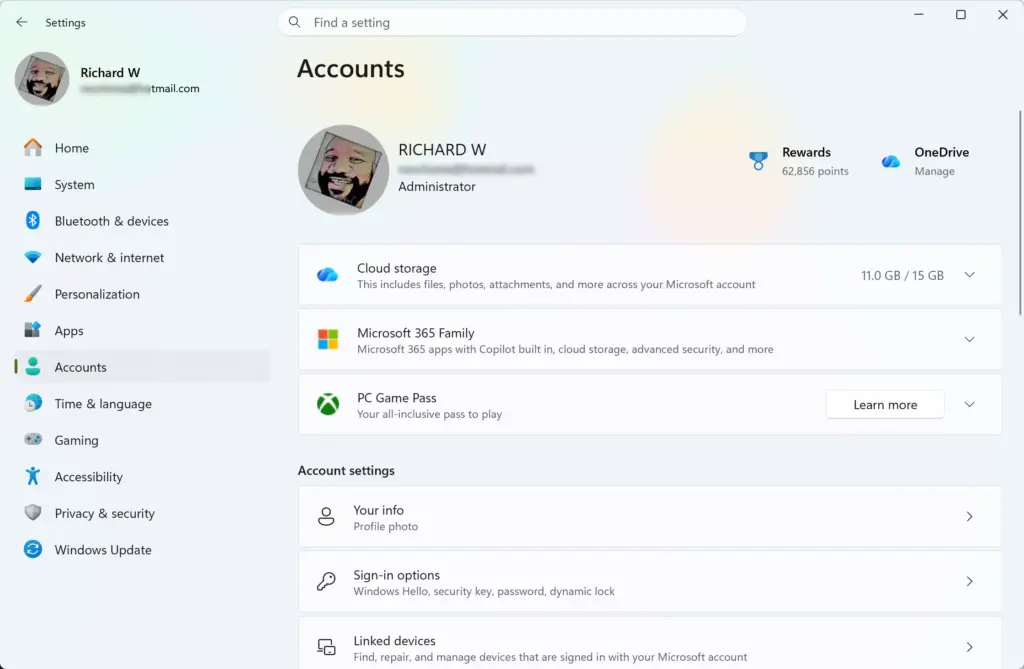
Settings › Accounts - Select Sign-in options. Click Sign-in options. A list of ways to sign in appears, such as facial recognition, fingerprint, PIN and security key.
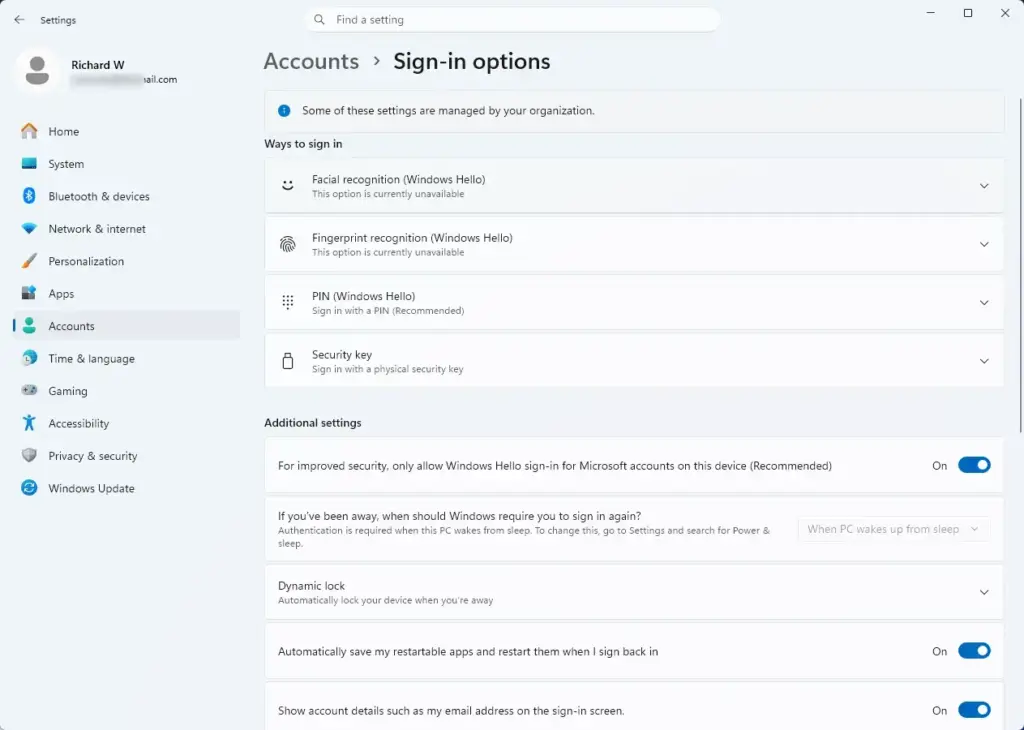
Settings › Accounts › Sign-in options - Expand Facial recognition (Windows Hello). Click the section name to open it. If you do not see this entry, your PC has no compatible camera or Windows Hello is not available on it.
- Find Automatically adjust screen brightness during face recognition. Look for it inside the expanded section, below the face setup options. If it is missing, go to the troubleshooting section below.
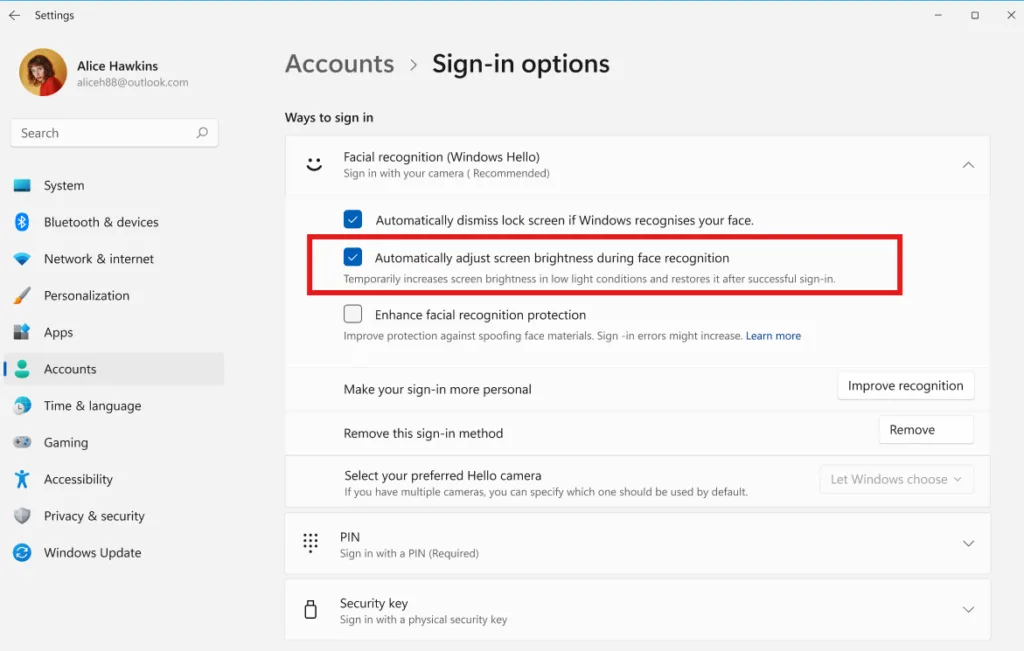
- Set the option to On. Click the toggle (the on/off switch next to the setting) so it shows On. The change applies straight away, and Settings does not ask you to confirm it.
- Close Settings. You can leave the window open or close it. Nothing else needs saving.
- Test the sign-in. Press Win+L to lock your PC, then dim the room lights and sign in with your face. The screen should brighten briefly while Windows scans, then return to its normal level.
Microsoft’s release notes do not say you need to restart for this setting. You can test it straight away. If it does not seem to work, sign out and back in once with your PIN, then lock your PC and try signing in with your face again.
If the setting is missing or greyed out
Most problems come down to the build, the camera or the Windows Hello setup. Work through these in order.
The setting does not appear at all
This is the most likely cause. If your PC is not on a preview build, the setting will not appear. Check Settings Windows Update Windows Insider Program to see what your PC is enrolled in.
Being enrolled in the program does not guarantee you have the feature. Microsoft tends to roll out preview features gradually, so a build that carries it may not show it on every PC straight away. Run Windows Update , install the latest preview build for your channel and check again.
Facial recognition (Windows Hello) is missing or shows Set up
If the section is absent, Windows may not detect a Windows Hello-capable camera. Open Device Manager and check for a camera under Cameras or Biometric devices. If your PC has more than one camera, Windows may be using the wrong one. How to Select Preferred Windows Hello Camera for Facial Recognition in Windows 11 explains how to choose the right one.
If the section is there but only offers a Set up button, you have not enrolled your face yet. Finish the setup first, then look for the brightness option again.
Biometrics are turned off on the PC
An administrator or a policy can turn off Windows Hello face and fingerprint sign-in. When that happens, facial recognition options may not appear or may not work. On a personal PC, see How to Enable or Disable Windows Hello Biometrics. On a PC joined to a domain (a managed network of work computers), see How to Enable or Disable Windows Hello Biometrics for Domain Users. Check with your IT team before changing anything.
The setting is on but the screen does not brighten
Microsoft’s notes do not say exactly when the brightening starts. They only mention a dark or dimly lit room. In a normally lit room, Windows may see no need to raise the brightness. Test in a properly dark room before deciding the feature is broken.
If it still does nothing, the build may have a bug. This is a preview feature, and preview builds change from release to release. Report the problem through Feedback Hub, the Windows app for sending feedback to Microsoft, so the Insider team sees it.
How to turn off automatic screen brightness for Windows Hello
Turning the setting off takes the same route and restores the old behavior, where Windows leaves the screen brightness alone during face scans. Nothing is deleted, and your face data stays in place.
- Open Settings . Press Win+I.
- Select Accounts. Click Accounts in the left sidebar.
- Select Sign-in options. Click Sign-in options.
- Expand Facial recognition (Windows Hello). Click the section name.
- Set Automatically adjust screen brightness during face recognition to Off. The toggle now shows Off.
That is a bigger change than this setting, so use it only if you want to stop using face sign-in.
What to expect while this is in preview
Because the feature is still in testing, the details may change. Treat them as temporary. The setting name, its location in Settings and how it behaves can all change before a public release. The path in this article, Settings Accounts Sign-in options Facial recognition (Windows Hello), is where Microsoft places it now.
If you update to a newer preview build, check the setting again. A new build, a switch to a different Insider channel or a clean reinstall can reset or remove it. Moving back to a stable release of Windows 11 removes the setting from view until Microsoft ships it to everyone.
Other ways to improve face sign-in in low light
The brightness setting is one part of reliable face sign-in. These related settings affect the same sign-in screen, and they are worth checking if low light is your main problem.
- Camera choice: a PC with several cameras may scan with the wrong one. Pick the right camera using the camera guide linked above.
- Anti-spoofing: this setting makes Windows Hello stricter about telling a real face from a photo. Read How to Turn On Windows Hello Anti-Spoofing in Windows 11 before you turn it on. Check how it affects sign-in in poor light.
- Fingerprint as a backup: if your PC has a fingerprint reader, it works without any light on your face. See How to Enable or Disable Windows Hello Fingerprint.
- PIN: this stays available on the sign-in screen when the camera cannot read your face.
If you are still deciding whether face sign-in suits you at all, Should You Enable Windows Hello Facial Recognition for Everyday PC Security covers the trade-offs.
What to do next
If the setting is not on your PC yet, check Windows Update on your Insider build every so often, as Microsoft is still rolling it out in the Experimental channel. Switch it off from the same Facial recognition (Windows Hello) section if you do not like the brief jump in brightness. To go further with passwordless sign-in, read Turn On Passwordless Sign-In with Windows Hello in Windows 11.
Have a question about this guide?
Answered by AI from this guide. Good questions may be added to this page — please don't include personal details.
Did this guide fix your problem?

About the Author
Richard
Tech Writer, IT Professional
Richard is a writer at Geek Rewind who turns complex IT tasks into clear, step-by-step guides. He draws on years of hands-on experience in system administration and enterprise IT operations, focusing on Windows, Linux and WordPress: the problems people actually run into, and the fixes that work. His server and WordPress guides come from systems he runs himself. Richard builds and maintains the platform behind Geek Rewind, from its Ubuntu servers and Nginx configuration to its custom WordPress plugins. Many new tutorials start with readers' questions, and he's always glad to answer them in the comments.
No comments yet — be the first to share your thoughts!