How to Set Up an External Fingerprint Reader for Windows Hello in Windows 11

- 18 steps
- Needs administrator rights
- Includes a restart or sign-out
A Windows Hello external fingerprint reader works on a Windows 11 desktop once you plug it in and record your finger (enroll it) under Settings Accounts Sign in options. Enhanced Sign-in Security (ESS) now supports external readers on desktops and other Windows 11 PCs, including Copilot+ PCs.
Windows Hello is the Windows 11 sign-in system that lets you sign in to your PC with a fingerprint, face, or PIN instead of a password. ESS is a stricter mode of Windows Hello. It protects your biometric data (your fingerprint and face scan data) with hardware, not just software. Microsoft added support for external fingerprint readers (called peripheral sensors) in update KB5101684, a Windows 11 update number. Check that the update is installed.
Open Settings, select Windows Update, install all pending updates including KB5101684, then restart. Plug in the reader, go to Settings Accounts Sign in options, expand Fingerprint recognition (Windows Hello), and select Set up. Enter your PIN, then touch the reader repeatedly until the scan completes. No restart is needed after enrolling.
What you need before you start
Three things have to be in place before the reader shows up in Settings. Check each one first. It saves time later.
A reader that supports Enhanced Sign-in Security
The update that adds support
Microsoft’s release notes for KB5101684 describe external ESS fingerprint reader support. Install the latest Windows 11 updates before you plug the reader in. The steps below include this check. You can read Microsoft’s own note on the KB5101684 support page.
A Windows Hello PIN
Windows Hello asks for your PIN before it enrolls a fingerprint, so set one up first if you have not. The PIN also stays on the account as a backup when the reader fails. Follow Set Up a Windows Hello PIN In Windows 11 if you need to create one.
How to set up an external fingerprint reader for Windows Hello
These steps install the update, connect the reader, and enroll your finger. Together they finish the setup. If Windows installs a driver (the software that lets Windows talk to the reader) for the reader, you may need an administrator account for that step. Enrolling a finger itself uses your normal account and PIN.
- Open Settings. Press Win+I. The Settings app opens on the System page.

Start Menu - Select Windows Update. It is at the bottom of the left pane. The Windows Update page opens.
- Select Check for updates. Windows looks for new updates and starts downloading anything it finds. Skip to step 6 if you see “You’re up to date”.

Settings › Windows Update - Select Install all or Restart now when offered. Some updates install in the background and then ask for a restart. Save your work first.
- Restart the PC. Let the restart finish and sign in with your PIN or password.
- Plug in the fingerprint reader. Connect it to the PC with its cable. Windows may show a notification while it sets up the device. Wait for that to finish.
- Open Settings again. Press Win+I.
- Select Accounts. It is in the left pane. The Accounts page opens.
- Select Sign in options. A list of sign-in methods appears, such as Facial recognition (Windows Hello), Fingerprint recognition (Windows Hello), and PIN (Windows Hello).
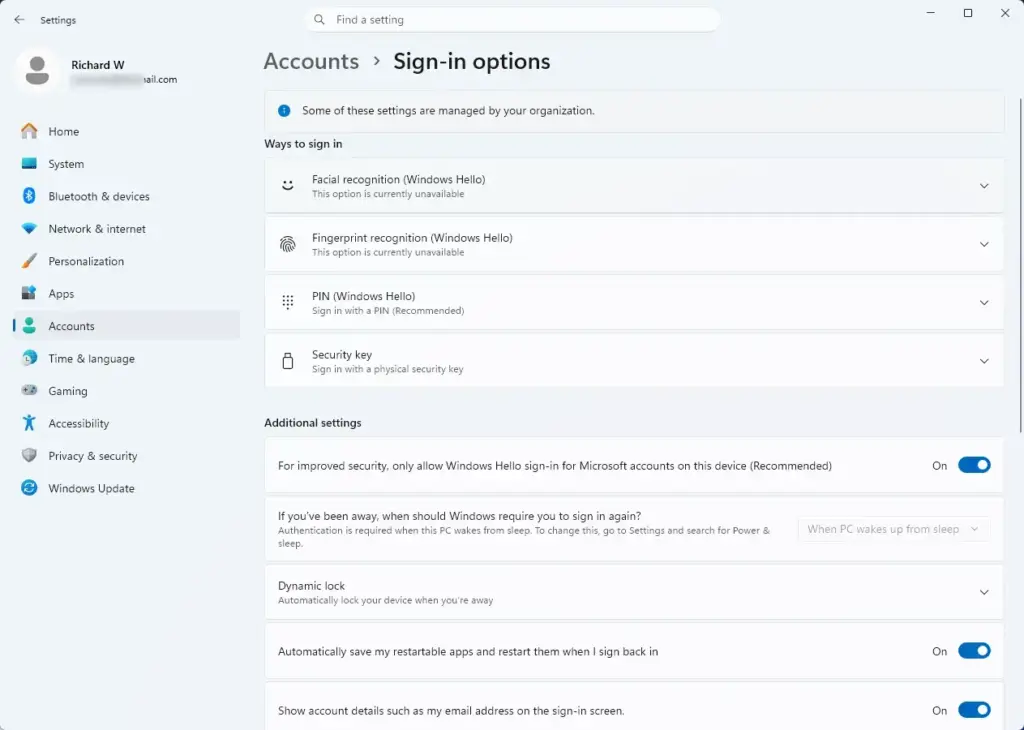
Settings › Accounts › Sign-in options - Expand Fingerprint recognition (Windows Hello). Select the entry to open it. A Set up button appears. If the entry is missing or greyed out, see the troubleshooting section below.
- Select Set up. The Windows Hello setup window opens.
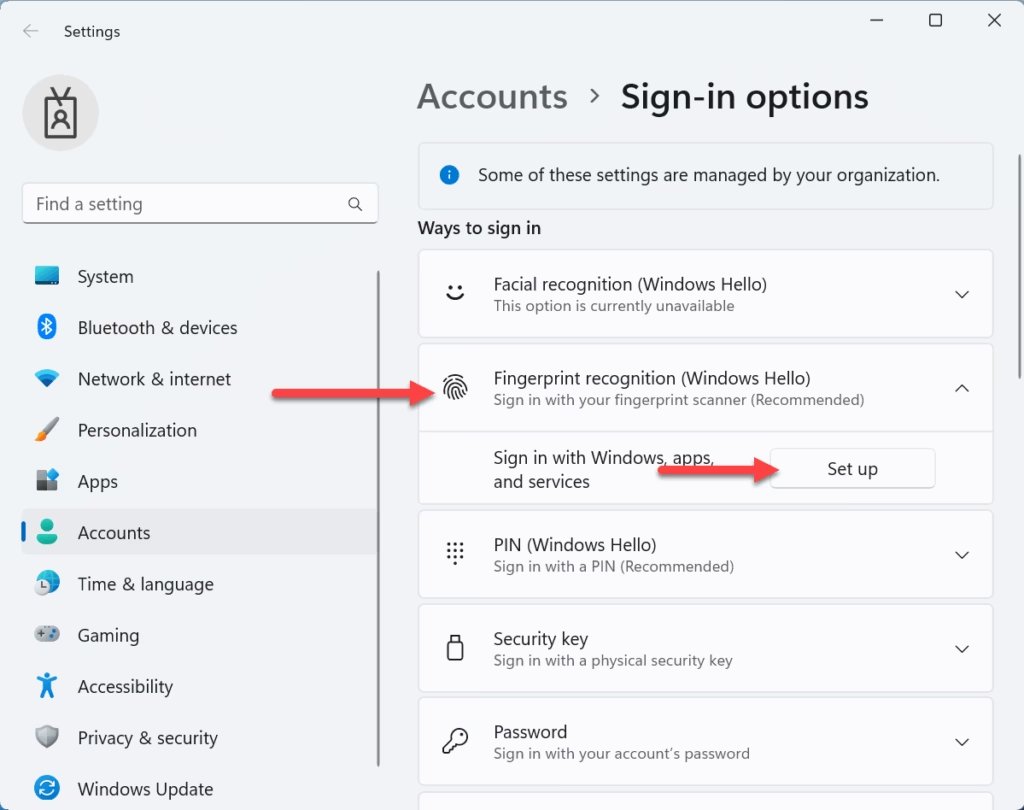
Windows 11 fingerprint recognition setup button for Windows Hello. - Select Get started. Windows asks you to confirm who you are.
- Enter your PIN. Type the PIN you created for this account. The window then asks for your finger.
- Touch the reader with your finger. Follow the on-screen prompts and keep going until the window confirms the scan is complete.
- Lift and reposition your finger when prompted. Windows asks for several touches so it can capture different parts of your fingertip. Change the angle slightly each time.
- Select Close. The window closes and your fingerprint is enrolled. Select Add another finger instead if you want to enroll a second finger now.
- Lock the PC. Press Win+L. The lock screen appears.
- Touch the reader to sign in. The PC unlocks. If it does not, select Sign-in options on the lock screen and use your PIN.
What you should see during setup
The Sign in options page changes after enrollment. Under Fingerprint recognition (Windows Hello), the Set up button gives way to options for managing your fingerprints. These include adding another finger and removing the current one.
The prompts during enrollment follow the same pattern as the built-in sensors on laptops. Windows shows a fingerprint graphic and fills it in as it collects each scan. If you want the full walkthrough of that screen, How to Set Up Windows 11 Fingerprint Sign-in covers it in detail.
If the fingerprint option is missing or greyed out
Most problems come down to three things: the reader itself, the Windows update, or the account setup. Work through these checks in order.
The reader does not support Enhanced Sign-in Security
External support applies to readers that support ESS. A reader without it may not appear under Fingerprint recognition (Windows Hello). Confirm the model’s ESS support with its manufacturer. If it is not supported, the reader needs to be replaced with one that is.
The PC is missing the update
Go back to Settings Windows Update and run Check for updates again. Restart after any install, then unplug the reader and plug it back in. Windows re-detects the device when you reconnect it.
No PIN is set on the account
Windows Hello needs a PIN before it can enroll a fingerprint. If the Set up button under PIN (Windows Hello) is still waiting for you, finish that first. Then return to the fingerprint entry.
The PC is managed by an organization
On a work or school PC, an administrator can control sign-in methods. If the option is missing or greyed out and the reader is supported, contact your IT team. Changing that restriction is outside what a standard account can do. Your administrator controls which settings are available, so ask them which options they can change.
Windows Home and Pro
The steps above work the same on Windows 11 Home and Windows 11 Pro. Both use the Settings app, not a management tool. Your PC still needs the update that adds external ESS reader support, whichever edition you run.
Add more fingers or remove a fingerprint
You can enroll more than one finger. Adding a second finger helps when one hand is busy or wet. Open Settings Accounts Sign in options, expand Fingerprint recognition (Windows Hello), and choose Add another finger. The guide Windows 11 Fingerprint Setup: Add More Fingers shows this in more detail.
To undo the setup, go to the same page and select Remove under Fingerprint recognition (Windows Hello). Windows deletes the enrolled fingerprint data for your account. Your PIN stays in place, so you can still sign in. Unplugging the reader stops fingerprint sign-in as well, but the stored enrollment remains until you remove it.
If you only want to switch fingerprint sign-in off for a while, How to Enable or Disable Windows Hello Fingerprint covers that.
What to do next
With the reader enrolled, you can move toward signing in without a password. Turn On Passwordless Sign-In with Windows Hello in Windows 11 explains the next setting to change. If you also want to approve website sign-ins with your finger, read How to Save a Passkey with Windows Hello in Windows 11.
If the reader still does not appear after the update and a restart, check the manufacturer’s page for ESS support on your exact model. For wider account controls, How to Manage Windows 11 Accounts: Setup & Security is the closest next read.
Frequently asked questions
How to set up the Windows keyboard for 🪟 Windows 11 for english?
To set up an English keyboard in Windows 11, open Settings, go to Time & language, then click Language & region. Select the English language, choose Language options, and add a keyboard under Keyboards. Pick the layout you use, such as US, then set it as your default input method using the taskbar language switcher.
How to set up Windows hello?
To set up Windows Hello, open Settings, select Accounts, then choose Sign-in options. Under Ways to sign in, pick PIN (Windows Hello) and click Set up. Windows Hello lets you unlock your PC with a PIN, fingerprint, or face. Set a PIN first, since fingerprint and face options need one before they can be added.
How to set up fingerprint login?
To set up fingerprint login, open Settings, go to Accounts, then Sign-in options. Select Fingerprint recognition (Windows Hello), click Set up, and enter your PIN if asked. Lift and rest your finger on the sensor each time Windows prompts you, until enrollment completes.
How to setup Windows hello?
Open Settings, select Accounts, and choose Sign-in options to set up Windows Hello. Start with a PIN under Ways to sign in, since Windows requires one before adding fingerprint or face sign-in. Then add a fingerprint or face option if your PC supports it, following the on-screen steps.
How to set up Windows hello face recognition?
To set up Windows Hello face recognition, open Settings, go to Accounts, then Sign-in options. Under Windows Hello Face, click Set up and follow the prompts. You need a camera that supports Windows Hello, usually an infrared camera, and a PIN already set. Face the camera until Windows confirms the setup is complete.
Still have a question?
Answered by AI from this guide. Good questions may be added to this page — please don't include personal details.
Did this guide fix your problem?

About the Author
Richard
Tech Writer, IT Professional
Richard is a writer at Geek Rewind who turns complex IT tasks into clear, step-by-step guides. He draws on years of hands-on experience in system administration and enterprise IT operations, focusing on Windows, Linux and WordPress: the problems people actually run into, and the fixes that work. His server and WordPress guides come from systems he runs himself. Richard builds and maintains the platform behind Geek Rewind, from its Ubuntu servers and Nginx configuration to its custom WordPress plugins. Many new tutorials start with readers' questions, and he's always glad to answer them in the comments.
No comments yet — be the first to share your thoughts!