Remove Your Password from Sign-In with Windows Hello

Removing your password from sign-in with Windows Hello means the Windows 11 sign-in screen stops offering your password and accepts only a PIN, face scan or fingerprint. The quickest way is one switch in Settings Accounts Sign-in options that limits your Microsoft account to Windows Hello sign-in on that PC.
Windows Hello is the Windows feature that signs you in with a PIN, facial recognition or fingerprint instead of typing your account password. The switch works only for a Microsoft account, and it needs at least one Hello method already set up. The rest of this article covers the Hello setup, what changes afterward and how to reverse the switch.
To remove your password from sign-in with Windows Hello, open Settings , select Accounts, then Sign-in options, and turn on “For improved security, only allow Windows Hello sign-in for Microsoft accounts” under Additional settings. The switch needs a Windows Hello PIN, face or fingerprint already set up, and it changes only the sign-in screen on that PC.
What removing the password from sign-in actually does
The setting hides the password option on the sign-in screen and lock screen of that one PC. It does not delete your Microsoft account password. The password stays on your account, and you still use it on other devices, in a web browser and when you recover the account.
This is different from skipping sign-in altogether. With the steps below, you still prove who you are every time. You do it with a PIN, face or fingerprint. A PIN is tied to the single device it was created on, so a stolen PIN is far less useful to an attacker than a stolen account password.
For a deeper look at that trade-off, read Should You Use Windows 11 Pin Sign-in or a Traditional Password.
Before you start
Check these four things first. Most of the “I can’t find the option” problems come from one of them.
- You sign in with a Microsoft account. The switch does not apply to a local account (an account that exists only on this PC, with no Microsoft login).
- Windows Hello is set up. You need a PIN at minimum. Face and fingerprint also work, but only if your PC has a compatible camera or fingerprint reader.
- You know your Microsoft account password. You still need it to recover the account or sign in elsewhere.
- The PC is personal, not managed by an organization. A work or school policy can lock this setting.
The steps work the same on Windows 11 Home and Pro. The wording in this post matches current Windows 11 releases. If your Settings pages look different, update Windows first.
Set up a Windows Hello sign-in method first
If you already sign in with a PIN, face or fingerprint, skip to the next section. If you do not, set one up before you touch the switch. Turning the switch on before you set up a Windows Hello sign-in method is the fastest way to confuse yourself, and Windows may refuse to apply it.
The PIN is the safest choice because every Windows 11 PC supports it. Follow Set Up a Windows Hello PIN In Windows 11 if you need a walkthrough. If your PC has a fingerprint reader, How to Allow Windows Hello Secure Sign-in to Windows 11 Using a Fingerprint covers that setup.
Set up a PIN even if you plan to use face or fingerprint. The PIN is your fallback when a camera fails, a finger is wet or a sensor stops responding. With the password gone from the sign-in screen, the PIN is your only other way in.
Remove your password from sign-in with Windows Hello
The steps below turn on the setting that removes your password from sign-in with Windows Hello, from opening Settings to confirming it works. They include the PIN check, so you can follow them from top to bottom.
- Open Settings . Press Win+I. The Settings window opens.

- Select Accounts. It is in the left-hand list. If you do not see the list, widen the window or select the menu icon at the top left.
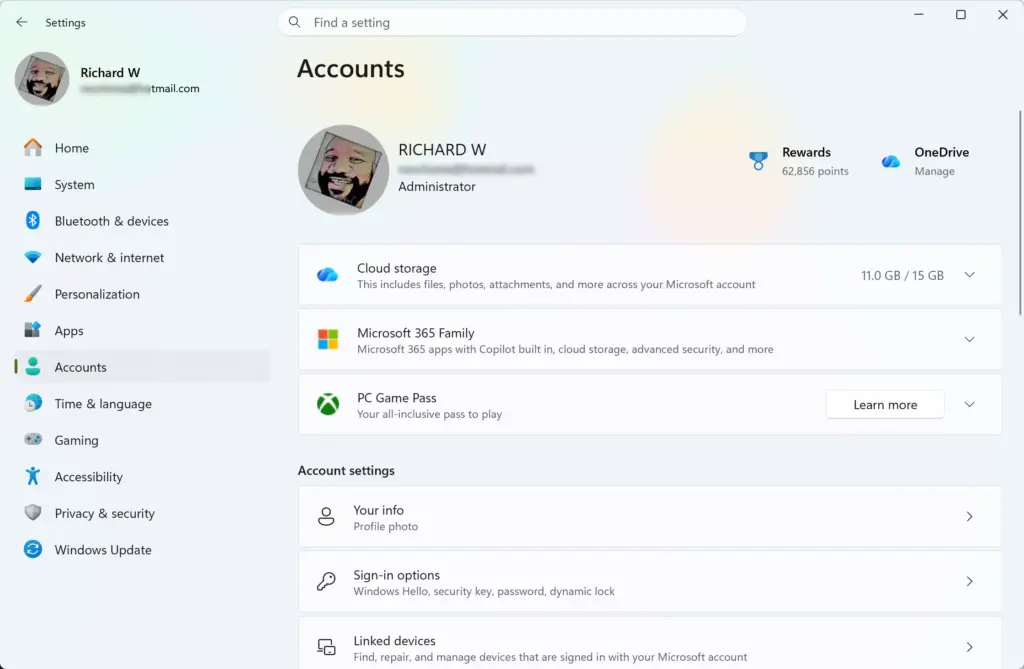
Settings › Accounts - Select Sign-in options. The page that opens lists every way to sign in under Ways to sign in.
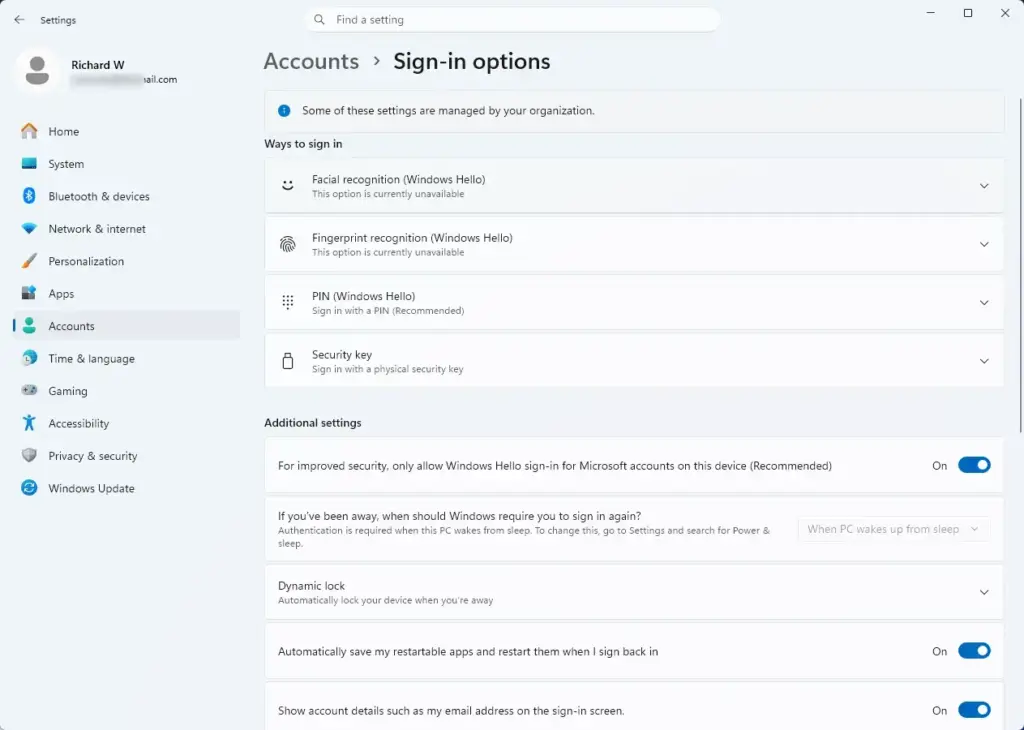
Settings › Accounts › Sign-in options - Check that a Windows Hello method is set up. Select PIN (Windows Hello) to expand it. If you see a Change PIN button, a PIN already exists. If you see Set up, select it and follow the prompts before going on.
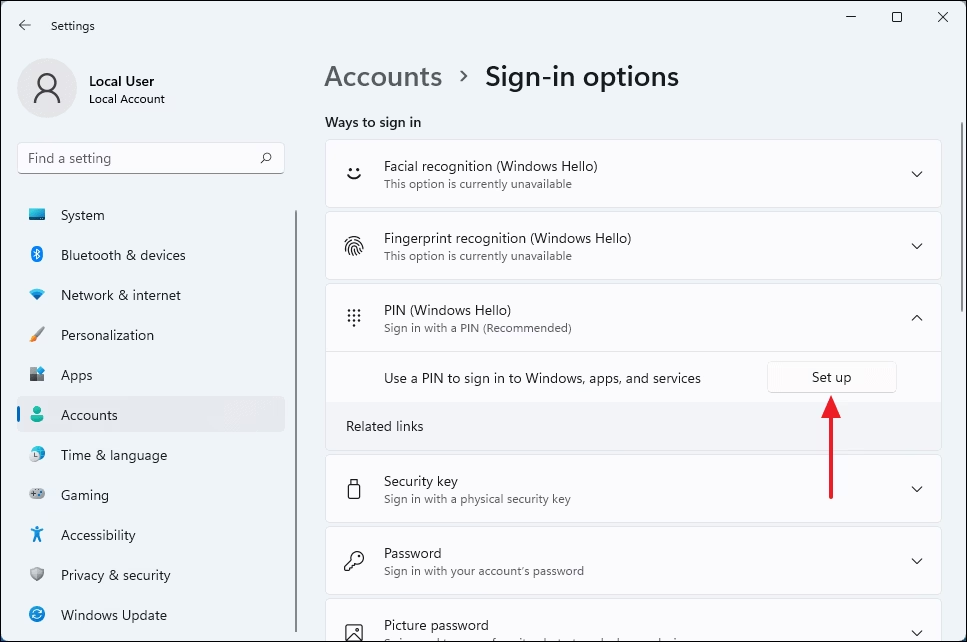
- Scroll down to Additional settings. This section sits below the list of sign-in methods.
- Find the switch for Windows Hello only. Its label reads For improved security, only allow Windows Hello sign-in for Microsoft accounts on this device (Recommended). It is a toggle on the right of the row.
- Turn the switch On. Select the toggle once. It moves to On. Windows may ask you to confirm with your PIN or another method.
- Check the Password entry. Scroll back up to Ways to sign in. Depending on your build, the Password entry may disappear or stay listed but unused for sign-in.
- Lock your PC. Press Win+L. The lock screen appears.
- Open the sign-in screen and test. Press any key or click the screen. You should see only your Windows Hello method, such as the PIN box, with no password field. Sign in with your PIN to confirm it works.
- Restart if the password still appears. Select Start Power Restart, then check the sign-in screen again. A restart is not always required, but it clears up cases where the old screen state lingers.
If the toggle will not move, or Windows shows an error, check the troubleshooting section below.
What changes after you turn it on
The sign-in screen is the obvious change. The less obvious changes are worth knowing before you rely on this PC for everything.
Sign-in screen and lock screen
Each time you start the PC, wake it or lock it, you see only Windows Hello options. If your PC has several methods, select Sign-in options on the sign-in screen to switch between them. The icons show face, fingerprint and PIN. The password icon is gone.
Remote Desktop and other password-based tools
With password sign-in removed, connections to this PC can fail with an error about your sign-in details. If you rely on Remote Desktop, test it from the other computer straight after making the change. If it fails, turn the switch off again using the steps in the undo section.
Older network shares and apps that ask for a Windows password work differently from the sign-in screen. If one of them rejects your sign-in, check whether it accepts your Microsoft account password.
Other devices keep their password
The setting applies to this PC only. Your laptop, a second desktop or a friend’s PC you sign in to with the same Microsoft account still ask for the password unless you change the setting there too. You can also remove the password from the account itself on the Microsoft side. That is covered in Turn On Passwordless Sign-In with Windows Hello in Windows 11.
If the option is missing or greyed out
Check these causes in order. Each one is a common reason the switch is missing or will not change.
You sign in with a local account
The switch appears only for Microsoft accounts. To check which you use, go to Settings Accounts Your info If it shows an email address and the words Local account do not appear, you have a Microsoft account. If it says Local account, the switch will not appear.
To use Windows Hello with a Microsoft account, read How to Enable Windows Hello Sign-In for Microsoft Accounts in Windows 11. If your account comes from Google, see Enable Windows Hello Sign-In with a Google Account.
No Windows Hello method is set up
Go back to the Ways to sign in list and set up a PIN. Then return to Additional settings. The toggle often becomes available once a PIN exists.
A work or school account manages the PC
If the PC is connected to an organization, an administrator can control sign-in rules, so check Settings Accounts Access work or school. Only disconnect a work or school account if you own this PC. Disconnecting removes access to company resources, so check with your organization first if it is not yours. If a work or school account is listed and the PC is yours, you can select it and choose Disconnect.
The password still appears after a restart
Open the toggle page again and confirm the switch still reads On. If it flipped back to Off, a rule set by an organization (a policy) or a pending update may have reset it. Turn it on again, then restart.
The "Users must enter a user name and password" checkbox is gone
The classic netplwiz window (the older User Accounts tool, opened from the Run box) hides its automatic sign-in checkbox while this switch is on. If you want automatic sign-in instead of Windows Hello, turn the switch off first.
If you have a local account and want no password
A blank password means anyone who reaches your sign-in screen gets in. Do this only on a PC that stays in a safe place and holds nothing sensitive.
Go to Settings Accounts Sign-in options, expand Password, and select Change. Enter your current password, leave the new password boxes empty and finish the prompts. The guide to adding or removing the password as a sign-in option in Windows 11 covers this route in more detail.
Skip the sign-in after sleep without removing your password
If you only want Windows to stop asking you to sign in after the PC wakes, change a different setting. Go to Settings Accounts Sign-in options and find If you've been away, when should Windows require you to sign in again? under Additional settings. Choose Never.
This does not change how you sign in at startup. It only stops the prompt after the screen turns off or the PC sleeps. On a laptop or any PC others can reach, leave it on a timed option.
Turn the password back on
To turn the password back on, return to the same Additional settings page and turn the switch off. Your PIN, face and fingerprint keep working.
- Open Settings. Press Windows + I.
Settings › Accounts › Sign-in options - Go to Sign-in options. Select Accounts, then Sign-in options.
- Scroll to Additional settings. Find the For improved security, only allow Windows Hello sign-in for Microsoft accounts on this device (Recommended) row.
- Turn the switch Off. Select the toggle so it reads Off.
- Lock the PC and check. Press Windows + L. The sign-in screen offers the password option again.
Your PIN, face and fingerprint still work after you turn the switch off. If you also want to remove one of those methods, see How to Remove Fingerprint Sign-in from Your Windows 11 Account. For facial recognition, see How to Remove Facial Recognition Sign-in from Your Windows 11 Account.
What to do next
Test your PIN now, before you need it. Lock the PC and sign in with the PIN alone. Note your Microsoft account password somewhere safe, because you need it to recover the account if you forget the PIN. If a feature stops working after the change, such as Remote Desktop, use the undo steps above to restore the password option.
Have a question about this guide?
Answered by AI from this guide. Good questions may be added to this page — please don't include personal details.
Did this guide fix your problem?

About the Author
Richard
Tech Writer, IT Professional
Richard is a writer at Geek Rewind who turns complex IT tasks into clear, step-by-step guides. He draws on years of hands-on experience in system administration and enterprise IT operations, focusing on Windows, Linux and WordPress: the problems people actually run into, and the fixes that work. His server and WordPress guides come from systems he runs himself. Richard builds and maintains the platform behind Geek Rewind, from its Ubuntu servers and Nginx configuration to its custom WordPress plugins. Many new tutorials start with readers' questions, and he's always glad to answer them in the comments.
No comments yet — be the first to share your thoughts!