Secure OneDrive Personal Vault with Face Recognition in Windows 11

OneDrive Personal Vault is an extra-protected folder inside OneDrive that locks itself and asks you to prove who you are before it opens. Windows Hello face recognition handles that check, so you can open the vault with your face instead of a password or PIN.
Windows Hello is Microsoft’s sign-in system. It uses your face, fingerprint or a PIN to confirm it is really you. Your face scan stays on your device and is not sent to OneDrive.
To set this up, you first turn on facial recognition in Windows Hello settings. Then you open the Personal Vault folder in File Explorer and confirm with your face when Windows asks. None of these steps need administrator rights, and they work in both Windows 11 Home and Windows 11 Pro.
To secure OneDrive Personal Vault with face recognition in Windows 11, set up Windows Hello facial recognition in Settings Accounts Sign-in options Then open the Personal Vault folder in File Explorer and verify with your face when Windows prompts you. You need a personal Microsoft account and a camera that supports Windows Hello, usually an infrared (IR) camera.
What you need before you start
Check these four things first. Most failures trace back to one of them.
- A compatible camera. Windows Hello facial recognition needs a camera that supports it, usually an infrared (IR) camera. A standard webcam often does not qualify. If your PC has no compatible camera, the face option stays unavailable, and Personal Vault falls back to a PIN, fingerprint or a code.
- A personal Microsoft account. Personal Vault is a feature of OneDrive for personal accounts. It is not available for a work or school account.
- A Windows Hello PIN. Windows requires a PIN before it lets you add face recognition. You create it during the setup steps below if you don’t have one.
- A drive formatted as NTFS (the standard Windows drive format). OneDrive’s local folder must sit on an NTFS drive for Personal Vault to work on a PC. The system drive on Windows 11 is NTFS already, so this only matters if you moved your OneDrive folder to another drive.
Also know the file limit. A free OneDrive account can store only 3 files in Personal Vault. A Microsoft 365 subscription removes that cap, and your total OneDrive storage becomes the limit. If you plan to protect a folder of documents, check your plan first.
How face recognition and Personal Vault work together
Face recognition does not encrypt your files. It is one of several ways to prove you are the account owner when the vault is locked. Personal Vault accepts other proofs too, such as a fingerprint, a PIN, a code sent by email or text, or the Microsoft Authenticator app (a Microsoft app that approves sign-ins and creates codes). On a PC with Windows Hello set up, Windows shows its own verification window, and your face is the quickest option.
The vault keeps its contents in a separate area on your drive. BitLocker (Windows drive encryption) protects that area. The vault locks again after a period of inactivity. While the vault is unlocked, anyone sitting at your PC can open the files. Lock your screen with Windows + L when you walk away, and lock the vault yourself when you finish.
Turn on facial recognition in 🪟 Windows 11
This section sets up the Windows Hello face sign-in that Personal Vault will use. If you already sign in to Windows with your face, skip to the next section.
Check that your PC supports Windows Hello face
Look at the sign-in options before you try to set anything up. This tells you right away whether your hardware qualifies.
- Press Windows + I to open Settings.

Windows 11 Start menu with Settings gear icon highlighted. - Go to Settings Accounts Sign-in options
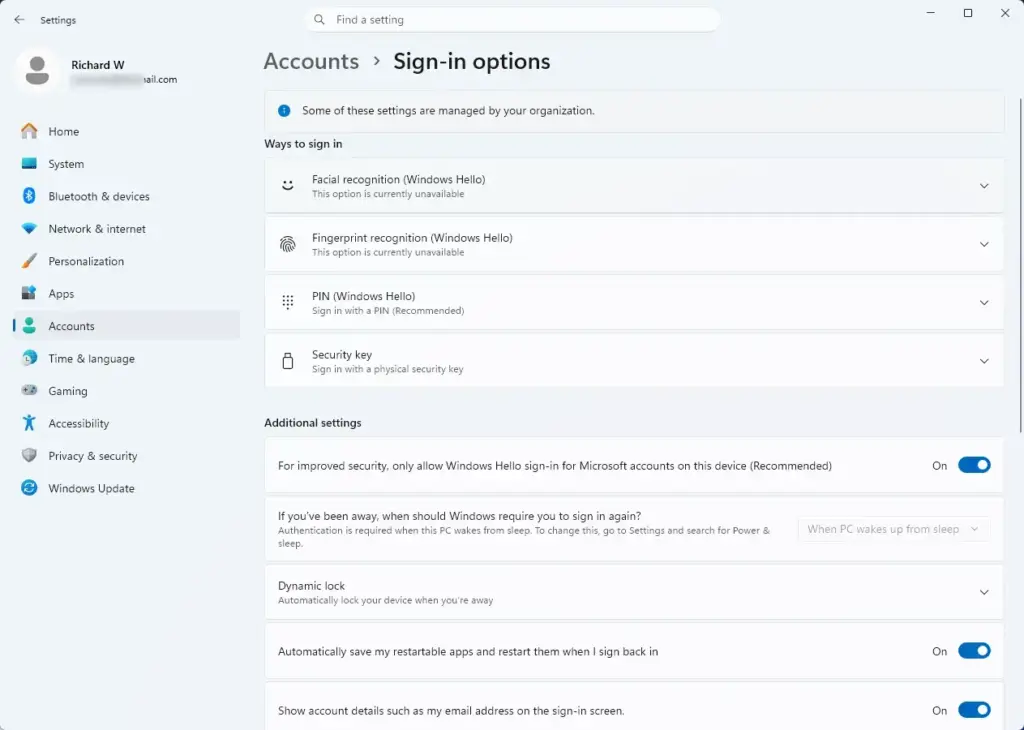
Settings › Accounts › Sign-in options - Find Facial recognition (Windows Hello) in the list of sign-in methods. Select it to expand the section.
You should see a Set up button. On some builds the button is labelled Get started. If the option is greyed out or shows a message that it is unavailable, the likely causes are:
- The camera is not compatible with Windows Hello face recognition.
- The camera driver (the software that lets Windows use the camera) is missing or out of date. Run Windows Update and check for a driver from your PC maker.
- Camera access is blocked. Check Settings Privacy & security Camera and make sure camera access is on.
- Your organisation manages the PC and has turned Windows Hello off. Only your IT team can change that.
If the option is unavailable and you cannot fix it, use a fingerprint reader or PIN for Personal Vault instead. Face recognition is not possible on that hardware.
Set up face recognition
- In Settings Accounts Sign-in options, select Facial recognition (Windows Hello), then select Set up (or Get started).
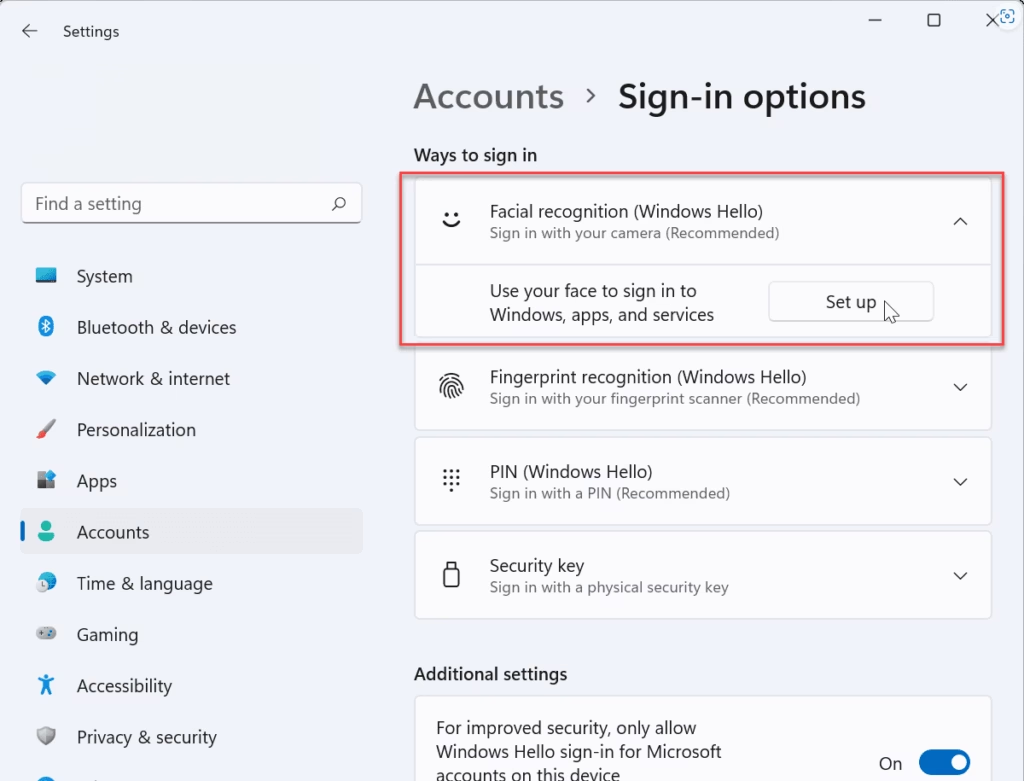
Facial recognition set up - Enter your PIN when prompted. If you don't have a PIN, Windows asks you to create one first. Follow the prompts, then return to this step.
- Look straight at the camera. Keep your face centred and well lit. A progress indicator shows while Windows scans your face.
- Wait for the confirmation screen, then select Close.
Back in Sign-in options, the face section now shows buttons such as Improve recognition and Remove. If you wear glasses, select Improve recognition and run a second scan while wearing them. This helps Windows recognise you with and without them.
To confirm it works, press Windows + L to lock the PC, then wake the screen. Windows should recognise you without a PIN.
Set up Personal Vault in OneDrive
This section creates the vault if you have not used it yet. You need the OneDrive app signed in with your personal Microsoft account. It is built into Windows 11 and runs from the notification area.
- Open File Explorer and select your OneDrive folder in the left pane. A personal account shows as OneDrive - Personal.
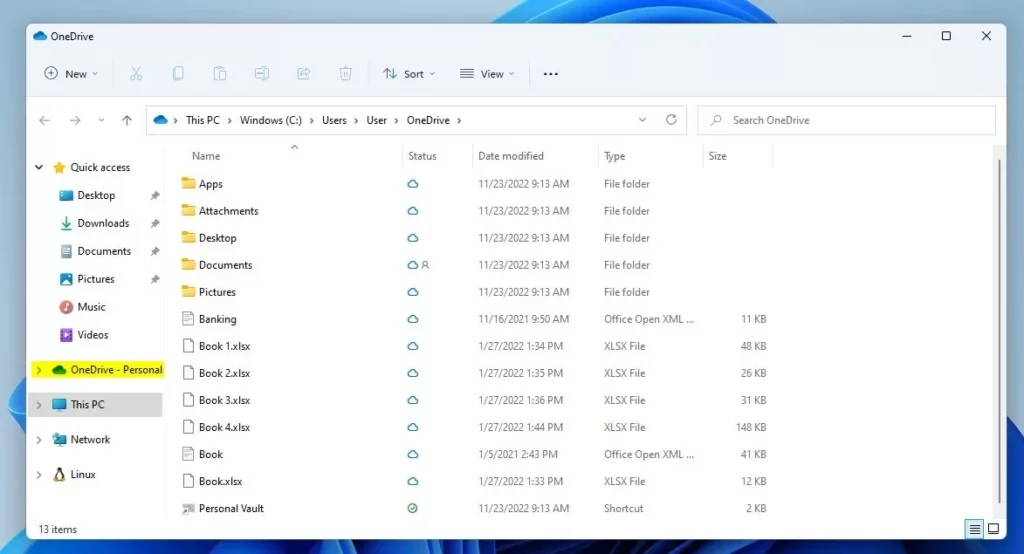
windows 11 onedrive default folder pane - Find the Personal Vault folder in the list and double-click it. A setup window opens the first time you do this.
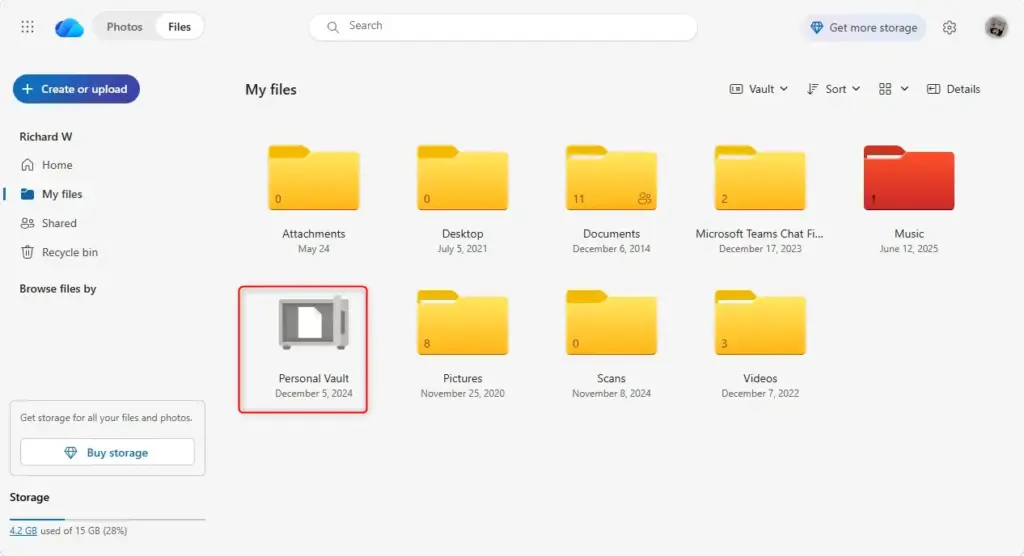
OneDrive Personal Vault interface showing secure file storage. - Select Next and follow the prompts. OneDrive asks you to verify your identity before it creates the vault.
- Complete the verification. This can be a code sent to your email, a code sent by text or the Microsoft Authenticator app. If Windows Hello is available, it can appear as an option.
- Wait for OneDrive to finish setting up. The Personal Vault folder then opens, and it is empty.
The exact wording of the setup screens changes between OneDrive versions. The sequence stays the same: start the setup, verify your identity, then the empty vault opens.
If you cannot find the Personal Vault folder, the usual causes are:
- OneDrive is signed in to a work or school account only. Sign in with a personal Microsoft account.
- OneDrive is not running. Open the Start menu, search for OneDrive, and start it.
- Your OneDrive folder is on a drive that is not NTFS. Move it to an NTFS drive, or unlink and re-link OneDrive so it uses the system drive.
Unlock Personal Vault with your face
This is the daily use. When the vault is locked, opening it triggers the verification prompt.
Open the vault
- Open File Explorer and go to OneDrive - Personal.
- Double-click the Personal Vault folder.
- Select Unlock Personal Vault if OneDrive shows that button.
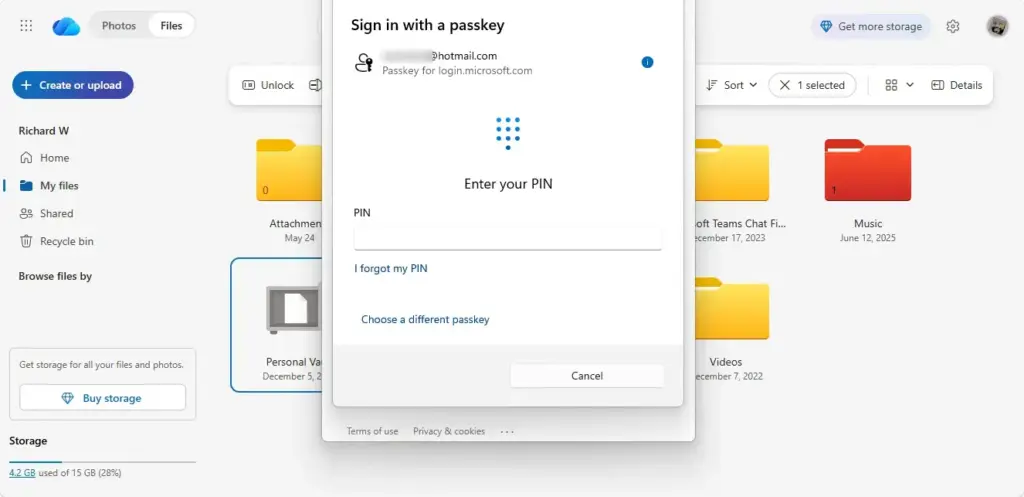
Enter PIN to unlock OneDrive Personal Vault screen. - Look at the camera when a Windows Security window asks you to verify your identity.
Windows scans your face. When it recognises you, the window closes and the vault opens with your files visible.
If the prompt asks for a code instead of showing the face scan, Windows Hello is not being offered for this verification. Look for a link such as Use a different verification method or More options in the window and check whether Windows Hello is listed. If it is not, see the troubleshooting section below.
Add files to the vault
Moving a file takes it out of its original place, so it is no longer in the less-protected folder. The vault blocks file sharing, so a file you shared before stops being shared once you move it in. If a file was shared before, moving it into the vault ends that sharing.
Wait for OneDrive to finish syncing the files (copying them to the cloud). Check the cloud icon in the notification area. A completed sync shows a white or blue cloud with no arrows, and a green check mark appears on the files in File Explorer.
Lock the vault when you finish
Personal Vault locks itself after a period of inactivity, but you can lock it right away and shorten the exposure.
- Right-click the Personal Vault folder in File Explorer.
- Select Lock Personal Vault.
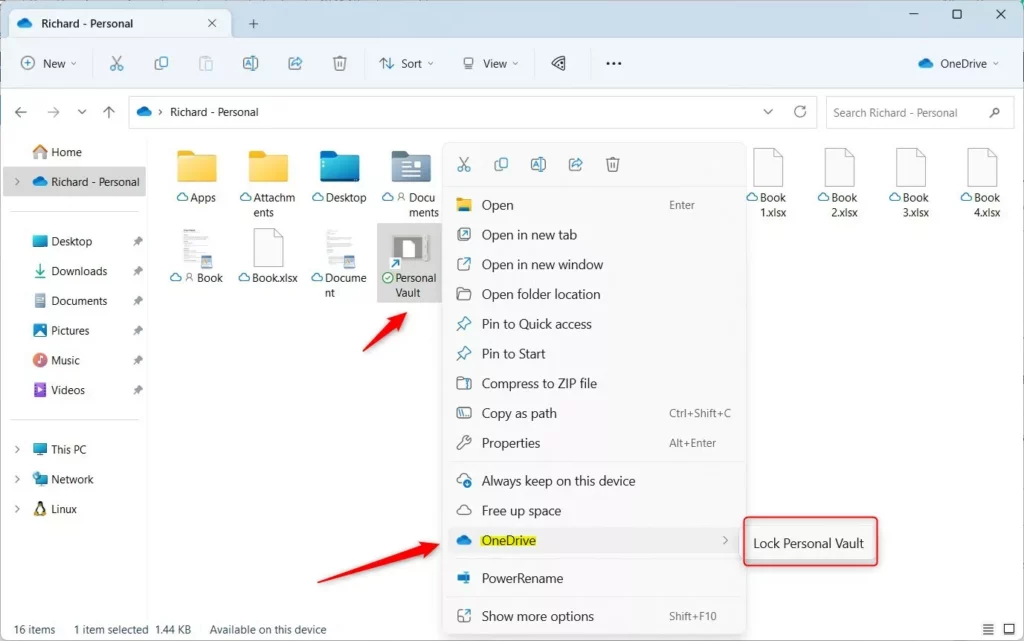
The folder closes, and the next time you open it, the face scan prompt returns. Close any app that has a vault file open before you lock it, or that app may keep the file in use.
Change how long the vault stays unlocked
The vault locks itself after a set time, 20 minutes by default on a PC. A shorter time reduces the risk if you forget to lock it. Check the Personal Vault options in your OneDrive settings. Open the OneDrive cloud icon in the notification area, select the gear icon, then Settings, and look under the Account tab. If you do not see a timer option there, open OneDrive on the web, unlock the vault, and check its settings. The timer may sit in either place, depending on your OneDrive version. Use whichever one shows a Personal Vault lock option for your account.
Fix problems with face unlock in Personal Vault
These are the failures people hit most often, with the fix for each.
The prompt asks for a code instead of your face
Windows Hello must be set up for the account OneDrive is using. Check these points in order:
- Confirm you signed in to Windows with a Microsoft account, not a local account. Check Settings Accounts Your info
- Confirm the OneDrive account is the same one. Select the OneDrive cloud icon and check the email address shown.
- Go back to Settings Accounts Sign-in options and confirm Facial recognition (Windows Hello) shows Remove, which means it is set up.
- Restart OneDrive. Select the cloud icon, select the gear icon, select Pause syncing or Quit OneDrive, then reopen OneDrive from the Start menu.
If the OneDrive account differs from the Windows account, OneDrive may use its own verification codes. In that case, use the code method, or sign in to Windows with the same account.
The face scan fails or takes several tries
Improve the lighting, remove anything covering the camera, and clean the lens. Then open Settings Accounts Sign-in options Facial recognition (Windows Hello) and select Improve recognition to add another scan. If it still fails, select Remove, then set up face recognition again from the start.
Face recognition stops working after an update
A Windows feature update or a camera driver change can disable Windows Hello face. Open Sign-in options. If the face section shows Set up again, run the setup once more. If the option is greyed out, update or reinstall the camera driver.
OneDrive says the vault is full
A free account holds only 3 files in the vault. Move some files out, or upgrade to Microsoft 365. Moving files out needs the vault to be unlocked.
Know what Personal Vault does not protect
Personal Vault adds a second layer. It does not make everything on your PC private. Keep these limits in mind:
- When the vault is unlocked, any person or program running under your Windows account can read its files.
- Someone who has your device unlocked can see that the Personal Vault folder exists. The folder shows even when it is locked. Only the contents are protected.
- Copies of a file elsewhere are not protected. If you copied a file to another OneDrive folder, a USB drive or an email, those copies stay as they are.
- Other devices use their own verification. Your face works only on PCs where you set up Windows Hello. On your phone or another PC, you verify another way.
Undo or turn off face unlock
You can remove face recognition without losing the vault. Open Settings Accounts Sign-in options, expand Facial recognition (Windows Hello), and select Remove. Windows deletes the stored face data from the PC. Personal Vault then asks for another verification method, such as a PIN or a code, when you unlock it.
Move every file out of the vault first, because anything left inside can be lost when you disable it. Move every file out of the vault first, because anything left inside can be lost when you disable it. OneDrive on the web has a setting to disable Personal Vault. The web menu changes often, so this guide does not list its exact path. Look in the OneDrive web settings for a Personal Vault option.
What to do next
Lock your PC with Windows + L, wake it, and confirm Windows signs you in with your face. Then open Personal Vault once to confirm it asks for the same verification. If a Windows update later breaks face sign-in, repeat the Set up step in Sign-in options. If you want a backup way in, add a fingerprint or keep your PIN set so you are never locked out of the vault.
What is OneDrive Personal Vault?
OneDrive Personal Vault is a locked folder inside OneDrive for your most sensitive files. Before it opens, Windows asks you to prove it is you, using your face, fingerprint, PIN or a code. The vault also locks itself again after a period of inactivity.
Does 🪟 Windows 11 do facial recognition?
Yes. Windows Hello facial recognition lets you sign in with your face instead of a password or PIN. It needs a compatible camera, usually an infrared (IR) camera, since a standard webcam often does not qualify. To check, open Settings, then Accounts, then Sign-in options.
Which is better for photos, Google photos or OneDrive photos?
Google Photos is better for finding and organizing photos, with strong search and automatic grouping of people and places. OneDrive is better if you use Windows and Microsoft 365 daily, because your photos sit alongside your other files in File Explorer and can be protected with Personal Vault.
Which is safer, iCloud or OneDrive?
Neither is clearly safer. Both encrypt your files, and your account security matters more than the service. Turn on two-step verification for your account. For extra protection, use OneDrive Personal Vault or iCloud Advanced Data Protection, which encrypts your files so only your devices can open them.
Was this guide helpful?

About the Author
Richard
Tech Writer, IT Professional
Richard is a writer at Geek Rewind who turns complex IT tasks into clear, step-by-step guides. He draws on years of hands-on experience in system administration and enterprise IT operations, focusing on Windows, Linux and WordPress: the problems people actually run into, and the fixes that work. His server and WordPress guides come from systems he runs himself. Richard builds and maintains the platform behind Geek Rewind, from its Ubuntu servers and Nginx configuration to its custom WordPress plugins. Many new tutorials start with readers' questions, and he's always glad to answer them in the comments.



No comments yet — be the first to share your thoughts!