Changing Facial Recognition to a Different Face on Windows 11

- 19 steps
- Needs administrator rights
Changing facial recognition to a different face on a Windows 11 PC means deleting the saved face scan and creating a new one. The quickest route is to select Remove and then Set up. You find both options under Settings Accounts Sign-in options Facial recognition (Windows Hello).
Windows Hello (the Windows feature that signs you in with your face, fingerprint, or PIN) stores one face scan per account. There is no “swap” button, so you replace the scan in two steps. The whole job takes about two minutes and works the same on Windows 11 Home and Pro.
To change facial recognition to a different face on Windows 11, go to Settings Accounts Sign-in options Facial recognition (Windows Hello), click Remove to delete the saved face scan, then click Set up and have the new person look at the camera. Windows does not keep the old scan, so it cannot be restored. You need a PIN and a compatible infrared camera.
Before You Change Your Face Scan
You do not need administrator rights. You change your own face scan while signed in to your own account. You cannot change another user’s scan from your account.
Check these points first. Start with the PIN, which Windows Hello asks for during setup.
- You need a PIN. Windows Hello asks for your PIN during setup. If you never created one, Windows walks you through creating it before the face scan starts.
- You need a compatible camera. Windows Hello face sign-in works with an infrared (IR) camera, which reads the shape of your face and works in dim light. Most ordinary webcams do not qualify. If your PC has no such camera, the facial recognition option is missing or greyed out. The troubleshooting section below covers this.
- The new person must be at the PC. The face in front of the camera when you scan becomes the face that signs in to your account.
- Keep your password or PIN handy. Between removing the old scan and finishing the new one, you sign in with the PIN or password.
If you only want to improve how well Windows recognizes your current face, you do not need to replace it. The guide to improving facial recognition sign-in covers that.
How to Change Facial Recognition to a Different Face on 🪟 Windows 11
Follow the numbered steps in order. Removing the old scan is the risky step, because Windows deletes it permanently.
- Open Settings. Press Win+I, or right-click the Start button and choose Settings. The Settings window opens.

Start Menu - Click Accounts in the left menu. The Accounts page opens on the right.
- Click Sign-in options. The path is Settings Accounts Sign-in options. A list of ways to sign in appears, including Facial recognition (Windows Hello), Fingerprint recognition (Windows Hello) if your PC has a reader, PIN (Windows Hello), and Password.
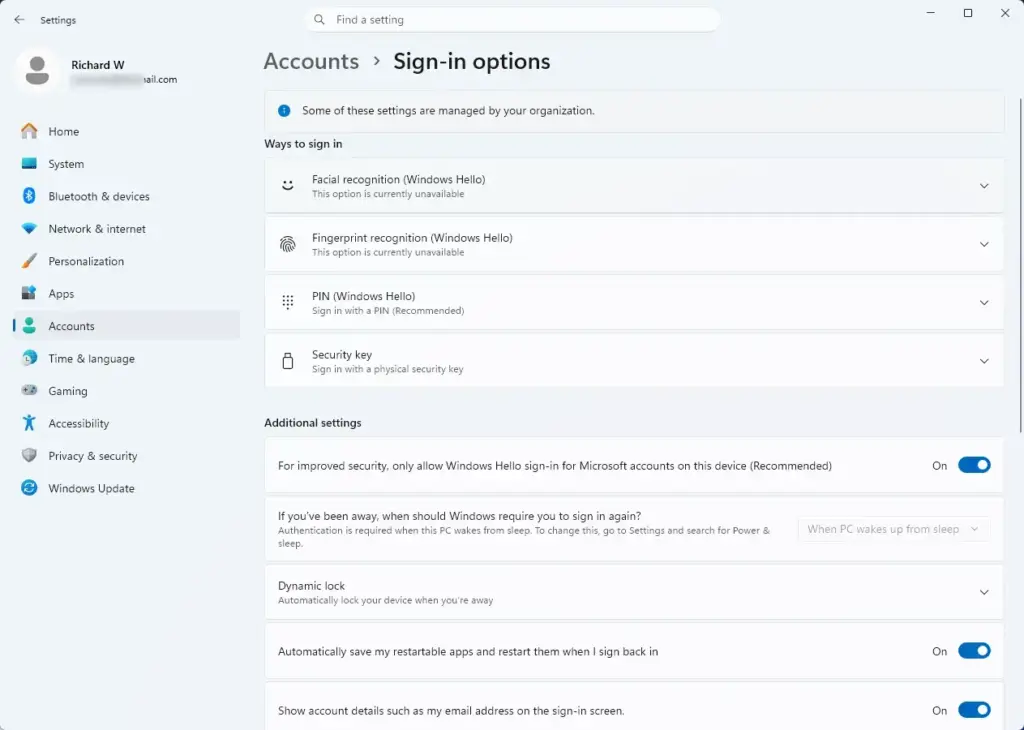
Settings › Accounts › Sign-in options - Click Facial recognition (Windows Hello) to expand it. You see a short description and one or more buttons. If a face is already set up, you see Improve recognition and Remove.
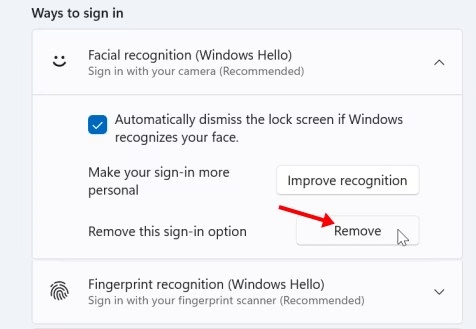
- Click Remove. Windows deletes your current face scan. The Set up button appears in its place, which confirms the old scan is gone.
- Click Set up. The Windows Hello setup window opens.
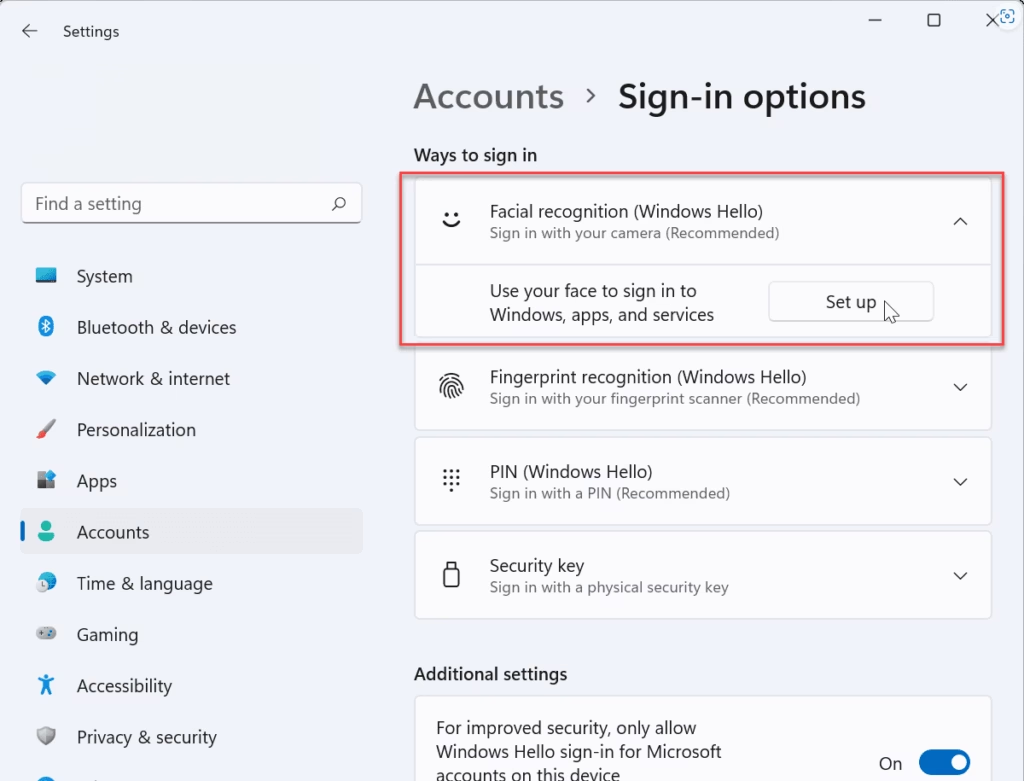
Facial recognition set up - Click Get started. Windows asks you to confirm it is you before it creates a new scan.
- Enter your PIN. If you never created a PIN, Windows prompts you to create one now. Follow the prompts, then continue.
- Look straight at the camera. The new person sits at normal typing distance, with their face centered and nothing covering it. A preview shows what the camera sees while Windows scans.
- Wait for the scan to finish. Windows displays an “All set!” message when it has recorded the new face. If you see an error instead, go to the troubleshooting section below.
- Click Improve recognition if the setup screen offers it. Windows scans again to cope with different lighting, glasses, or a changed hairstyle. Skip this step if you prefer to test first.
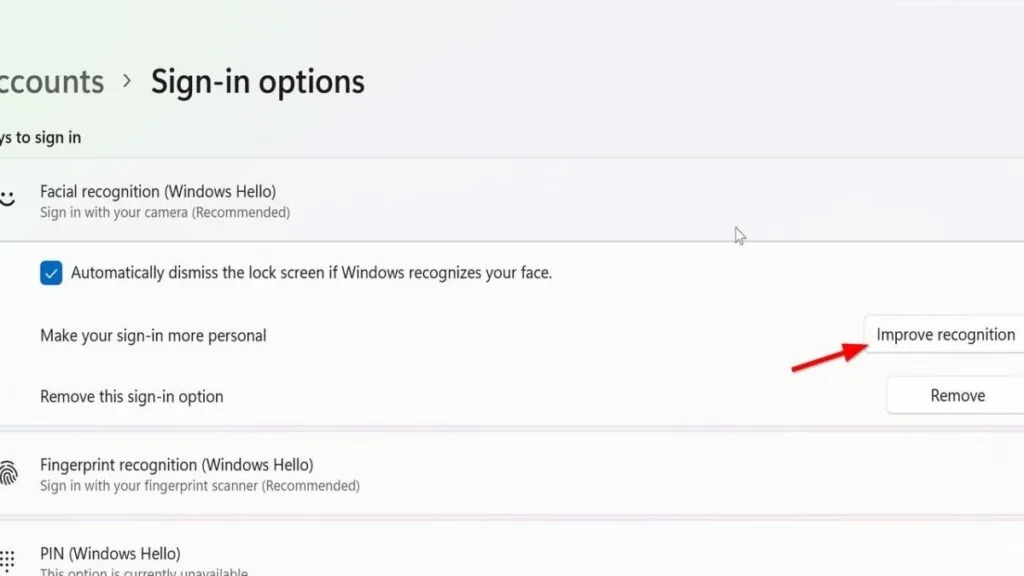
Settings > Accounts > Sign-in options - Click Close. The setup window closes, and the Facial recognition (Windows Hello) section now shows Improve recognition and Remove again.
- Press Win+L to lock the PC. The lock screen appears.
- Look at the camera and test the new face. Windows should sign you in without a PIN. If it does not, click Sign-in options below the password box and choose the face icon.
Labels in newer Windows 11 builds can differ slightly in wording or layout, but the order is the same: Remove, then Set up. For a fuller walkthrough of the first-time setup screens, see how to set up facial recognition sign-in for your account in Windows 11.
Can Two People Share One Account With Different Faces?
Windows Hello is built around one person per account. The Settings page shows a single face scan, and replacing it removes the earlier one. Microsoft does not document a supported way to register a second person’s face on the same account.
Adding their scan to your account is not a good fix, even if it appears to work, because it gives them access to your files, email, and saved passwords. Create a separate account for each person instead. Each account gets its own PIN, its own desktop, and its own face scan.
To create the new account, go to Settings Accounts Other users. That step needs an administrator account. The new user then signs in once with a password or PIN and sets up their own face from Settings Accounts Sign-in options.
If you only want to switch between two faces on your own account (for example, handing the PC to a new owner), the steps above are the right ones. Run them whenever the PC changes hands.
What to Do After You Switch Faces
A fresh scan works best when the conditions match how you use the PC. Windows learns the face it saw during setup, so a scan made in a dark room performs worse in a bright one.
Run Improve recognition in your normal conditions
Select Improve recognition and scan again in the lighting you use most. Do this a second time if the person wears glasses, so Windows learns the face both with and without them. A few minutes of extra scanning prevents most failed sign-ins later.
Check which camera Windows uses
If your PC has more than one camera, such as a built-in IR camera and an external webcam, Windows can pick the wrong one. Choose the correct camera using the steps for selecting your preferred Windows Hello camera.
Handle screen brightness
Dim or washed-out screens can affect how well the camera sees a face on some laptops. The automatic screen brightness setting for Windows Hello helps when sign-in fails in changing light.
If Facial Recognition Is Missing, Greyed Out, or Fails
Most failures come from the camera, its driver, or a setting your organization controls. Work through these in order. Each one names what you see on screen and what to do.
The option is greyed out or shows an unavailable message
Windows shows this when it cannot find a camera that supports Windows Hello face sign-in. A standard webcam without infrared hardware does not qualify. Check your PC’s specifications for an IR or “Windows Hello compatible” camera. If your PC has one, move to the driver check below.
Check the camera driver in Device Manager
A missing or broken driver hides the option. Right-click the Start button, choose Device Manager, and expand Biometric devices (the hardware that reads your face or fingerprint) and Cameras.
If a camera entry shows a yellow warning icon, or the biometric section is missing on a PC that should have an IR camera, run Windows Update. Go to Settings Windows Update and click Check for updates. Your PC maker’s support page also lists camera drivers for your model.
The Set up button is unavailable on a work or school PC
A policy set by your organization can disable face sign-in or hide the section entirely. Settings may then show the message “Some of these settings are managed by your organization.” Ask your IT administrator whether face sign-in is allowed on that device. This guide could not confirm the exact setting, so it does not cover a policy or registry change.
The face scan keeps failing during setup
Check the camera first. A physical privacy shutter, a piece of tape, or a smudged lens blocks the scan. Then look at the room: strong light behind the person, such as a window, makes the face too dark for the camera. Remove hats and sunglasses, sit closer, and try again.
Face sign-in does not appear on the lock screen
If the lock screen only asks for a PIN, click Sign-in options below the box and choose the face icon. If the face option is not listed, the sign-in method may be turned off. See how to manage Windows Hello facial recognition in Windows 11 to turn it back on.
How to Undo the Change
Windows cannot restore a face scan you removed, so you must scan your old face again from scratch, or turn face sign-in off. The process is the same one you used to switch.
- Open Settings. Press Win+I.
- Go to Settings Accounts Sign-in options, then click Facial recognition (Windows Hello).
- Click Remove to delete the current scan. The Set up button appears.
- Click Set up, then Get started, and enter your PIN.
- Have the original person look at the camera until the “All set!” message appears, then click Close.
To stop using face sign-in altogether, stop after the removal step. Your PIN and password keep working. The guide to removing facial recognition sign-in covers that route in detail.
What to Do Next
Lock your PC a few times over the next day and check that the new face signs in under your usual lighting. If you are still weighing whether face sign-in suits your setup, this look at Windows Hello facial recognition and everyday PC security covers the trade-offs. A feature update or a camera driver reinstall can sometimes ask you to set up Windows Hello again, and the steps above work each time.
Have a question about this guide?
Answered by AI from this guide. Good questions may be added to this page — please don't include personal details.
Did this guide fix your problem?

About the Author
Richard
Tech Writer, IT Professional
Richard is a writer at Geek Rewind who turns complex IT tasks into clear, step-by-step guides. He draws on years of hands-on experience in system administration and enterprise IT operations, focusing on Windows, Linux and WordPress: the problems people actually run into, and the fixes that work. His server and WordPress guides come from systems he runs himself. Richard builds and maintains the platform behind Geek Rewind, from its Ubuntu servers and Nginx configuration to its custom WordPress plugins. Many new tutorials start with readers' questions, and he's always glad to answer them in the comments.
No comments yet — be the first to share your thoughts!