Enable Personal File Sharing in Ubuntu Linux


Personal file sharing in Ubuntu Linux lets you send files directly to other computers on your home network without using a USB drive. This built-in feature uses a special folder named Public to share items quickly with family or friends nearby.
You can turn on file sharing in just a few clicks through your Ubuntu settings. Once you set it up, you pick whether people need a password to open your shared files, keeping your computer safe while you share.
Open System Settings, click Sharing, and toggle the main Sharing switch to On. Then, select File Sharing and turn its switch to On. You can also enable “Require Password” for added security.
How to turn on or off personal file sharing in Ubuntu Linux
This feature shares files from your Public folder with other computers on your network. This method provides a handy way to transfer documents between devices without a USB drive, and disabling it later takes minimal effort.
First, press Ctrl+Alt+T on your keyboard to open the terminal console (a text-based command interface). Then, run the commands below to install gnome-user-share.
sudo apt install gnome-user-share
Ubuntu centralizes system configurations in a single control panel . Access this area by clicking the System menu at the top-right corner of the desktop.

Alternatively, click on the System menu at the top-right corner of the top bar on your desktop.
From the System menu, select Settings (as highlighted below).

In the Settings app, click on the Sharing tile to open the panel.
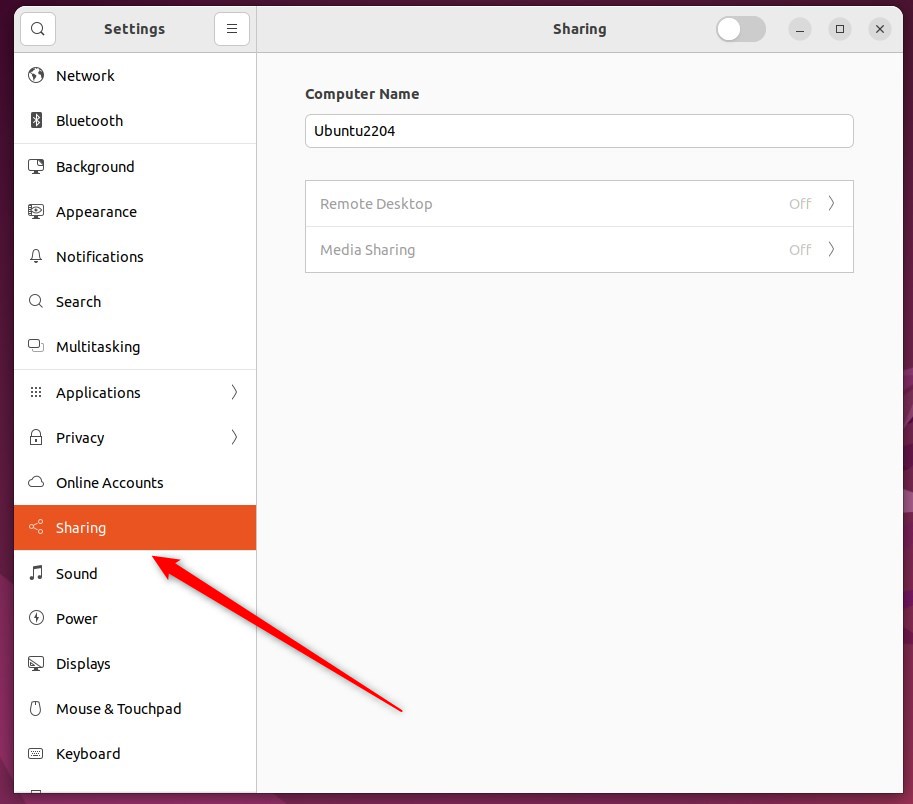
Flip the top toggle switch to the On position to activate the main sharing layer. This action enables personal file sharing, allowing folders to be shared with other computers on the network.
Sharing remains disabled when the switch is set to Off.
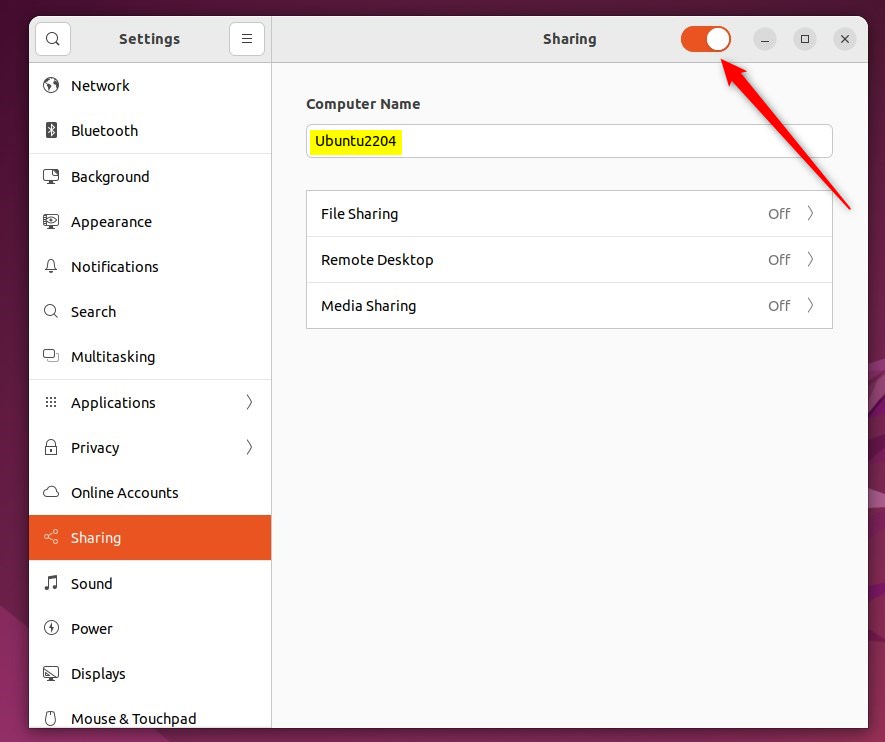
In the System Settings - Sharing panel, select File Sharing as highlighted below.
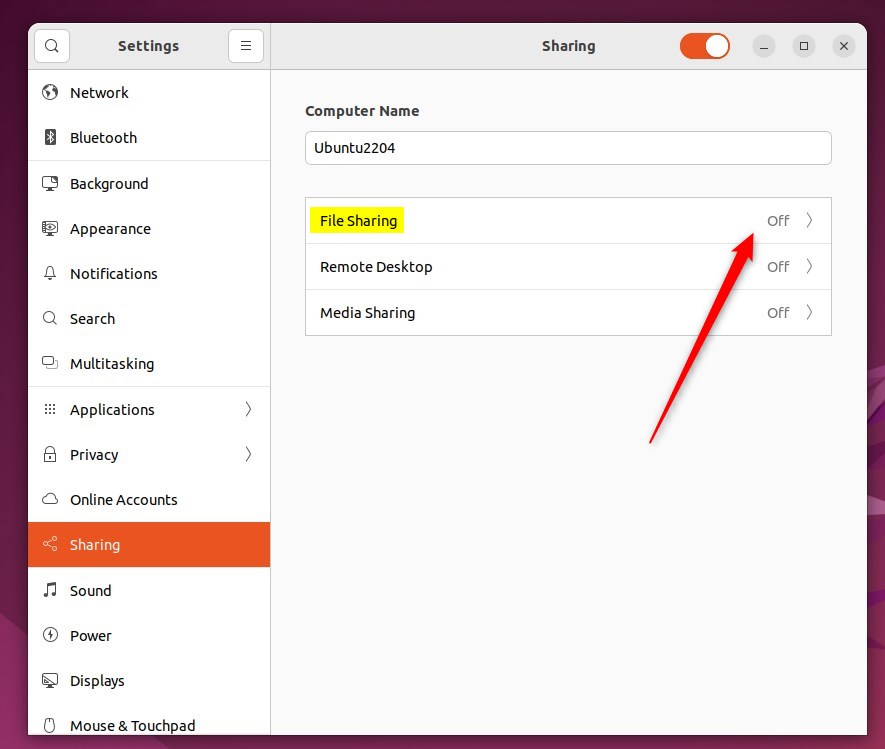
On the File Sharing window, toggle the File Sharing switch to On.
To disable this feature, switch it back to the Off position.
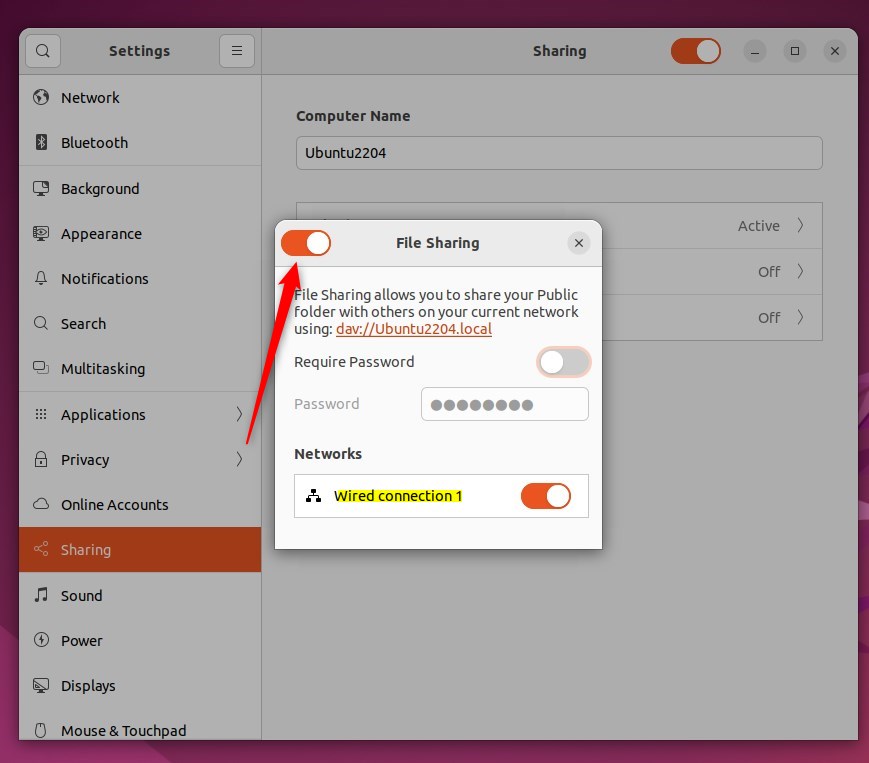
Other people on the current network can now attempt to connect to the computer and access files stored inside the Public folder.
To require network visitors to use a password when accessing the Public folder, switch Require Password to On.
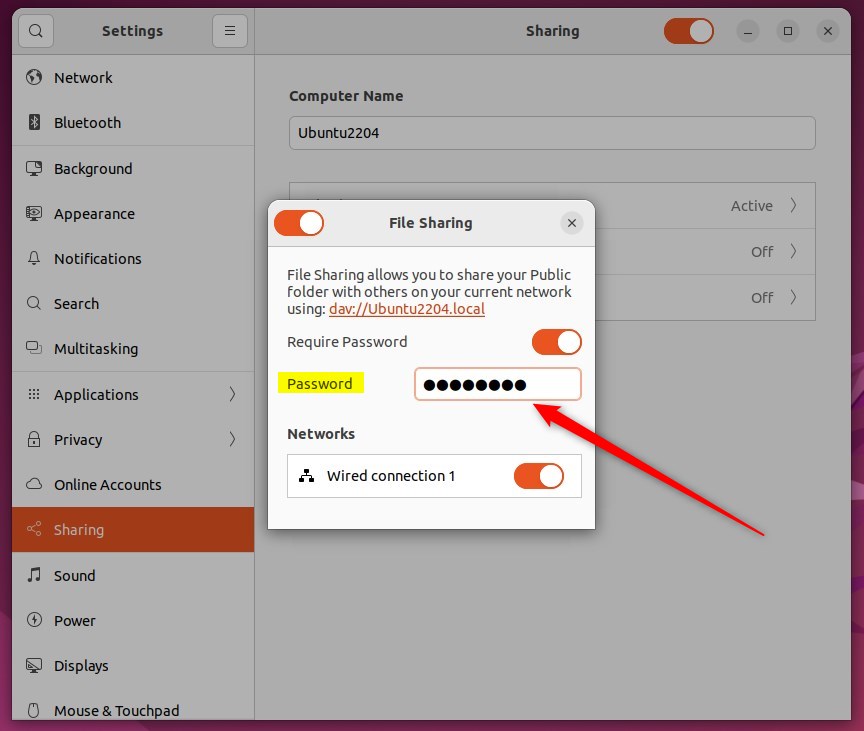
That completes the setup process.
Managing network transfers with the gnome-user-share package takes only a few clicks once finished.:
- Enabling or disabling file sharing in Ubuntu Linux is a straightforward process using the gnome-user-share package.
- By accessing the System Settings panel, users can easily toggle the File Sharing switch to allow or restrict access to the Public folder.
- The option to require a password to access the Public folder adds an extra layer of security for shared files.
- This guide provides a comprehensive overview of managing File Sharing settings in Ubuntu Linux, ensuring a seamless user experience.
Was this guide helpful?

About the Author
Richard
Tech Writer, IT Professional
Richard is a writer at Geek Rewind who turns complex IT tasks into clear, step-by-step guides. He draws on years of hands-on experience in system administration and enterprise IT operations, focusing on Windows, Linux and WordPress: the problems people actually run into, and the fixes that work. His server and WordPress guides come from systems he runs himself. Richard builds and maintains the platform behind Geek Rewind, from its Ubuntu servers and Nginx configuration to its custom WordPress plugins. Many new tutorials start with readers' questions, and he's always glad to answer them in the comments.



No comments yet — be the first to share your thoughts!