How to Enable or Disable Microsoft Edge Sign-In


The BrowserSignin policy controls whether you can sign into Microsoft Edge with your Microsoft account to sync passwords, bookmarks and other data across your Windows 11 PCs. Turning it off stops profile sign-ins in the browser and keeps your saved data from being synced to an account.
You also need to set the NonRemovableProfileEnabled policy, which controls whether the signed-in profile can be removed, to completely block profile sign-ins in the browser. The steps below set both policies. Both are set through the registry, so this works on Windows 11 Home as well as Pro, Enterprise and Education.
To turn off Microsoft Edge sign-in, open Registry Editor and go to 🗝️HKEY_LOCAL_MACHINE\
Enable or Disable Sign-in to Microsoft Edge
You can turn Microsoft Edge sign-in on or off in the Windows Registry by changing the BrowserSignin value. It decides whether you, or other users on the computer, can log into the browser with a Microsoft account. That is useful for locking down a shared computer or for keeping your own browsing setup separate from any account.
Edge may also show “Managed by your organization” in its menu and settings afterwards. That is normal when a policy is set, even on a home PC.
- Open the Windows Registry and navigate to this folder path. If you can’t find the last folder in the path, it doesn’t exist yet. Right-click its parent folder, choose New Key, and name the new key to match the end of the path. Then select it.
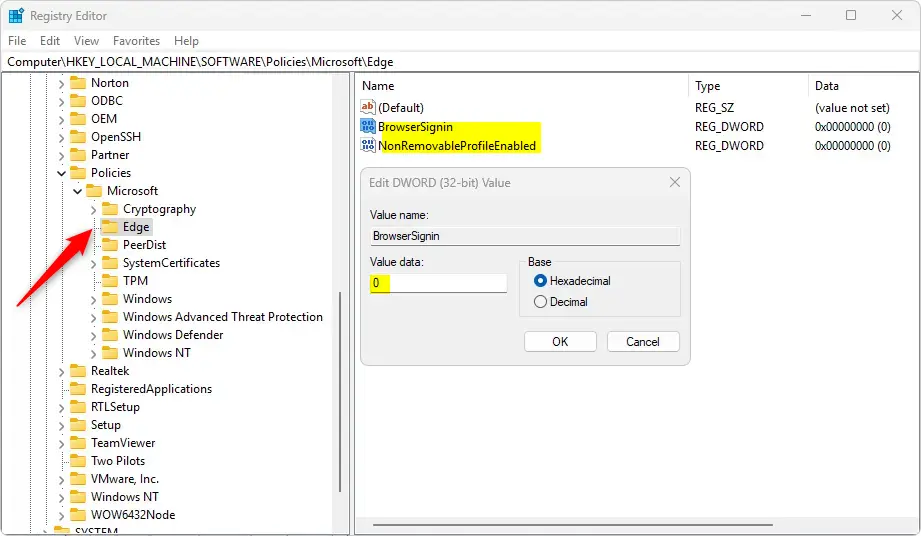
Computer\HKEY_LOCAL_MACHINE\SOFTWARE\Policies\Microsoft\Edge
First, open the Windows Registry. You need administrator privileges to do this. Search for Registry Editor in the Start menu and open it. If a User Account Control prompt appears, click Yes. If you are not signed in as an administrator, you will be asked for an administrator’s password.
A wrong value in the registry can cause problems, and a backup lets you undo the change in a minute. In Registry Editor, File Export saves a copy of the registry to a file you can import later.
- Right-click on the
Edgefolder. SelectNew>DWORD (32-bit) Value. A new value appears in the right pane with its name highlighted, ready for you to type. - Name the first new DWORD
BrowserSignin. Press Enter to confirm the name. The name must match exactly, so check the spelling. - Create a second DWORD the same way and name it
NonRemovableProfileEnabled. You should now see both new values listed in the right pane. - Double-click on
BrowserSigninand set the Value data to0to disable signing into Microsoft Edge. Click OK. The list now shows the new number next to the value name. - Double-click on
NonRemovableProfileEnabledand set the Value data to0. Click OK, then close Registry Editor.
Setting the BrowserSignin value data to 0 disables signing into Microsoft Edge. Edge then stops prompting you to sign in with your Microsoft account, and the sign-in option in the profile menu is no longer available.
To check that the policy has been picked up, close all Edge windows and open Edge again. Then type edge://policy in the address bar and press Enter. The BrowserSignin policy should appear in the list with its value. If it doesn't, click Reload policies on that page. If it is still missing, check the folder path and the value names.
To turn sign-in back on: Go back to the same folder in Registry Editor and delete both the BrowserSignin and NonRemovableProfileEnabled entries. To delete one, right-click it, choose Delete and confirm with Yes. This returns Edge to its default settings, and users can sign into Microsoft Edge with their Microsoft account again. If you exported a backup earlier, you can import it instead.
A computer restart might be necessary to apply the changes. Closing and reopening Edge is often enough. If Edge still behaves the old way, make sure no Edge process is still running in the background, or restart Windows.
That should do it!
Reference: Microsoft.com
Summary
Managing Microsoft Edge sign-in gives you direct control over account access on your computer. Changing the BrowserSignin value in the Windows Registry lets you block or allow sign-ins as needed. You can keep the browser locked down or open, depending on who uses the device.
- Control User Sign-in: Administrators can restrict or allow users to sign into Microsoft Edge with their Microsoft account. The policy applies to every user on the PC.
- Registry Modifications: Make the changes in the Windows Registry, and sign in as an administrator to do it. Always create backups and restore points beforehand.
- Prevent Automatic Sign-in: The NonRemovableProfileEnabled policy works with the BrowserSignin policy to prevent automatic sign-ins and to block profile sign-ins completely.
- Easy to Reverse: Deleting the DWORD entries restores the default behavior, so you can adjust the settings later without any other cleanup.
- System Reboot May Be Required: A reboot may be necessary to apply any changes made to the registry. Try restarting Edge first, and restart Windows if the change does not take effect.
By following these steps, you can manage Microsoft Edge sign-ins on Windows 11, whether you need to block them on a shared PC or allow them again later.
Have a question about this guide?
Answered by AI from this guide. Good questions may be added to this page — please don't include personal details.
Did this guide fix your problem?

About the Author
Richard
Tech Writer, IT Professional
Richard is a writer at Geek Rewind who turns complex IT tasks into clear, step-by-step guides. He draws on years of hands-on experience in system administration and enterprise IT operations, focusing on Windows, Linux and WordPress: the problems people actually run into, and the fixes that work. His server and WordPress guides come from systems he runs himself. Richard builds and maintains the platform behind Geek Rewind, from its Ubuntu servers and Nginx configuration to its custom WordPress plugins. Many new tutorials start with readers' questions, and he's always glad to answer them in the comments.
No comments yet — be the first to share your thoughts!