How to Re-Sync Microsoft Edge Browser Data

Manual re-syncing in Microsoft Edge (the browser built into Windows, which ties your personal data to your Microsoft account) forces the browser to update saved bookmarks, passwords, and history across all the devices you are signed in on.
A stuck sync connection stops your browsing information from updating. You will usually see a red warning icon next to your profile picture in the top-right corner of the Edge window. A manual re-sync clears the block and merges the browsing data on this PC with the copy stored in your Microsoft account.
Click the three dots, select Settings, then Profiles, and finally click the Sync tile. Scroll down and click the Re-sync button to refresh your browser data across devices.
Re-sync Microsoft Edge data
Use this when your bookmarks, passwords, or settings stop matching between computers. The fix is to make Edge reconnect to your Microsoft account and download the latest saved information from the cloud. The steps below do this from the Sync settings page. If that doesn’t clear the problem, sign out of your profile and sign back in, which forces a fresh connection.
Before you start, check that the PC is online and that you are signed in to Edge with the same Microsoft account on every device you are comparing. A mismatched account is a common reason data “goes missing”.
- Open your Microsoft Edge browser. The browser window should appear with your profile picture at the top right.
- Click the three dots at the top right of the window. A drop-down menu opens.
- Select Settings. The Settings page opens in a new tab with a list of categories on the left.
The whole route is short: Settings Profiles Sync, then the re-sync button at the bottom of the page. The numbered steps in this section and the ones that follow walk through each screen.
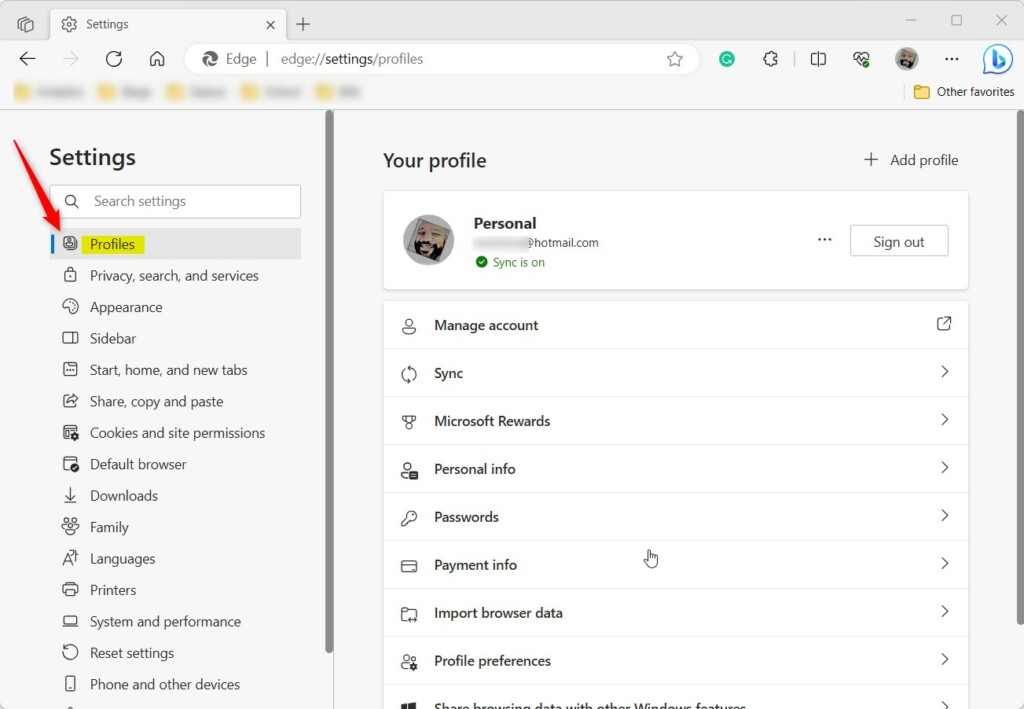
- Click Profiles on the left side of the screen. Your profile details and the sync options appear on the right. If you don’t see the left-hand list, widen the window, because Edge hides it when the window is narrow.

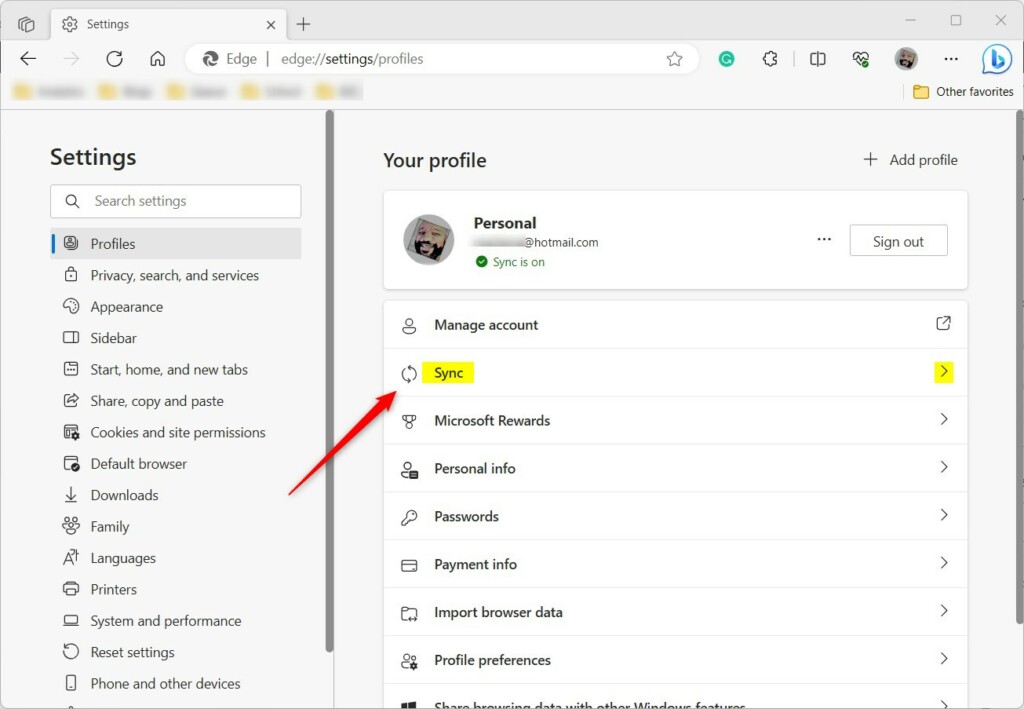
- Select the Sync tile. The sync page opens and shows your account and the types of data Edge can sync, such as favorites and passwords. If sync is turned off, or you are not signed in, you will be asked to sign in or turn sync on first. Do that before going further.
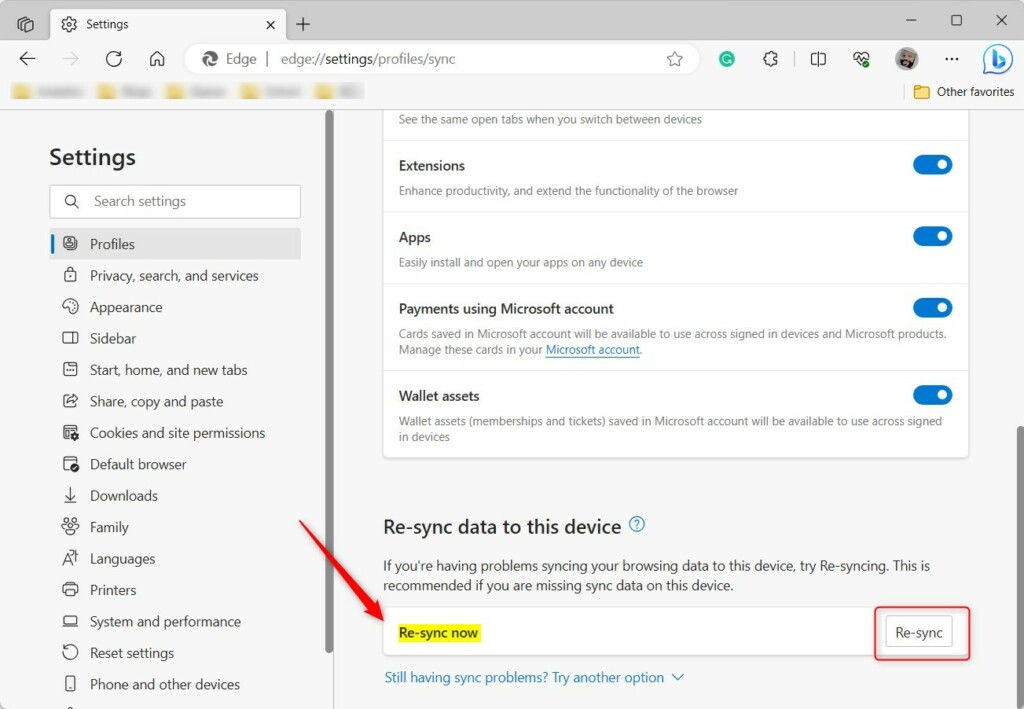
- Scroll to the bottom of the page. The re-sync option sits below the list of data types.
- Click the Re-sync button. A confirmation prompt appears. If your version of Edge shows a button with a different name, such as Reset sync, read the prompt before you continue. A reset can clear the synced copy stored in the cloud and turn sync off on your other devices, so only accept it if you understand that.
- Confirm your choice when the prompt appears. The prompt closes and Edge starts syncing in the background. Leave the browser open and connected to the internet while it works.
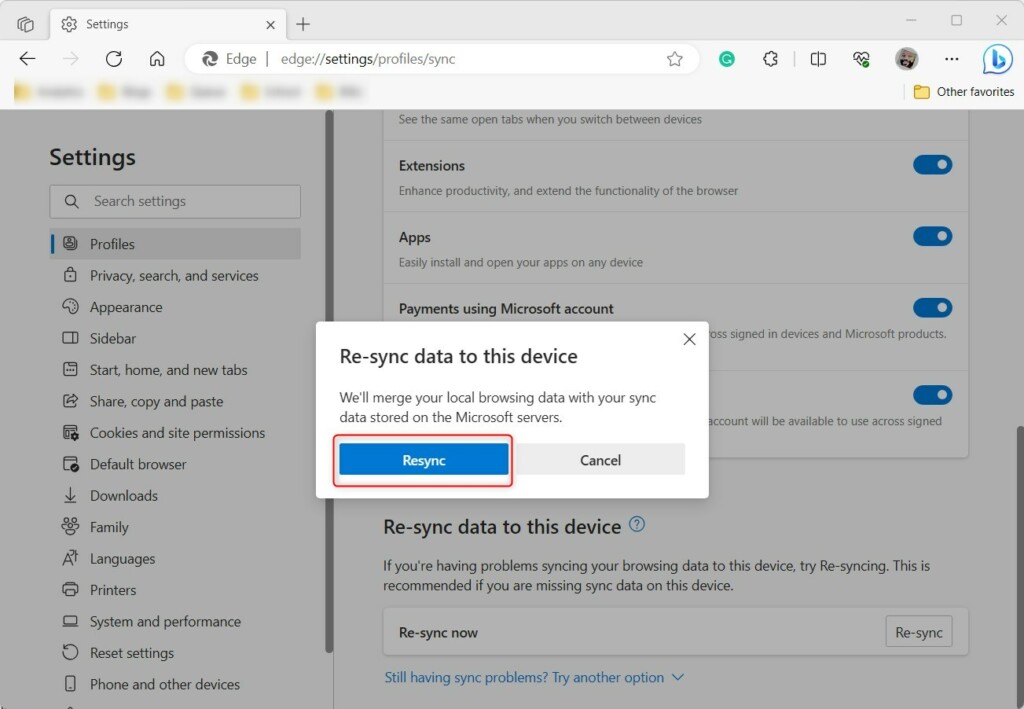
Edge merges your local files with the online backup behind the scenes. Restarting the browser isn’t necessary for this process to complete.
Give it a few minutes, then check the device that was out of date. The red warning icon next to your profile picture should be gone, and the missing bookmarks or passwords should appear. If you manage the PC through a work or school account, an organization policy can block or limit sync. In that case some options may be greyed out and you will need to ask your administrator.
Advanced Troubleshooting
Stubborn synchronization glitches need deeper troubleshooting. Edge has an internal sync page, called sync-internals, that shows the current sync status and any error messages. It can point to persistent connection failures that a standard refresh misses. Note the error it reports before you search for a fix or contact support.
Consult Microsoft Support for additional troubleshooting steps. Have the error text from the sync-internals page ready, along with the Microsoft account you are signed in with.
Conclusion
- Edge syncs your data across all the devices you are signed in on, as long as sync is turned on and the account matches.
- Re-syncing is a good first fix for missing bookmarks or passwords. If it fails, signing out and back in is the next step.
- Use Settings Profiles Sync to refresh your sync connection. No browser restart is needed.
- Check the sync-internals page if you still have trouble, and contact Microsoft Support if the error is unclear.
Have a question about this guide?
Answered by AI from this guide. Good questions may be added to this page — please don't include personal details.
Did this guide fix your problem?

About the Author
Richard
Tech Writer, IT Professional
Richard is a writer at Geek Rewind who turns complex IT tasks into clear, step-by-step guides. He draws on years of hands-on experience in system administration and enterprise IT operations, focusing on Windows, Linux and WordPress: the problems people actually run into, and the fixes that work. His server and WordPress guides come from systems he runs himself. Richard builds and maintains the platform behind Geek Rewind, from its Ubuntu servers and Nginx configuration to its custom WordPress plugins. Many new tutorials start with readers' questions, and he's always glad to answer them in the comments.
[…] in to Microsoft Edge with a Microsoft account lets you sync your browsing data across all your other devices signed in with the same account using […]
[…] in to Microsoft Edge with a Microsoft account lets you sync your browsing data across all your other devices signed in with the same account using […]