How to Enable or Disable Automatically Restart Microsoft Edge to Update on Idle in Windows 11

Restart to update on idle is a Microsoft Edge feature you have to switch on yourself. It closes and reopens the browser while you are away from your computer, so updates install without you doing anything. This page shows you how to turn it on or off for your account in Windows 11.
Open Microsoft Edge, select the Settings and more (Alt+F) button, then select Settings and About Microsoft Edge. Switch Restart to update on idle on or off. The setting is off by default, and it takes effect without a restart. Save open work first, because Edge relaunches after 20 minutes of inactivity.
How Restart to update on idle works
Normally, Edge waits for you to check for updates or close and reopen the browser. Some people go days without the latest version as a result. With Restart to update on idle, Edge detects when you step away. If an update is waiting, it restarts itself.
Security fixes and new features reach you sooner, and Edge restores your tabs after the relaunch.
Edge waits while you are active, whether you are editing a document, downloading files, or streaming media. Idle means you have not touched the keyboard or mouse. The current idle period is 20 minutes without any input from you.
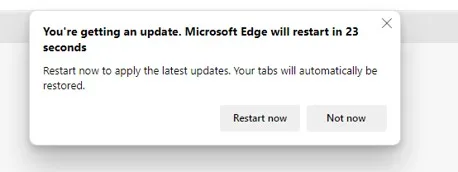
When the feature is on and your computer is idle, Edge shows a notification that a relaunch is coming. The notification gives you time to act. If you come back to the browser before the countdown ends, you can stop the relaunch and save your work. The notification appears only while the device is idle.
When the countdown ends, Edge relaunches and installs the update. If you want to see how long the countdown lasts, check the notification or confirm the length with Microsoft.
Turn Restart to update on idle on or off
The setting is off by default.
- Open Microsoft Edge.
- Select the Settings and more (Alt+F) button, the three dots, then select Settings.

micrsoft edge browser more option and settings - Select About Microsoft Edge in the left pane. If you don't see the left pane, select the three-bar menu button at the top left, or widen the Edge window until the pane appears.
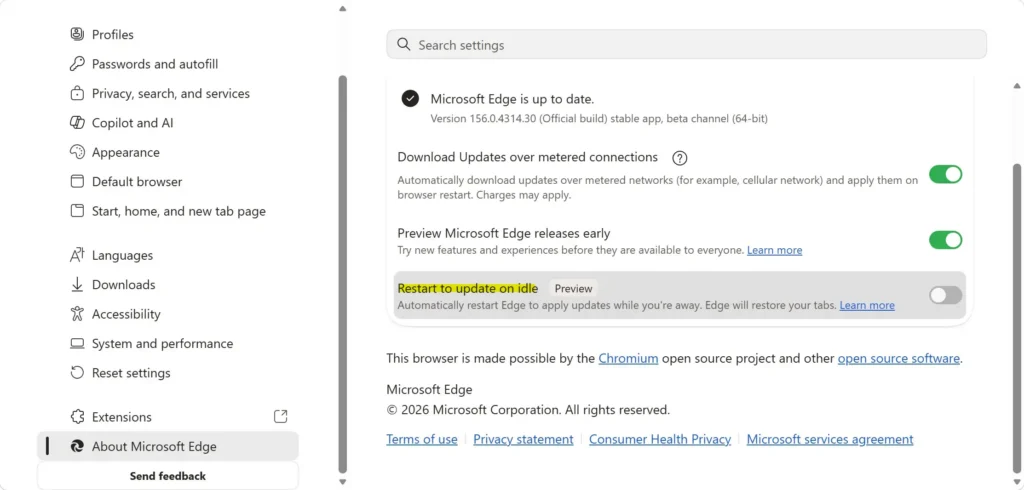
- Turn Restart to update on idle on or off, depending on what you want.
To undo this change
To undo this change, go to Settings About Microsoft Edge and switch Restart to update on idle back to its previous position. If you turned it on, that means switching it off again. Edge goes back to applying updates only when you relaunch it yourself.
Frequently asked questions
How to enable mobile hotspot in 🪟 Windows 11?
Open Settings, select Network & internet, then click Mobile hotspot. Turn on the Share my internet connection with other devices switch. To change the network name or password, select Edit, enter new details, and select Save. Other devices can then connect using that name and password.
How to disable automatic updates in 🪟 Windows 11?
Open Settings, select Windows Update, then choose Pause updates and pick a date up to five weeks away. Windows will skip updates until that date. Turning off updates permanently is risky because you miss security fixes, so pausing is the safer choice. Pro users can use Group Policy, but that is harder to undo.
How to update to the latest build of 🪟 Windows 11 preview?
Preview builds can be unstable, so back up your files first. Open Settings, select Windows Update, then select Windows Insider Program and click Get started. Link a Microsoft account, choose a channel such as Beta Channel, and restart your PC. Then return to Windows Update and select Check for updates to get the newest build.
How to enable tracking prevention in edge?
Open Edge, select Settings and more (the three dots), then choose Settings. Select Privacy, search, and services, and scroll to Tracking prevention. Choose Balanced or Strict. Balanced is the default and blocks most trackers without breaking most sites. Strict blocks more but can break some pages.
How to restart edge?
Close every Edge window, then open Edge again from the taskbar or Start menu. If Edge stays open in the background, press Ctrl+Shift+Esc, select Microsoft Edge in Task Manager, and click End task. Then open Edge again. Your tabs reopen only if you have Continue where you left off turned on.
How to restart Microsoft edge?
If an update is ready, open Settings and more, select Settings, then About Microsoft Edge. Click the Restart button shown there. If no button appears, close all Edge windows, wait a few seconds, and open Edge again from the Start menu or taskbar.
Still have a question?
Answered by AI from this guide. Good questions may be added to this page — please don't include personal details.
Did this guide fix your problem?

About the Author
Richard
Tech Writer, IT Professional
Richard is a writer at Geek Rewind who turns complex IT tasks into clear, step-by-step guides. He draws on years of hands-on experience in system administration and enterprise IT operations, focusing on Windows, Linux and WordPress: the problems people actually run into, and the fixes that work. His server and WordPress guides come from systems he runs himself. Richard builds and maintains the platform behind Geek Rewind, from its Ubuntu servers and Nginx configuration to its custom WordPress plugins. Many new tutorials start with readers' questions, and he's always glad to answer them in the comments.
No comments yet — be the first to share your thoughts!