How to Manage Instant Updates in Microsoft Edge

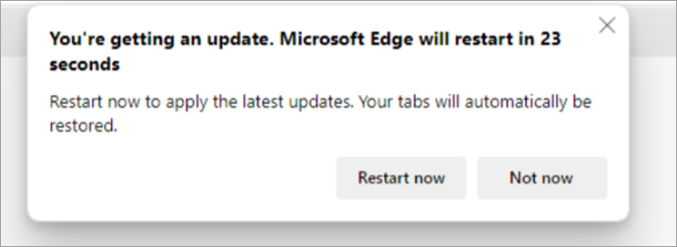
Instant updates in Microsoft Edge download and install background patches automatically to keep the browser secure and up to date. According to the original behavior this guide covers, Edge can close and restart when you step away from your PC. That can interrupt open tabs and active tasks.
Managing this feature stops Edge from relaunching in the middle of important work. Before you change anything, save any form data you have typed into open tabs. The steps below take about a minute and work the same on Windows 11 Home and Pro.
Open Edge, select Settings and more (Alt+F), then Settings, and go to Privacy, search, and security. Scroll to the Security section and click the Instant updates switch to turn it on or off. The change applies straight away with no restart. If the switch is greyed out, your organization’s policy controls it.
Turn on or off instant updates in Edge
Microsoft Edge instant updates let you control how and when your browser downloads and installs security patches. You turn the feature on or off from Edge’s own settings, not from Windows Settings. With it on, Edge applies patches in the background. With it off, patches wait until Edge’s normal update process picks them up, usually after you close and reopen the browser.
First, Edge may be managed by an organization’s policy, which is common on work PCs. In that case Edge shows a “managed by your organization” notice and you cannot change the setting yourself. Second, your Edge version may be out of date. Update Edge from Settings About Microsoft Edge and look again.
- Open Microsoft Edge from the Start menu, the taskbar or a desktop shortcut. You should see a browser window with a new tab or your home page.
- Click the Settings and more button (Alt+F) in the top right corner. It is the three-dot icon. A drop-down menu opens.
- Select Settings. Edge opens the Settings page in a new tab.

- On the Settings page, select Privacy, search, and security from the left-hand menu. In some Edge versions this item is named Privacy, search, and services. It is the same page.
- If the left-hand menu is hidden because the window is narrow, widen the window or click the menu icon at the top of the page. The privacy options should now appear on the right.
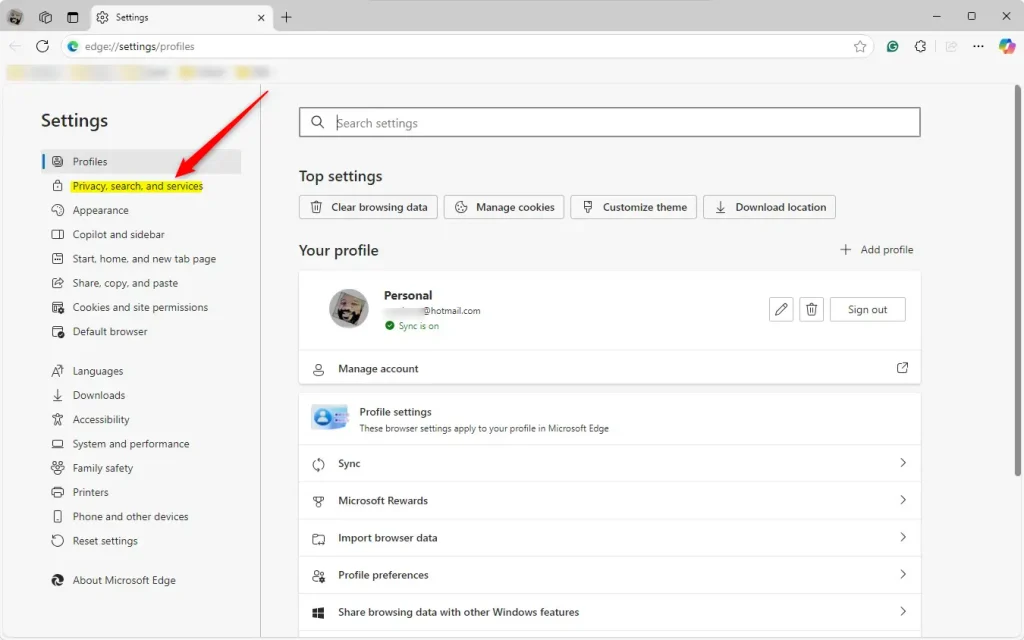
- Scroll down to the Security section.
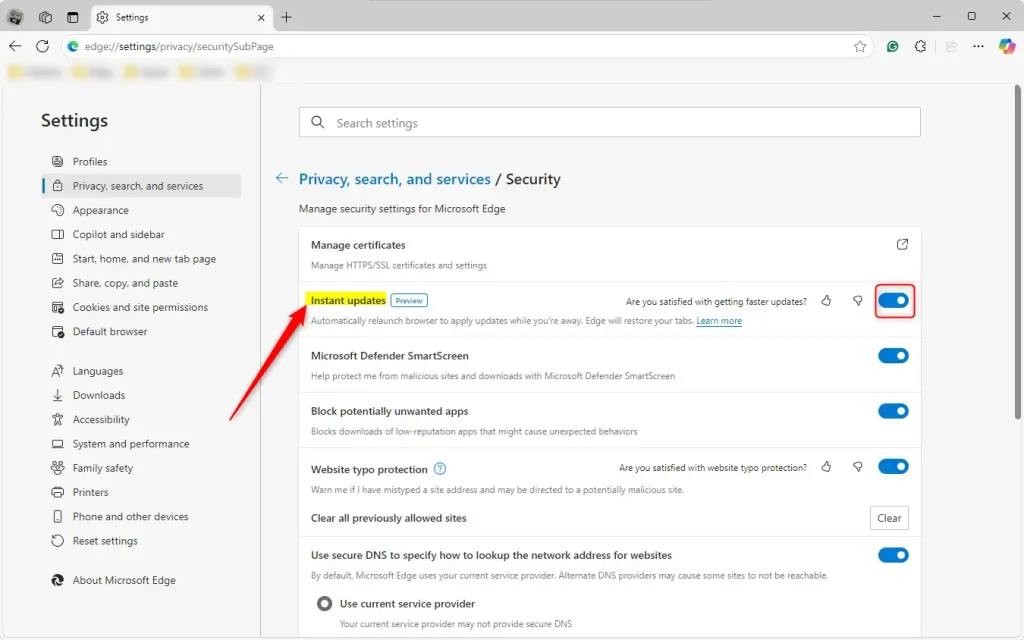
- Find the Instant updates switch and click it to change its state. To turn the feature off, move the switch to the off position. To turn it back on, click it again.
The change applies right away. There is no Save button, and you do not need to restart Windows. To undo it, return to this page and flip the switch back.
edge://settings/privacy#instantupdates
- On the page that opens, scroll to the Security section.
- Click the Instant updates switch to turn the feature on or off. The switch should show the new state straight away.
Configuration finishes here. You can close the Settings tab. Edge keeps your choice, so you do not need to repeat the steps unless you want to change it again.
Reference:
Conclusion:
Properly configuring these update preferences helps maintain a secure browser without unexpected interruptions. Here is a quick recap of the main points.
- User ControlYou can turn Instant updates on or off based on your preferences, and switch it back at any time.
- ConvenienceInstant updates occur when the browser is not in use, minimizing disruptions to your open tabs.
- Access to SettingsEasily navigate to settings through the Settings and more menu to adjust the feature.
- Direct URLUse the URL
edge://settings/privacy#instantupdatesfor quick access to the privacy settings related to Instant updates. - Improved SecurityKeeping your browser updated helps ensure you have the latest security features and optimizations. If you turn Instant updates off, make a habit of restarting Edge regularly so patches still get applied.
Maintaining these update settings gives you a say in when Edge updates itself, so you can protect both your work and your browser’s security.
Have a question about this guide?
Answered by AI from this guide. Good questions may be added to this page — please don't include personal details.
Did this guide fix your problem?

About the Author
Richard
Tech Writer, IT Professional
Richard is a writer at Geek Rewind who turns complex IT tasks into clear, step-by-step guides. He draws on years of hands-on experience in system administration and enterprise IT operations, focusing on Windows, Linux and WordPress: the problems people actually run into, and the fixes that work. His server and WordPress guides come from systems he runs himself. Richard builds and maintains the platform behind Geek Rewind, from its Ubuntu servers and Nginx configuration to its custom WordPress plugins. Many new tutorials start with readers' questions, and he's always glad to answer them in the comments.
No comments yet — be the first to share your thoughts!