Disable Startup Apps in the Task Manager Startup Tab

- 15 steps
- Needs administrator rights
- Includes a restart or sign-out
Startup apps are programs that open on their own when you sign in to Windows. You can stop them from doing that in Task Manager, and the change works the next time you sign in.
Press Ctrl+Shift+Esc to open Task Manager. Then open the Startup apps page (the Startup tab in Windows 10 and older Windows 11 builds), pick the app, and click Disable. The app still stays installed. It just no longer starts with Windows.
The Startup apps page appeared in Windows 11 version 22H2 and later. It sits in a left-hand menu. In earlier Windows 11 builds and in Windows 10, the same list is a tab, and the steps are almost the same. Differences are noted where they matter.
To turn off a program that starts when you sign in, press Ctrl+Shift+Esc to open Task Manager, click Startup apps in the left-hand pane (labelled Startup in Windows 10), select the app, and click Disable. The change applies at your next sign-in. Disabling stops launch only; it does not uninstall the app.
Before you start
Disabling a startup app stops it from launching when you sign in. It does not uninstall the app, delete its data, or close it if it is running now. You can open the app by hand whenever you want, and you can reverse the change at any time.
If Task Manager shows a permission prompt, or a change is refused, approve the prompt with an administrator account (an account with permission to change system settings), or sign in with one and repeat the step.
Task Manager works the same way on Windows 11 Home and Pro, so there is no edition difference for this task. On a work or school PC, your organisation may control some startup entries, and you may not be able to change them.
Open the Startup tab in Task Manager
Open Task Manager and show the startup list. Task Manager remembers the page you used last, so it may already open there.
Open Task Manager
- Press Ctrl+Shift+Esc. Task Manager opens in its own window. You can also right-click the Start button and select Task Manager, or right-click an empty part of the taskbar and select Task Manager.

Task Manager - If you see a small window that lists only app names, click More details at the bottom left. The full Task Manager appears with its navigation pane or tabs. This compact view is more common in Windows 10.
Go to the startup list
- In the left-hand navigation pane, click Startup apps. The icon is a small speedometer. If you only see icons and no labels, click the three-line menu icon at the top left to expand the pane and show the names.
- Check that you now see a table with the columns Name, Publisher, Status and Startup impact. This table is the list of startup apps. Every app that Windows is set to launch at sign-in appears in it.
In Windows 10, and in some early Windows 11 builds, there is no navigation pane. Click the Startup tab along the top of the Task Manager window instead. The columns are the same.
Read the Startup apps list
You can disable apps without understanding every column, but a minute spent reading them stops you from turning off something you need.
What the columns tell you
- Name is the app or entry name. Some names are vague, such as a bare vendor name or a file name.
- Publisher is the company that signed the software. Use it to identify unclear names. An empty Publisher is not automatically a problem, but look up the entry before you decide.
- Status shows Enabled (launches at sign-in) or Disabled (does not launch).
- Startup impact is Windows’ estimate of how much the app slows sign-in, measured as processor (CPU) and disk work the app does while the PC starts up. You see High, Medium, Low, or Not measured. Not measured usually appears for apps you installed recently, because Windows has not yet seen them start up.
Click a column heading to sort by it. Sorting by Startup impact puts the heaviest apps at the top. Right-click any column heading to add more columns if your build offers them.
Which apps to disable and which to leave alone
Good candidates are apps you open yourself when you need them: chat and meeting apps, game launchers, music players, cloud storage clients you rarely use, and updater helpers from software vendors.
Leave these enabled:
- Your antivirus or security software, including the Windows Security notification icon. Disabling these can leave the PC unprotected after sign-in.
- Device software that makes hardware work, such as touchpad, graphics, or audio drivers’ helper apps. If you disable one and a feature stops working, such as touchpad gestures or keyboard backlight control, enable it again.
- Anything you cannot identify. Search the name online first, or right-click the entry and select Search online.
Disable a startup app in Task Manager
- On the Startup apps page, click the app you want to stop from launching at sign-in. Task Manager highlights the row.
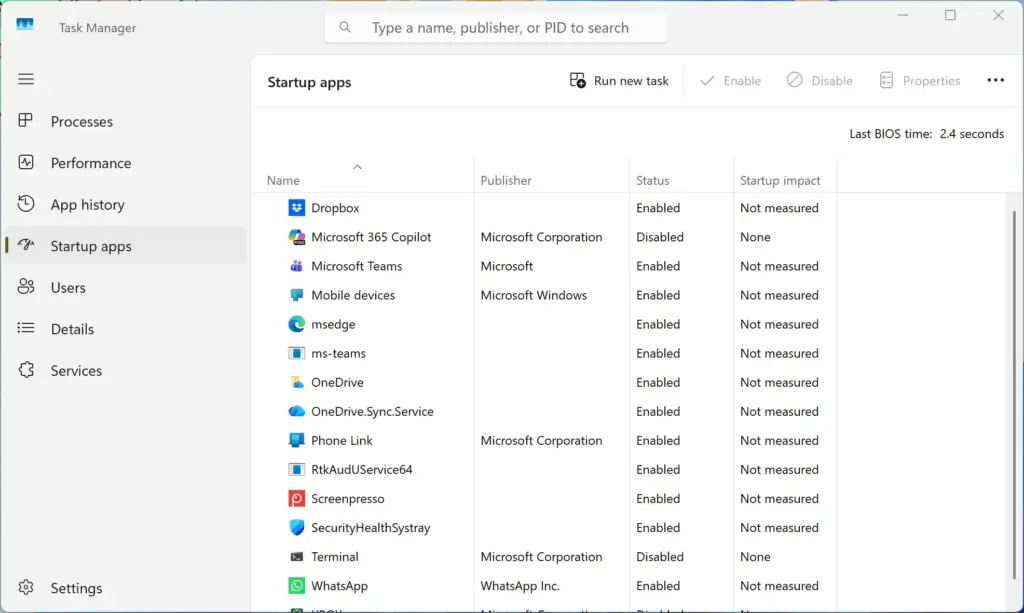
Task Manager › Startup - Click Disable in the bar at the top of the page. If you prefer, right-click the app and select Disable from the menu.
- Check the Status column. It now reads Disabled for that app. The app moves in the list only if you have the list sorted by status.
- Repeat steps 1 to 3 for each additional app you want to stop.
If Disable is missing or greyed out, you have not selected a row. Click directly on the app name and look at the top bar again. In Windows 10, the Disable button sits at the bottom right of the window.
If the status does not change, or you see a permission message, the entry may be controlled by your organisation or may need administrator rights. Close Task Manager, sign in with an administrator account, and try again.
Confirm the change worked
The change takes effect at your next sign-in, so you do not need to restart the PC to save it. To test it, sign out and sign back in, or restart.
- Click Start, click your account name or picture, and select Sign out.
- Sign back in to your account.
- Check the system tray and taskbar. The apps you disabled should not have launched. If an app you disabled is still running, press Ctrl+Shift+Esc, return to the Startup apps page and check that its status still reads Disabled.
If you ran Task Manager before the change, the app that was already open stays open until you close it or sign out. That is expected.
Re-enable a startup app
If you disabled something you needed, undo it on the same page. The change reverses cleanly because nothing was removed.
- Press Ctrl+Shift+Esc and open the Startup apps page.
- Click the app whose Status reads Disabled.
- Click Enable in the top bar. The button replaces Disable when you select a disabled app.
- Check that Status reads Enabled. The app launches again from your next sign-in.
Why the startup list may look different from what you expect
Task Manager is the quickest way to manage startup apps. It does not show every program that runs at sign-in. These are the common reasons a list looks wrong.
An app is missing from the list
The Startup apps page lists apps that Windows launches at sign-in through the usual startup locations. It does not list background services, scheduled tasks, or drivers. Some programs start through one of those instead. If an app launches at sign-in but never appears here, check the app’s own settings first. Most apps have an option such as “Start when I sign in” or “Launch at startup” in their preferences.
An app turns itself back on
Some apps add themselves back to startup after an update or when you open them, and some ask for permission to do so. If an app you disabled returns, open Task Manager again and disable it again. If it keeps coming back, turn off its own startup option in its settings, because that is the setting the app uses to add itself back to startup.
You see the same app under two names
Some software installs more than one helper, such as a main app and a separate updater, each with its own row. Disable them separately. Use the Publisher column to see that they belong together.
The list is shorter or longer than in Settings
Settings Apps Startup shows a list of apps with toggle switches, and it reads from the same startup state as Task Manager. If you disable an app in one place, it shows as off in the other. The two lists can differ slightly in layout, but they should agree on what is enabled.
Your Task Manager looks different
Windows 10 and early Windows 11 builds show a Startup tab across the top. Windows 11 version 22H2 and later show Startup apps in the left-hand pane, and the buttons sit in a bar at the top of the page. If you cannot find the page, press Win+I to open Settings, go to Apps Startup, and use the toggles there instead.
If this didn’t work
If an app still starts after you disable it, check its own settings for a launch-at-startup option, then open your Startup folder, which holds shortcuts that launch at sign-in. Press Win+R, type shell:startup, and press Enter. File Explorer opens the folder, and any shortcut in it launches at sign-in, so you can delete the shortcut for the app you want to stop. If the PC still feels slow after sign-in, the cause may not be startup apps at all, so open the Processes page in Task Manager and sort by CPU or Memory to see what is using resources.
Frequently asked questions
What do disabling startup apps do?
Disabling a startup app stops it from opening on its own when you sign in to Windows. It does not uninstall the app, delete its files, or close it if it is already running. You can still open the app yourself whenever you need it, and you can turn the startup setting back on at any time.
What apps should I disable on startup?
Disable apps you do not need at sign-in, such as chat tools, game launchers, music players, and cloud sync apps you can open later. Leave security software enabled. Check the Startup impact column in Task Manager to find the apps that slow sign-in most. If you are unsure what an app does, leave it on.
What do startup apps mean in Task Manager?
Startup apps in Task Manager are programs that open automatically when you sign in to Windows. The Startup apps page lists each one with its status, either Enabled or Disabled, and a Startup impact rating that shows how much it slows sign-in. Disabling an app here stops it from launching at sign-in only.
How to disable app open on startup?
Open Task Manager with Ctrl+Shift+Esc, then go to the Startup apps page (the Startup tab on Windows 10). Select the app and click Disable. The change applies the next time you sign in. The app stays installed. You usually do not need administrator rights for apps in your own account, and you can turn it back on the same way.
Still have a question?
Answered by AI from this guide. Good questions may be added to this page — please don't include personal details.
Did this guide fix your problem?

About the Author
Richard
Tech Writer, IT Professional
Richard is a writer at Geek Rewind who turns complex IT tasks into clear, step-by-step guides. He draws on years of hands-on experience in system administration and enterprise IT operations, focusing on Windows, Linux and WordPress: the problems people actually run into, and the fixes that work. His server and WordPress guides come from systems he runs himself. Richard builds and maintains the platform behind Geek Rewind, from its Ubuntu servers and Nginx configuration to its custom WordPress plugins. Many new tutorials start with readers' questions, and he's always glad to answer them in the comments.
No comments yet — be the first to share your thoughts!