How to Add App to Run Automatically at Startup in Windows 11


Startup apps in Windows 11 open automatically when you sign in, so you don’t have to launch your usual programs one by one every time you turn on the computer. You can drop shortcuts for apps like Chrome, Spotify, or Discord into a special Startup folder on Windows 11 version 22H2 or newer. Once a shortcut is in that folder, the app starts on its own at sign-in. The steps below work the same on Home and Pro, except where noted.
Open File Explorer , paste shell:startup in the address bar and press Enter, then add a shortcut for your app to that folder. The app launches automatically when you sign in, no restart needed.
What Can You Add?
Windows 11 can start more than ordinary applications from the Startup folder. These all work:
- Applications and program shortcuts
- Whole folders, which open in File Explorer at sign-in
- Drives, which also open in File Explorer
- Specific documents, which open in their default app
- Automation scripts
Reference:
Configure Startup Applications in Windows – Microsoft Support
To see what already starts with your account, open Settings Apps Startup You can switch items off there without deleting anything.
Important Note About Admin Apps
Windows 11 security blocks applications that require administrator permissions from launching automatically through the Startup folder. They would trigger a User Account Control prompt at sign-in, and Windows won’t run them silently. To start one of these programs, you have to create the shortcut yourself and set it to run as administrator. Then you can place it in the target Startup folder.
To set that up, right-click the shortcut and choose Properties. On the Shortcut tab, click Advanced and tick Run as administrator. Be aware that this may still produce a UAC prompt at sign-in, depending on your settings. If the app still doesn't start, a scheduled task that runs at logon with the highest privileges is the more reliable route.
Option 1Add Startup App for Your Account Only
This method affects only your own account. Other people who use the computer won't see the app launch when they sign in.
- Press Win+E to open File Explorer.
- Copy this text:
shell:startup - Click the address bar at the top of File Explorer, paste the text, and press Enter. Your Startup folder opens. It is probably empty or holds only a few items. (see screenshot below)
- Add or create a shortcut for any app, folder, drive, file, or script you want to run at startup, and put it in this Startup folder. The easiest way to make one is to right-click the item, choose Show more options Create shortcut, then move the new shortcut into the folder.
The shortcut now sits in your personal Startup folder. The program launches every time you sign in, with no restart needed for the change to take effect. To test it, sign out and sign back in.
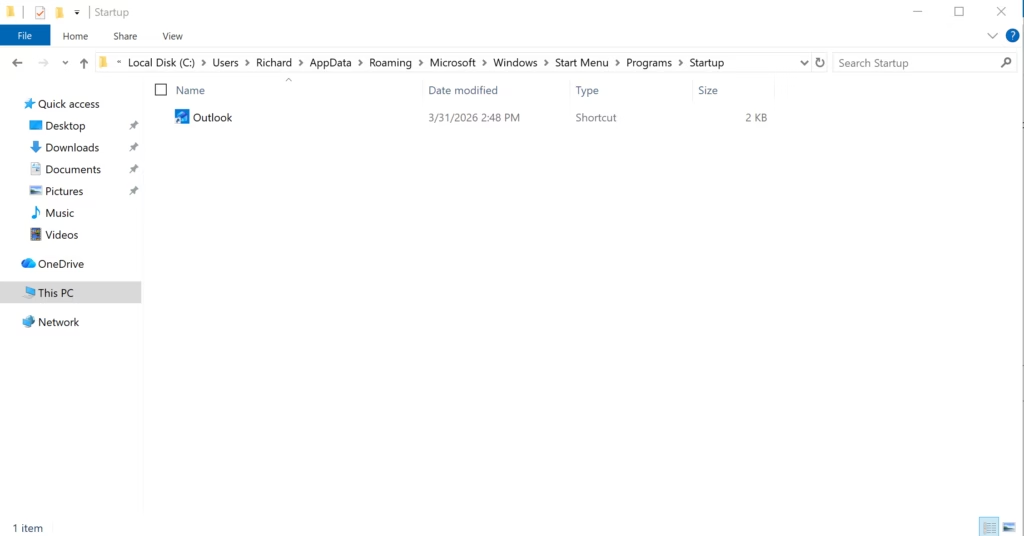
Only the shortcut is removed. The program itself stays installed.
Option 2Add Startup App for a Specific User
This method places a shortcut in the hidden profile folder of one specific account. It suits shared computers where a background program should run only for one person when they sign in. You need administrator rights to open another user's profile folder.
- Press Win+E to open File Explorer.
- Go to this folder in File Explorer (see screenshot below):
C:\Users\<username>\AppData\Roaming\Microsoft\Windows\Start Menu\Programs\Startup - Replace <username> with the actual username. For example:
C:\Users\Richard\AppData\Roaming\Microsoft\Windows\Start Menu\Programs\Startup - If Windows asks for permission to open the folder, click Continue. This gives your administrator account access to that user's profile folder. If you sign in with a standard account, you'll be asked for administrator credentials instead.
- Add or create a shortcut for any app, folder, drive, file, or script you want to run at startup for this user, and put it in this Startup folder.
Part of that path is hidden by default. If a folder seems to be missing when you browse to it, type the full path into the address bar instead of clicking through. Make sure the username matches the folder name under the Users folder exactly.
For Microsoft Store apps: Open the Start menu and select All apps. Drag the target application into the Startup folder to generate a shortcut.
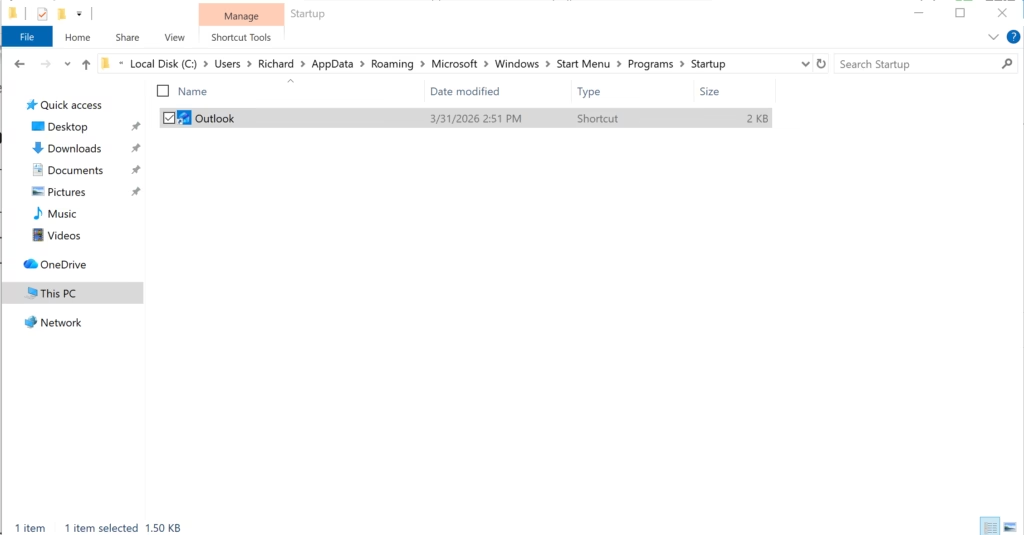
To remove the app later, delete its shortcut from that user's Startup folder. The change applies the next time that person signs in.
Option 3Add Startup App for All Users
This method makes a program launch whenever any person signs in to the computer. You need administrator rights to place a shortcut in the system-wide Startup folder. It saves time when certain tools should be ready for everyone right away.
- Press Win+E to open File Explorer.
- Go to this folder in File Explorer:
C:\ProgramData\Microsoft\Windows\Start Menu\Programs\Startup - Copy or move a shortcut for any app, folder, drive, file, or script you want to run at startup for everyone, and put it in this Startup folder. (see screenshot below)
For Microsoft Store apps: Open the Start menu and choose All apps. Drag the target program to the desktop to create a shortcut, then move that file into the Startup folder.
- Click Continue to approve copying or moving the shortcut into this Startup folder. The shortcut should now appear in the folder.
The setup is finished. To check it, sign out and sign in with a different account. The app should start for every user. To undo it, delete the shortcut from this folder, which again needs administrator approval.
Summary
Windows 11 runs everything in these Startup folders during sign-in, so your desktop is ready as soon as you arrive. If something doesn't start, check that the shortcut still points to a valid file. Also check that the app isn't switched off in Settings Apps Startup
How to automatically open programs on startup 🪟 Windows 11?
Open Settings, go to Apps, then select Startup, and turn on the switch next to any app you want to launch at sign-in. For apps that don't appear there, press Windows key + R, type shell:startup, and press Enter. Copy or drag a shortcut for the app into that folder.
What is the shell startup command?
shell:startup is a Run command that opens your Startup folder directly. Press Windows key + R, type shell:startup, and press Enter. Any shortcut you place in that folder launches when you sign in to your account. To cover every user on the PC, use shell:common startup instead.
Where is the Startup folder located in 🪟 Windows 10?
On Windows 10, the Startup folder is at C:\Users\YourName\AppData\Roaming\Microsoft\Windows\Start Menu\Programs\Startup. Replace YourName with your user account name. The quickest way to open it is to press Windows key + R, type shell:startup, and press Enter.
How to access startup menu in 🪟 Windows 11?
Windows 11 has no separate startup menu. Press Ctrl + Shift + Esc to open Task Manager, then select the Startup apps tab to see which programs launch at sign-in and turn off any you don't need. You can also open Settings Apps Startup
Was this guide helpful?

About the Author
Richard
Tech Writer, IT Professional
Richard is a writer at Geek Rewind who turns complex IT tasks into clear, step-by-step guides. He draws on years of hands-on experience in system administration and enterprise IT operations, focusing on Windows, Linux and WordPress: the problems people actually run into, and the fixes that work. His server and WordPress guides come from systems he runs himself. Richard builds and maintains the platform behind Geek Rewind, from its Ubuntu servers and Nginx configuration to its custom WordPress plugins. Many new tutorials start with readers' questions, and he's always glad to answer them in the comments.


No comments yet — be the first to share your thoughts!