How to Make File Explorer Open to OneDrive in Windows 11

To make File Explorer open to OneDrive in Windows 11, open its Options window and set Open File Explorer to to OneDrive. Every new Explorer window then starts in your cloud files, with no clicking through the sidebar first.
For most people this is one setting in the Folder Options window. This guide covers that method first. It then covers a Registry Editor method for cases where the setting is missing or you prefer to set it by hand. Both work on Windows 11 Home and Pro, and neither needs a full restart of the PC.
To make File Explorer open to OneDrive in Windows 11, open File Explorer, click the three dots (See more) in the toolbar, and select Options. On the General tab, set Open File Explorer to OneDrive and click OK. Every new Explorer window then starts in your OneDrive files, with no restart needed.
Changing Where File Explorer Starts
By default, File Explorer opens to Home. That screen shows your pinned folders, favorites and recent files. You can tell Explorer to open somewhere else. Doing so also hides the recent files and frequent folders that Home would show at launch.
You can send it to This PC, to OneDrive, or to another location from the list in the options. If you keep most of your documents and photos in OneDrive, opening there saves a few clicks every time. The change only affects where Explorer starts. Your files and folders stay where they are.
Step 1Open File Explorer
These steps make File Explorer open to OneDrive instead of Home. Start by opening a File Explorer window.
- Open File Explorer . Any of these ways works:
- Click the yellow folder icon on your taskbar.
- Press the
Windows key + Ekeys on your keyboard. - Type File Explorer into the Windows search bar and click the result. Use this if the taskbar icon is missing.
You should now see a File Explorer window, probably showing the Home screen.
Step 2Get to Folder Options
Next, open the File Explorer options window. Windows labels it Folder Options. It holds the file explorer settings, including the startup location.
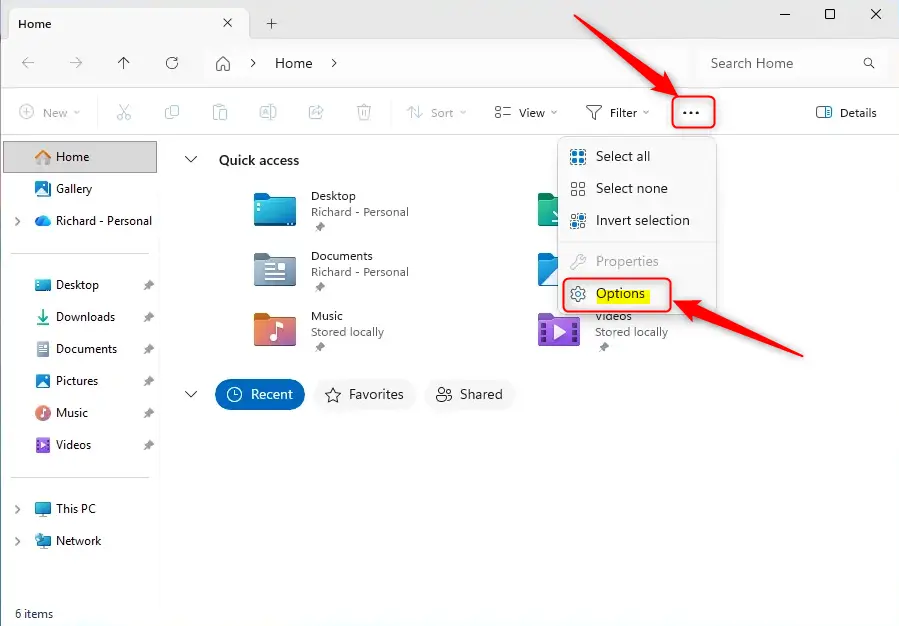
- Click the three horizontal dots (See more) in the toolbar. They are at the top of the File Explorer window.
- Select Options from the dropdown menu. A window titled Folder Options should open on the General tab.
If you don’t see the three dots, make the window wider. The toolbar can hide buttons when the window is narrow.
You only need the Open File Explorer to setting. If you click around by accident, close the window with Cancel and nothing is saved.
Step 3Choose Your Starting Folder
Now choose where File Explorer should start.
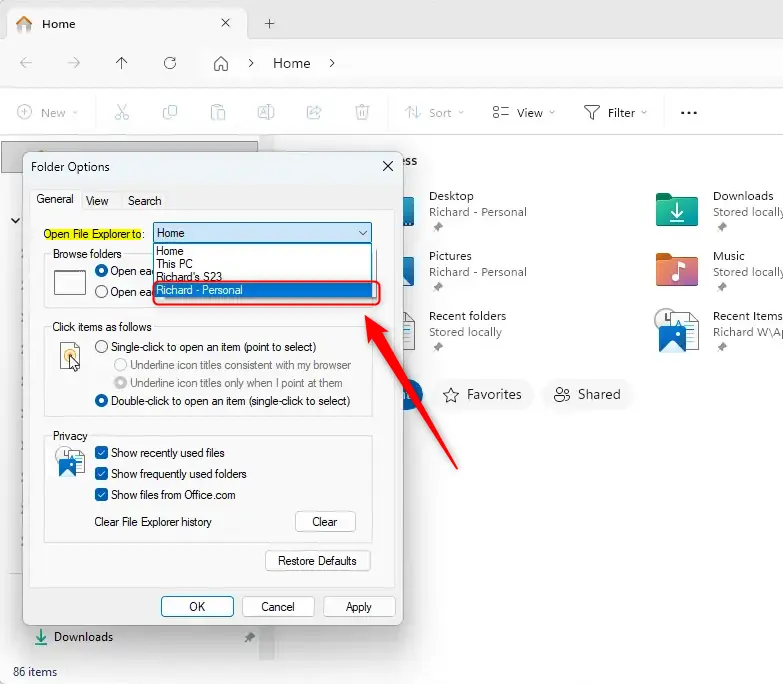
- Find the Open File Explorer to dropdown. It is at the top of the General tab.
- Click the dropdown to open the list. You should see the available startup locations.
- Select OneDrive. The dropdown now shows OneDrive.
The options you may see are:
- Home: This is the default setting. It shows your recent files and folders you use often.
- This PC: This shows all your computer’s drives (like your C: drive), connected devices, and common folders like Documents and Downloads.
- Mobile device: If you have your phone or tablet plugged into your computer with a USB cable, this option lets File Explorer open directly to see its files.
- OneDrive: This will open File Explorer directly to your OneDrive cloud storage files.
If OneDrive isn’t in the list, Windows probably doesn’t see a signed-in OneDrive account. Sign in to OneDrive from the cloud icon in the taskbar notification area, and make sure Windows 11 is up to date. Then reopen the Folder Options window. If it is still missing, use the Registry Editor method later in this guide.
To undo this change at any time, return to the same dropdown and select Home.
The Mobile device option needs a physical USB connection between the phone or tablet and the computer. If the device is not connected when File Explorer starts, Explorer might show an error or fall back to another location. Don’t pick this option unless the device is usually plugged in. It may not appear in the list at all on some PCs.
Step 4Save Your Changes
The change takes effect as soon as you save it.
- Click OK. It is at the bottom of the Folder Options window, and the window closes.
If you click Apply first, the setting is saved but the window stays open. You can then click OK to close it.
Step 5Try It Out!
Now check that the setting worked.
- Close every open File Explorer window.
- Open File Explorer again. Use the taskbar icon or the keyboard shortcut.
The window should now skip the Home screen and open in your OneDrive folder. If it still opens to Home, reopen the Folder Options window and check that the dropdown still shows OneDrive.
Using the Registry Editor (Advanced Users)
The Registry Editor is the advanced method. The registry is a database that stores Windows settings. Use this method if the OneDrive option is missing from the dropdown or you prefer to set the value directly. A wrong edit in the registry can cause problems, so change only the value described here. If you want a safety net, choose File Export in the Registry Editor first to save a backup.
- Press Windows key + R. The Run dialog box opens.
- Type
regeditand press Enter. If User Account Control prompts you, click Yes. The Registry Editor opens. - Go to this location in the Registry Editor:
HKEY_CURRENT_USER\Software\Microsoft\Windows\CurrentVersion\Explorer\Advanced - Look for a value named
LaunchToin the right-hand pane. If it is there, skip to step 6. - Create the value if it doesn't exist. Right-click an empty space in the right pane, select New, then DWORD (32-bit) Value, and name it
LaunchTo. - Double-click the
LaunchTovalue. An edit window opens with a Value data field. - Enter 4 in the Value data field. This opens File Explorer to Mobile Device or OneDrive. Which one opens depends on the order they appear in a specific system setting.
- Click OK to save the change.
- Close the Registry Editor and restart File Explorer to apply the change. Signing out and back in also works, and a full restart of the PC is not needed.
To undo this, go back to the same value and delete it, or set the startup location back to Home in the Folder Options window.
Summary
Changing the File Explorer startup location removes a few navigation steps from every session. For most people the Options menu is all you need. It sends Explorer to OneDrive, This PC or Home, and you can switch back at any time. If OneDrive is missing from that list, make sure you are signed in to OneDrive, or use the registry method above.
Frequently asked questions
How to get OneDrive in file explorer?
OneDrive shows up in File Explorer after you sign in to the OneDrive app with your Microsoft account. Look for the OneDrive entry in the left navigation pane. If it is missing, open OneDrive from the Start menu, sign in, and wait a moment for it to appear.
How to open OneDrive in file explorer?
Open File Explorer and click OneDrive in the left navigation pane. Your cloud files appear in the main area. If you want Explorer to skip the Home screen and open straight to OneDrive every time, change the Open File Explorer to setting in Folder Options.
How to access OneDrive from file explorer?
Click OneDrive in the left navigation pane of File Explorer. You can also type your OneDrive folder path into the address bar, which usually looks like C:\Users\YourName\OneDrive. Replace YourName with your own user name.
How to connect OneDrive to file explorer?
Open the OneDrive app from the Start menu and sign in with your Microsoft account. Once signed in, OneDrive adds itself to File Explorer's left pane and syncs your files into a folder on your PC. No extra connection step is needed.
Can I load a shortcut to start one drive folder?
Yes. Right-click an empty part of the desktop, choose New, then Shortcut, and enter your OneDrive folder path, such as C:\Users\YourName\OneDrive. Double-clicking it opens that folder. For Explorer to start there every time, use the Open File Explorer to setting instead.
How to see OneDrive in file explorer?
Open File Explorer and look in the left navigation pane for the OneDrive entry. If you do not see it, sign in to the OneDrive app first. OneDrive appears in the pane once it is installed and signed in on your PC.
Still have a question?
Answered by AI from this guide. Good questions may be added to this page — please don't include personal details.
Did this guide fix your problem?

About the Author
Richard
Tech Writer, IT Professional
Richard is a writer at Geek Rewind who turns complex IT tasks into clear, step-by-step guides. He draws on years of hands-on experience in system administration and enterprise IT operations, focusing on Windows, Linux and WordPress: the problems people actually run into, and the fixes that work. His server and WordPress guides come from systems he runs himself. Richard builds and maintains the platform behind Geek Rewind, from its Ubuntu servers and Nginx configuration to its custom WordPress plugins. Many new tutorials start with readers' questions, and he's always glad to answer them in the comments.
No comments yet — be the first to share your thoughts!