How to Enable Passwordless Sign-in in Windows 11


Passwordless sign-in for your Microsoft account replaces your password with Windows Hello on the device. This tutorial shows two ways to turn it on: through Settings, or from Windows Terminal.
Open Settings Accounts Sign-in options, then toggle On the setting For improved security, only allow Windows Hello sign-in for Microsoft accounts on this device. The password option disappears from your sign-in screen at the next login.
Why Do This?
Passwordless sign-in improves device security by replacing passwords with Windows Hello, which is a biometric or PIN sign-in method. Apps and browsers linked to your Microsoft account then switch to Windows Hello automatically, so you stop typing passwords.
The change applies to Microsoft accounts. It does not affect local accounts.
Learn more: How to go passwordless with your Microsoft account – Microsoft Support and Go passwordless in Windows – Microsoft Support
What You Need to Know
You need an administrator account on the computer to make this change. Also set up at least one Windows Hello method (PIN, face or fingerprint) first, because the option depends on it. Check the list below before you switch it on, since it changes how you sign in.
When you turn on passwordless sign-in:
- The option to enter a username and password is removed from the sign-in screen.
- You cannot remove the PIN from your Microsoft account.
- Password and picture password sign-in options are no longer available.
Make sure your PIN, face or fingerprint works reliably before you continue. If you forget your PIN, you can still reset it from the sign-in screen, but only after you verify your Microsoft account.
Option 1Use Settings
This is the easiest method. You do it from Settings, and you can reverse it the same way.
- Press Win+I on your keyboard to open Settings.
- Click Accounts on the left side. You should see the account options on the right.
- Click Sign-in options on the right side. A list of sign-in methods and settings appears.
- Find the setting For improved security, only allow Windows Hello sign-in for Microsoft accounts on this device.
- Set the toggle to On to turn passwordless sign-in on, or to Off to go back to using a password. The toggle should change right away.
- Close Settings when you're done.
The change takes effect at the next sign-in. If you want to check it, lock your PC with Win+L and look at the sign-in screen. The password option should be gone.
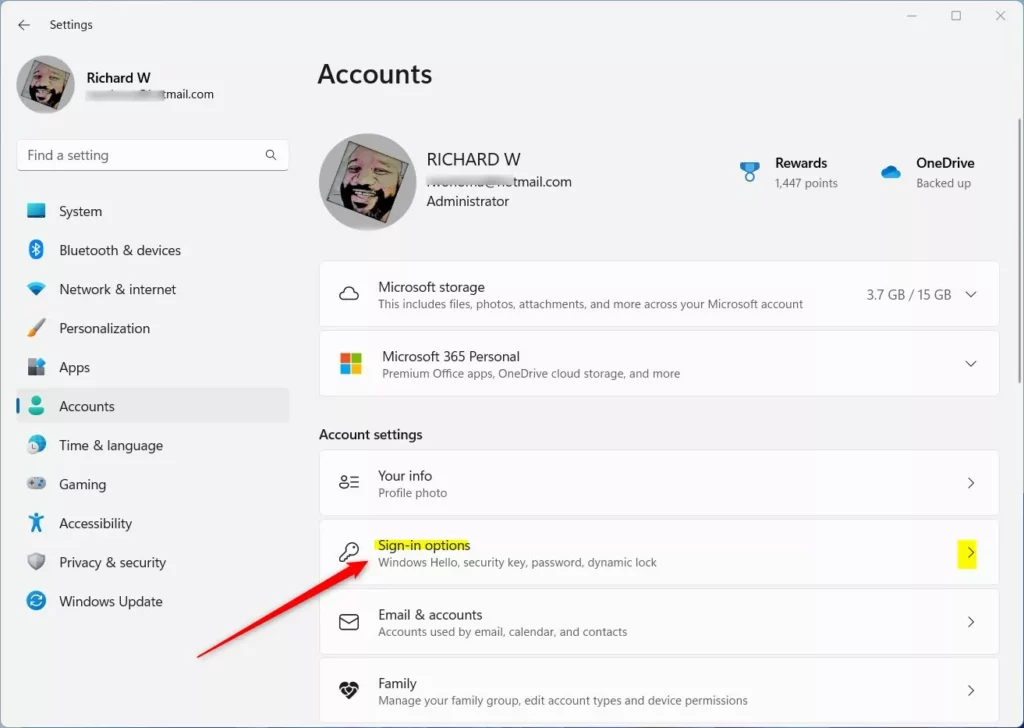
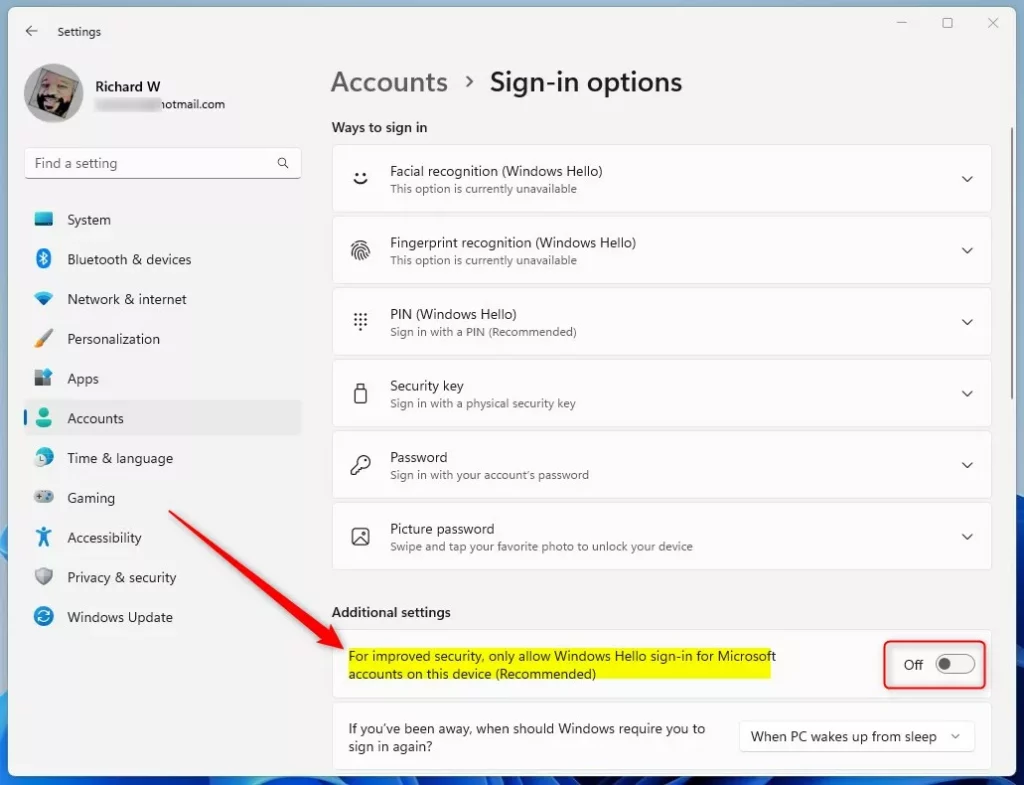
You need at least one Windows Hello method, such as a PIN, facial recognition or a fingerprint. If the toggle is grayed out, go to Settings Accounts Sign-in options, set up a method under Windows Hello, then come back to the toggle.
Option 2Use Registry Editor
⚠️ This method also requires administrator privileges.
Use this method if you prefer the command line or need to script the change.
- Right-click the Start button and choose Terminal (Admin). On some builds it is labelled Windows Terminal (Admin).
- Click Yes if User Account Control asks for permission. A Terminal window opens with an elevated prompt.
- Run the commands shown below.
To Turn On Passwordless Sign-in
This represents the default configuration, which is passwordless-only sign-in turned off. Use it if you need to go back to the default.
reg add "HKEY_LOCAL_MACHINE\SOFTWARE\Microsoft\Windows NT\CurrentVersion\PasswordLess\Device" /v DevicePasswordLessBuildVersion /t REG_DWORD /d 2 /f
reg add "HKEY_LOCAL_MACHINE\SOFTWARE\Microsoft\Windows NT\CurrentVersion\PasswordLess\Device" /v DevicePasswordLessUpdateType /t REG_DWORD /d 1 /f
To Turn Off Passwordless Sign-in
reg add "HKEY_LOCAL_MACHINE\SOFTWARE\Microsoft\Windows NT\CurrentVersion\PasswordLess\Device" /v DevicePasswordLessBuildVersion /t REG_DWORD /d 0 /f
reg add "HKEY_LOCAL_MACHINE\SOFTWARE\Microsoft\Windows NT\CurrentVersion\PasswordLess\Device" /v DevicePasswordLessUpdateType /t REG_DWORD /d 1 /f
Summary
Passwordless sign-in in Windows 11 improves device security by replacing traditional passwords with Windows Hello methods like your face, fingerprint or PIN. Set up Windows Hello first and make sure it works. Then turn the setting on in Settings Accounts Sign-in options To undo it, set the same toggle to Off.
Was this guide helpful?
100% of readers found this helpful (1 votes)

About the Author
Richard
Tech Writer, IT Professional
Richard is a writer at Geek Rewind who turns complex IT tasks into clear, step-by-step guides. He draws on years of hands-on experience in system administration and enterprise IT operations, focusing on Windows, Linux and WordPress: the problems people actually run into, and the fixes that work. His server and WordPress guides come from systems he runs himself. Richard builds and maintains the platform behind Geek Rewind, from its Ubuntu servers and Nginx configuration to its custom WordPress plugins. Many new tutorials start with readers' questions, and he's always glad to answer them in the comments.



No comments yet — be the first to share your thoughts!