How to Check Emerging Risks in Windows Security on Windows 11

- 16 steps
- Needs administrator rights
Emerging risks in Windows Security tells you whether software on your PC has a known security weakness, and what to do about it. The feature is rolling out to Windows Insider builds, starting with Windows Security app version 1000.29700.0.1003, so it may not appear on your device yet.
Open Windows Security, select Emerging risks in the left navigation, and read each finding. Emerging risks lists apps, drivers and firmware linked to a known vulnerability. If an update fixes a finding, install it through Settings Windows Update. If no fix exists, consider uninstalling the affected app. The feature is rolling out to Windows Insider builds, so it may not appear on your PC yet.
What Emerging risks in Windows Security shows
Emerging risks lists software on your device that is linked to a confirmed vulnerability (a flaw attackers can exploit). It covers three kinds of software:
- Apps you have installed.
- Drivers, the small programs that let Windows talk to hardware.
- Firmware, the low-level software built into hardware such as your motherboard.
For each finding, you get details about the vulnerability and guidance on what to do. If an update fixes the problem, install it. If the affected app has no fix yet, consider uninstalling it until one is released.
This release also changes the look of the Windows Security app. Its background is now transparent, to match Windows Settings.
Before you start
This feature is part of a Windows Insider test release, which gives early builds of Windows to people who sign up to test them. If your PC is not signed up for the Windows Insider Program (Microsoft’s early test channel for Windows), or the update has not reached you, you will not see this feature. Windows Security does not tell you which page the feature lives on in this release. The steps below tell you what to look for rather than naming a fixed menu path.
You need administrator rights to install drivers and to uninstall some apps. Sign in with an administrator account before you act on any finding.
How to check your device for emerging risks
- Select Start, type
Windows Security, and press Enter. The Windows Security app opens.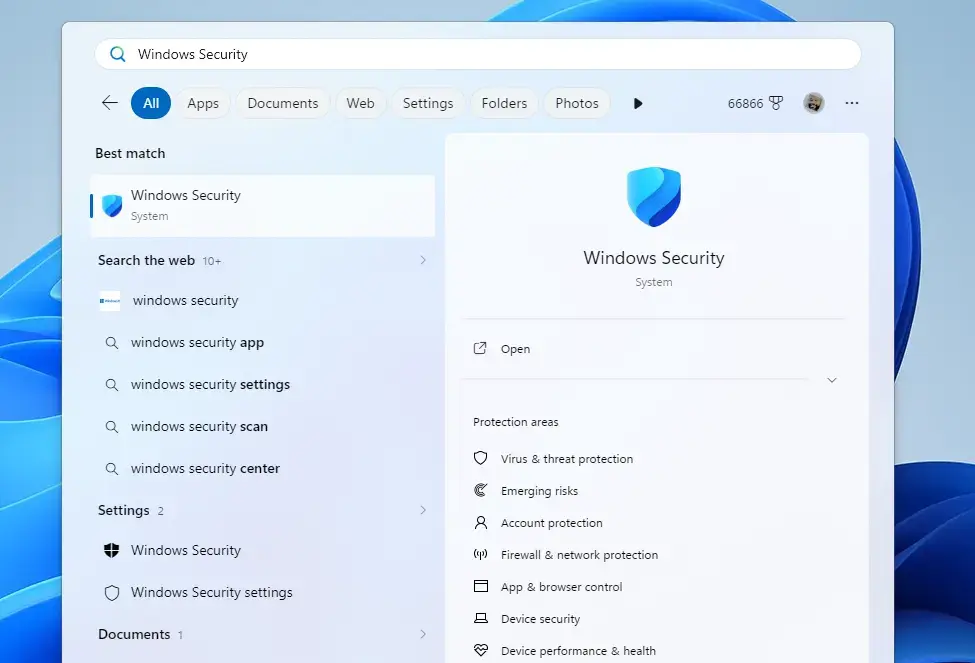
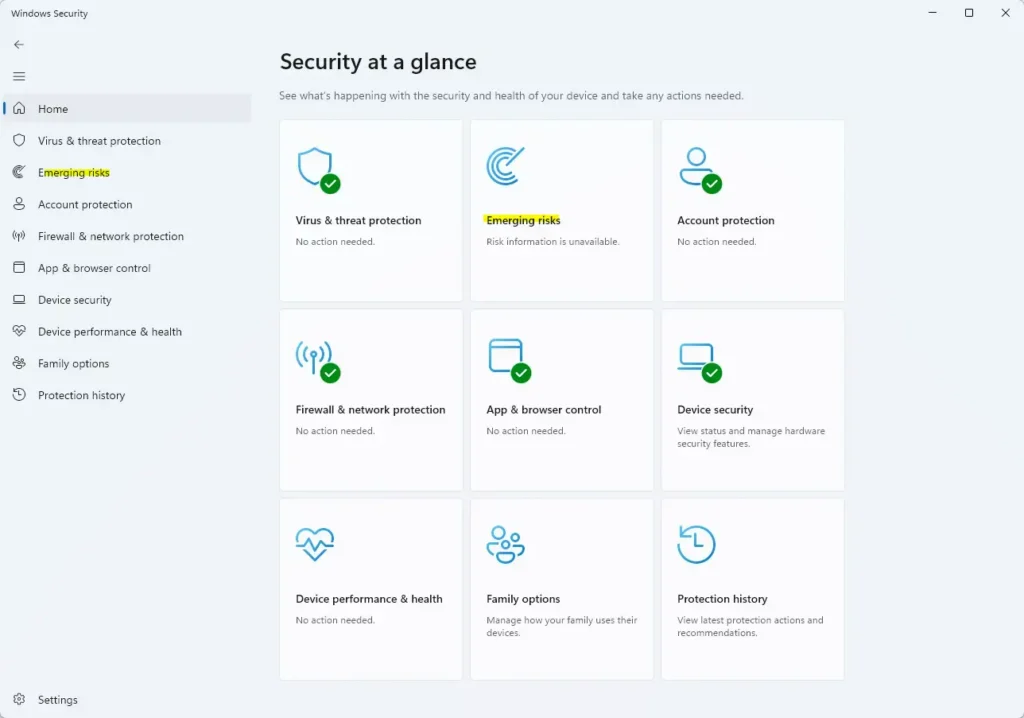
Windows Security - Look through the navigation on the left for an entry named Emerging risks. If you see it, select it.
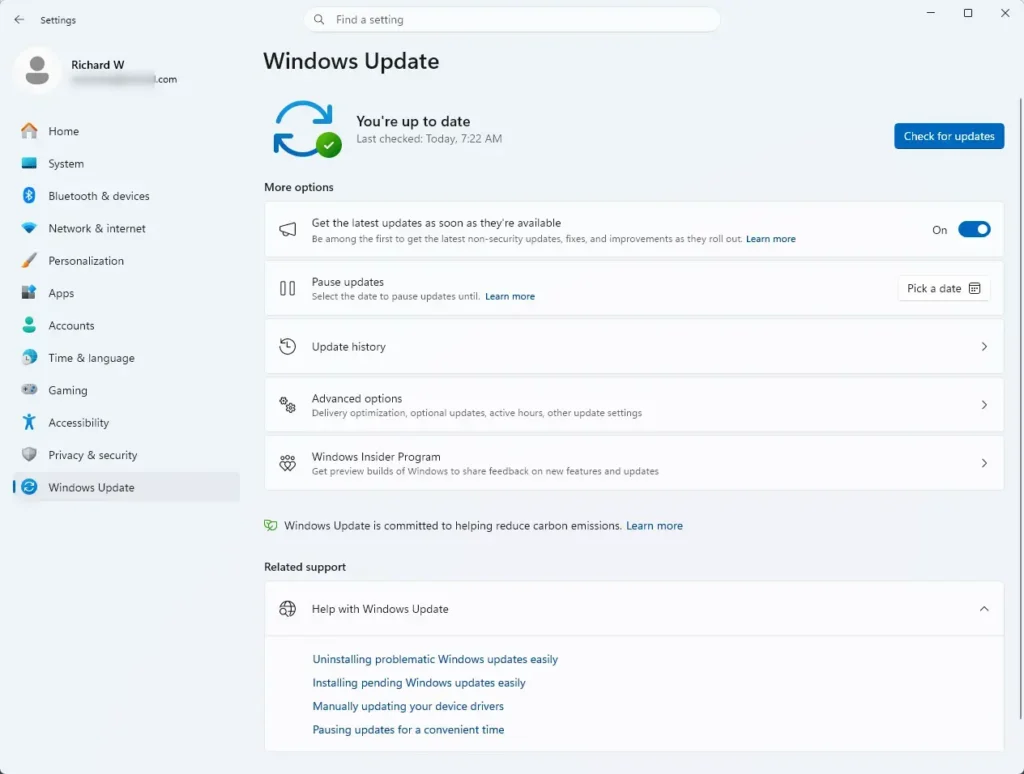
Windows Security - If you do not see it, your device has not received the update yet. Go to Settings Windows Update, select Check for updates, and install anything offered. The Windows Security app updates separately from major Windows releases, so the feature can arrive without a full Windows upgrade.
Settings > Windows Update - Read the list of findings. Each entry names the app, driver or firmware that is associated with a vulnerability. If the page shows no findings, Windows Security did not find any known weaknesses in your software.
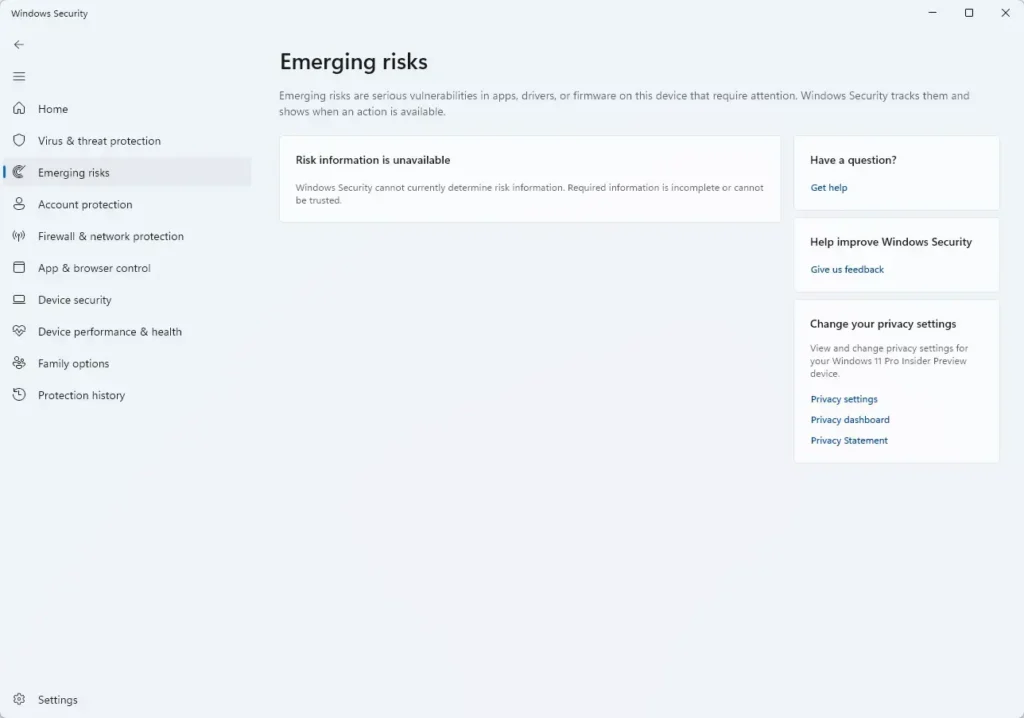
Windows Security - Select a finding to open its details. Read what the vulnerability is and what the suggested action is before you change anything.
How to fix a finding
Updating is the safest first move. Look at the finding to see whether Windows Security names an app, a driver or firmware. Then follow the update steps for that type.
Update an app, driver or firmware
- Open Settings Windows Update, then select Check for updates. Windows installs available fixes for Windows itself and for many drivers. You may need to restart afterward.
- To look for driver updates that Windows holds back, go to Settings Windows Update Advanced options Optional updates. Open Driver updates, tick the ones you want, and select Download & install.
- For an app you installed from the Microsoft Store, open the Microsoft Store, select Library, then select Get updates.
- For an app you installed another way, open the app and look for an update option, or download the latest version from the publisher’s own website.
- For firmware, check your PC or motherboard maker’s support page for an update. Follow the maker’s instructions exactly.
- Return to Emerging risks in Windows Security and check whether the finding is gone. Whether the list refreshes on its own or needs a restart of the app is not confirmed, so close and reopen Windows Security if the entry stays.
Uninstall an app that has no fix yet
If the details say no fix exists, removing the app takes it out of the picture until the developer ships an update. Skip this step if you rely on the app and the details show a low risk. It is your call.
- Open Settings Apps Installed apps.
- Find the app named in the finding. Use the search box at the top if the list is long.
- Select the three dots next to the app, then select Uninstall.
- Select Uninstall again to confirm. Enter administrator credentials if Windows asks.
- Reopen Emerging risks in Windows Security and confirm the finding no longer appears.
To undo this, reinstall the app from the Microsoft Store or the publisher’s website.
Tips for acting on findings
- Read the details first. A finding tells you a weakness exists, not that your PC has been attacked.
- Deal with firmware and drivers carefully. They sit closer to the hardware than apps do, so back up your files before you change them.
- Download updates only from Windows Update, the Microsoft Store, or the publisher or manufacturer’s own website. Avoid third-party “driver updater” tools.
- Check back after major updates. New findings can appear as new vulnerabilities are confirmed.
What to do next
If Emerging risks does not appear in Windows Security, keep your PC updated through Settings Windows Update and check again after the next Insider build. If a finding remains after you update or uninstall, check the publisher’s or manufacturer’s support page for a fix date. Once you have dealt with your findings, open the other pages in Windows Security to confirm that virus and threat protection and your firewall are on.
Have a question about this guide?
Answered by AI from this guide. Good questions may be added to this page — please don't include personal details.
Did this guide fix your problem?

About the Author
Richard
Tech Writer, IT Professional
Richard is a writer at Geek Rewind who turns complex IT tasks into clear, step-by-step guides. He draws on years of hands-on experience in system administration and enterprise IT operations, focusing on Windows, Linux and WordPress: the problems people actually run into, and the fixes that work. His server and WordPress guides come from systems he runs himself. Richard builds and maintains the platform behind Geek Rewind, from its Ubuntu servers and Nginx configuration to its custom WordPress plugins. Many new tutorials start with readers' questions, and he's always glad to answer them in the comments.
No comments yet — be the first to share your thoughts!