How to Turn On Windows Security in Windows 11

- 16 steps
- Needs administrator rights
- Includes a restart or sign-out
Windows Security is the built-in app in Windows 11 that manages Microsoft Defender Antivirus (the scanner that checks files for malware) and Microsoft Defender Firewall. To turn it on, open Settings Privacy & security Windows Security, then switch on Real-time protection and the firewall for each network profile.
The app is installed on every copy of Windows 11, Home and Pro alike, and most of its protections are on by default. When something shows as off, the cause is usually a switch you or another program turned off, a second antivirus that took over, or a setting your organization manages. This guide covers all three.
To turn on Windows Security in Windows 11, open Settings Privacy & security Windows Security, then select Open Windows Security. Under Virus & threat protection, select Manage settings and switch Real-time protection to On, approving the User Account Control prompt if it appears. Turn on Microsoft Defender Firewall from Firewall & network protection.
What turning on Windows Security actually does
Windows Security is a dashboard rather than a single feature. It groups several protections in one app, and each one has its own switch.
The two you need for basic protection are Real-time protection and Microsoft Defender Firewall. Real-time protection (continuous scanning of files as you open, download or run them) is part of Microsoft Defender Antivirus. The firewall blocks unwanted network traffic to and from your PC.
Other areas, such as App & browser control, Device security and Account protection, add more layers. The steps below cover the core protections first. Later sections point to the optional ones.
Before you start
Check three things first. They explain most of the cases where a switch will not stay on.
- Administrator rights. Turning protections on or off requires an administrator account. On a standard account, Windows shows a User Account Control prompt (UAC, the box that asks you to confirm a system change) and asks for an administrator password.
- Other security software. If you installed antivirus software from another company, Windows Security usually switches Microsoft Defender Antivirus off to avoid conflicts. You then manage protection in the other product.
- Work or school PCs. If your employer or school manages the PC, an administrator may control these settings. You will see a message saying some settings are managed by your organization.
How to Turn On Windows Security in 🪟 Windows 11
These steps turn on the core protections: real-time scanning, cloud protection, Tamper Protection (a setting that stops other programs from changing security settings) and the firewall. Steps that need administrator rights are marked with the note (administrator) after the step name.
- Open Settings. Press the Win+I, or right-click Start and select Settings.
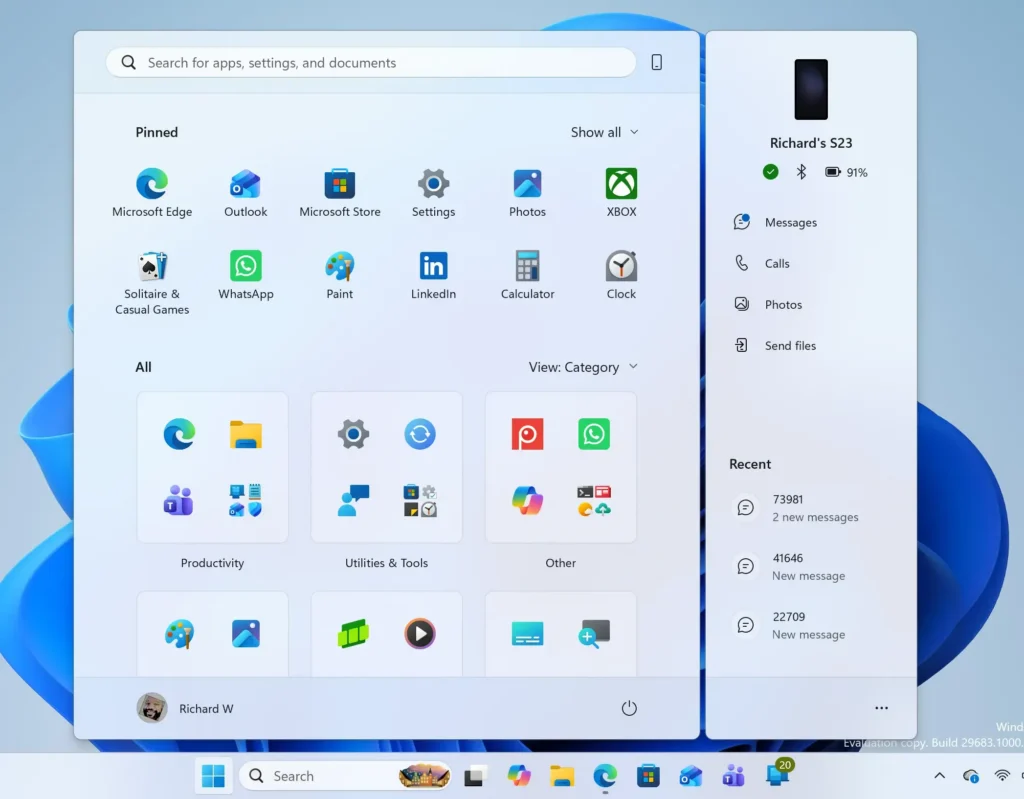
Windows 11 Start menu search panel for opening OpenSSH Client settings - Select Privacy & security. It is in the left pane of Settings.

- Select Windows Security. The page lists each protection area and shows a status next to it, such as Virus & threat protection or Firewall & network protection.
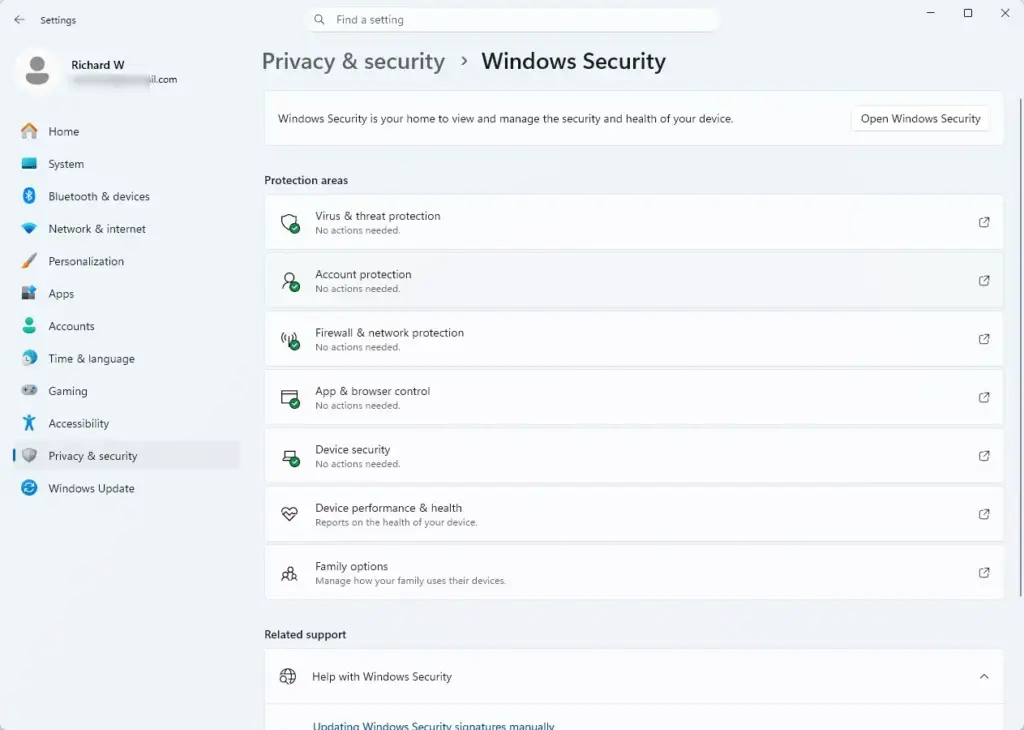
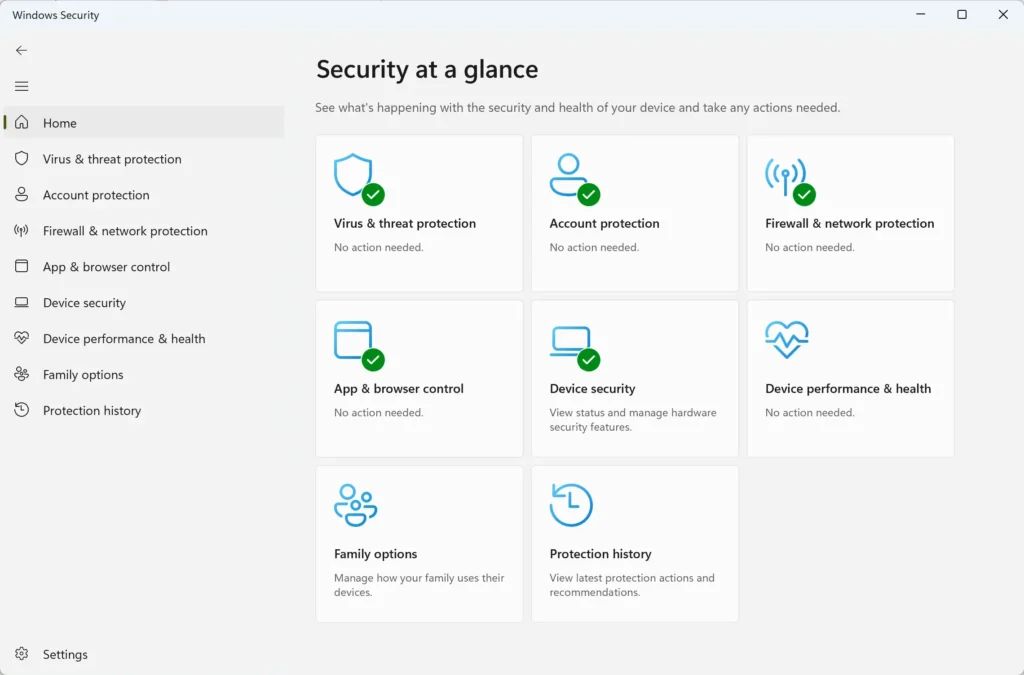
Settings › Privacy & security › Windows Security - Select Open Windows Security. The Windows Security app opens in its own window on the Home page, titled Security at a glance.
Windows Security - Select Virus & threat protection. If protection is off, a red or yellow banner appears here, often with a Turn on button.
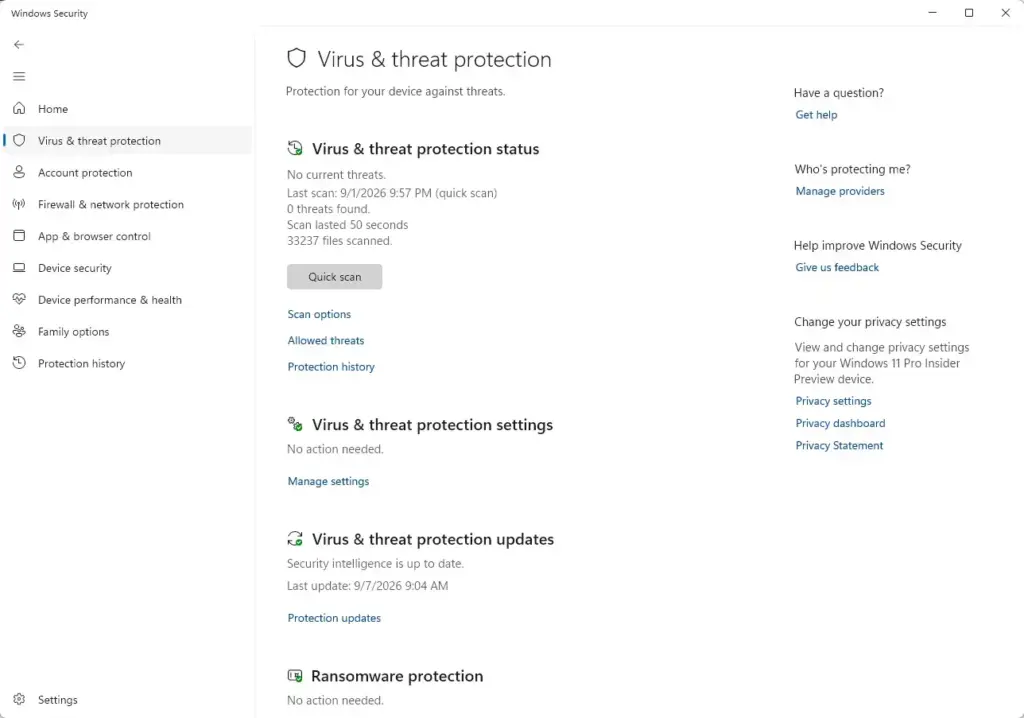
Windows Security › Virus & threat protection - Select Turn on if the button appears (administrator). This step needs administrator privileges. Approve the UAC prompt. The banner should disappear and the status should change to a green check mark. If no button appears, continue to the next step.
- Select Manage settings. It sits under the heading Virus & threat protection settings and opens the list of switches.
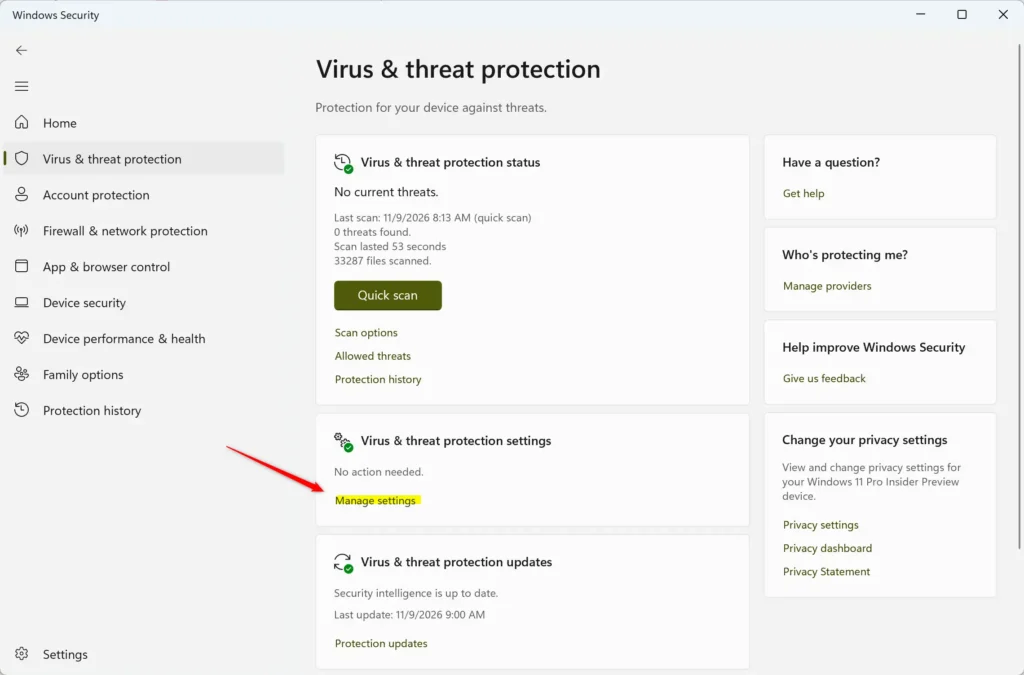
Windows Security - Switch Real-time protection to On (administrator). This step needs administrator privileges. Approve the UAC prompt if it appears. The change takes effect right away in Settings, and the switch label changes to On.
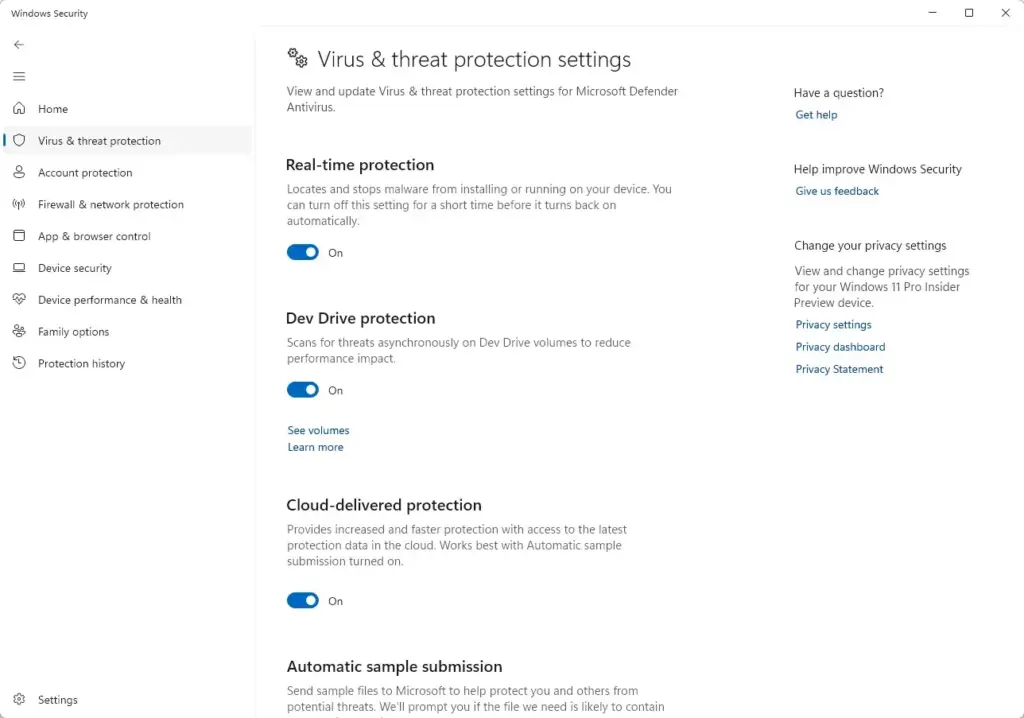
Windows Security › Virus & threat protection › Virus & threat protection settings - Switch Cloud-delivered protection to On. This option lets Microsoft Defender Antivirus check suspicious files against Microsoft’s online threat data, which catches new threats faster than local updates alone.
- Switch Tamper Protection to On. Tamper Protection stops apps and malware from quietly changing Windows Security settings. Leave it on unless you have a specific reason to change it.
- Select the Home icon. It is the house symbol at the top of the left pane. You return to Security at a glance.
- Select Firewall & network protection. The page shows three network profiles: Domain network, Private network and Public network. The profile your PC is using now is marked (active).
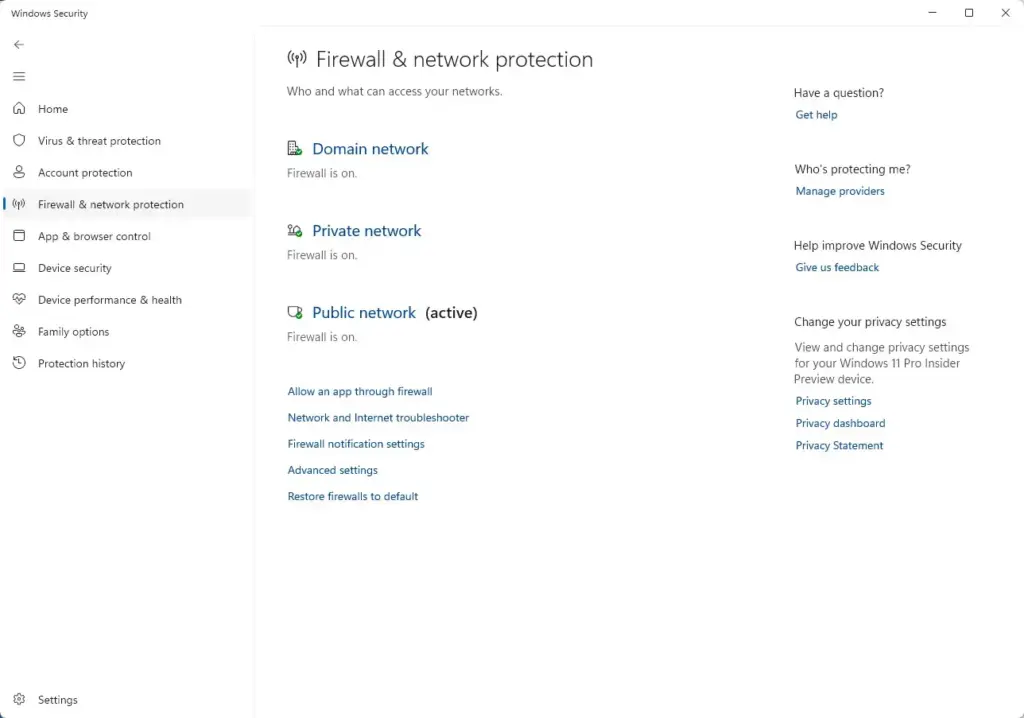
Windows Security › Firewall - Select the active network profile. Start with the one marked (active), such as Private network at home or Public network on café Wi-Fi.
- Switch Microsoft Defender Firewall to On (administrator). This step needs administrator privileges. Approve the UAC prompt. The switch should read On.
- Repeat for the other two profiles (administrator). Go back, select each remaining profile and switch Microsoft Defender Firewall to On. A profile you are not using right now still applies the next time you connect to that type of network.
- Select Home and check the icons. Each protection area should show a green check mark. Green means that area is on and needs no action.
Open Windows Security from the Start menu instead
You do not have to go through Settings each time. Select Start, type Windows Security and press Enter. The same app opens.
Read the status icons on the Home page
The Security at a glance page uses three icons so you can see the state of each area without opening it.
- Green check markthe area is on and nothing needs your attention.
- Yellow warning trianglethe area works but has a recommendation, such as a pending restart or an optional feature that is off.
- Red Xthe area is off or has a problem that needs action now.
Select any area with a yellow or red icon. The page usually shows a button that fixes the problem, labeled Turn on, Restart now or similar. Try that button first, before you change settings by hand.
Fix problems when Windows Security will not turn on
Most failures fall into one of the cases below. Find the message you see and use the matching fix.
Real-time protection or the firewall is off because of another antivirus
If you installed a third-party antivirus, the Virus & threat protection page tells you that another provider is managing your protection. Microsoft Defender Antivirus is then off by design, and its switches may be unavailable.
You have two options. Keep the other antivirus and manage protection there, or uninstall it from Settings Apps Installed apps. After the other product is removed, restart the PC. Microsoft Defender Antivirus normally switches itself back on once Windows no longer detects another antivirus program.
On the Virus & threat protection page, a Microsoft Defender Antivirus options section may offer Periodic scanning. This runs occasional scans alongside your other antivirus. It does not replace Real-time protection, so do not treat it as the same level of cover.
Settings are greyed out or say they are managed by your organization
A greyed-out switch, or a note that your administrator controls the setting, means an administrator has set a rule that controls this setting on the PC. This is common on work or school PCs and can also happen on a home PC that once joined a work account.
You cannot override it from Windows Security. Ask the person who manages the device to change the policy. If you are the administrator, check your management tool for a policy that applies to Microsoft Defender Antivirus. The exact policy depends on your environment, so this guide cannot confirm a specific one.
Real-time protection turns itself back on
If you switched Real-time protection off to install something, Windows turns it back on after a short time. This is expected. You do not need to do anything, but check the Home page to confirm the green check mark.
The switch will not stay on, or the page is blank
Restart the PC and open Windows Security again. Then install any pending updates from Settings Windows Update, because Windows Security depends on up-to-date components.
If the app still opens blank or closes at once, repair it. Open Settings Apps Installed apps, select the three-dot menu next to Windows Security, then select Advanced options. Select Repair first.
Windows Security is missing from Settings
The Open Windows Security button is normally under Privacy & security. If the page or the app does not exist, an administrator may have hidden it, or the app files may be damaged.
Check whether the PC is managed by an organization first. If it is a personal PC, try the repair steps above and install pending Windows updates. No other fix for a missing app is covered here. If these steps do not bring it back, the cause is outside this guide.
Check the optional protections
The core steps above give you antivirus scanning and a firewall. Windows Security includes more protections, and some may be off on your PC. Review these after the core steps are done.
- Reputation-based protection. Under App & browser control, this uses SmartScreen (a Microsoft filter that checks apps, files and sites for risks) to warn you about risky ones. See how to disable or enable SmartScreen filtering in Windows 11 Security for the details.
- Smart App Control. This blocks untrusted apps before they run. Read what happens when you turn off Smart App Control before you change it, since the behavior is hard to reverse.
- Administrator Protection. This adds a protection layer for tasks that need administrator rights. The guide to turning on Administrator Protection using Windows Security walks through it.
- Device security. This area shows hardware-based protections, such as the TPM (a security chip on the motherboard). What you see depends on your hardware.
Leave Tamper Protection on unless you need to change other protected settings, as described below. If you are tempted to turn it off, read what breaks when you disable Windows Security Tamper Protection completely first.
Manage Windows Security notifications
Windows Security sends notifications when it finds a threat, needs a restart or detects a setting that is off. If you turned notifications off earlier, you may have missed a warning that a protection was disabled.
To change them, see how to enable or disable all Windows Security notifications in Windows 11. For sign-in related alerts, there is a separate guide on Windows Security Account Protection notifications.
Turn a protection off again
Every switch in the steps above reverses the same way. Return to the same page in Windows Security and switch the setting to Off. Real-time protection and the firewall need administrator privileges to change in either direction.
Turn off Real-time protection only for a short, specific task, and turn it back on right after. Windows may switch it on by itself, as noted above. Switch off Tamper Protection first if you need to change other protected settings, then turn it back on when you finish.
What to do next
Open the Home page of Windows Security again after your next restart or Windows update to confirm every area still shows a green check mark. If a protection keeps switching off, look for a third-party antivirus or a management policy, as covered in the troubleshooting section. For the next layer of protection, review Smart App Control and SmartScreen using the guides linked above.
Have a question about this guide?
Answered by AI from this guide. Good questions may be added to this page — please don't include personal details.
Did this guide fix your problem?

About the Author
Richard
Tech Writer, IT Professional
Richard is a writer at Geek Rewind who turns complex IT tasks into clear, step-by-step guides. He draws on years of hands-on experience in system administration and enterprise IT operations, focusing on Windows, Linux and WordPress: the problems people actually run into, and the fixes that work. His server and WordPress guides come from systems he runs himself. Richard builds and maintains the platform behind Geek Rewind, from its Ubuntu servers and Nginx configuration to its custom WordPress plugins. Many new tutorials start with readers' questions, and he's always glad to answer them in the comments.
No comments yet — be the first to share your thoughts!