How to Enable or Disable Windows Security Account Protection Notifications

Windows Security can show account protection notifications on your desktop. They keep you informed about the safety of your sign-in, but they can also interrupt your work. This tutorial shows how to turn them on or off, either for all account protection alerts or for just one type.
Open Windows Security, click Settings , then Manage notifications. You can disable all account protection notifications or toggle specific alerts for Windows Hello and Dynamic Lock.
Why Would You Want to Do This?
Windows Security uses these notifications to flag account problems, such as trouble with Windows Hello sign-in or Dynamic Lock. The alerts help protect you, but if you see them often, or you already know about the issue, the pop-ups become noise. Turning them off cuts the distractions. Turning them back on later takes a few seconds, so nothing here is permanent.
What Notifications Can You Control?
Account protection notifications cover two kinds of problems, and you can control each one separately:
- Problems with Windows Hello
- Problems with Dynamic lock
Dynamic Lock only applies if you have paired a phone with the PC and turned the feature on. If you don’t use it, you will probably never see that alert.
Reference: Windows Security App Settings – Microsoft Support
The link above explains how to configure settings for the Windows Security app. This tutorial covers two methods: the app’s own settings, which is the easiest, and commands that change the same options. Both work on Windows 11 Home and Pro.
Option 1Using Windows Security Settings
Turn On or Off Account Protection Notifications in Windows Security
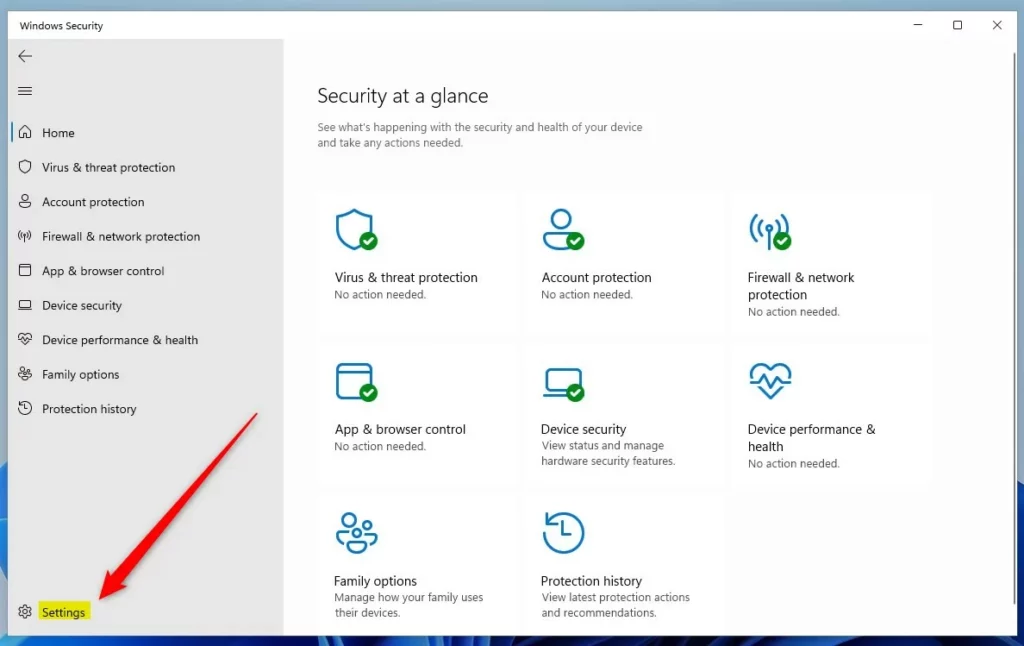
Open Windows Security, go to Settings, and click 'Manage notifications' to control these alerts.- Open the Start menu, type Windows Security, and press Enter. The Windows Security app opens with the Security at a glance page.
- Click Settings (the gear icon at the bottom of the left pane). The Settings page for the app appears.
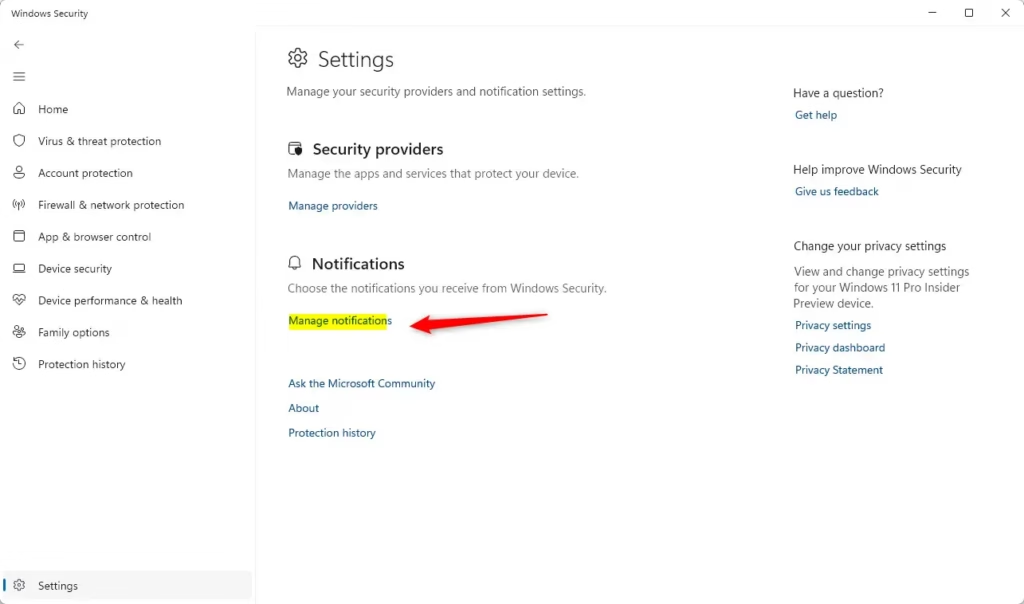
- Under Notifications, click the Manage notifications link. The notification options for Windows Security open.
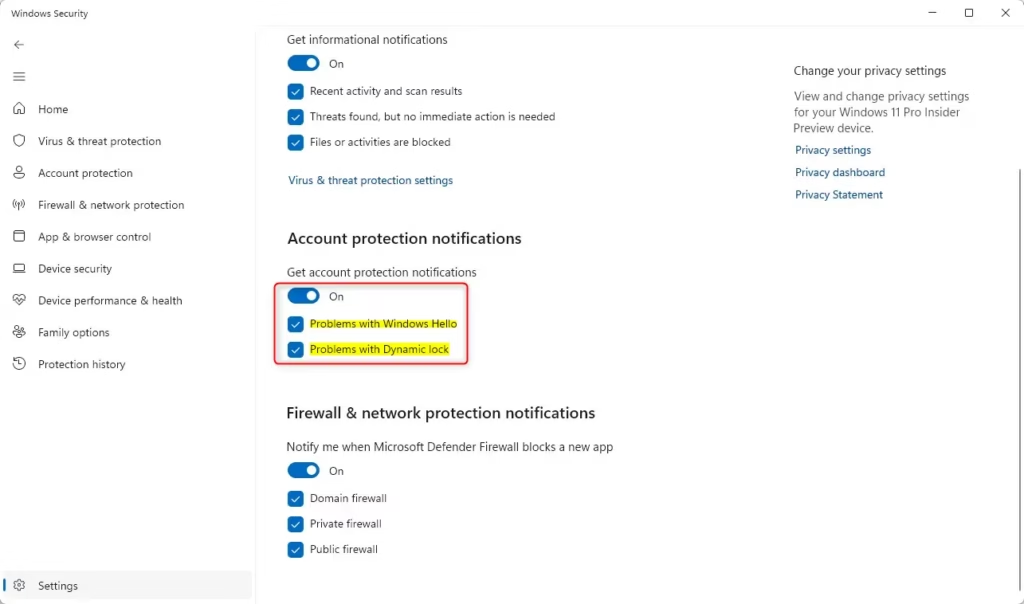
- Find the account protection section and choose what you want to do:
- To stop all account protection alerts, turn off Get account protection notifications.
- To keep alerts but only for certain problems, turn on Get account protection notifications (this is the default). Then check or uncheck Problems with Windows Hello and/or Problems with Dynamic lock. Checked means you get that alert; unchecked means you don't.
- Close Windows Security. The change applies right away and you don't need to restart.
To undo the change, repeat these steps and set the options back the way they were. If an option is greyed out, check that the main Get account protection notifications setting is on. The two checkboxes depend on it. On a work or school PC, an administrator may also manage these settings, and in that case your changes may not stick.
Option 2Using Registry (Advanced)
⚠️ Admin privileges required
Open Terminal (a command-line tool) as an administrator, then run the commands below. If you aren't signed in with an administrator account, the commands will fail with an access denied error. Each command changes a value in the registry, the database where Windows stores advanced settings. A mistyped registry change can cause problems, so copy the commands exactly as shown.
Turn ON All Account Protection Notifications
Use this command to make sure you receive every account protection alert. It turns on notifications for general account protection and for Windows Hello.
reg add "HKCU\Software\Microsoft\Windows Defender Security Center\Account protection" /v DisableNotifications /t REG_DWORD /d 0 /f
reg add "HKCU\Software\Microsoft\Windows Defender Security Center\Account protection" /v DisableWindowsHelloNotifications /t REG_DWORD /d 0 /f
reg add "HKCU\Software\Microsoft\Windows Defender Security Center\Account protection" /v DisableDynamiclockNotifications /t REG_DWORD /d 0 /f
Turn OFF All Account Protection Notifications
To silence all Windows Security account protection notifications, use this command instead. It turns off the general account protection alerts and the specific Windows Hello notifications. If you later want the alerts back, run the enabling command from the previous section.
reg add "HKCU\Software\Microsoft\Windows Defender Security Center\Account protection" /v DisableNotifications /t REG_DWORD /d 1 /f
reg add "HKCU\Software\Microsoft\Windows Defender Security Center\Account protection" /v DisableWindowsHelloNotifications /t REG_DWORD /d 1 /f
reg add "HKCU\Software\Microsoft\Windows Defender Security Center\Account protection" /v DisableDynamiclockNotifications /t REG_DWORD /d 1 /f
Turn On or Off Specific Account Protection Notifications
Targeted changes work well when you only want to quiet one type of alert. The command below controls notifications about Windows Hello problems. You can turn off alerts for Windows Hello sign-in issues while leaving the other account protection features active. Use one of the two commands: the first for one result, the second for the opposite.
reg add "HKCU\Software\Microsoft\Windows Defender Security Center\Account protection" /v DisableNotifications /t REG_DWORD /d 0 /f
reg add "HKCU\Software\Microsoft\Windows Defender Security Center\Account protection" /v DisableWindowsHelloNotifications /t REG_DWORD /d 0 /f
OR
reg add "HKCU\Software\Microsoft\Windows Defender Security Center\Account protection" /v DisableNotifications /t REG_DWORD /d 0 /f
reg add "HKCU\Software\Microsoft\Windows Defender Security Center\Account protection" /v DisableWindowsHelloNotifications /t REG_DWORD /d 1 /f
Turn On or Off "Problems with Dynamic lock" Notifications
Notifications for Dynamic Lock problems have their own command. This setting decides whether you get an alert when the computer fails to lock automatically after you walk away with your paired phone. Again, there are two commands, one to turn the alert on and one to turn it off.
reg add "HKCU\Software\Microsoft\Windows Defender Security Center\Account protection" /v DisableNotifications /t REG_DWORD /d 0 /f
reg add "HKCU\Software\Microsoft\Windows Defender Security Center\Account protection" /v DisableDynamiclockNotifications /t REG_DWORD /d 0 /f
OR
reg add "HKCU\Software\Microsoft\Windows Defender Security Center\Account protection" /v DisableNotifications /t REG_DWORD /d 0 /f
reg add "HKCU\Software\Microsoft\Windows Defender Security Center\Account protection" /v DisableDynamiclockNotifications /t REG_DWORD /d 1 /f
Summary
In short, you can control Windows Security account protection notifications in two ways: through the app's Settings page, or with commands that change the same options. Both give you full control. If you don't see the change right away after using the commands, close and reopen Windows Security, or sign out and back in.
Have a question about this guide?
Answered by AI from this guide. Good questions may be added to this page — please don't include personal details.
Did this guide fix your problem?

About the Author
Richard
Tech Writer, IT Professional
Richard is a writer at Geek Rewind who turns complex IT tasks into clear, step-by-step guides. He draws on years of hands-on experience in system administration and enterprise IT operations, focusing on Windows, Linux and WordPress: the problems people actually run into, and the fixes that work. His server and WordPress guides come from systems he runs himself. Richard builds and maintains the platform behind Geek Rewind, from its Ubuntu servers and Nginx configuration to its custom WordPress plugins. Many new tutorials start with readers' questions, and he's always glad to answer them in the comments.
No comments yet — be the first to share your thoughts!