How to Enable or Disable All Windows Security Notifications in Windows 11

Blocking all Windows Security notifications in Windows 11 stops the popup alerts from Microsoft Defender, including warnings about virus protection and firewall status. This total block helps if you run a third-party antivirus program and want to stop duplicate warnings.
You need administrator rights on your PC to change these notification settings. The standard Windows Security settings app only hides some alerts, so turning off all notifications requires a policy change or a Registry Editor tweak (the Registry is the database where Windows stores advanced system settings). This tutorial covers both methods. Pick the one that matches your edition of Windows.
Turning off these alerts does not turn off protection. It only hides the popups, so you will no longer be told when something needs your attention. If you use Microsoft Defender as your only security tool, think twice before blocking everything.
You can disable all Windows Security notifications using the Local Group Policy Editor or Registry Editor. Navigate to Computer Configuration Administrative Templates Windows Components Windows Security Notifications in Group Policy, then double-click “Hide all notifications” and set it to Enabled.
Option 1Using Local Group Policy Editor
The Local Group Policy Editor manages Windows Security notifications through system policies. It is only available in the Pro, Enterprise and Education editions of Windows. On Windows Home it does not exist, so use the Registry method further down instead. This tool changes how Windows handles security warnings without you editing the registry directly.
- Open the Local Group Policy Editor. Type
gpedit.mscin your search bar and press Enter. The Local Group Policy Editor window should open. If you see a User Account Control prompt, click Yes. - In the left pane, navigate to this location:
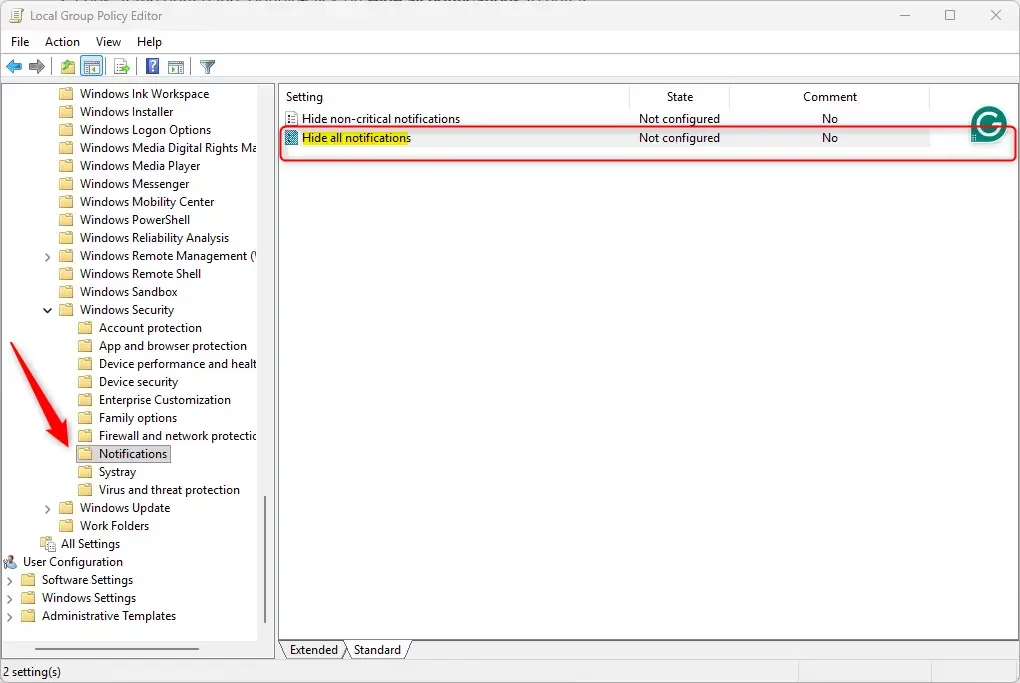
Computer Configuration > Administrative Templates > Windows Components > Windows Security > Notifications
Click the folder, and its policies appear in the right pane. - Look at the right pane. Double-click Hide all notifications to edit it. A settings window opens for that policy.
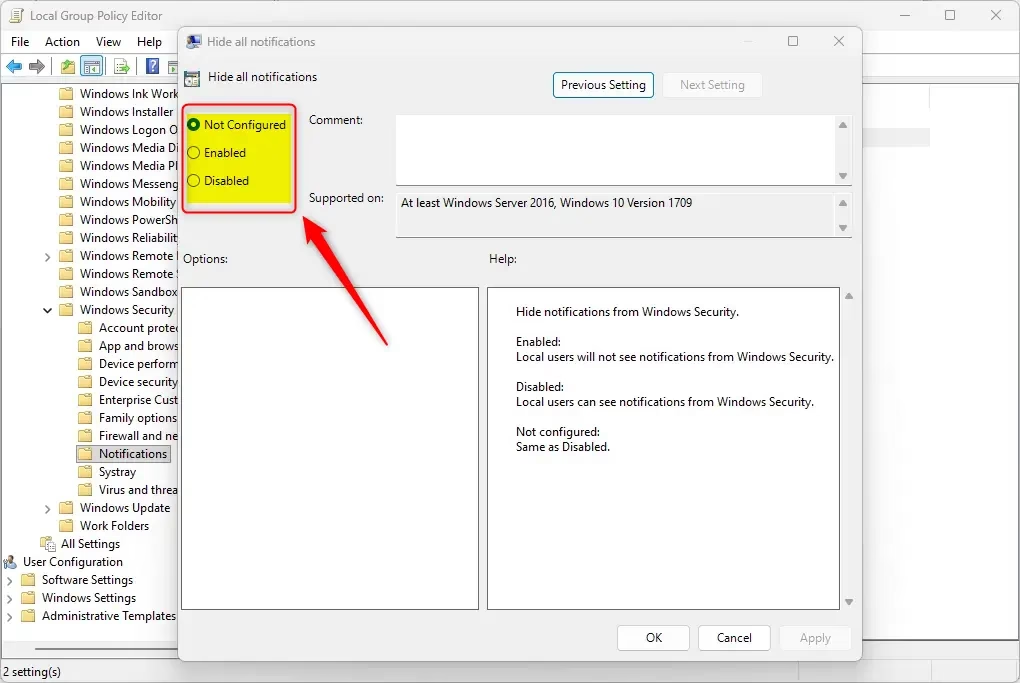
- To enable (turn on) all notifications:
- Select the dot next to Not Configured. This is the default state, so it also undoes an earlier change.
- Click OK
- To disable (turn off) all notifications:
- Select the dot next to Enabled. The policy is named “Hide all notifications”, so Enabled means the notifications are hidden.
- Click OK
- Close the Local Group Policy Editor.
The change usually takes effect within a short time. If you still see alerts, or still don't see them after switching back, restart your PC and check again.
Option 2Using Registry with Commands
Registry commands let you control Windows Security notifications on any version of Windows 10 or 11, including Home editions where the policy tool is missing. You run the commands in Windows Terminal with administrator rights, and they update the registry keys that turn all security alerts on or off at once. This is quick if you prefer typing commands to clicking through menus.
- Right-click Windows Terminal and choose Run as administrator. If a User Account Control prompt appears, click Yes. A terminal window opens with administrator rights.
- Choose the command you need and copy it.
To enable (turn on) all notifications: Copy and paste this command:
[HKEY_LOCAL_MACHINE\SOFTWARE\Microsoft\Windows Defender Security Center\Notifications]
"DisableNotifications"=-
[HKEY_LOCAL_MACHINE\SOFTWARE\Policies\Microsoft\Windows Defender Security Center\Notifications]
"DisableNotifications"=-
[HKEY_LOCAL_MACHINE\SOFTWARE\Policies\Microsoft\Windows Defender Security Center\Notifications]
"DisableEnhancedNotifications"=-
To disable (turn off) all notifications: Copy and paste this command:
reg delete "HKLM\SOFTWARE\Microsoft\Windows Defender Security Center\Notifications" /v DisableNotifications /f
reg add "HKLM\SOFTWARE\Policies\Microsoft\Windows Defender Security Center\Notifications" /v DisableNotifications /t REG_DWORD /d 1 /f
Press Enter and wait for the command to finish. The terminal should report that the operation completed. If you see an access denied error, the window was not opened as administrator, so close it and start again from step 1. To undo the change, run the other command. If the alerts don't change right away, restart your PC.
Summary
Which method you use depends on your edition of Windows and whether you prefer policy settings or command lines. Use the Local Group Policy Editor on Pro, Enterprise or Education editions, or the Registry commands on any edition, including Home. Stopping these alerts helps prevent duplicate pop-ups when you run another antivirus program on your computer. You can bring the alerts back at any time by repeating the steps with the "enable" option.
Frequently asked questions
How to delete Windows defender notifications?
You can't delete Windows Security notifications, but you can hide them. Open Windows Security, go to Notifications, and turn off the alerts you don't want. For a full block on Pro, Enterprise, or Education, use the Local Group Policy Editor. Hiding alerts doesn't turn off Microsoft Defender protection.
How to turn off notifications on Windows laptop from virus?
Open Windows Security from the Start menu, select Notifications, and turn off the virus and threat alerts you want to stop. This hides the popups but leaves Microsoft Defender running. If you use a different antivirus program, you can turn off these alerts there too.
How to disable virus notifications?
Open Windows Security, select Notifications, and turn off the virus and threat protection alerts. Microsoft Defender keeps scanning your PC while the popups are hidden. Be aware that you will no longer see warnings about threats unless you check Windows Security yourself.
How to turn off Windows defender notification?
Open Windows Security and select Notifications. Turn off the alerts you don't want, such as virus and threat protection. This hides the popups from Microsoft Defender but does not stop it from running. To block all alerts completely, you need a policy change or a Registry Editor tweak.
How to disable important message in group policy?
Open the Local Group Policy Editor, then go to Windows Components and find the Windows Security notification settings. Set the matching policy to Enabled to hide those alerts. This works only on Pro, Enterprise, and Education editions. Disabling important messages can cause you to miss security warnings.
Where in 🪟 Windows 11 can I turn security notifications back on?
Open Windows Security, select the settings gear, and choose Notifications to turn alerts back on. If you used a Group Policy setting to block them, open the Local Group Policy Editor and set that policy back to Not Configured. Then restart your PC.
Still have a question?
Answered by AI from this guide. Good questions may be added to this page — please don't include personal details.
Did this guide fix your problem?

About the Author
Richard
Tech Writer, IT Professional
Richard is a writer at Geek Rewind who turns complex IT tasks into clear, step-by-step guides. He draws on years of hands-on experience in system administration and enterprise IT operations, focusing on Windows, Linux and WordPress: the problems people actually run into, and the fixes that work. His server and WordPress guides come from systems he runs himself. Richard builds and maintains the platform behind Geek Rewind, from its Ubuntu servers and Nginx configuration to its custom WordPress plugins. Many new tutorials start with readers' questions, and he's always glad to answer them in the comments.
Is there an app I should have to block all intruders in my personal computer?
I am computer illitertate. Are there PC businesses I can pay to protect my laptop?
Are there computer businesses of whom I can hire one to protect my PC from hackers?
Are there businesses I can hire to protect my PC from hackers?
gparkerson074@gmail.com