How to Check Your Device Security Status with Baseline Protection in Windows 11

- 10 steps
- Needs administrator rights
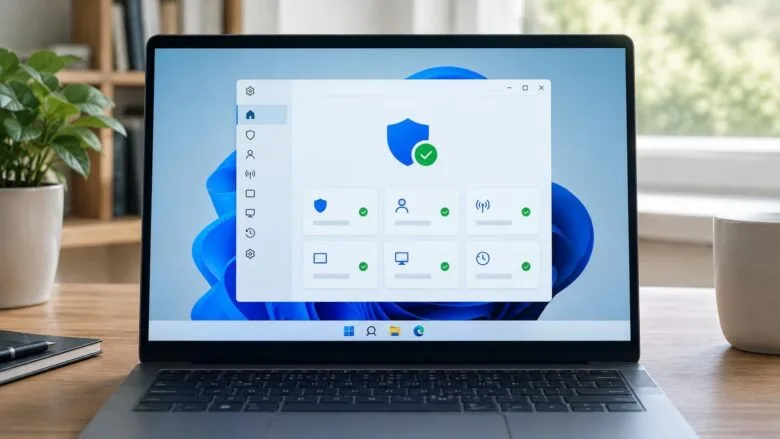
Windows baseline protection is a Windows 11 preview feature that combines Secure Boot, virtualization-based security and memory integrity into one security state. Microsoft says it shows whether your device is in a measurable security state, and that you find it in Windows Settings.
Microsoft announced it on November 17, 2026, and it is still in preview. This guide shows how to look for it in Settings and how to check the three protections behind it in the Windows Security app. The second part works even if baseline protection has not reached your PC.
To check device security status with baseline protection in Windows 11, press Win+I, select Windows Update, then click Check for updates to install the preview. Next, search Settings for “baseline”. Baseline protection is in preview and may not appear on your PC yet, so you can check Secure Boot, virtualization-based security and memory integrity in Windows Security instead.
What Windows baseline protection measures
- Secure Boot is a firmware feature that checks, at startup, that the software loading Windows is signed by a trusted publisher. It blocks tampered boot code before Windows starts.
- Virtualization-based security (VBS) uses your processor’s virtualization features to create an isolated area of memory. Sensitive parts of Windows run there, away from ordinary apps and malware.
- Memory integrity is a VBS-based protection that stops unsigned or unsafe code from running in the most trusted part of Windows. It is also called hypervisor-protected code integrity. A hypervisor is the software layer that keeps these isolated areas separate.
Microsoft calls the combined result “versioned”. Its announcement does not say how versions are numbered or how they appear on screen, so this guide does not describe that.
What is known so far about the preview
Microsoft’s announcement confirms three points. Baseline protection is in preview. It brings Secure Boot, VBS and memory integrity together into a single security state. And the place to see it is Windows Settings.
The announcement also lists it with an optional preview update released on November 17, 2026. Windows does not install optional preview updates automatically, so your PC may not have the feature yet.
Microsoft has not yet published the exact Settings page name, the wording of the status, the editions it supports, or the hardware requirements. Preview features change as they roll out. If your screen differs from what this guide describes, trust your screen and check Microsoft’s current documentation.
Before you start
Gather these before you begin so you do not stall halfway through.
- A supported Windows 11 version with recent updates. The current supported versions are 25H2 and 26H2. Windows 11 24H2 Home and Pro reached end of updates on October 13, 2026. Preview features arrive through Windows Update, so install pending updates first.
- Administrator access, for changes only. Viewing status does not need administrator privileges. Turning a protection on or off does. Those steps are flagged below.
- A personal PC, or permission on a work PC. On a work or school device, your organization may control which security pages you can see.
If you want a broader view first, how to check Windows Security protection status in Settings covers the general status pages.
How to check device security status with baseline protection
To check your device security status with baseline protection, open Settings and search for “baseline”. If a Windows baseline protection page appears, it shows your result. If nothing appears, check Secure boot, Memory integrity and VBS yourself in the Windows Security app and System Information.
Because the feature is in preview, steps 1 to 4 may not match your PC yet. Steps 5 to 10 work on current Windows 11 whether or not baseline protection has reached you.
- Open Settings. Press the Win+I. The Settings window opens.
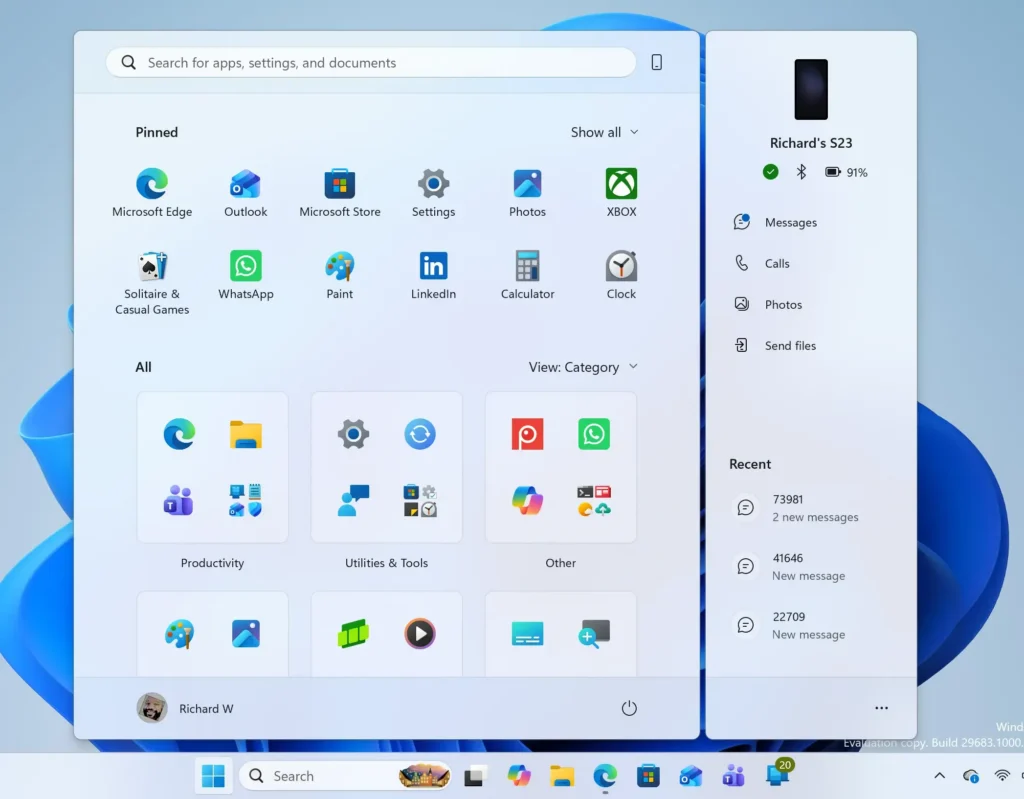
- Select Windows Update. It is in the left pane. Windows Update opens on the right.
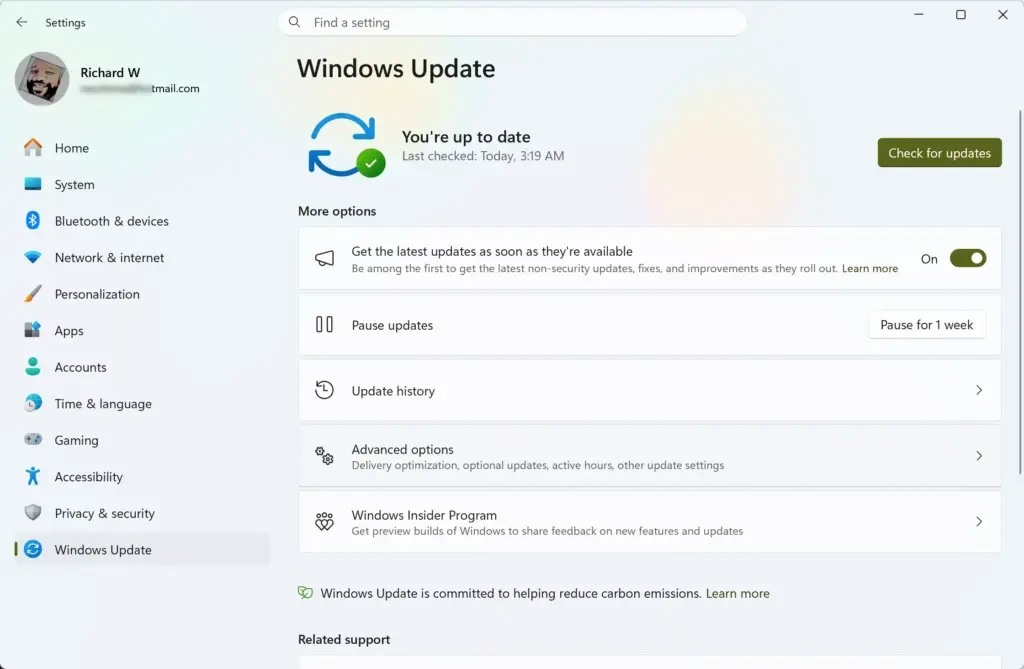
- Select Check for updates. Windows scans for updates. If any appear, install them and restart if prompted. The path is Settings Windows Update.
- Look for Windows baseline protection in Settings. Click the search box at the top of Settings and type baseline. If a result appears, open it to see your security state. Microsoft has confirmed only that the feature is in Windows Settings, so its page name and location are not verified. If no result appears, your PC does not have the preview yet. Continue with the next steps to check the three protections yourself.
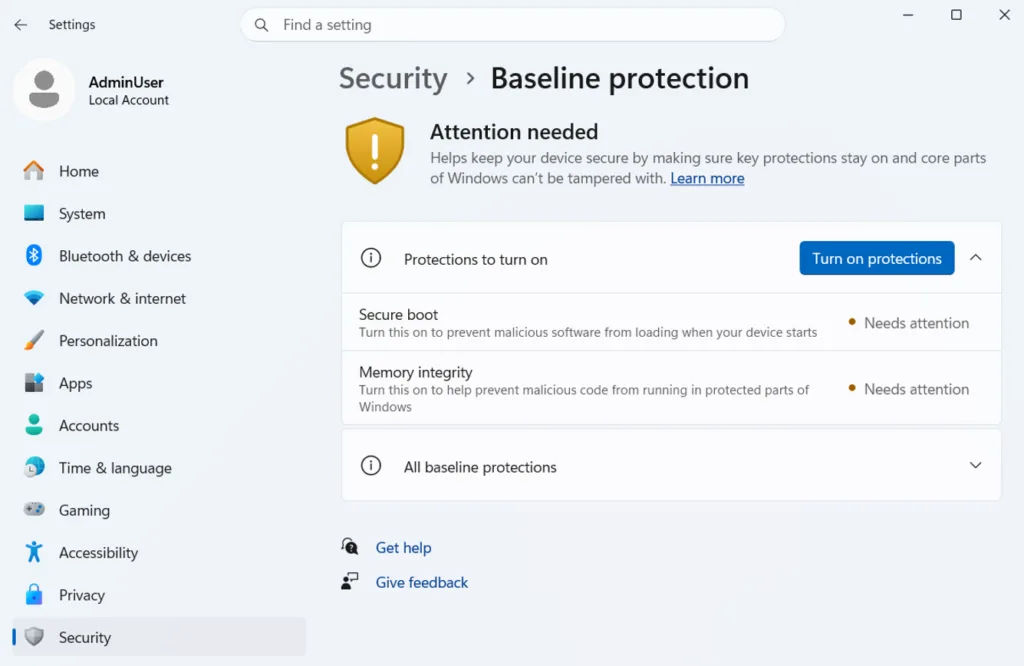
- Open the Windows Security app. Select Start, type Windows Security, and press Enter. The app opens with a status summary.
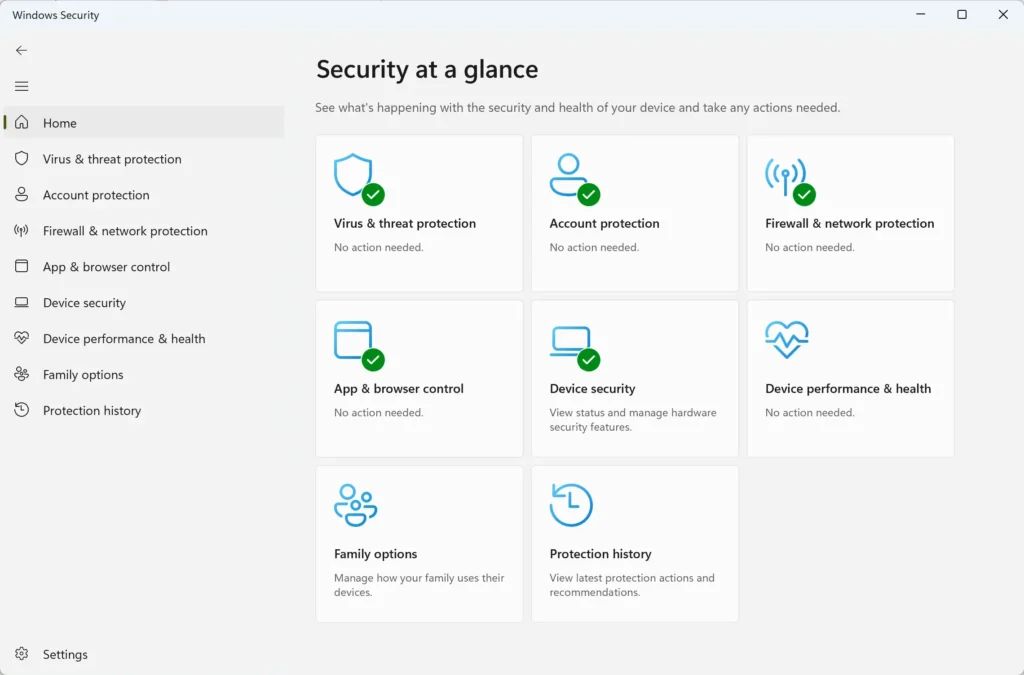
- Select Device security. It is in the left pane. The page lists your hardware-based protections.
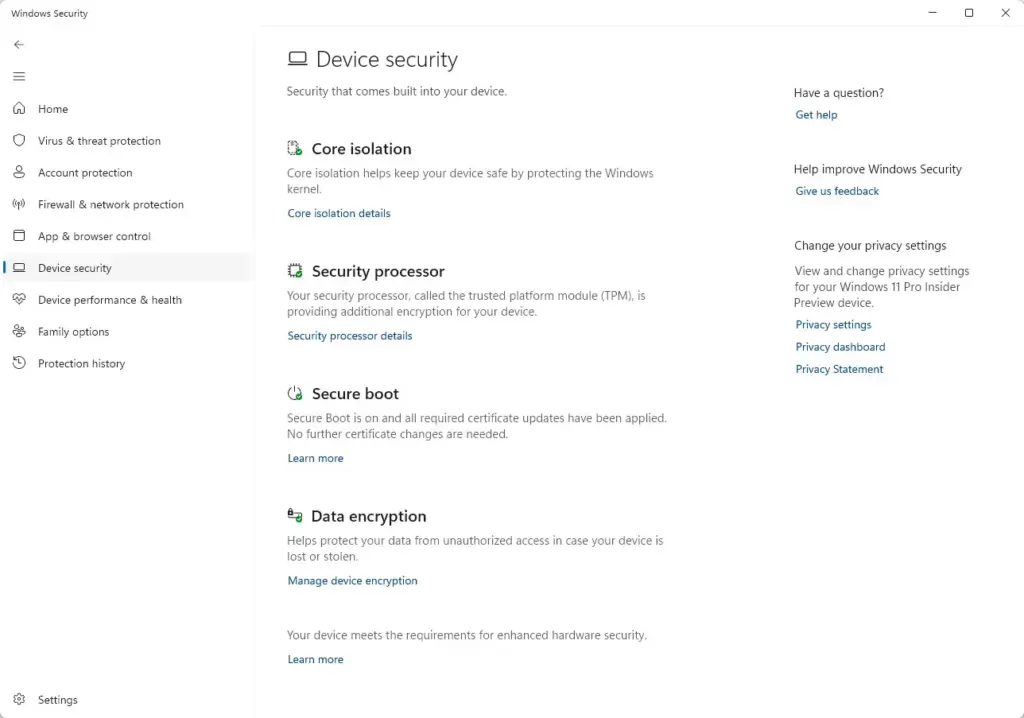
- Find the Secure boot section. The page reports whether Secure boot is on. A message that it is on means the first protection is in place.
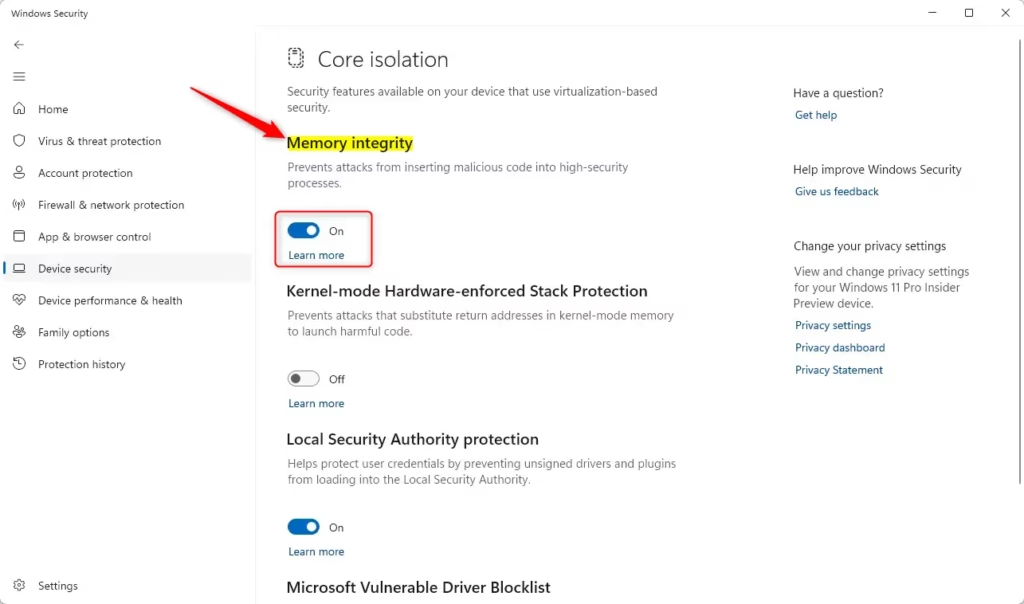
- Select Core isolation details. It sits under the Core isolation heading. A page with the Memory integrity toggle opens.
- Read the Memory integrity toggle. If it is On, the protection is active. If it is Off, memory integrity is not protecting the device. Turning it on needs administrator privileges and a restart.
- Open System Information to confirm VBS. Select Start, type System Information, and press Enter. In the System Summary, find Virtualization-based security. It reads Running when VBS is active. Also find Secure Boot State, which reads On when Secure Boot is enabled.
That’s it. If all three protections are on, your PC should pass the three checks that baseline protection combines. Microsoft has not published the exact criteria yet, so treat this check as a sensible guide, not an official result.
How to read each protection
Secure Boot
Secure Boot is a setting in UEFI, the firmware that starts your PC before Windows loads. It is not a Windows setting. Windows reports its status, but you turn it on in your PC’s firmware menu. The path to that menu differs by manufacturer, so check your PC maker’s support pages for the key to press at startup.
Virtualization-based security
VBS depends on hardware virtualization being available and enabled. If System Information shows VBS as not enabled, the cause may be a firmware setting, a processor that lacks support, or a setting managed by your organization. Windows Security has no VBS switch. The closest setting you can change there is Memory integrity.
For the hardware side, the TPM security processor details page is also worth checking. TPM (Trusted Platform Module) is a chip that stores security keys, and it is part of the hardware security picture on Windows 11 PCs.
Memory integrity
Memory integrity is the protection most likely to be off on an older PC, because it needs drivers that support it. Drivers are the software that lets Windows work with your hardware. If you try to turn it on and Windows reports incompatible drivers, it lists the ones that block it. Update those drivers or remove the devices or apps that use them, then try again.
Turning memory integrity on or off needs an administrator account and a restart. To reverse the change, return to the same toggle, switch it back and restart.
If you cannot see baseline protection or Device security
These are the most likely reasons the baseline protection result or the Device security page is missing, ordered by how often they apply.
- The preview has not reached your PC. Microsoft lists it in an optional preview update. Check for updates again later, and check for optional updates under Settings Windows Update Advanced options Optional updates. Whether it is offered there is not confirmed.
- Your Windows version or edition does not have it yet. Microsoft has not said which editions or builds are included. Preview features often reach a limited group first.
- Your administrator or a policy may have hidden the Device security page. An administrator or a policy can hide it from the Windows Security app. How to hide or display the Device security section explains how it is hidden and how to bring it back. Changing that needs administrator privileges.
- Windows Security is off or not working. If the app does not open or shows blank pages, follow how to turn on Windows Security in Windows 11.
- A work or school PC controls the setting. If a message says some settings are managed by your organization, contact your IT team.
Secure Boot certificates and your security status
Secure Boot relies on certificates. These are the digital credentials your PC uses to decide which boot software to trust. Microsoft says the certificates used by most Windows devices started expiring in June 2026. It is replacing them with newer certificates through Windows Update.
Devices that have not yet received the newer certificates keep starting and receiving standard Windows updates. Microsoft’s notes for the optional preview update KB5089573 say you can check certificate status in the Windows Security app. That is a separate item from baseline protection.
Microsoft’s announcement does not say whether certificate status counts toward the baseline protection state. If the app shows a certificate notice, install pending Windows updates, because Microsoft delivers the new certificates that way. Stay on a supported version, 25H2 or 26H2, so those updates keep arriving.
Other status checks worth running
Baseline protection covers three protections. Other settings affect your overall security and sit outside it. The Windows Security dashboard guide shows how to read the full status screen, including virus protection and firewall status. If you use drive encryption, how to check BitLocker drive status shows whether your drives are protected.
Microsoft’s November 17, 2026 announcement also covers Administrator protection. It helps people work with standard permissions by default and elevate privileges only when needed, which reduces the risk of standing administrator access.
What to do next
Check Windows Update again after each monthly update, because Microsoft is rolling out baseline protection gradually and the page may appear later. Once it does, compare its result with the Secure boot, Memory integrity and VBS checks above. For the next layer of protection, see how to turn on Administrator protection using Windows Security.
Have a question about this guide?
Answered by AI from this guide. Good questions may be added to this page — please don't include personal details.
Did this guide fix your problem?

About the Author
Richard
Tech Writer, IT Professional
Richard is a writer at Geek Rewind who turns complex IT tasks into clear, step-by-step guides. He draws on years of hands-on experience in system administration and enterprise IT operations, focusing on Windows, Linux and WordPress: the problems people actually run into, and the fixes that work. His server and WordPress guides come from systems he runs himself. Richard builds and maintains the platform behind Geek Rewind, from its Ubuntu servers and Nginx configuration to its custom WordPress plugins. Many new tutorials start with readers' questions, and he's always glad to answer them in the comments.
No comments yet — be the first to share your thoughts!