How to Check If Your PC Meets Windows Baseline Protection

- 14 steps
- Needs administrator rights
To check whether your PC meets Windows baseline protection, open the Baseline protection page in Settings, under Security. Windows baseline protection is a security state in Windows 11 that brings Secure Boot, virtualization-based security, and memory integrity together into one versioned measure. The page says whether the PC meets the required security level and, if it does not, lists exactly which protections are missing.
This feature is in Windows Insider preview builds only so far. Names, menu locations, and behavior may change before it reaches everyone.
To check whether your PC meets baseline protection, open Settings, select Security, then choose Baseline protection. The top of the page states whether your PC meets the required security level, and lists any missing protections such as Secure Boot, virtualization-based security, or Memory integrity. The page appears only in Windows Insider preview builds.
What Windows baseline protection checks
Microsoft describes baseline protection as one security state with version numbers, so the PC can show whether it meets a defined security level. It combines three existing protections:
- Secure Boot is a firmware feature that allows only trusted, signed software to run while the PC starts.
- Virtualization-based security (often shortened to VBS) uses hardware virtualization (a feature of the processor that runs separate, isolated environments) to create a protected area of memory that protects sensitive parts of Windows.
- Memory integrity is a VBS-based feature that blocks untrusted or vulnerable drivers from running in the most protected parts of the system.
Microsoft has not published the full list of requirements for each baseline version. The Baseline protection page is the only reliable place to see your result. Read Microsoft’s announcement, A verifiable security state with Windows baseline protection, for its official description.
Before you start
Viewing the Baseline protection page does not change anything on your PC. The steps below do not need administrator rights, except for turning Memory integrity on or off, which does. Three points can save you time:
- Insider builds only. The page is not part of the regular Windows 11 release yet. If your PC runs the standard Windows 11 release, you will not find the page.
- The layout can change. Microsoft places the page in Settings under Security. Exact wording and position may shift while the feature is in preview.
- Edition differences are unconfirmed. Nothing published so far says whether Windows 11 Home and Pro differ for this page, so this guide does not claim either way.
How to check if your PC meets baseline protection
These steps show you whether your PC meets baseline protection and which protections are missing, using the Baseline protection page in Settings.
- Open Settings. Press the Win+I, or right-click Start and select Settings. The Settings window opens with a list of categories on the left.
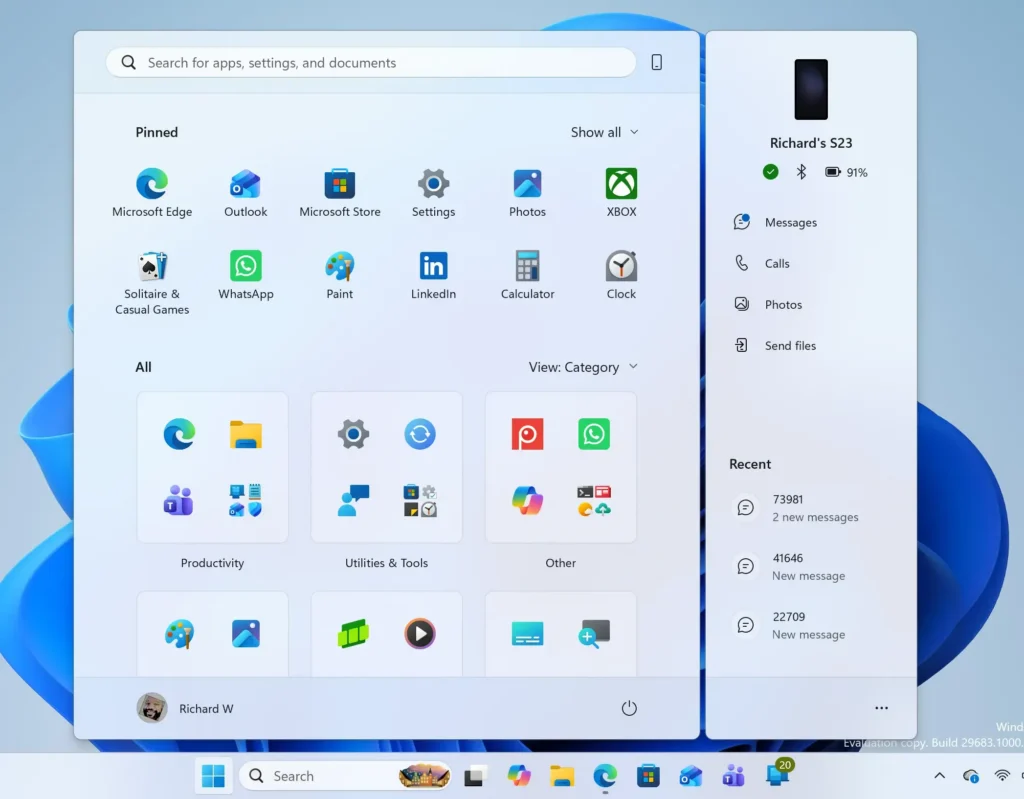
Windows 11 Start menu search panel for opening OpenSSH Client settings - Select Security. Microsoft places the Baseline protection page under Security. If you cannot find a Security entry, go to the section “If the Baseline protection page is missing” below.
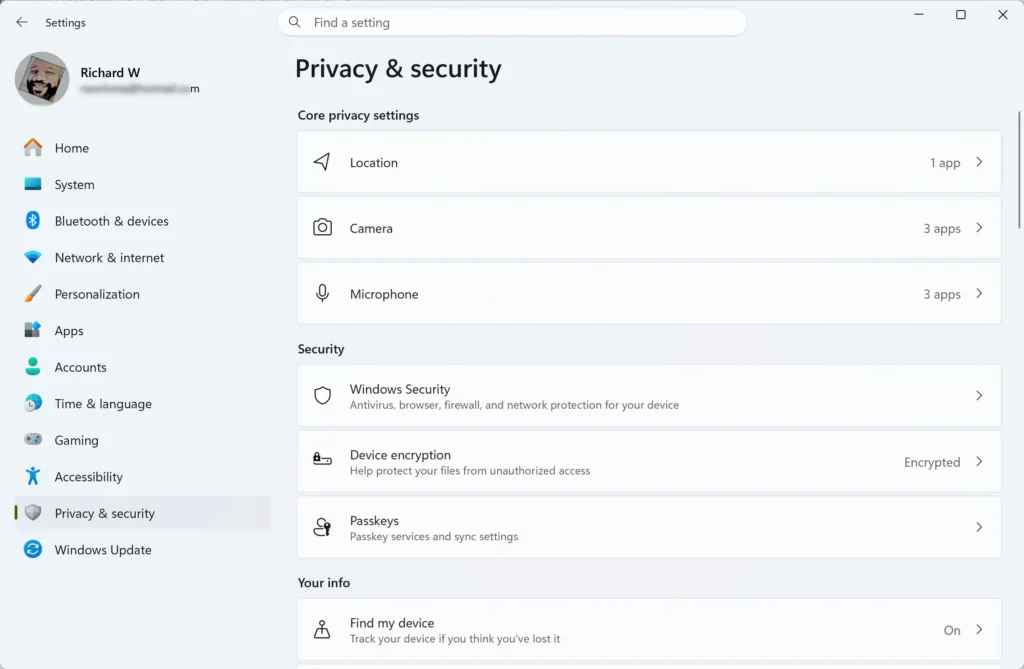
- Open Baseline protection. Select the Baseline protection entry. The page loads and shows the current state of your PC.
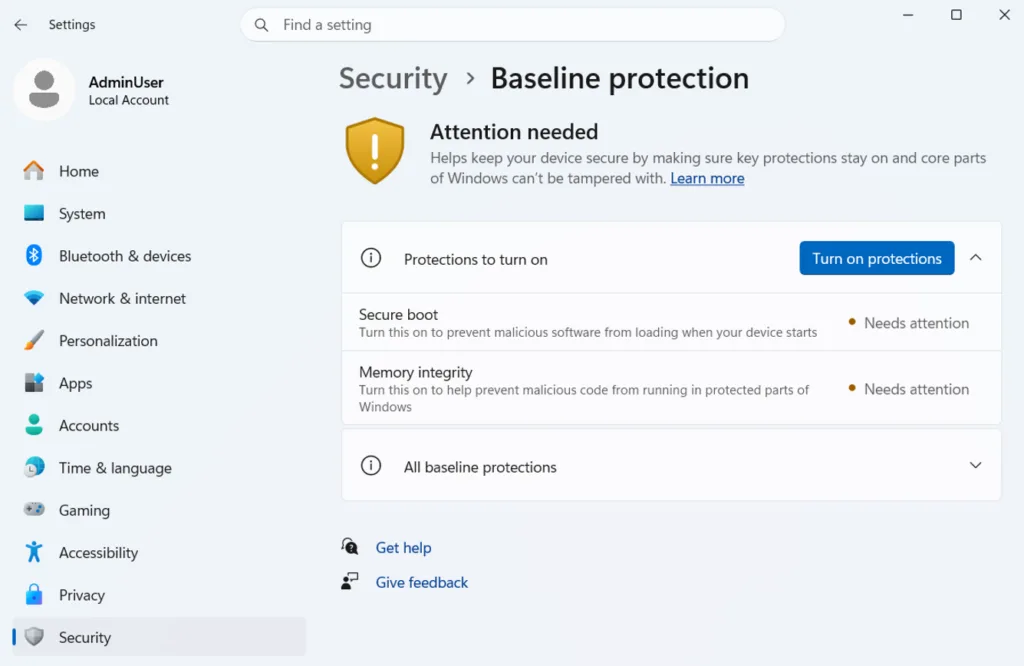
- Read the result at the top. The page states whether the PC meets the required security level. This is the answer to your question.
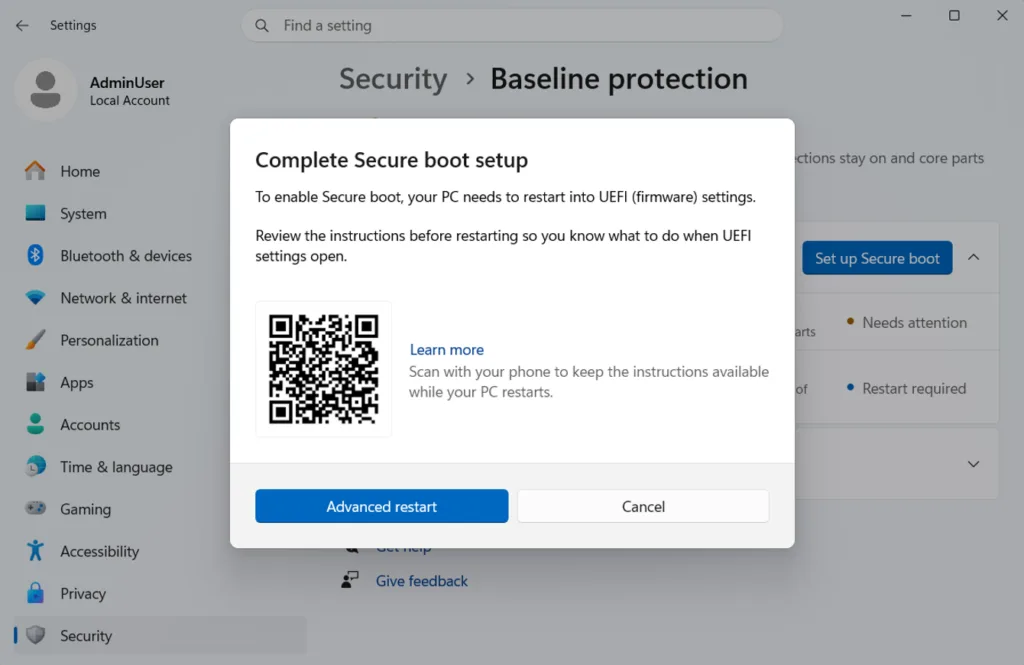
- Review any missing protections. If the PC does not meet the required security level, the page lists exactly which protections are missing. Write down each name as it appears.
- Select Give feedback if you want to report a problem. The page includes a Give feedback link. Because this is a preview, Microsoft uses it to collect reports, such as a wrong result or a confusing message.
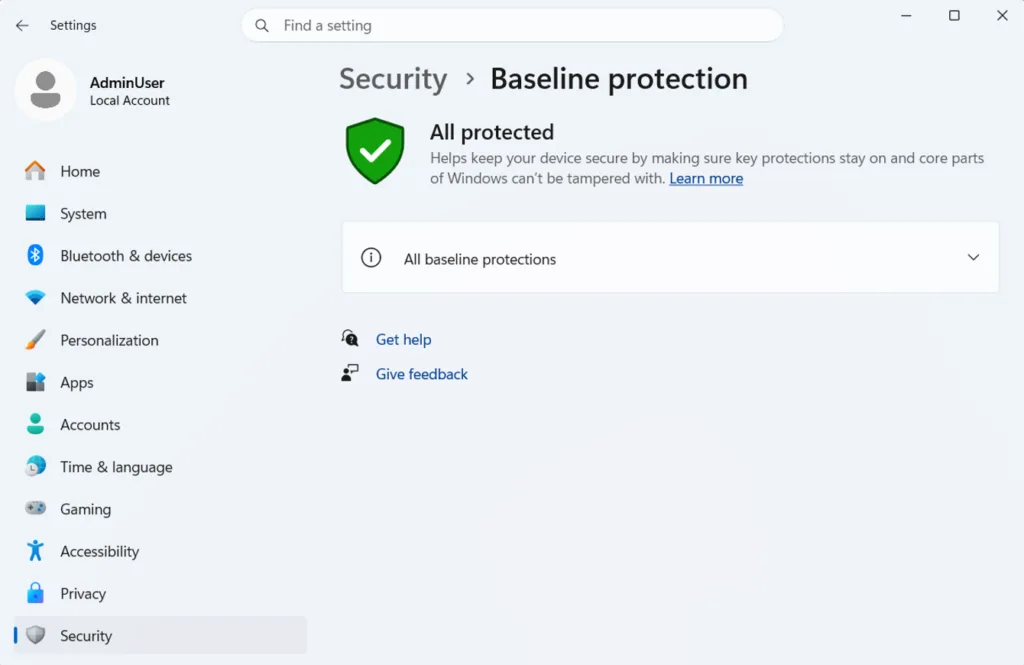
If every protection is in place, you have nothing further to do. If some are missing, the next sections explain how to check each of the three protections yourself and what usually blocks them.
If the Baseline protection page is missing
A missing page almost always means the PC does not yet have the preview feature. Work through these checks in order. Stop when the Baseline protection page appears.
Confirm your build
Press the Win+R, type winver, and press Enter. The About Windows dialog shows your Windows version and build number. Microsoft has announced baseline protection as a preview feature, so a standard build without Insider updates will not show it. This guide does not state a specific build number, because none is confirmed in the available material.
Check your Insider settings
Microsoft has not yet said which channel gets baseline protection first, so check its current Windows Insider announcements before you change channels. Read this before you change channels. Moving back to a stable release may require a clean install, which erases your files and apps. Test on a spare PC, or on a virtual machine (a program that runs a second computer inside your own), rather than on your main computer.
Look again after updates
Preview features often reach PCs gradually, even on the same build. Install any pending updates, restart, and open Settings again. If the page is still missing, use the manual checks in the next section.
Check Secure Boot, VBS, and memory integrity yourself
These manual checks work on current Windows 11 builds and show the state of each protection that baseline protection brings together. They do not tell you which baseline version your PC meets. Only the Baseline protection page does that.
Check Secure Boot and virtualization-based security in System Information
System Information is a built-in tool that lists hardware and system details. It reports Secure Boot and VBS in one place.
- Open System Information. Press the Win+R, type
msinfo32, and press Enter. - Select System Summary. It is the first item in the left pane.
- Find Secure Boot State. Scroll the right pane until you see this row. The value reads On, Off, or Unsupported.
- Find Virtualization-based security. Scroll to the bottom of the right pane. The value reads Running when VBS is active, or Not enabled when it is not.
Secure Boot only works when the PC starts in UEFI mode, the newer startup mode that replaces the older BIOS system. Changing firmware settings is risky, so write down the current value before you change anything. A wrong option can stop the PC from starting. The menu names differ by manufacturer, so follow your PC or motherboard maker’s instructions.
Check memory integrity in Windows Security
Memory integrity has its own page in the Windows Security app.
- Open Windows Security. Select Start, type Windows Security, and press Enter.
- Select Device security. This is in the left pane.
- Select Core isolation details. It appears under the Core isolation heading. If you do not see it, your device may not support the feature or the setting may be managed by your organization.
- Check the Memory integrity toggle. It reads On or Off.
Turning Memory integrity on needs administrator approval, so a User Account Control prompt appears. Windows also asks you to restart before the change takes effect. To undo it, return to the same page, switch the toggle to Off, and restart.
Why memory integrity may not turn on
If the toggle will not stay on, Windows usually reports that incompatible drivers are blocking it. A driver is software that lets Windows talk to hardware. An older or unsigned driver can fail memory integrity’s checks. Windows lists the blocking drivers by name, so check for an updated version from the hardware maker, and uninstall the device if you no longer use it.
Do not turn off memory integrity to clear the warning on a PC you want to protect. That removes one of the three protections that baseline protection looks for, and the Baseline protection page will list it as missing.
Related security checks
Baseline protection looks at the three items above. Other protections sit alongside it, and you can check them in Windows Security:
- For the broader view of your PC’s security settings, read How to Check Your Device Security Status with Baseline Protection in Windows 11.
- To review the overall state of the Windows Security app, see How to Check Windows Security Protection Status in Settings.
- To harden how Windows guards sign-in credentials, see How to Enable LSA Protection in Windows 11.
- To stop malicious changes to Microsoft Defender itself, see How to Enable Tamper Protection in Windows 11.
These protections are separate from baseline protection. Microsoft’s description of baseline protection names only Secure Boot, virtualization-based security, and memory integrity.
What to do next
If the Baseline protection page lists missing protections, fix them one at a time, then reopen the page to confirm the result. Because the page is still in preview, expect names and locations to change. Use the Give feedback link if the result does not match what you see in System Information or Windows Security. For a wider review once the baseline is in place, continue with checking your device security status.
Have a question about this guide?
Answered by AI from this guide. Good questions may be added to this page — please don't include personal details.
Did this guide fix your problem?

About the Author
Richard
Tech Writer, IT Professional
Richard is a writer at Geek Rewind who turns complex IT tasks into clear, step-by-step guides. He draws on years of hands-on experience in system administration and enterprise IT operations, focusing on Windows, Linux and WordPress: the problems people actually run into, and the fixes that work. His server and WordPress guides come from systems he runs himself. Richard builds and maintains the platform behind Geek Rewind, from its Ubuntu servers and Nginx configuration to its custom WordPress plugins. Many new tutorials start with readers' questions, and he's always glad to answer them in the comments.
No comments yet — be the first to share your thoughts!