How to Find Security and Privacy Protections in Windows 11 Settings

- 18 steps
- Needs administrator rights
Microsoft plans to bring security and privacy protections together in Windows Settings, so they are easier to understand, according to its Ignite 2026 security announcement from November 17, 2026. Microsoft calls the core of this change baseline protection. It is not in Windows yet, so there is nothing to open today.
This post covers what Microsoft has said, what it has not said, and which screens in Windows 11 already show the same protections. It also explains how to prepare, so the new page makes sense when it arrives.
Microsoft has not yet released the updated Windows Settings page that will combine security and privacy protections, so there is no new menu to open today. Until it arrives, open Settings with Win+I, select Privacy & security in the left pane, and check Windows Security for Secure boot, virtualization-based security and memory integrity.
What Microsoft has announced for Windows Settings
Microsoft says baseline protection will appear in an updated Windows Settings security and privacy experience. The stated goal is to make security and privacy protections easier for people to understand. Today those controls sit in several places: the Settings app, the Windows Security app, and individual app permission pages.
Baseline protection is the part with the most detail. Microsoft describes it as bringing three protections together into a single, versioned security state:
- Secure boot is a startup check that lets only trusted software load before Windows starts.
- Virtualization-based security uses hardware virtualization to isolate sensitive parts of Windows from the rest of the system.
- Memory integrity blocks unsafe drivers from running inside that protected area.
Microsoft says the state has a version. The announcement does not say what that version tracks, so this post does not guess. People can see whether their device is in a measurable security state, instead of checking each protection separately. Microsoft’s own wording is that baseline protection “will show up” in the updated Settings, so treat it as a planned feature.
Microsoft’s full announcement is in its Windows security at Ignite 2026 post. Check it for updates, because details can change while a feature rolls out.
What is not known yet
Microsoft has not published a release date for the updated Settings experience in the material available for this post. It has not named the exact page, menu label, or build where baseline protection will appear beyond “Windows Settings”. It has not said which Windows 11 editions or hardware will show it first.
Microsoft describes the baseline protection work as being in preview, and preview features often reach people through optional updates before a general release. That does not confirm when the new Settings page will reach your PC. Until Microsoft confirms the location, any exact click path for the new page would be a guess, so this post does not give one.
Who this affects
The change targets people who use Windows 11 Settings to check whether their device is protected. That covers home users who want a plain answer, and IT staff who need to confirm that a device meets a security standard.
Devices that already have Secure boot, virtualization-based security, and memory integrity turned on are in the best position. Devices that lack one of the three may show a weaker state once the page arrives. That is a reasonable expectation based on how Microsoft describes the feature, not a confirmed behavior.
If you manage work PCs, expect questions from users once the page appears. A single security state is easier to read than three separate toggles, and people will ask why theirs looks different from a colleague’s.
Find your security and privacy protections in Settings today
You can check the three protections behind baseline protection now, and review privacy controls in the same session. These steps find your security and privacy protections in the current Windows 11 Settings and Windows Security app, so you know your starting point before the update arrives.
- Open Settings. Press the Win+I. The Settings app opens on the System page.
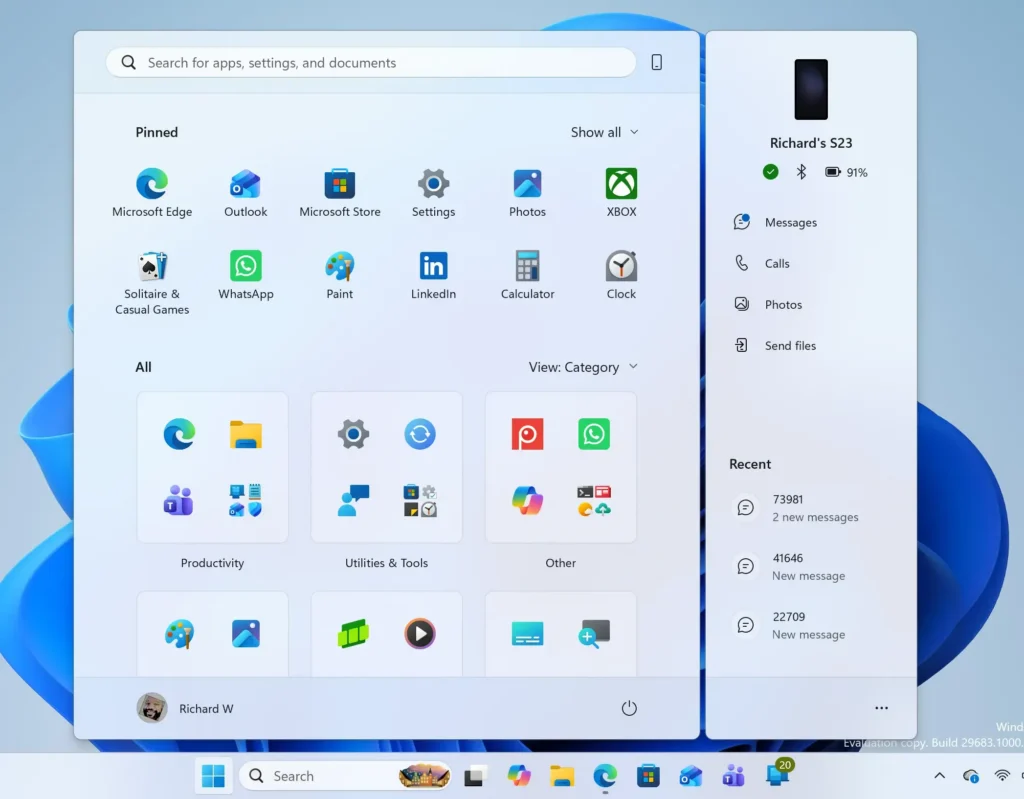
Windows 11 Start menu search panel for opening OpenSSH Client settings - Select Privacy & security. It is in the left pane. Windows 11 version 25H2 is a feature update. On that version with the optional preview update KB5127936 (Microsoft’s update ID, dated October 27, 2026) or later, this page groups related Camera, Microphone, and Location controls together. It also shows usage information from the linked pages on the main page. On earlier builds, the layout may differ.
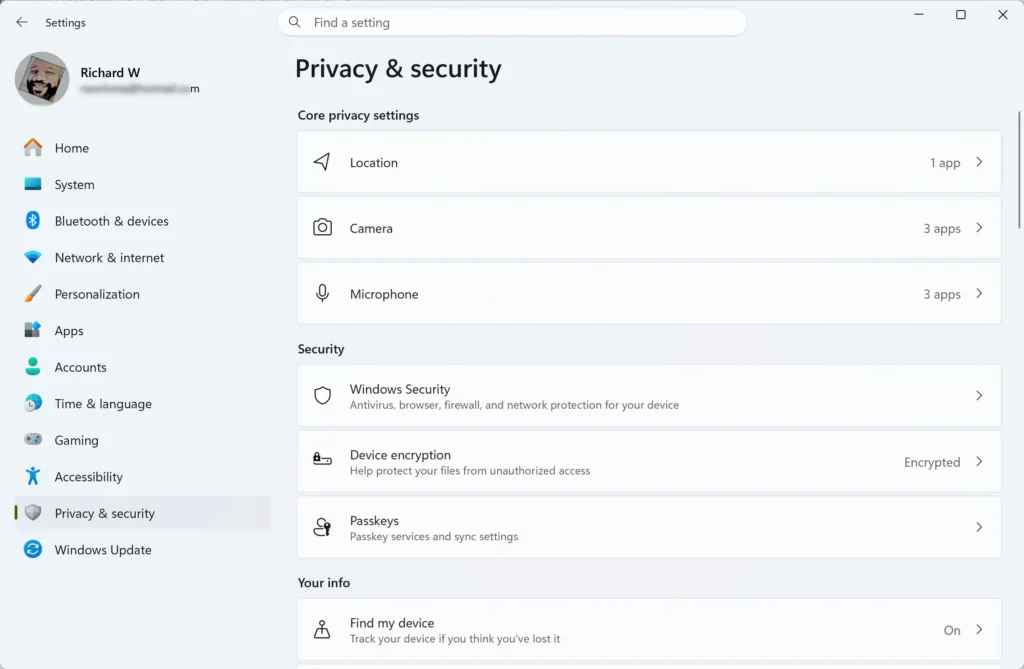
- Review the Camera, Microphone, and Location controls. Note which ones are on. If you want to adjust any of them, the guide to configuring Location settings in Windows 11 covers that page in detail.
- Select Windows Security. The Windows Security entry sits in the Security section of the Privacy & security page. The Windows Security page opens with a list of protection areas.
- Select Open Windows Security. The Windows Security app opens in its own window.
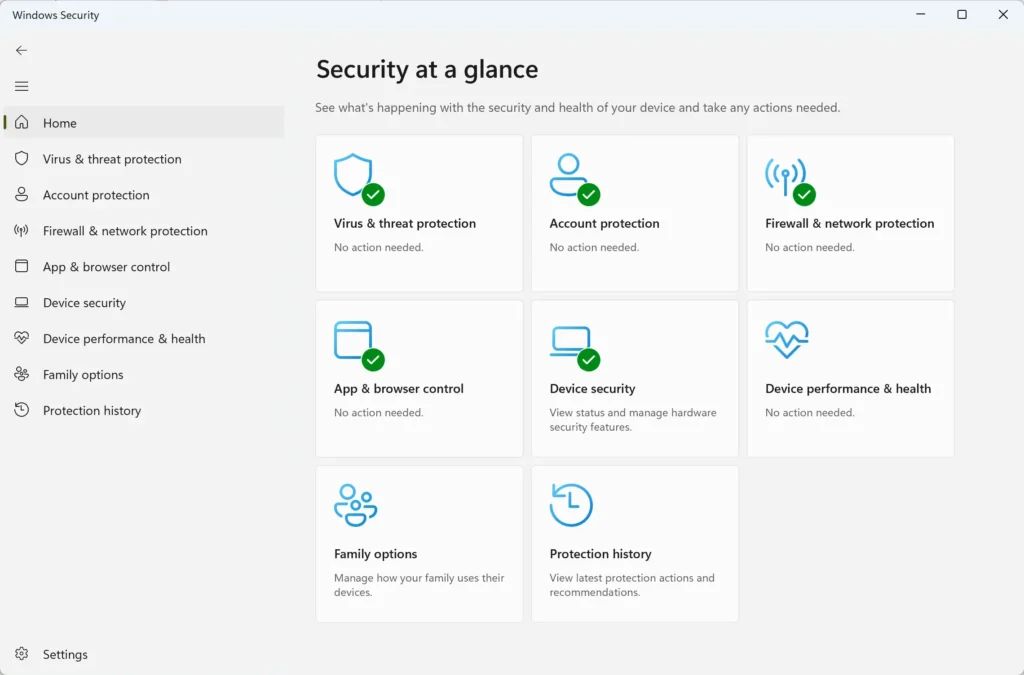
Windows Security - Select Device security. This page shows hardware-based protections. A green check mark means that area has no action pending.
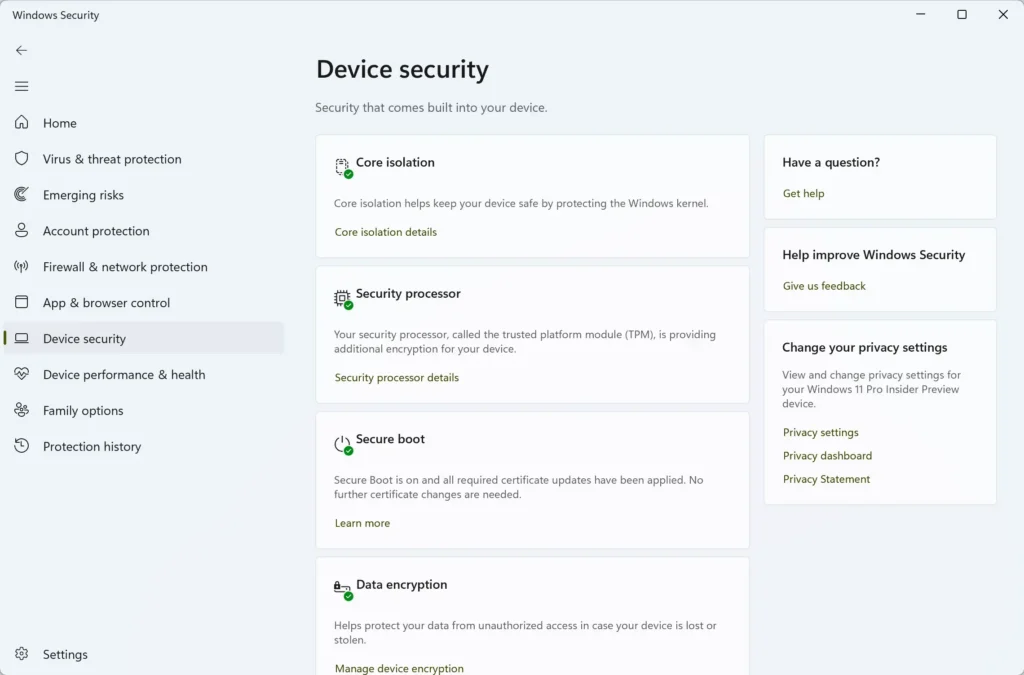
Windows Security - Check the Secure boot status. If your device supports it, the page reports whether Secure boot is on. If this section is missing, the device may not support it, or it may be turned off in the firmware settings.
- Select Core isolation details. This link sits under the Core isolation heading, the Windows Security section that holds Memory integrity. A page with the Memory integrity toggle opens.
- Check the Memory integrity toggle. Note whether it reads On or Off. Leave it as it is for now.
- Press the Win+R. The Run box, a small window for typing commands, opens.
- Type
msinfo32and press Enter. The System Information window opens on System Summary. - Find Secure Boot State in the right pane. The value reads On, Off, or Unsupported.
- Find Virtualization-based security in the same list. The value shows whether it is running. Write down all three results to compare against the new page later.
The Windows Security steps and the System Information window let you cross-check each other. The Windows Security app is the friendlier view. System Information gives the raw status, which helps when the app and your expectations disagree.
For a wider look at what the Windows Security app reports, see the guide to checking Windows Security protection status in Settings.
Turning on Memory integrity
To undo the change, switch the toggle off and restart again. Because Memory integrity is one of the three protections Microsoft names for baseline protection, turning it off may lower the security state the new page reports. Microsoft has not yet shown how the new page treats that case.
If an option is missing or greyed out
The protections behind baseline protection depend on hardware and firmware as well as on Windows. A missing or greyed-out setting usually has one of a few causes.
- The toggle is greyed out on a work or school PC. An organization can manage these settings, and you cannot override them from your account. Ask your IT team.
- Secure boot shows as off or unsupported. Secure boot is controlled in the device firmware (UEFI, the low-level software that starts your PC), not in Windows. The firmware setup screen differs by manufacturer, so check your device’s documentation before changing it.
- Memory integrity will not turn on. A driver Windows cannot verify as safe usually causes this. Update the driver from the device maker, then try again.
- Virtualization-based security shows as not running. Hardware virtualization may be disabled in firmware, or the device may not support it. System Information reports the state but does not explain the cause.
The single state is only as good as its three parts. If one is blocked, the whole result changes. Microsoft has not said how the updated Settings page will explain a missing protection.
How to prepare for the updated Settings experience
You cannot install the new page yet, but you can get a device ready for it. Most of the preparation is the same work that improves security today, so start with the guides below.
- Record your current status. Use the steps above and keep a note of Secure boot, Memory integrity, and Virtualization-based security. This gives you a before-and-after comparison.
- Update drivers. Memory integrity is the protection most likely to be blocked by an old driver. Install updates from Windows Update or the device maker.
- Install Windows updates. The Privacy & security layout change arrived through an optional preview update first. New Settings features often follow that pattern, so stay current.
- Review privacy settings. The new page is meant to cover privacy as well as security. Clean up permissions now with the guide to changing privacy settings in Windows 11.
- Plan for managed devices. If you administer PCs, list which ones lack Secure boot, virtualization-based security, or Memory integrity. Those are the devices most likely to need attention first.
Before the update arrives, it also helps to have a solid set of basic security settings in place. The guide to essential security settings for a Windows 11 PC covers the main protections. The Windows 11 security and privacy hub collects the rest of the related guides in one place.
Where privacy controls fit
Microsoft’s announcement names security and privacy together, but its detailed description covers only the security side, through baseline protection. It has not described what the updated experience will do for privacy permissions such as app access to the camera, microphone, and location. Do not expect a particular privacy layout until Microsoft publishes one.
The current Privacy & security page already groups Camera, Microphone, and Location controls on Windows 11 25H2 with the October 2026 optional preview update. That grouping is a sign of the direction, not a promise about the new page. If you want a thorough pass through the existing controls, the guide to securing Windows 11 Privacy & security settings walks through them in order.
What to do next
When the updated Settings experience reaches your PC, look for baseline protection in Settings. Then compare what it reports with the three results you wrote down. Microsoft has not confirmed the exact location, so check its Ignite 2026 post for changes. If a protection shows as off or unsupported in the meantime, the guide to checking Windows Security protection status in Settings is the closest task to work through next.
Have a question about this guide?
Answered by AI from this guide. Good questions may be added to this page — please don't include personal details.
Did this guide fix your problem?

About the Author
Richard
Tech Writer, IT Professional
Richard is a writer at Geek Rewind who turns complex IT tasks into clear, step-by-step guides. He draws on years of hands-on experience in system administration and enterprise IT operations, focusing on Windows, Linux and WordPress: the problems people actually run into, and the fixes that work. His server and WordPress guides come from systems he runs himself. Richard builds and maintains the platform behind Geek Rewind, from its Ubuntu servers and Nginx configuration to its custom WordPress plugins. Many new tutorials start with readers' questions, and he's always glad to answer them in the comments.
No comments yet — be the first to share your thoughts!