How to Configure Location Settings in Settings › Privacy & Security › Location in Windows 11

- 11 steps
- Needs administrator rights
The Windows 11 location privacy settings are in Settings Privacy & security Location That one page controls whether your PC can work out where it is, which apps can see that information, and what happens when Windows can’t detect your location.
The fastest way to open it is to press Win+I to open Settings, click Privacy & security in the left column, then click Location. You should land on a page with a Location services toggle at the top.
Open Settings, click Privacy & security in the left column, then click Location. Toggle Location services on to enable location detection, then scroll down to allow or block individual apps. Set a default location by clicking Set default under Set default location if your PC lacks GPS.
What the Location Setting Actually Controls
This page has three separate layers, and it helps to know them before you start changing anything:
- A master switch for Location services that turns location detection on or off for the whole device.
- A per-app list that lets you allow or block individual apps (Maps, Weather, Camera and so on) even while location services stays on overall. Desktop apps that don’t come from the Microsoft Store have their own switch and list.
- A Location history log and a default location setting that apps fall back on when Windows can’t get a real fix.
Turning off the master switch overrides every app-level permission below it. If Weather still shows your old city after you’ve disabled location, this is usually why. The app is using cached data or your default location, not a live fix.
Turn Location Services On or Off for Your Device
Turning it off stops every app and every account on the PC from getting your location, including background system features like time zone auto-detection and Find My Device.
Requirement: turning the device-wide Location services switch off or on needs an administrator account on Windows 11. Standard users can’t change it. They can only change their own per-user app settings further down the page. If you’re on a standard account, sign in with an administrator account, or ask someone who has one, before you start.
- Open Settings and go to Privacy & security Location You’ll see a toggle labeled Location services at the top of the page.
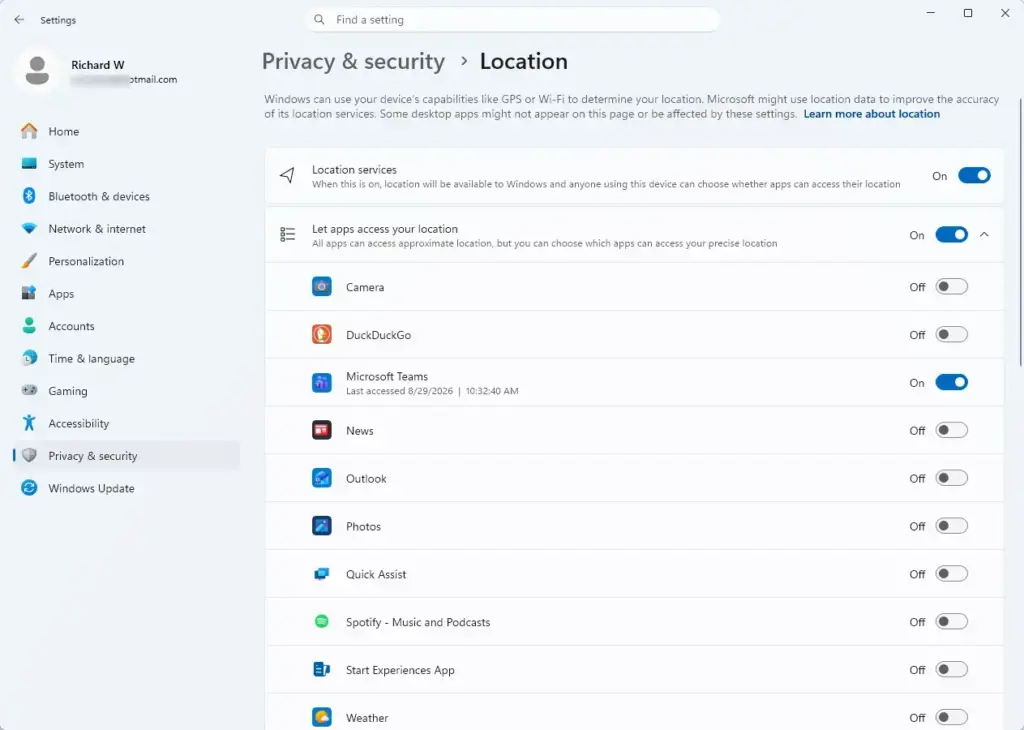
Settings › Privacy & security › Location - Click the Location services toggle to switch it On or Off. When it’s on, the page expands to show app permissions and location history options below it.
- Check the toggle’s new state. If you switched it off, the app permission options below it should no longer be usable until you switch it back on.
If the toggle is greyed out and you can’t click it at all, see the section on why settings are locked or missing below. It’s usually a managed-device or account-type issue, not a bug.
Choose Which Apps Can Access Your Location
Once location services is on, you can still block individual apps from using it. That’s useful if you want Maps to work but don’t want every game or utility checking where you are. These per-app switches are per user, so a standard account can change them for its own profile.
- Scroll down to Let apps access your location and confirm the toggle underneath it is On. This is the switch that governs the whole app list below.
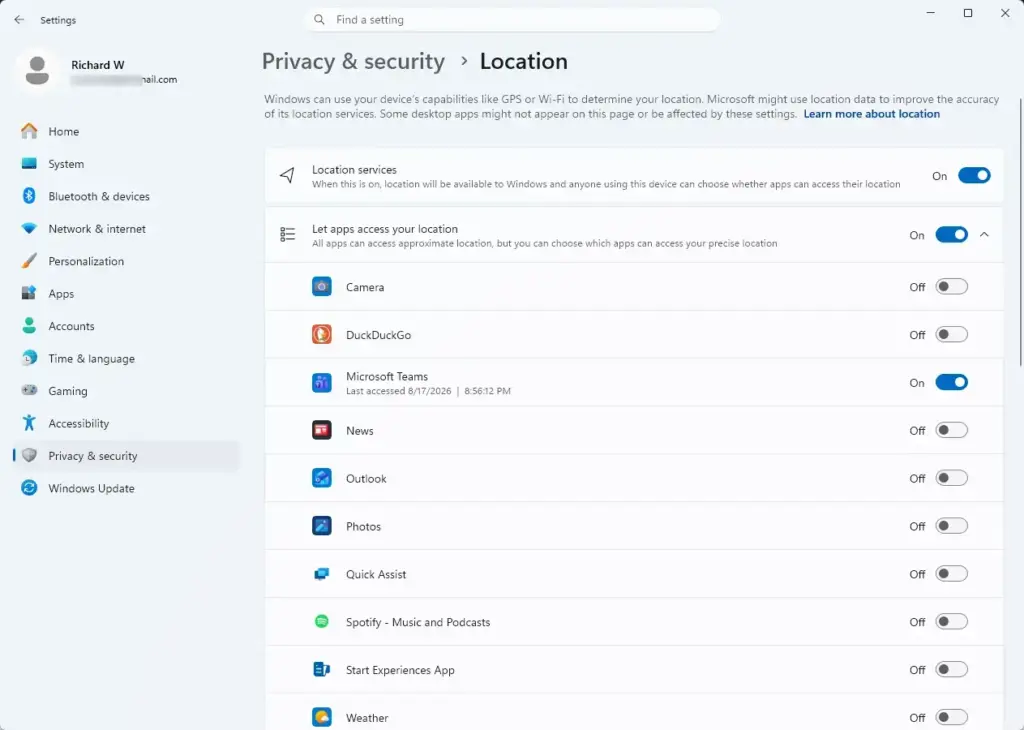
Settings › Privacy › Location - Scroll further to the list of installed apps under Choose which apps can access your location. Each app has its own on/off toggle.
- Click the toggle next to any app to allow or block it individually. Changes apply immediately, with no restart or sign-out needed.
Apps that don’t come from the Microsoft Store (classic desktop programs) are handled separately. Find the Let desktop apps access your location toggle on the same page. Turn it On or Off to allow or block that whole group. Below it you’ll see a list of the desktop apps that have asked for or used your location.
To see what has been using location lately, look at the Recent activity list on the same page. It shows which apps have recently accessed your location, so it’s a quick way to spot an app you didn’t expect and block it with its toggle.
You can also check live use without opening Settings. When an app is using your location, a location icon appears in the taskbar notification area (the system tray, at the right end of the taskbar). If you see it and don’t know why, open the Location page and check Recent activity.
Apps that use your location only occasionally, like a browser asking for it once when you load a map, will prompt you for permission the first time regardless of this list. If you deny that in-app prompt, the app’s toggle here switches to Off automatically.
Set a Default Location for Desktops Without GPS
Windows estimates location using nearby Wi-Fi networks and your IP address instead, which can be off by a city or more. Setting a default location fixes this for apps that need an exact address, like Weather.
- On the Location settings page, scroll to Set default location and click Set default.
- Wait for the Maps app to open in a location-picker mode. Search for an address or drag the pin to the spot you want.
- Confirm the pin placement. Maps saves it as your device’s default location, and apps use it whenever they can’t get a live GPS or Wi-Fi -based fix.
This default doesn’t override a live signal. If your laptop later connects to Wi-Fi that gives Windows a real location fix, apps will use that instead of the default you set.
Clear Your Location History
Windows keeps a rolling log of recent location data on your device. Apps can check this history without asking GPS every time, which saves power. This history stays local. It’s separate from the location history tied to your Microsoft account or synced online.
- On the Location settings page, find the Location history section.
- Click Clear to erase the stored history immediately. There’s no confirmation prompt, and the action can’t be undone. It doesn’t affect your current location settings or app permissions.
Why the Location Toggle Might Be Greyed Out
This confuses more people than anything else on the page, and it’s rarely explained anywhere else. Work through the causes below in order.
- Managed device policyIf your PC is joined to a work or school account, or enrolled in Intune (a device management system) or similar tools, an administrator can lock location services on or off. You’ll usually see text under the toggle saying your organization manages this setting. In that case, the fix has to come from IT. There’s nothing to change on your end.
- Standard vs. administrator accountThe device-wide Location services switch needs an administrator account on Windows 11. From a standard account you can only change your own per-user app settings. If you can’t change the main switch, sign in with an administrator account and repeat the steps. If it’s still locked on an administrator account, suspect a policy from your organization.
- Child or family accountsLocation settings on a Microsoft family member account can be restricted separately through Microsoft Family Safety, independent of what’s shown in this Settings page.
- Hardware without a location sensorOn desktops with no GPS or Wi-Fi adapter, the location services toggle still works, but Windows can only estimate location from your IP address, so accuracy will be poor. This isn’t a setting problem, it’s a hardware limitation.
How to Undo These Changes
Everything here is reversible with no hidden side effects:
- To restore location for a specific app, go back to Choose which apps can access your location and switch its toggle back to On. For desktop apps, switch Let desktop apps access your location back to On.
- To restore location for the whole device, switch Location services back to On at the top of the page. You'll need an administrator account to do this.
- To remove a default location you set, click Set default again and pick a new location, or turn location services off and back on, which clears the stored default on some builds.
None of these changes require a restart. They take effect the moment you toggle them.
If This Didn't Work
If an app still says it can't find your location after you've enabled everything on this page, check that app's own in-app location permission prompt, since some apps ask separately the first time they run. If you manage a work or school PC and the toggle stays locked, that setting is coming from your organization's policy, not from this Settings page, and needs to be changed by IT. Once location is working the way you want, you might also want to review which apps can access your camera and microphone under the same Privacy & security section, or check out our guide on enabling or disabling tracking prevention in Microsoft Edge for broader privacy control while browsing.
Frequently asked questions
How do I adjust my location privacy settings on my iPhone?
On iPhone, open Settings, tap Privacy, then Location. Toggle Location Services on or off at the top. Below that, you'll see a list of apps — tap each one to choose Allow, Allow Once, or Don't Allow. Apps with precise location enabled show a purple arrow icon.
What happens when you reset your location and privacy settings on an iPhone?
Resetting location and privacy settings on iPhone clears all your privacy choices and returns them to defaults. Apps will ask for permission again the next time they need access to location, photos, contacts, or other private data. Previously denied permissions become unanswered.
How do I reset location and privacy settings?
On Windows 11, open Settings, go to Privacy & security, then Location. Toggle the master switch off to disable location services entirely, or click individual apps to block them. You can also clear your location history on this same page.
How to set privacy settings?
In Windows 11 Settings, click Privacy & security in the left column. From there you can adjust location, camera, microphone, contacts, calendar, and app permissions. For each setting, toggle the master switch or control which apps have access below it.
Still have a question?
Answered by AI from this guide. Good questions may be added to this page — please don't include personal details.
Did this guide fix your problem?

About the Author
Richard
Tech Writer, IT Professional
Richard is a writer at Geek Rewind who turns complex IT tasks into clear, step-by-step guides. He draws on years of hands-on experience in system administration and enterprise IT operations, focusing on Windows, Linux and WordPress: the problems people actually run into, and the fixes that work. His server and WordPress guides come from systems he runs himself. Richard builds and maintains the platform behind Geek Rewind, from its Ubuntu servers and Nginx configuration to its custom WordPress plugins. Many new tutorials start with readers' questions, and he's always glad to answer them in the comments.
No comments yet — be the first to share your thoughts!