How to Configure Your Location in Windows 11 When Auto-Detection Fails or Shows Wrong City

Windows 11 shows your location wrong when Location services are turned off, your default location setting is incorrect, or an app doesn’t have permission to use your location. Any of these takes just a few minutes to fix.
Your computer figures out where you are in three ways: GPS (if you have it), your IP address, and Wi-Fi networks nearby. When one of these sources is disabled or set wrong, Windows sends the wrong city to apps and services that ask for it.
The fixes don’t need the Registry Editor or any technical know-how. It’s just a few clicks in Settings. Most people solve this in under five minutes.
Open Settings with Win+I, then go to Privacy & security Location and turn on Location services. If it is greyed out, an administrator has locked it through policy. Turning Location services on lets Windows detect your city again. Then set your default location under the same page to fix a wrong city when detection has nothing to go on.
What Causes Wrong Location Detection in 🪟 Windows 11
Windows doesn’t always use GPS. On a desktop PC or a laptop without a GPS chip, Windows estimates your location from your internet address (IP address) and nearby Wi-Fi networks. That estimate comes from a location services database, and it’s only as good as the network information it can see. A desktop on a wired connection has no Wi-Fi data to work with, so it leans almost entirely on the IP address. That is often the least precise source, and it can land you in the wrong city.
That’s why a wrong city usually points to one of these causes:
- A VPN or proxy routes your internet traffic through a server in another country, so Windows (and every app that asks for location) sees that country’s IP address instead of yours.
- Location services is turned off at the system level, so Windows falls back to a default location you or your PC manufacturer set at some point.
- An individual app has been denied location access, so it uses its own cached location instead of asking Windows for the real one.
- Location services or the per-app location permission is off, so apps cannot use your detected location and fall back to the default location.
- Classic desktop (Win32) apps and browsers are blocked from location access. Windows has a separate switch for these, covered in the app permissions section below.
Work through the checks below in order. They go from the most common fix to the more advanced ones.
Check and Turn On Location Services
This is the master switch. If it’s off, no app, including Maps, Weather, or Windows Search, can get an accurate location, no matter what else you configure.
If you’re signed in with a standard account, you can only change your own per-app location settings. If the system-wide switch is off, ask an administrator to turn it on, or sign in with an administrator account for this step.
Also, the Location page layout differs a little between Windows 11 builds. Some options may sit in a different order or have slightly different wording from what’s described here. The names below match current Windows 11.
- Press Win+I to open Settings . You’ll see the Settings home page with a list of categories on the left.

Windows 11 Start menu with Settings gear icon highlighted. - Select Privacy & security from the left-hand menu.
- Under the App permissions section, select Location. This opens the Location settings page, which controls both the system-wide switch and per-app access.
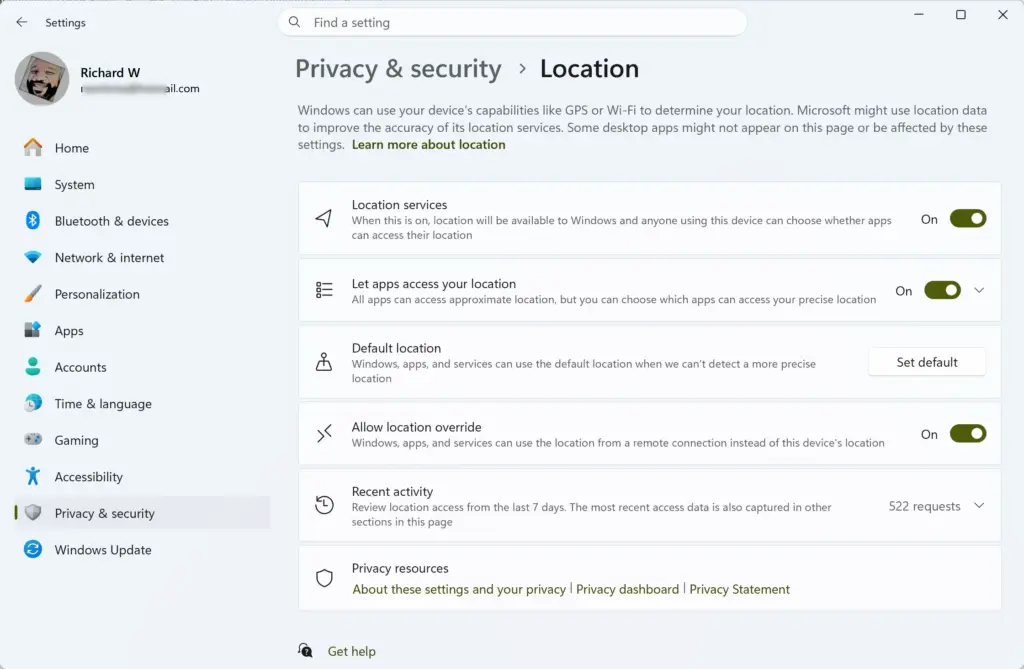
- Turn on the toggle next to Location services if it isn’t already on. It switches from grey to blue, and the options below it, like allowing apps to access location, become available instead of greyed out.
If Location services is greyed out entirely and won’t toggle, an administrator has locked it through policy. This is common on work or school-managed PCs. You’ll need an account with administrator privileges, or your IT department, to change it. If you’re on a standard account on a personal PC, you may simply be missing admin rights.
Set Your Default Location Manually
The default location is what Windows uses when it can’t determine your real one, for example on a desktop with no Wi-Fi adapter. Setting this correctly won’t override a location that’s already being detected wrong. It only helps when Windows has nothing else to go on.
- Stay on the Location settings page (Settings Privacy & security Location).
- Scroll down to Default location and select Set default. The Windows Maps app opens, where you can search for or set a default location.
- Search for your address, or drag the pin to your actual location, then confirm it.
- Close Maps once the pin is placed. Windows saves the new default location automatically.
Turn On “Let Apps Access Your Location”
This setting lets apps use your detected location. In current Windows 11 it appears as Let apps access your location, and Location services must be on first. If it’s off, apps requesting location will either get denied or fall back to the default location you set above. That is a frequent cause of “wrong city” complaints even after fixing everything else.
- On the Location settings page, find Let apps access your location and turn the toggle on.
- Check the list of apps below it and turn on access for the specific apps that need location. Weather, Maps, Search, and your browser are the common ones people notice a wrong city in.
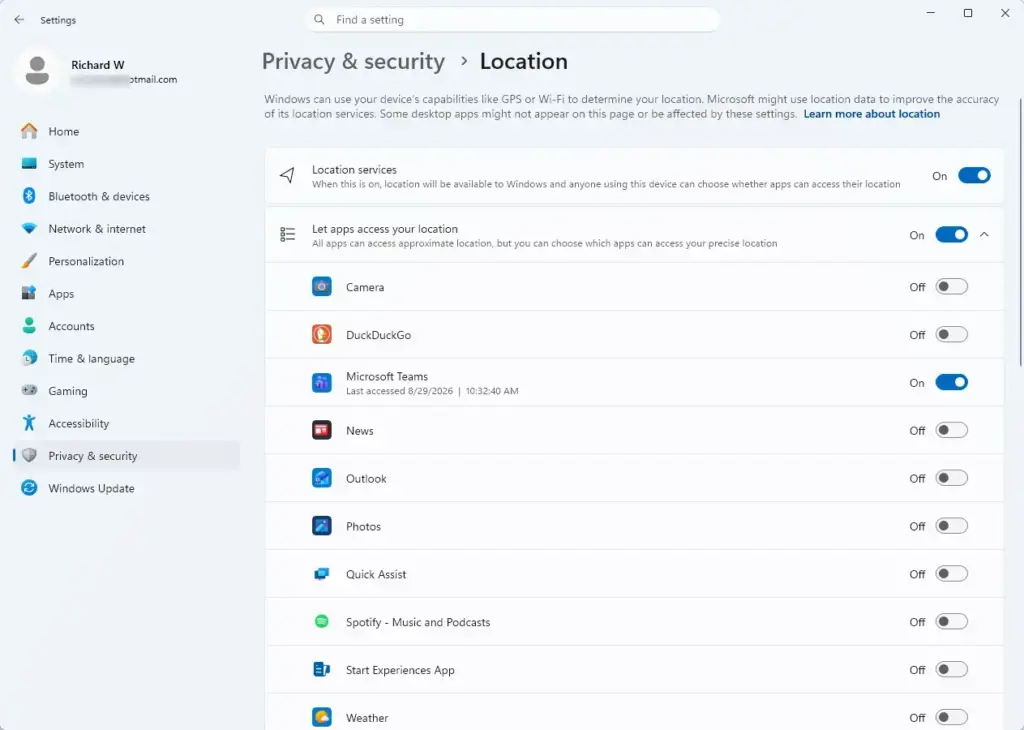
Settings › Privacy & security › Location - Scroll to the bottom of the app list and look for Let desktop apps access your location. Turn it on if it’s off.
That last toggle covers classic desktop (Win32) apps, which don’t appear individually in the per-app list. When it’s off, those apps can’t read your location from Windows. Desktop browsers and many older programs fall into this group, so it is a common reason for a wrong location in desktop apps and browsers. Where it sits on the page can vary by Windows 11 build, so if you don’t see it right at the bottom, scroll the whole page.
If an app you need still shows the wrong location after this, close and reopen the app. Most apps only check location permission when they launch, not continuously while running.
Fix Location Permissions for Individual Apps
Sometimes the system-wide setting is fine but one specific app, usually a browser or a weather app, is still wrong. That app may have its own separate location permission, or it may be caching an old location internally.
- Open Settings Privacy & security Location and scroll to the per-app list.
- Find the app showing the wrong location and confirm its toggle is on.
- Open the app itself and check its own location or region setting. Look in the app’s settings menu for a location or region option, and reset it there too.
Browsers need special attention because they keep site permissions separate from the Windows ones. In Microsoft Edge, go to Settings Cookies and site permissions > Location. There you can check whether location access is allowed or set to ask, and review the Block and Allow lists for individual sites. If a site you use is on the Block list, remove it, then reload the page.
Google Chrome has its own location permission too. You’ll find it in Chrome’s settings under Privacy and security > Site settings Location. Chrome may also work out your position from nearby Wi-Fi networks on its own, separately from what Windows reports. So Chrome can show a different city from Weather or Maps even when the Windows settings are correct. If that happens, check the site permission in Chrome first, and don’t assume Windows is at fault.
Rule Out a VPN or Proxy Skewing Your Location
If every app and website thinks you’re in a different country (not just a wrong city nearby), a VPN or corporate proxy is almost certainly the cause, not a Windows setting. Windows reports the IP address it sees, and if that IP belongs to a VPN server in another country, that’s the location every app will report too.
- Disconnect any VPN app, or turn off the built-in VPN profile if you have one configured under Settings Network & internet VPN
- Check your location again in an app like Weather, or by searching something location-based. If it’s now correct, the VPN was the cause. Reconnect it when you need it, and accept that location will be wrong again while it’s connected.
If you’re on a work laptop connected to a corporate network or proxy, the same thing can happen even without a VPN app installed. The fix there is usually outside your control and needs your IT team.
Clear Your Location History
Windows keeps a short history of recent locations that some apps use to smooth out GPS jitter. If this history got stuck on an old or incorrect location, for example right after you moved or came back from travelling, clearing it forces apps to get a fresh reading.
- Open Settings Privacy & security Location
- Scroll to Location history and select Clear. The button greys out briefly, and then the history is empty.
Clearing the history only removes the stored entries. It doesn't turn Location services off, and apps will build up new history as they use your location again.
Restart or Sign Out After Changing Location Settings
Most location toggles in Settings take effect immediately, but a few apps, particularly ones that were already open when you changed permissions, only re-check location on launch. If a wrong location still shows up after you've corrected everything above, sign out and back in, or restart the PC, before troubleshooting further. This clears out any app that's holding onto a cached location from before your changes.
Advanced Fix: Location Override Setting Stuck at the Registry Level
Editing the registry can cause other problems if you change the wrong key. Only do this if the Settings toggle genuinely isn't holding. The Registry Editor works the same way on Windows 11 Home and Pro.
- Press Windows key + R, type
regedit, and press Enter. - Approve the User Account Control prompt. This requires administrator privileges. The Registry Editor opens with a folder tree on the left.
- Navigate to
HKEY_CURRENT_USER\Software\Microsoft\Windows\CurrentVersion\CPSS\Store\UserLocationOverridePrivacySetting. This key holds the override privacy state that the Settings toggle writes to. - Back up the key before changing anything. Right-click the key and select Export to save a .reg file. You can double-click that file later to restore the key if something goes wrong.
The specific value name and data under this key aren't confirmed here, so don't change anything inside it without support from Microsoft or documentation that names the exact value. In most cases, toggling the setting off and back on in Settings, then restarting, clears the stuck state without touching this key directly.
There's also a related key, HKEY_CURRENT_USER\Software\Microsoft\Windows\CurrentVersion\CapabilityAccessManager\ConsentStore\location, which stores whether the device has current consent for location access. If an app insists it doesn't have permission even though Settings shows it does, this is the key behind that consent state. Again, back it up with Export before making any change, and don't guess at value names.
How to Undo These Changes
Everything in this guide is reversible from the same Settings page you used to change it:
- Turn Location services back off if you'd rather no app track your location at all. This needs administrator rights, just like turning it on.
- Turn off Let apps access your location to force everything back to the default location instead of the detected one.
- Turn off Let desktop apps access your location if you no longer want classic desktop apps and browsers to read your location from Windows.
- Delete the default location pin by selecting Set default again and choosing a new one, or clearing it if your device supports that option.
- In Edge, go back to Settings Cookies and site permissions > Location and remove any site you allowed. In Chrome, do the same under Site settings Location
- If you exported a registry key before editing it, double-click the saved .reg file to restore the original value.
If This Didn't Work
If your location is still wrong after checking Location services, the default location, app permissions, and ruling out a VPN, the problem is most likely on Microsoft's end. The location services database it uses for your IP address or Wi-Fi network may simply have outdated or incorrect data for your area, which isn't something you can fix locally.
From here, review your Windows 11 privacy settings more broadly to make sure nothing else, like ad tracking or diagnostic data, is tied to the same location permissions. Keep Windows Update current as well, in case a future update refreshes the location database for your network.
Frequently asked questions
Why does my location show an incorrect location?
Windows determines your location from your IP address, Wi-Fi networks, or GPS. Wrong location usually means a VPN is routing your traffic elsewhere, your default location setting is incorrect, Location services are off, or the location database hasn't updated for your area yet.
My location is wrong on 🪟 Windows 11. How can I fix it?
Open Settings, go to Privacy & security, then Location. Turn on Location services if it's off. Check your default location and update it if needed. Make sure apps have permission to use location. If you're using a VPN, disable it temporarily to let Windows detect your real location.
How to spoof geolocation windows?
You can change your default location manually in Settings under Privacy & security Location You can also use a VPN to appear to be in a different country. However, spoofing location to bypass security checks or access restricted services violates terms of service for most apps and websites.
How do I fix location accuracy?
Enable Location services in Settings under Privacy & security Location. Turn on the permission toggle for individual apps that need location. Disable any VPN or proxy. Update your default location if it's set to the wrong city. Allow a few minutes for the location database to refresh with accurate Wi-Fi and network data.
Still have a question?
Answered by AI from this guide. Good questions may be added to this page — please don't include personal details.
Did this guide fix your problem?

About the Author
Richard
Tech Writer, IT Professional
Richard is a writer at Geek Rewind who turns complex IT tasks into clear, step-by-step guides. He draws on years of hands-on experience in system administration and enterprise IT operations, focusing on Windows, Linux and WordPress: the problems people actually run into, and the fixes that work. His server and WordPress guides come from systems he runs himself. Richard builds and maintains the platform behind Geek Rewind, from its Ubuntu servers and Nginx configuration to its custom WordPress plugins. Many new tutorials start with readers' questions, and he's always glad to answer them in the comments.
No comments yet — be the first to share your thoughts!